YouTube already has a free transcript generator, and for most videos it's all you need. On a computer, click ...more under the video to expand the description, then Show transcript. The transcript opens next to the player with a search field at the top, and you copy it by selecting the lines with your mouse. There's no keyboard shortcut for it and no download button for other people's videos. When we opened the transcripts of five public videos on 16 October 2026, we found three different versions of the panel, and copying worked differently in them. Here is how each behaves and how to fix what copying breaks.
The free transcript generator built into YouTube
The "generator" doesn't create anything. It shows the video's captions as a list of lines with timestamps. YouTube's help page says every video that has captions has a full transcript, whether the channel uploaded the captions or YouTube made them automatically. A video without captions has no transcript.
To open it:
- Open the video in a browser on your computer. You don't need to sign in; we did all our checks signed out.
- Below the video, click ...more to expand the description.
- Near the end of the description, find the Transcript section with the line "Follow along using the transcript." and click Show transcript.
- The transcript opens in a panel next to the player. Click any line to jump to that moment. While the video plays, the transcript scrolls along with it.
In our test the text was in the panel within one or two seconds. According to YouTube, the transcript can also show chapters and other information, such as people and places mentioned in the video and affiliate products.
What the panel can't do: give you a file, or let you edit anything. If the video is yours, YouTube Studio gives you the real caption file. That route, SRT files and subtitle downloader sites are covered in how to download YouTube subtitles. This guide is about the transcript as text you read, search and copy.
Is there a keyboard shortcut for the transcript?
No. YouTube's help page lists 25 keyboard shortcuts, and none of them opens the transcript. The two clicks above are the quickest way.
Shortcuts that help while you work with a transcript:
- Shift+? shows YouTube's list of shortcuts. You can also find it under your profile picture, Keyboard shortcuts.
- C turns captions on or off in the player. It doesn't open the transcript.
- K pauses and plays the video; J and L jump back and forward 10 seconds.
- Ctrl+Right arrow and Ctrl+Left arrow (Option instead of Ctrl on a Mac) go to the next or previous chapter.
YouTube notes that in its "new computer experience" you have to click the video player before shortcuts work.
Three transcript panels we found on one evening
On 16 October 2026 we opened the transcript of five public YouTube videos in a desktop browser, signed out, in the English and German interface, and checked the panel, the search field, the language menu and what copying puts on the clipboard. The panel didn't look the same on all of them:
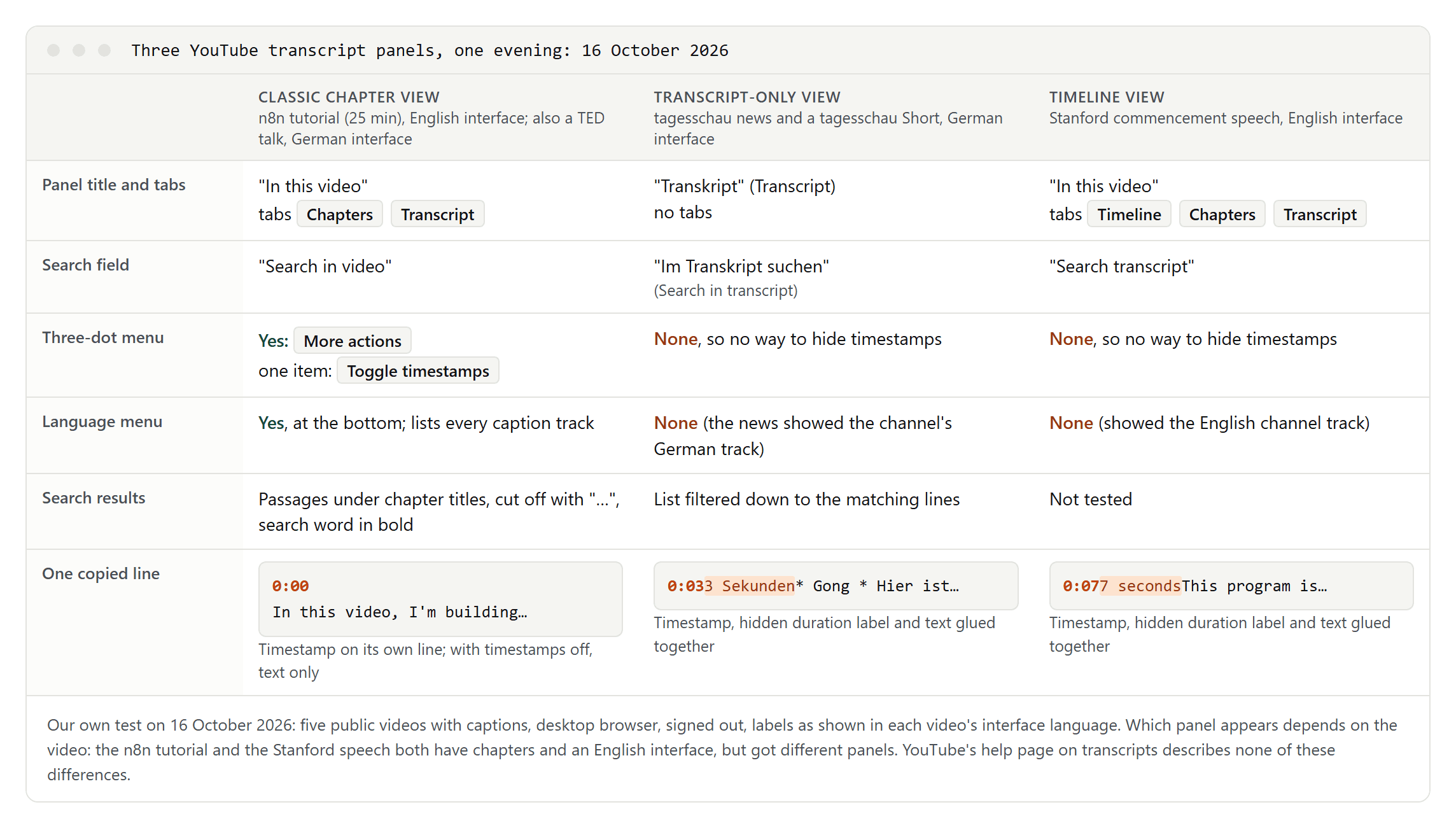
- Classic chapter view. On an n8n tutorial from September 2026 (English interface) and on a TED talk (German interface), the panel was titled "In this video", with the tabs Chapters and Transcript, a search field labeled "Search in video", a three-dot More actions menu whose only item was Toggle timestamps, and a language menu at the bottom.
- Transcript-only view. On the German tagesschau evening news of 12 October 2026 and a tagesschau Short, both in the German interface, the panel was titled just "Transkript" (transcript), with a search field "Im Transkript suchen" (search in transcript). There was no three-dot menu, no timestamp toggle and no language menu.
- Timeline view. On Stanford's upload of Steve Jobs' 2005 commencement address (English interface), the panel was titled "In this video" with three tabs, Timeline, Chapters and Transcript, and a search field labeled "Search transcript". Again there was no three-dot menu and no language menu.
The view depends on the video, not on the interface language: the n8n tutorial and the Stanford speech both have chapters and were opened in the English interface, yet got different panels. YouTube's help page on transcripts doesn't describe any of these differences. We can't tell whether they are a gradual rollout or a test, so your panel may look like any of the three, or like something newer.
Search inside a transcript
Every panel we saw had its own search field at the top, so you don't need your browser's Ctrl+F, which some guides recommend. The field behaves differently in each view:
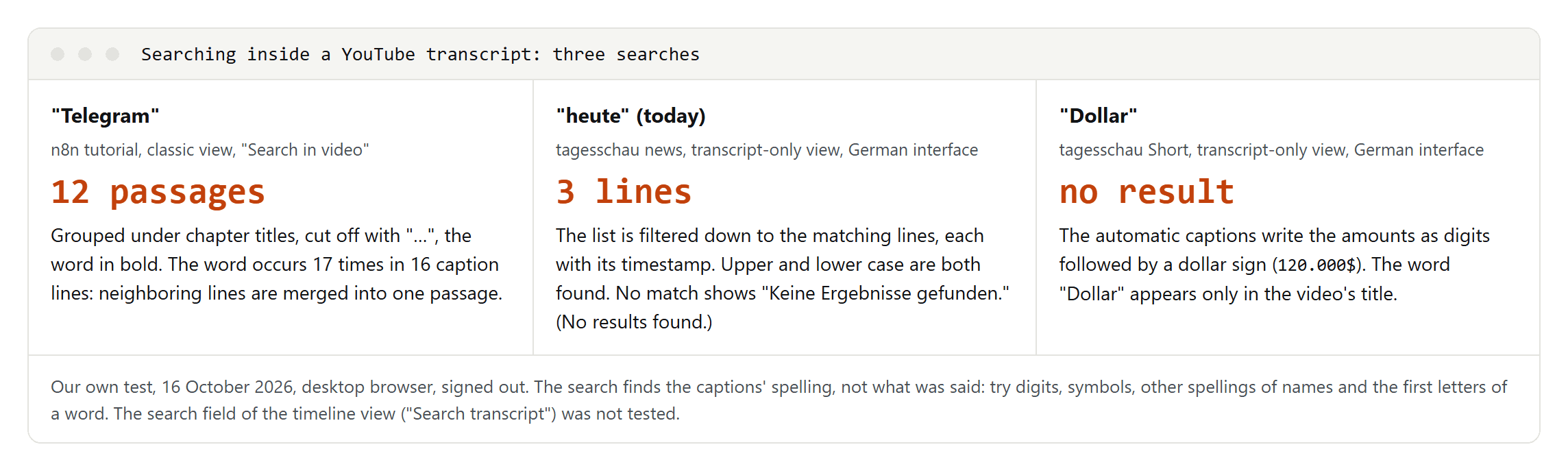
- Classic view ("Search in video"): results appear as passages grouped under the chapter titles, cut off with "…", with the search word in bold. In the n8n tutorial, "Telegram" occurs 17 times in 16 caption lines, and the search showed 12 passages, because neighboring lines are merged into one passage.
- Transcript-only view: the list is filtered down to the matching lines, each with its timestamp. Searching the news broadcast for "heute" (today) left 3 lines, one of them with the word capitalized, so the search ignores upper and lower case. A word that doesn't occur gives "Keine Ergebnisse gefunden." (no results found).
- Timeline view ("Search transcript"): we saw the field but didn't test how it shows results.
Whatever the view, the search finds only what the captions wrote, not what was said. In a one-minute tagesschau Short whose title mentions dollars, searching for "Dollar" found nothing: the automatic captions wrote the amounts as digits followed by a dollar sign. So:
- Search for the captions' spelling. Try digits instead of number words, symbols such as the dollar sign, and more than one spelling of a name.
- Search for part of a word, such as the first letters of a name. YouTube itself warns that mispronunciations, accents, dialects and background noise cause errors in automatic captions.
- If the search finds nothing, read the lines around the moment you remember. The search can't find a word the captions got wrong.
Copy the whole transcript (and why Ctrl+A doesn't work)
To copy a transcript, select it with the mouse: click just before the first line, hold the button and select down to the last line, then press Ctrl+C (Cmd+C on a Mac).
In our test, one selection in the n8n tutorial's classic panel copied all 395 caption lines of the 25-minute video without scrolling through the panel first, although some guides say long transcripts load in pieces. We haven't tested videos of an hour or more, so compare the last line you copied with the end of the panel.
On the clipboard, the classic view puts each timestamp on its own line above its text. The 395 caption lines of the n8n tutorial became 800 lines, including the chapter titles. The lines end with Windows line breaks, which matters only for find and replace.
Don't use Ctrl+A. With the cursor in the transcript, Ctrl+A selected the whole page in all five videos, including the video title and the description. For the n8n tutorial that came to 36,390 characters instead of the panel's 29,848. Some guides tell you to "select all"; selecting with the mouse was the only clean way we found.
Paste into a plain-text editor first, such as Notepad, or TextEdit set to plain text, so you see exactly what you copied before it goes into a document. And if you'll quote the video, keep the timestamps: a quote with its time is easy to check later. Our guide to time-coded transcripts shows the common ways to write them.
Some guides also describe a "Copy" option in the transcript's menu. In the three panels we saw, the menu had exactly one item, Toggle timestamps, and two of the panels had no menu at all.
Copy the text without timestamps
In the classic view, switch the timestamps off before you copy:
- In the transcript panel, click the three dots (More actions).
- Click Toggle timestamps.
- Select the lines and copy them.
You get one caption line per line of text. The lines follow the captions, not the sentences, so sentences often break in the middle: in the n8n tutorial, the first line ends with "in Telegram with" and the next one begins with "n8n." To join the lines into paragraphs, use the last step in how to convert SRT to TXT, which replaces line breaks with spaces.
In the transcript-only and timeline views there is no toggle, and copying produces glued lines. Each line on the clipboard starts with the timestamp, then a duration label that is hidden on screen (it appears to be meant for screen readers), then the caption, without any spaces between them:
0:077 secondsThis program is brought to you by Stanford University.
That is "0:07", "7 seconds" and the caption text. Further into a video the label includes minutes: near the end of the Stanford speech a line begins 15:0115 minutes, 1 second. In the German interface the label reads "Sekunden" and "Minuten" instead.
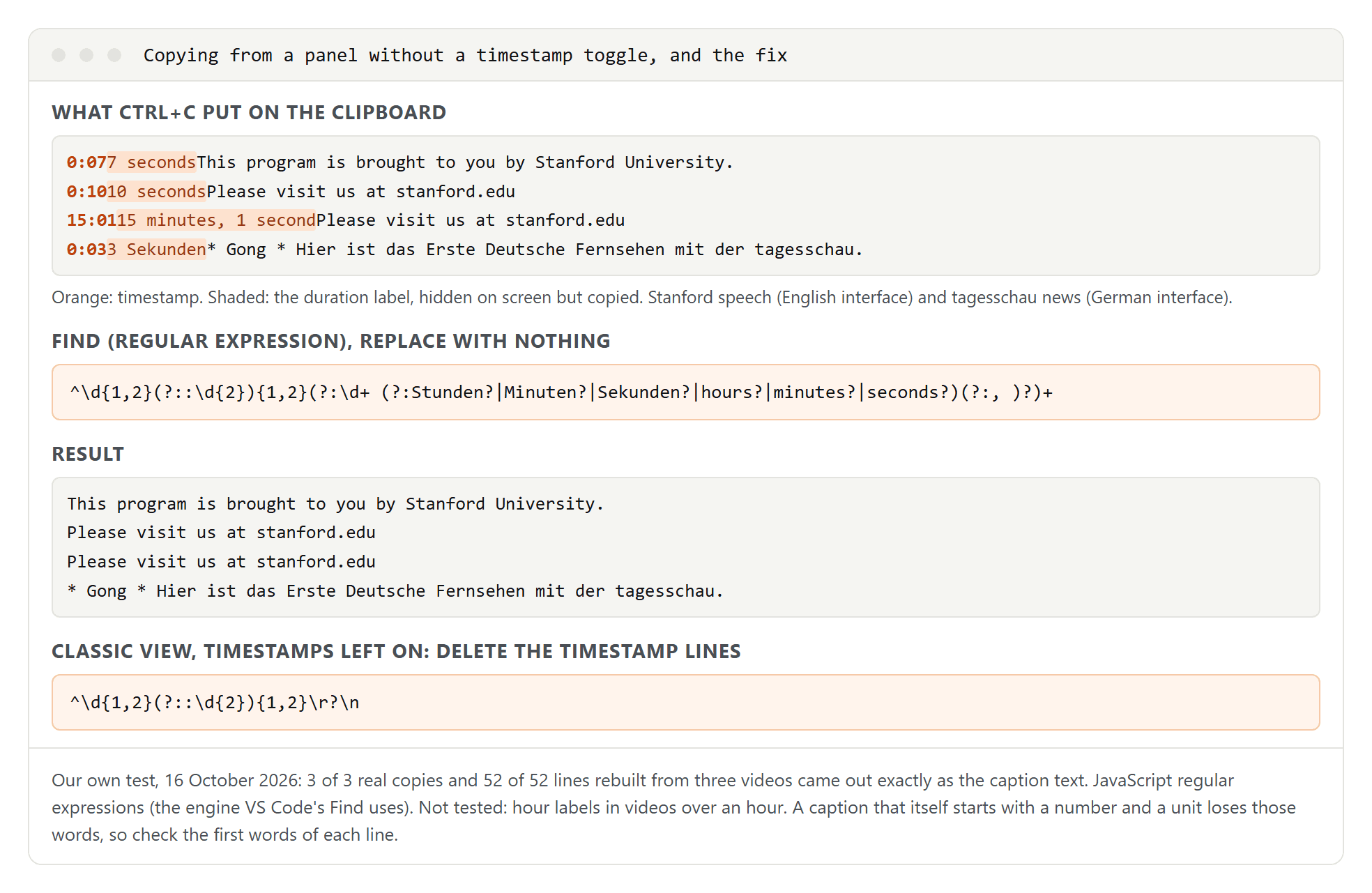
The fix is one find-and-replace. Paste the text into an editor that supports regular expressions, such as VS Code or Notepad++, switch the search to regular-expression mode, and replace this pattern with nothing:
^\d{1,2}(?::\d{2}){1,2}(?:\d+ (?:Stunden?|Minuten?|Sekunden?|hours?|minutes?|seconds?)(?:, )?)+
It removes the timestamp and the duration label at the start of every line and leaves the caption text alone. It covers the English and German labels; for another interface language, replace the words for hours, minutes and seconds with that language's words. We tested it on three real copies (the Stanford speech, the news broadcast and the Short) and on 52 lines rebuilt from those three videos, and every line came out exactly equal to the caption text.
Two limits to keep in mind:
- None of these videos was longer than an hour, so the hour label is untested. On a long video, check the lines after the one-hour mark.
- If a caption itself starts with a number and a unit, such as "5 minutes later", the pattern removes those words as well. Read the first words of the lines once.
If you forgot the toggle in the classic view, the timestamps sit on lines of their own. Replace ^\d{1,2}(?::\d{2}){1,2}\r?\n with nothing to delete those lines; we tested that on the n8n copy.
We used JavaScript's regular expressions, the engine VS Code's Find uses. Notepad++ should accept the same patterns, but we haven't run them there.
Which captions are you reading?
A transcript is one caption track shown as text, and many videos have more than one track. There are two kinds:
- The channel's own captions, uploaded or edited by the creator. In the language menu they appear with a language name only, such as "English - English" on the n8n tutorial.
- Automatic captions, made by YouTube's speech recognition and marked "(auto-generated)".
In the classic view, the menu at the bottom of the panel shows which one you are reading. The n8n tutorial had two tracks, "English (auto-generated)" and "English - English", and the panel opened on the channel's track. The other two views have no menu, but on our videos they also showed the channel's track: punctuated text for the Stanford speech, and the broadcaster's live captions for the news, with a sound label for the opening gong. Such labels belong to captions for deaf and hard-of-hearing viewers; see subtitles vs closed captions.
YouTube's help says automatic captions are generated by machine learning, that their quality varies, and that mispronunciations, accents, dialects and background noise cause errors. It tells creators to always review them. Our two automatic samples looked very different:
- A 2019 TED talk, automatic English track: 452 short lines of about six words each, without a single full stop, comma or capital letter.
- A German news Short from October 2026, automatic German track: full stops, commas and capitalized nouns, but also five "[musik]" (music) tags in the middle of sentences, dollar signs after numbers and at least one grammar slip.
For comparison, the n8n channel's own track had 332 sentence-ending marks in its 395 lines. Two samples say nothing about automatic captions in general, but they show why you should check the track before you quote it.
YouTube also says English automatic captions support "expressive captions", which show intensity of speech in all caps and add labels for sighs, gasps and background noise. And "[ __ ]" marks a word YouTube hid: a YouTube Studio setting, on by default, replaces potentially inappropriate words in automatic captions with it.
A transcript in another language
The panel shows one caption track at a time. In the classic view you can switch: open the language menu at the bottom of the panel and pick another track, and the transcript reloads in that language. On the TED talk the menu listed 35 tracks, and after we switched, the transcript reloaded in the chosen language, starting with a line that credits the volunteer translators.
The other two views have no menu. The Stanford video has nine caption tracks, among them Arabic, Japanese and two Spanish ones, but its timeline panel showed only the English text and offered no way to change it. We couldn't confirm whether switching the captions in the player changes the transcript; if you try it, check the first lines of the transcript afterwards.
The transcript doesn't translate. Its language menu lists only tracks that exist; on the n8n tutorial it had two entries and no translation option. Machine translation lives in the player: turn on captions and choose Auto-translate in the settings, as described in how to translate a YouTube video. If you need translated text, translate a copy of the transcript and have a native speaker check anything you publish.
Transcripts on your phone
YouTube's mobile website doesn't offer the transcript. When we loaded a video with two automatic caption tracks on m.youtube.com on 16 October 2026, the page had no transcript section and no Show transcript button.
Other guides describe a Show transcript button in the YouTube app's video description, but they disagree about whether you can select and copy the text there, and we didn't test the app for this guide. Several also suggest switching your phone's browser to the desktop site; that's plausible, since the desktop page has the transcript, but we haven't confirmed it.
The reliable route is a computer: send yourself the link and open the transcript there.
Transcripts for YouTube Shorts
Shorts can have transcripts like any other video; what counts is whether there are captions. Our tagesschau Short had only an automatic German track, and when we opened it as a regular video page, it had the Show transcript button and loaded a 9-line transcript.
To do the same, change the address: youtube.com/shorts/ followed by the video ID becomes youtube.com/watch?v= followed by the same ID. The Short then opens on a normal watch page with the description and the transcript button. We didn't recheck whether the Shorts player itself offers the transcript.
Some guides say Shorts and music videos usually don't have transcripts. That's too broad: YouTube says every video with captions has a transcript, and our Short had one.
TikTok is a different story: it has no transcript view at all. See how to get a TikTok transcript for what works there.
When there's no Show transcript button
The usual reason is that the video has no captions: no track from the channel and no automatic one. A sixth video we checked, a six-hour recording of rain sounds, had no Transcript section in its description and no button, and the player's captions button said "Subtitles/closed captions unavailable".
YouTube lists these reasons why automatic captions may be missing:
- They aren't ready yet because the video's audio is complex and still processing. Automatic captions may not exist right after an upload.
- YouTube doesn't support the language spoken in the video.
- The video is too long.
- The sound quality is poor, or YouTube doesn't recognize the speech.
- There's a long silence at the beginning.
- Several speakers talk over each other, or several languages are spoken at the same time.
For live streams, YouTube's live automatic captions are available in English only. After the stream ends, new automatic captions are made from the recording, and they can differ from the live ones.
If you're looking for videos that have captions in the first place, YouTube marks them with "CC" under the video summary in search results. You can also run a search, click Filters and choose Subtitles/CC.
Some guides claim that creators can switch off the transcript while keeping the captions. YouTube documents no such setting; its help page says every video with captions has a transcript. If the player shows captions but you see no button, check that you're on the desktop site and that the description is expanded.
No captions at all: what you can still do
- Follow along with Chrome's Live Caption. In Chrome on a computer, open Settings, then Accessibility, and turn on Live Caption. Chrome then captions audio playing in the browser, including a video without captions. Google says the audio and captions are processed on your device, are never stored and never leave it. For languages other than English, Chrome downloads language packs. Because nothing is saved, Live Caption helps you follow a video but doesn't give you a transcript.
- Transcribe your own recordings. If the video is yours, transcribe the original audio or video file rather than the uploaded copy. Our guide to transcribing audio to text covers the ways to do it, and how to transcribe an interview adds format and checking for conversations.
- Ask the creator. For someone else's video, the creator may have a script or a caption file and may be willing to share it.
What "free YouTube transcript generator" sites actually do
These sites ask for a video link and give you text back, usually with copy and download buttons. By their own descriptions they work in one of two ways:
- They copy YouTube's caption track. vidIQ, for example, says its tool works with public videos that have captions and that the transcript comes straight from the video's caption track; it offers the text for copying or as a TXT or SRT file.
- They transcribe the audio with their own speech recognition, at least when a video has no captions. NoteGPT's pricing page lists YouTube videos "with subtitles" and "no subtitles" separately and caps only the second kind, which suggests it reads captions where they exist and runs its own transcription otherwise.
What that means for you:
- A caption copier can't be more accurate than the track it copies. If a video only has automatic captions, the site gives you the same recognition mistakes you'd see in YouTube's own panel.
- They depend on YouTube. A site that fetches captions from YouTube stops working when YouTube changes or blocks that access.
- "Free" comes with conditions. Some sites cap the number of free transcripts or sell AI summaries on top. At least one offers a public link to every transcript page and lists recently transcribed videos on its homepage. Read the privacy notice before you use one; one we read describes targeted advertising.
Our advice: start with YouTube's own panel. It's free, it shows the same caption text the copying sites use, and in the classic view it tells you which track you're reading. If you use a generator site anyway, compare a few of its lines with the panel before you rely on it.
Summarize a YouTube video with AI
For a summary instead of the full text, US readers have several options from Google. We didn't use them for this guide, because they need a signed-in account; what follows comes from Google's help pages as of 16 October 2026.
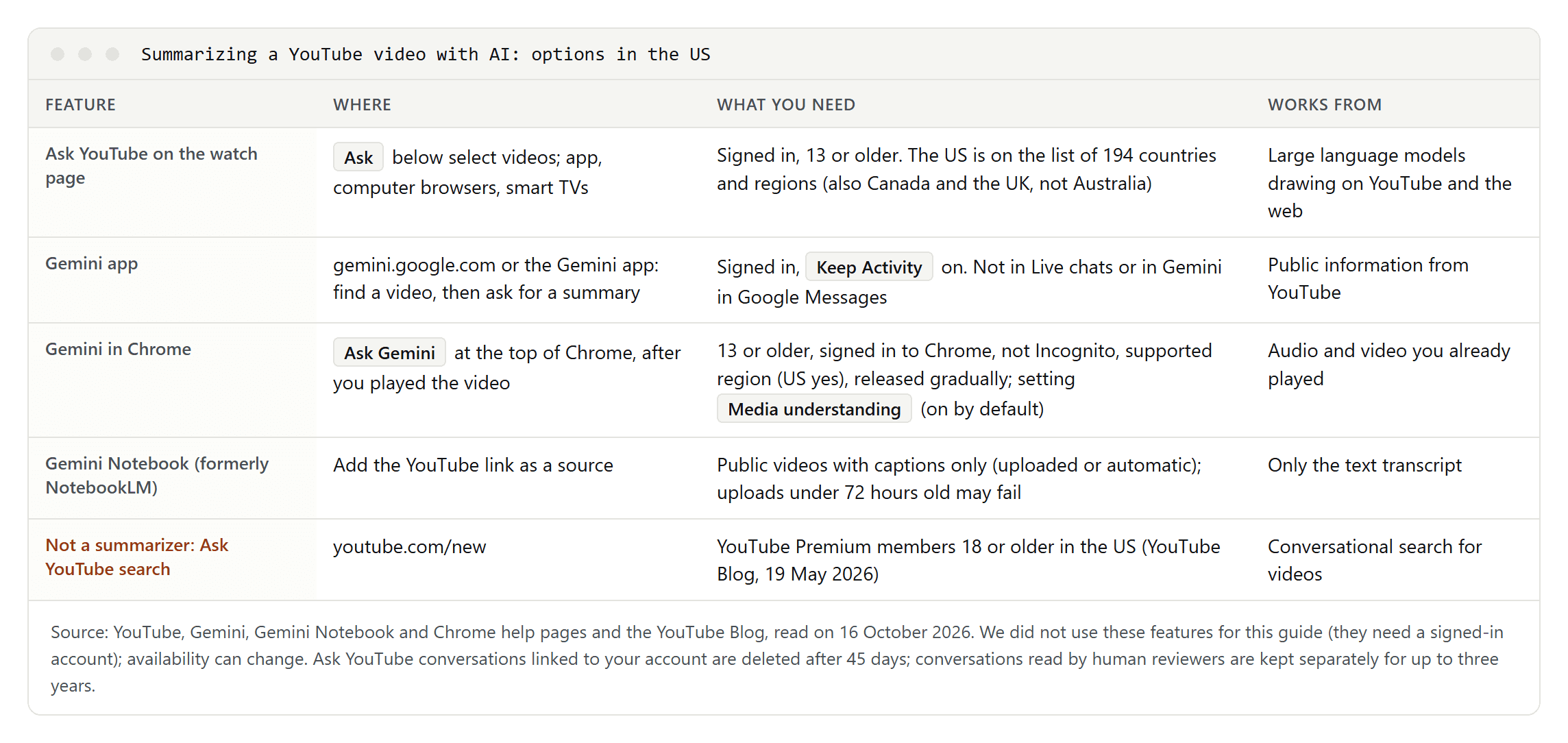
- Ask YouTube on the watch page. On select videos, an Ask button below the video lets you pick a suggested prompt or type a question about the video. You need to be signed in and 13 or older; it works in the app, in computer browsers and on smart TVs. The United States is on YouTube's list of 194 countries and regions, and so are Canada and the United Kingdom; Australia isn't. The answers come from large language models drawing on YouTube and the web.
- Gemini app. At gemini.google.com or in the app, you can ask Gemini to find a video and then summarize it. You need to be signed in with Keep Activity turned on. It doesn't work in Live chats or in Gemini in Google Messages.
- Gemini in Chrome. Click Ask Gemini at the top of Chrome to ask about audio and video you've already played, for example for a summary. You need to be 13 or older, signed in to Chrome (not in Incognito), in a supported region, which includes the US, and on Windows, a Mac or a Chromebook Plus. Google is releasing it gradually. The setting Media understanding, on by default, controls the part about audio and video.
- Gemini Notebook (formerly NotebookLM). Add a YouTube link as a source and ask questions about it. It accepts only public videos with captions, uploaded or automatic, and imports only the text transcript. Videos uploaded less than 72 hours earlier may not import.
Don't confuse the first option with Ask YouTube search, announced on the YouTube Blog on 19 May 2026: a conversational search for videos, for Premium members aged 18 and older in the US, through youtube.com/new. It finds videos; it doesn't summarize the one you're watching.
Two more points from YouTube's help page:
- Privacy. Ask YouTube conversations linked to your account are deleted after 45 days, but human reviewers may read conversations, and reviewed ones are kept separately for up to three years. YouTube asks you not to share confidential information.
- Shopping. Ask YouTube's answers can include products tagged in the video, and creators and YouTube may earn commissions on purchases.
Then check the summary against the transcript. Gemini Notebook works from the transcript text, so caption mistakes carry over into its answers. You can also paste a copied transcript into any AI assistant you use; then you know exactly which text it summarized.
Quoting and reusing a transcript
Reading a transcript is what the panel is for. Republishing it is a different matter:
- YouTube's terms (the US version, effective 15 December 2023) don't allow accessing, reproducing or downloading content except as the service expressly authorizes, or with prior written permission from YouTube and the rights holders.
- US fair use is decided case by case on four factors: the purpose and character of the use, the nature of the work, the amount used and how substantial it is, and the effect on the market for the original. The U.S. Copyright Office says there is no formula: no fixed number of words or lines is automatically safe to use without permission.
In practice:
- Quote short passages and name the source: channel, video title, link and the timestamp of the quote.
- Ask the creator before you publish a full transcript of someone else's video.
- For your own videos, work from the caption file in YouTube Studio rather than a copied transcript; the download guide linked at the top of this page shows how.
This is not legal advice.