YouTube only lets you download a subtitle file for videos you own or are allowed to edit: in YouTube Studio, open the video's subtitles and choose Download. For anyone else's video, YouTube shows the transcript next to the player, but there is no download button, and the transcript isn't an SRT file. Below are both routes, how to turn a transcript into a valid SRT file, and what the "YouTube subtitle downloader" sites do and what YouTube's terms say about them.
Which route fits you
- Your own video, or one you manage: download the caption file in YouTube Studio. This is the only route that gives you a real subtitle file from YouTube.
- A video you want to read or quote: open the transcript and copy what you need.
- A video you want to republish with subtitles: ask the owner for the file. Copying someone else's subtitles into your own video raises the same rights questions as copying the video.
Download subtitles from YouTube Studio (your own videos)
- Sign in to YouTube Studio.
- In the left menu, choose Subtitles. Newer YouTube help pages call this section Languages.
- Click the video.
- Next to the language you want, click Edit.
- Click the options icon and choose Download subtitles.
Your browser saves the caption track as a file. YouTube suggests editing it in a plain-text editor such as Notepad or TextEdit, and you can upload it again afterwards. If you work with a freelancer, you can give them the Subtitle editor role in Studio's permissions instead of your login.
Developers can do the same through the YouTube Data API. Its caption download method only works for a user who has permission to edit the video, and it returns the track as SRT, WebVTT, SBV, SCC or TTML. It can also return a machine translation of the track into another language.
Copy the transcript of any video
- Below the video, expand the description.
- Click Show transcript.
- The transcript opens next to the player. Click a line to jump to that moment.
YouTube says every video that has captions has a transcript. If a video has no captions, there is no transcript either.
Many videos have more than one caption track. When we checked our example video in October 2026, the n8n tutorial we used in our time-coded transcript guide, its captions menu listed two English tracks: one uploaded by n8n and one auto-generated by YouTube. Check which track you are reading before you quote it: automatic captions contain recognition mistakes that the channel's own track usually doesn't. How to search a transcript, copy it without timestamps and clean up what copying breaks is in our guide to getting a YouTube transcript.
Why a transcript isn't an SRT file
An SRT file needs a start and an end time for every line, a counter, and a blank line between blocks. A transcript only gives you start times, in minutes and seconds. You add the rest:
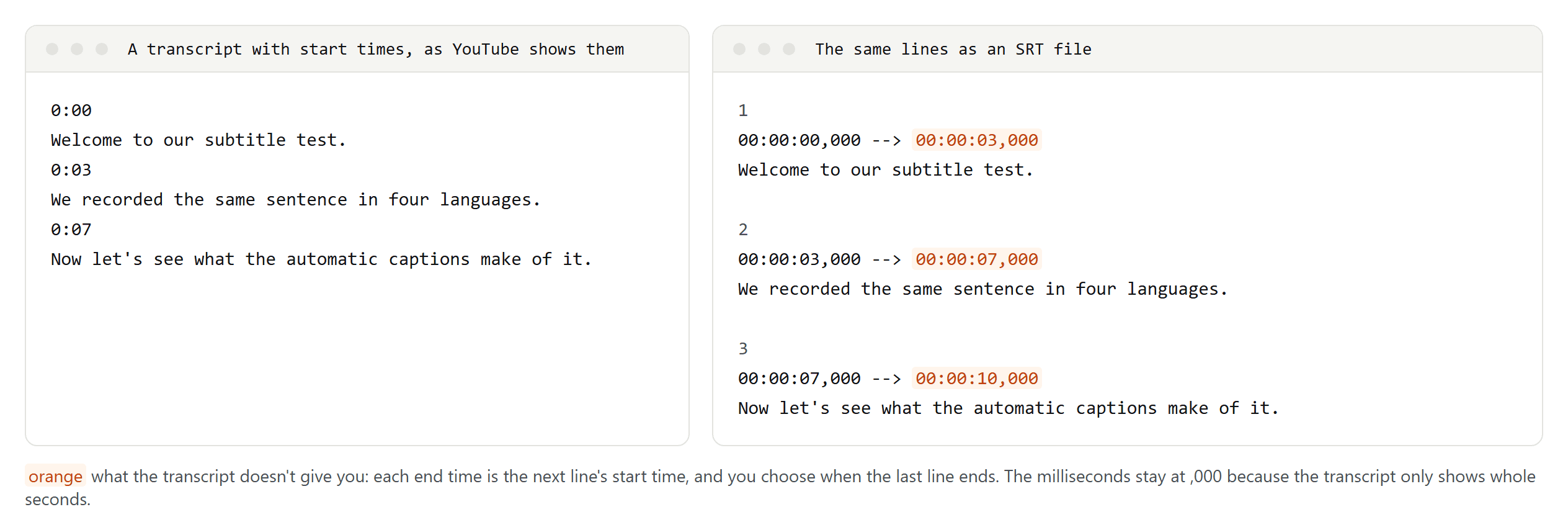
- Number the lines 1, 2, 3 and so on.
- Write each start time in full: 0:03 becomes 00:00:03,000, with a comma before the milliseconds.
- Use the next line's start time as each line's end time.
- Give the last line an end time yourself, for example when the speaker stops.
- Leave a blank line after each block.
- Save the file as plain text in UTF-8 with the .srt extension.
Because a transcript has whole seconds only, your timing will be rougher than the original captions. That is fine for reading along, not for broadcast. For the details of the format and the encoding mistakes that break German, French and Spanish characters, see what an SRT file is.
Two shortcuts worth knowing: if you only need the text in another language, YouTube's own Auto-translate shows translated captions in the player (see how to translate a YouTube video). And if you have a transcript of your own video, YouTube Studio's Auto-sync can time it for you; YouTube doesn't recommend that for videos over an hour or with poor audio. And if you have an SRT file but only need the words, convert it to plain text.
What YouTube's terms say
YouTube's terms of service don't allow anyone to download, reproduce or distribute content from the service unless YouTube itself offers a way to do it (such as Studio's download button for your own captions) or YouTube and the rights holders give written permission. The terms also forbid accessing the service with automated means such as robots or scrapers. The version for users in the European Economic Area and Switzerland adds an exception for what applicable law allows.
This is a summary, not legal advice.
What "YouTube subtitle downloader" sites do
Sites and browser extensions that turn a video link into an SRT file fetch the caption track the YouTube player uses, outside the ways YouTube offers, which is what the terms above restrict. They also break whenever YouTube changes how its player loads captions. Some newer tools transcribe the audio with AI when a video has no captions. TikTok transcript sites work the same way; TikTok's own options are in how to get a TikTok transcript.
Be careful with free converter sites in general: in March 2025 the FBI's Denver field office warned that some free online file converters hand users files with malware. We haven't tested any subtitle downloader, so we don't name or recommend one.
Common mistakes in a home-made SRT file
- A full stop instead of a comma before the milliseconds. That is the WebVTT format, not SRT.
- An arrow that a word processor turned into a dash. It must be two hyphens and a greater-than sign.
- Missing blank lines between blocks.
- Two lines with the same start time, which makes the first one disappear.
- A file not saved as UTF-8, which turns ä, é and ñ into garbage.
- Mistakes from automatic captions carried over into your file.