To translate a YouTube video while you watch, turn on captions, then open Settings, Subtitles/CC, Auto-translate and pick a language. YouTube machine-translates the video's captions into it. That only works when the video has captions; dubbed audio in your language exists only on some videos. Creators have more options: translated subtitles, translated titles and descriptions, their own dubbed audio, and YouTube's automatic dubbing. Below are the steps for each, checked in October 2026, with what we saw on a real video.
Translate the subtitles while you watch
- In the video player, click Settings (the gear icon).
- Choose Subtitles/CC.
- Choose Auto-translate.
- Pick the language you want.
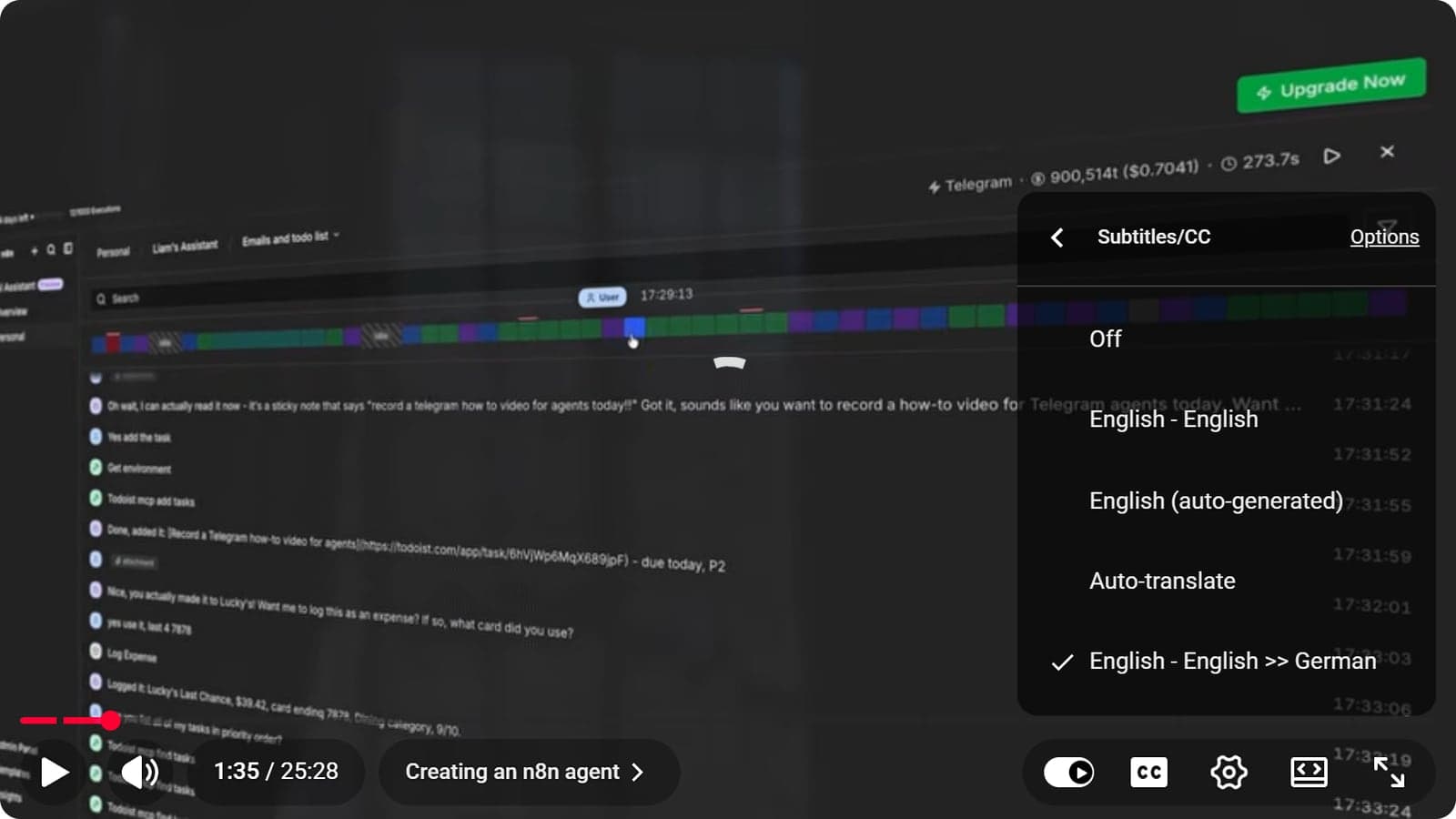
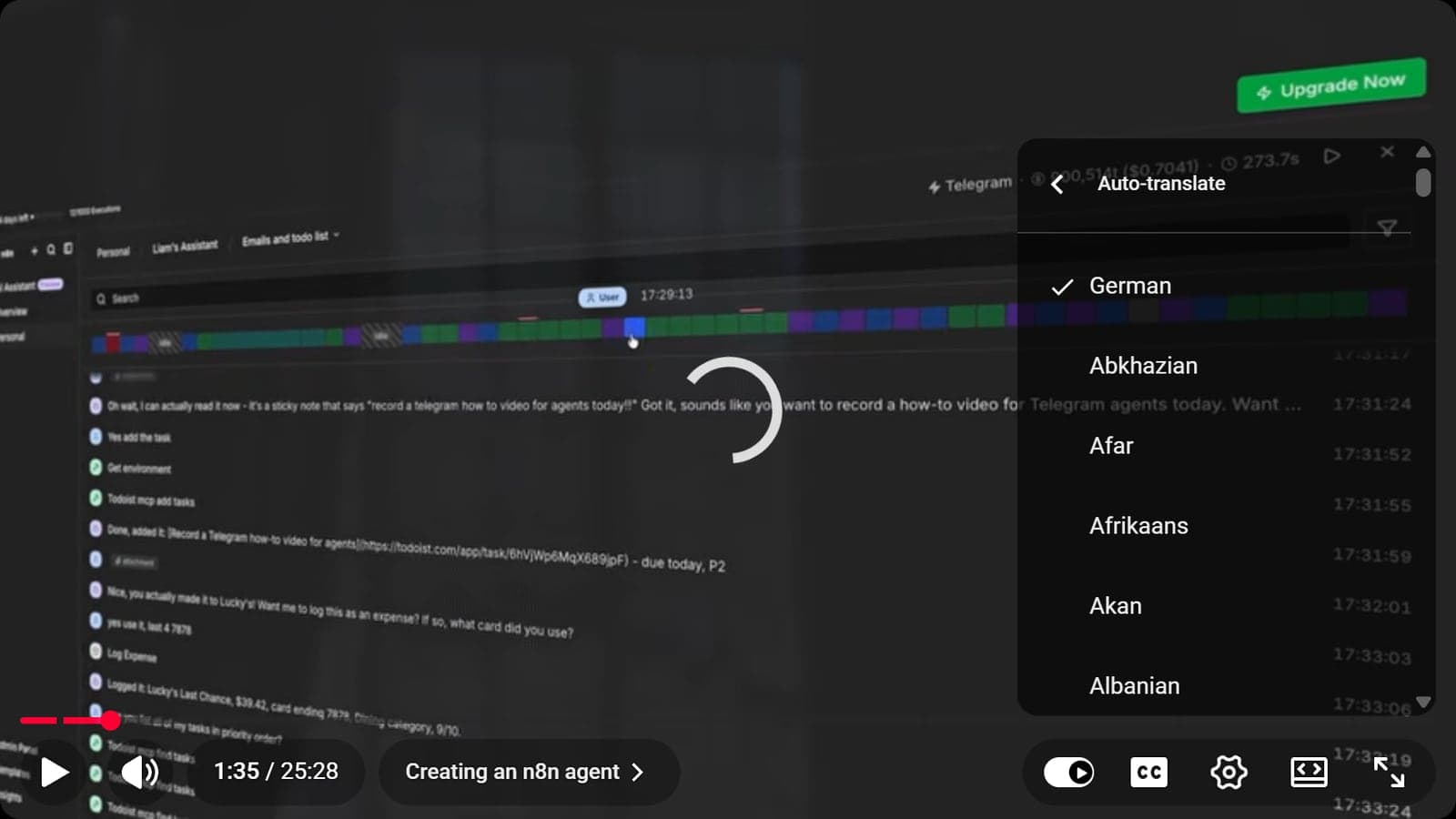
What we saw on the n8n tutorial in October 2026: the menu listed the channel's own English track ("English - English"), YouTube's automatic English track and Auto-translate. After we chose German, the menu showed the translation as "English - English >> German", meaning the channel's English track translated into German. The Auto-translate list offered 156 languages, with the one in use listed first.
Two things decide how good the result is. YouTube uses machine translation; when it launched the feature in 2008 it said Google Translate powered it and that machine translation is not perfect. And the translation can only be as good as the captions it starts from: a channel's own track is usually cleaner than an automatic one, so pick it as the source when there is one.
In the YouTube app, the same option sits in the player's captions menu: open Subtitles/CC, choose Auto-translate and pick the language.
When Auto-translate is missing
YouTube shows the CC button only when a video has captions. No captions means nothing to translate: Auto-translate needs an existing track, uploaded by the channel or generated automatically. Automatic captions can be missing when a video is too long, has poor sound, starts with a long silence, has overlapping speakers or is in a language YouTube doesn't support.
Dubbed audio and translated titles
Some videos also have audio in other languages, either uploaded by the creator or made by YouTube's automatic dubbing; we compare the two in what is dubbing. Switch it in Settings, Audio track. Titles and descriptions can appear in your language too. Both follow the Preferred languages setting; we explain the switches in how to turn off YouTube auto-dubbing.
Automatic dubbing doesn't cover every language pair. YouTube's help table in October 2026 listed these for our four languages:
- English videos can be dubbed into German, French and Spanish, among 20 languages.
- German videos only into English.
- French videos only into English.
- Spanish videos into English, Arabic and Portuguese.
So YouTube can't dub a German video into French or Spanish: between those three languages, only subtitles help.
For creators: add translated subtitles
- Sign in to YouTube Studio and open Subtitles (newer help pages call the section Languages).
- Click the video. If you haven't set its language yet, Studio asks for it first.
- Click Add language and choose the language.
- Under Subtitles, click Add and choose a method: Upload file (with or without timing), Auto-sync (paste a transcript and YouTube sets the timing) or Type manually.
- Click Publish.
Set the video's own language correctly: YouTube creates automatic captions only in that language. Viewers can no longer submit translations; YouTube ended community contributions on 28 September 2020. To let a translator work on your subtitles, give them the Subtitle editor role in Studio's permissions.
Translate your title and description
In the same Subtitles section, click Add language, then Add under Title and description, type the translation and publish. YouTube then shows the translated title and description to viewers in that language, and they can find the video in their own language.
Upload your own dubbed audio
Multi-language audio is open to creators with access to YouTube's Advanced features. In Studio on a computer, open Languages, choose the video, click Add language, then Add next to Dub, and upload an audio-only file about as long as the video. If YouTube has already made an automatic dub in that language, delete it first.
Translate it yourself
If you want control over every line, translate the subtitle file yourself:
- Keep the structure. Change only the text lines of the SRT file; the counters and timecodes stay. Make one file per language and save it as UTF-8. Our guide to SRT files covers the details, and we tested what free web translators do to a pasted SRT file in how to translate subtitles.
- Shorten while you translate. Netflix's style guides allow a lower reading speed for German, French and Spanish than for English, while the timing stays the same, so translated lines often need to be shorter than the original.
- Choose tools by step. A workflow has up to three steps: a transcript or captions, a translation, and, for dubbing, a voice. Some tools do one step; video translators do all three. AI video translation tools are on our test list for all four of our languages.
- Translate only what you may. Translating and republishing someone else's video needs their permission.