To convert an SRT file to plain text, remove the subtitle numbers and timecodes and keep the words. Subtitle Edit, a free subtitle editor, does it with one export. Any text editor with regular expressions, such as Notepad++ or VS Code, does it in four find-and-replace steps. Online converters do it in the browser. An SRT file is already plain text, so if you want to keep everything, renaming it to .txt is enough. We ran the find-and-replace steps on our own subtitle file and show the three results you can get: one subtitle per line, one paragraph, or each line with its start time.
The short answer
- Keep everything: rename
subtitles.srttosubtitles.txt. Nothing is lost, but the numbers and timecodes stay. - Text only, offline: in Subtitle Edit, choose File, Export, Plain text. Line numbers and time codes are off by default, and formatting is removed.
- Text only, in any text editor: the four find-and-replace steps below.
- Text with start times: the same steps with step 3 swapped, which gives lines such as "[00:00:06] Same file, same steps, same timer."
- Without installing anything: an online converter, if the dialogue isn't confidential. What they say they do with your file is listed below.
What an SRT file contains, and what goes
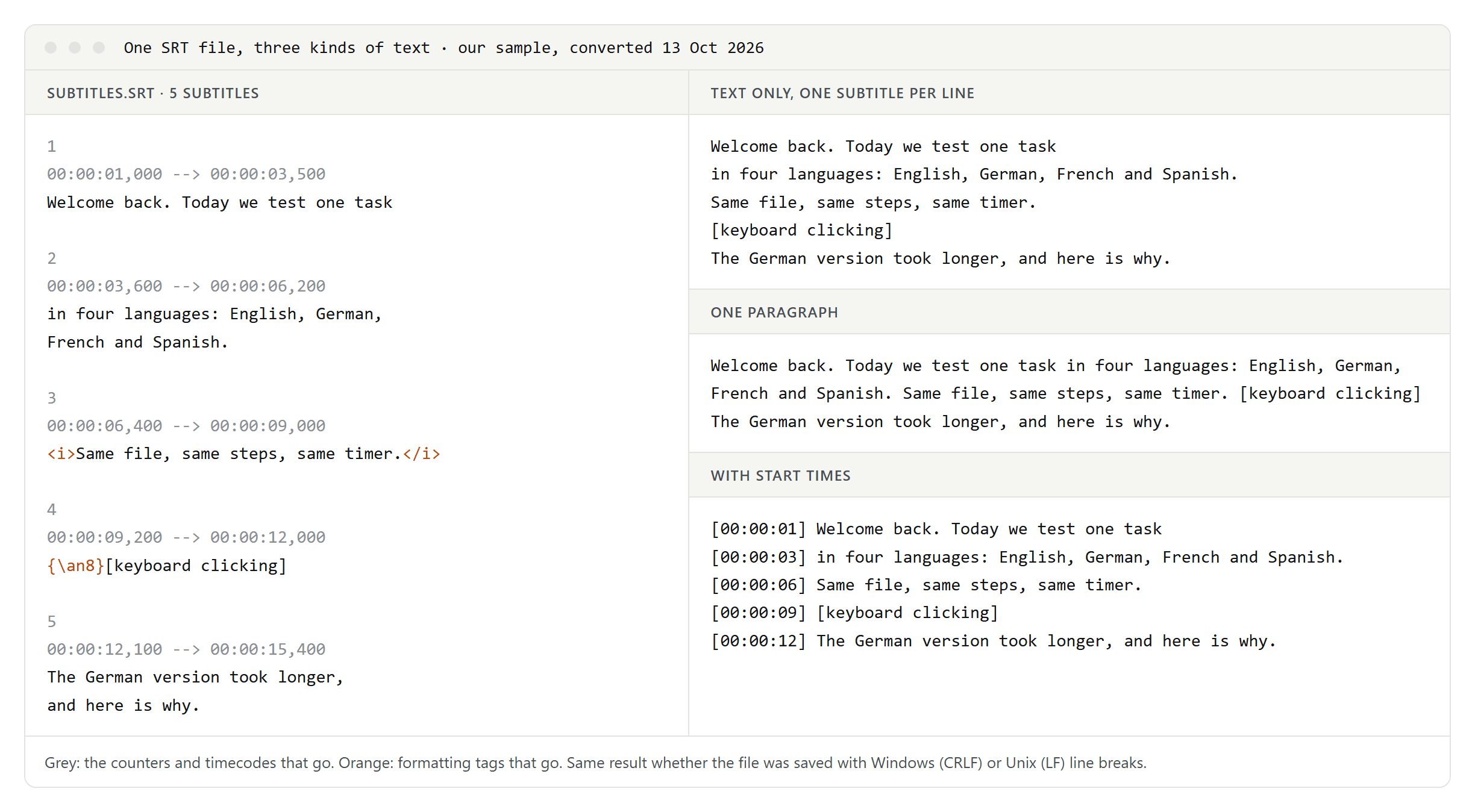
Each subtitle in an SRT file has four parts: a counter, a timecode line such as 00:00:01,000 --> 00:00:03,500, one or more lines of text, and a blank line. There is no official specification, but players agree on that structure. The text can also carry formatting tags such as <i>, <b>, <u> and <font>, and position tags borrowed from the ASS format, such as {\an8}, which moves a subtitle to the top of the screen.
For plain text, the counters, timecodes and tags go and the words stay. Captions for deaf and hard-of-hearing viewers also describe sounds, such as "[keyboard clicking]". Keep those or delete them; there's a pattern for that further down.
Convert SRT to TXT with find and replace
This works in any editor with regular expressions:
- Notepad++: Search, Replace, then set Search Mode to Regular expression and leave . matches newline unticked.
- VS Code: press Ctrl+H and turn on regular expressions with the .* button.
Work on a copy of the file and run the steps in this order, each with Replace All:
- Remove formatting tags. Find
<[^>]+>|\{\\[^}]*\}and replace it with nothing. - Put each subtitle on one line. Find
(\S)\r?\n(?=\S)and replace it with `$1 `: a dollar sign, the number one and a space. This joins each line to the next one unless a blank line separates them, so the counter, timecode and text of every subtitle end up on one line. - Remove the counters and timecodes. Find `^\d+ \d\d:\d\d:\d\d,\d\d\d --> \d\d:\d\d:\d\d,\d\d\d ` and replace it with nothing. The pattern ends with a space.
- Remove the blank lines. Find
(\r?\n)(?:\r?\n)+and replace it with$1.
Each subtitle is now one line of text. For one paragraph, find \r?\n and replace it with a space. Save the result as a .txt file in UTF-8.
To keep the start times, use this in step 3 instead: find `^\d+ (\d\d:\d\d:\d\d),\d\d\d --> \d\d:\d\d:\d\d,\d\d\d ` and replace it with `[$1] `. Each line then begins with the time its subtitle appears.
We tested the steps on our sample file saved twice, once with Windows line breaks (CRLF) and once with Unix line breaks (LF), and got the same text from both. We used JavaScript's regular expressions, the engine VS Code's Find uses. Our first version removed blank lines with a pattern tied to the start of a line, and on the Windows copy it left a stray carriage return on every line. The steps above don't have that problem.
Two traps the steps avoid:
- Deleting every line that starts with a number also deletes dialogue such as "2026 was our year". The steps only remove a number when a timecode follows it.
- Removing every second line breaks as soon as one subtitle has two lines of text, as in our sample.
In Notepad++, Edit, Line Operations, Remove Empty Lines does the same job as step 4.
Convert with Subtitle Edit
Subtitle Edit is free and open source, and since version 5 it runs on Windows, macOS and Linux:
- Open the SRT file.
- Choose File, Export, Plain text.
- Check the live preview in the Export plain text dialog. By default, line numbers and time codes are off, Remove styling is on, and a blank line separates the subtitles.
- Choose Unbreak lines for one subtitle per line, or Merge lines for one block of text.
- To keep the times, tick Show time codes and pick a format. Untick Add new line after time code to get the time and the text on the same line.
- Choose the encoding and click Save.
For a whole folder of files, Subtitle Edit's documentation describes a command-line tool, seconv, with a plain-text output format.
Online converters: what happens to your file
We haven't tested these sites. Here is what they said on 13 October 2026:
- GoTranscript says it deletes uploaded and converted files after 24 hours.
- Subtitle Tools keeps uploads for 3 days and then deletes them, according to its privacy policy. It can add a blank line between subtitles and keep the timings.
- HappyScribe accepts files up to 2 MB, and only in UTF-8.
- SubtitleOps says its converter runs in your browser, without uploading the file.
For interviews, client calls or anything else confidential, use an offline method.
Clean up the text
- Sound descriptions: find
\[[^\]]*\]and replace it with nothing. This removes all text in square brackets, so check the result. - Repeated lines: in rolling captions, each subtitle repeats the line before it. Notepad++'s Edit, Line Operations, Remove Consecutive Duplicate Lines removes exact repeats when each subtitle is on its own line.
- Paragraphs: subtitles break sentences for reading speed, not meaning. Add paragraph breaks by hand where the speaker or the topic changes.
- Garbled letters: if "ü" shows up as "ü", the file was read in the wrong encoding. Reopen it as UTF-8. Our guide to SRT files shows how this happens and how to fix it.
Where the text goes next
- A transcript with timestamps for editing or quoting: see time-coded transcripts.
- Translation: translate the SRT file itself, not the text, so the timing survives. Our SRT guide explains how to do it without breaking the file.
- Subtitles from YouTube: how to download YouTube subtitles covers your own videos and other people's.
- An interview that has no subtitles yet: how to transcribe an interview.