Google Search Console is a free Google service that shows how Google Search sees your own website: which searches show it, how often people click, which pages are indexed and what goes wrong. To set it up, add a Domain property and prove you own the domain with a DNS TXT record, or add a URL-prefix property and verify it with an HTML file or tag. Then submit your sitemap and give it a few days. We set up polytested.com this way on October 13, 2026; below is what the first twelve days looked like.
What Search Console is, and what it isn't
- Free, with a Google account. You don't have to use it to appear on Google, and adding your site doesn't change how Google treats it. It helps you understand and fix how Google sees the site.
- Google only. It knows nothing about Bing or other search engines. Bing has its own Bing Webmaster Tools, which can import your verified sites and their sitemaps from Search Console.
- Your own sites only. You see data only for properties you've proved you own or were given access to. For other people's sites, keyword tools such as Semrush estimate rankings from their own data.
- Searches, not visits. It counts how often your pages appear in Google results (impressions) and how often people click. What visitors do on your site afterwards is a job for an analytics tool. Search Console needs no code on your pages for this: Google says data collection starts as soon as someone adds the property, even before it's verified.
- A report, not a ranking boost. It tells you what Google found. Fixing what it shows is up to you.
Domain property or URL-prefix property?
When you add a website, Search Console asks for one of two property types.
| Question | Domain property | URL-prefix property |
|---|---|---|
| What you type | example.com, without https:// and without www | https://www.example.com/, with protocol and final slash |
| What it covers | Every subdomain (www, m, shop and so on) on http and https | Only URLs that start with exactly that prefix |
| How you verify | A DNS record only (except Blogger and Google Sites) | DNS record, HTML file, HTML tag, Google Analytics or Google Tag Manager |
| Best for | The whole site in one view | One section, for example a language folder such as /de/ |
If you can edit your domain's DNS, start with a Domain property. A URL-prefix property only sees addresses that match it character for character: if your site runs on https://www. and you register https:// without www, the property stays empty. Google names a wrong prefix, such as http instead of https, as one reason a new property shows no data.
URL-prefix properties are still useful next to a Domain property. Google's own example is a site with folders per country or language: you can add https://example.com/es/ as an extra property to see only the Spanish section. Once the parent is verified, child properties you add later are verified automatically with the same method. One account can hold up to 1,000 properties.
Verification methods and what each one needs
Verification proves to Google that you control the site. The verification page shows which methods are available for your property.
| Method | Property types | What you need |
|---|---|---|
| Domain name provider (DNS TXT or CNAME record) | Domain and URL prefix | A login at the company that runs your domain's DNS |
| HTML file upload | URL prefix only | Upload Google's file to the site root, reachable without login |
| HTML tag | URL prefix only | Add a google-site-verification meta tag to the head section of your home page |
| Google Analytics | URL prefix only | The Analytics tag in the head section of your home page, edit rights in Analytics, the same Google account |
| Google Tag Manager | URL prefix only | The container snippet on the home page, Publish or Admin permission, the same Google account |
| Google Sites or Blogger | Both | Being signed in with the account that manages the site |
If your site runs on a website builder such as WordPress, Wix, Shopify or Squarespace, check its help pages first: many have a setting or plugin for verification. Google says Site Kit is the only WordPress plugin it officially sponsors.
Verification isn't a one-time check. Search Console checks periodically whether your token is still there. If someone removes the tag in a redesign, or deletes the DNS record while cleaning up, you get a notice and then lose access after a grace period. On a URL-prefix property, Google suggests adding a second method as a backup, for example an HTML file next to the Analytics tag. A Domain property can only use DNS, so there the record itself has to stay.
Step by step: a Domain property with a DNS TXT record
- Open Search Console with your Google account. In the property selector, choose + Add property, pick the Domain option and type your domain without
https://and withoutwww. - Under Select record type, keep TXT and copy the value. It starts with
google-site-verification=. - Sign in to your DNS provider. That's the company that runs your domain's DNS: your registrar, your web host or a service such as Cloudflare. If Search Console lists your provider, follow its guided steps; otherwise choose Any DNS provider. Add a new TXT record, leave the host/name empty or enter
@(whichever your provider's documentation says), and paste the value. - Back in Search Console, click Verify. If it fails, wait: Google says a manually added record can take up to two or three days before your provider serves it. Verify later saves your progress.
- Leave the record in place. Google's help is explicit that you stay verified only as long as it's there.
We did exactly this for polytested.com on October 13, 2026, with our DNS at Cloudflare, and verification went through the same day. To see what Google sees, look the record up yourself. Google points to its Admin Toolbox; any terminal works too:
> nslookup -type=TXT polytested.com 1.1.1.1
polytested.com  text = "google-site-verification=…"
polytested.com  text = "v=spf1 include:_spf.mx.cloudflare.net ~all"
Our domain holds two TXT records: the verification string and a mail record. That's normal. Add the Google record as a new entry and don't overwrite an existing one, including another owner's token.
Once you're verified, add other people under Settings > Users and permissions instead of sharing your Google login. A full user sees all data and can take some actions; a restricted user sees most data. Make sure a second person is a verified owner: if every verified owner loses access, so do all users.
Submit your sitemap
A sitemap lists the pages you want Google to know about. Open the Sitemaps report, paste the full address of your sitemap into Add a new sitemap and click Submit. The status should change to Success. If you use a hosted platform such as Squarespace or Wix, it probably manages the sitemap for you; check its documentation for the address.
Google says a submitted sitemap should be fetched immediately. Ours was: we submitted our sitemap index at 17:40 UTC on October 13, Google read it within two minutes, and at 17:42 UTC Googlebot Smartphone fetched our home page. After that, Google re-reads a sitemap on its own schedule. When we checked on October 25, the Last read date was October 23.
Two numbers are easy to confuse. Discovered pages counts the URLs Google read from the sitemap; Google says there's no guarantee they'll be crawled or indexed. Twelve days after we submitted ours, 22 of our 227 sitemap URLs were still unknown to Google, including our German blog index and our privacy page. To see how many are indexed, filter the Page indexing report by sitemap.
Do you need a sitemap at all? Google says a small site, about 500 pages or fewer, where every page can be reached through links from the home page, probably doesn't. In that case, request indexing of your home page. The report also lists only sitemaps submitted there or through the API, not ones Google found in your robots.txt. Formats and limits are in our guide to XML sitemaps.
The four reports to open first
Search Console has many reports. For a new site, these four answer the questions that matter in the first weeks:
| Report | The question it answers | What to look at first |
|---|---|---|
| Performance (Search results) | How often does Google show my site, for which searches, and how often do people click? | The daily trend of impressions and clicks |
| Page indexing | How many of my pages are indexed, and why aren't the others? | The table "Why pages aren't indexed", filtered to all submitted pages |
| URL Inspection | What does Google know about this one address? | Indexed or not, the Google-selected canonical, the last crawl |
| Sitemaps | Can Google read my sitemap? | Status, Last read, Discovered pages |
Performance shows clicks, impressions, click-through rate and average position, by default for the past three months. The Search type filter starts on Web; Image, Video and News are separate views. For us, Google Images added 210 impressions and 2 clicks between October 12 and 25 that aren't in the web totals. How to read average position and check a keyword is in our guide to checking your keyword ranking.
Page indexing splits all known URLs into indexed and not indexed, with a reason for each group. Click a reason to see example URLs and a Validate fix button for problems you've solved.
URL Inspection works on one URL: paste it into the search bar at the top. The first result is Google's indexed version, not a live check; Test live URL fetches the page now. Request indexing puts a page in the queue. Google says that usually takes a day or so, can take a week or two, comes with a daily limit and is no guarantee. For many pages, a sitemap is the better tool.
Beyond these four, glance at Manual actions and Security issues once. Google emails you when it finds new problems, and suggests checking the account about once a month or after changes to the site.
Our first 12 days in Search Console
We read these figures in our own Search Console on October 25, 2026: impressions and clicks from the Performance report (web search; Search Console's days run on Pacific Time) and the index status of every address in our sitemaps from URL Inspection.
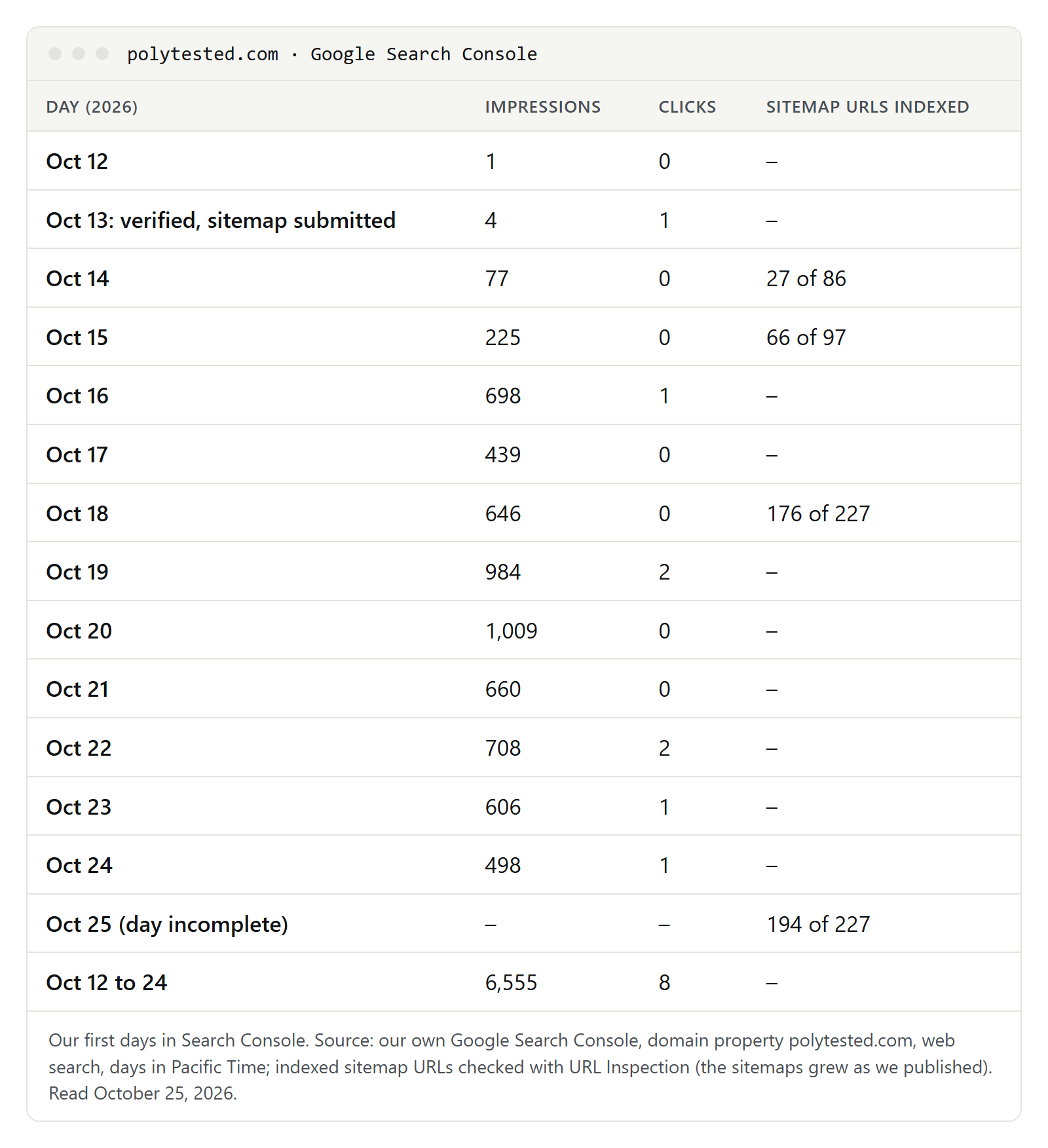
- Crawling started in minutes, indexing took days. The day after we submitted the sitemap, 27 of 86 sitemap addresses were indexed. Then 66 of 97 on October 15, 176 of 227 on October 18 and 194 of 227 on October 25; the sitemaps grew as we published. Google's help says it can take a week or so before Google starts crawling and indexing a new site.
- Languages moved at different speeds. On October 25, 52 of our 57 German, 55 of 57 French and 52 of 57 Spanish addresses were indexed, but only 35 of 56 English ones. We had changed the English URLs on October 14, and Google was still showing many old addresses. Three new ones were marked "Duplicate, Google chose different canonical than user"; our guide to canonical issues explains that status, and our website migration checklist how to change URLs.
- Impressions grew in steps. From 77 on October 14 to 698 on October 16 and a peak of 1,009 on October 20, then roughly 500 to 700 a day. The first seven days brought 2,090 impressions, the next six 4,465.
- Clicks came slowly. From October 12 to 24 we had 6,555 impressions and 8 clicks. The average position was about 52, so most impressions came from results far down the list. An impression only means our link was on a results page someone loaded, not that anyone saw it.
- Smartphone crawler, desktop searchers. Every one of the 198 sitemap addresses Google had crawled by October 25 was crawled as a smartphone, as mobile-first indexing says. Yet 4,446 of the 6,614 impressions up to October 25 came from desktop searches, about two thirds.
These are two weeks of data from one new site with four languages. A site in another niche, or one with older pages and links, will see a different curve.
Six misreadings in the first weeks
- "The last two days dropped." The newest data is incomplete. On the afternoon of October 15, our report showed 41 impressions for that day and 70 for the day before. The final figures were 225 and 77. Judge a trend from complete days, not from the last two.
- "Not indexed means something is broken." Google doesn't index every URL, and says not to expect 100 percent. Redirects, duplicates and pages with noindex belong in the list. "Discovered - currently not indexed" means Google knows the URL but hasn't crawled it yet; "Crawled - currently not indexed" means it may still be indexed later, and Google says there's no need to resubmit it.
- "Submitted means indexed." Discovered pages in the Sitemaps report only counts what Google read. Compare it with the Page indexing report.
- "URL is on Google means I'll be found." Google says this status means the page is eligible to appear, not that it does.
- "Requesting indexing again will speed it up." There's a quota, and Google says asking several times for the same URL won't get it crawled any faster. Request once, after a real change.
- "Impressions are visitors." They're appearances in results, and they aren't search volume either: our guide to search volume shows why the two numbers don't match. For pages close to the first page, see striking distance keywords.
Checklist for a new site
- Add a Domain property and verify it with a DNS TXT record. Keep the record.
- Add a second owner or users under Settings > Users and permissions.
- Submit your sitemap and check that the status is Success.
- Inspect your home page. If it's unknown to Google, request indexing once.
- After a week, open Page indexing, filter to all submitted pages and read the reasons.
- After two weeks, open Performance and look at the trend, not the last two days. Then check about once a month and read Google's emails.