Subtitles go out of sync in one of two ways. Either every line is early or late by the same amount: then you shift all times at once, in the player for tonight or in the file for good. Or the gap grows as the video plays: then the subtitles were timed for a faster or slower copy of the video, and you stretch the file between two sync points. It adds up fast: subtitles made for a 23.976 fps release are 25.6 seconds late after ten minutes of a 25 fps copy.
Which sync problem do you have?
Check the subtitles at three points: near the start, in the middle and near the end. At each point, note how far the text is from the voice. Lines that start right after a pause work best, because you can hear exactly where the speech begins; Subtitle Edit's documentation gives the same advice for choosing sync points.
| What you see | Likely cause | Fix |
|---|---|---|
| The same gap at the start, middle and end | A different intro, logo or start point | Shift all times by the gap |
| A small gap at the start, a bigger one at the end | The video runs faster or slower than the version the subtitles were made for | Stretch the file between two sync points |
| In sync, then suddenly off from one scene on | A scene, recap or ad break was added or removed | Shift from that line on, scene by scene |
If the gap grows, two measurements also hint at the cause. About two and a half seconds more per minute points to a mix-up between 23.976 and 25 frames per second; about six hundredths of a second per minute points to 23.976 and 24. The section on drift below has the numbers.
Quick fix in the player
A delay set in the player leaves the file unchanged. It works for subtitles the player draws itself, from a separate file or a subtitle track, but not for text burned into the picture. It's the right fix for one evening; if you share the file or upload it, fix the file instead.
- VLC on Windows and Linux: H shows the subtitles later, G earlier, by 50 milliseconds per press. On a Mac, J is later and H is earlier. VLC shows the running total on screen as "Subtitle delay". For a bigger jump, open Tools > Track Synchronization and type seconds into "Subtitle track synchronization": a positive value delays the subtitles, a negative value brings them forward, and VLC labels it "(Delayed)" or "(Hastened)".
- VLC, for late subtitles only: press Shift+H when you hear a line, Shift+J when the same line appears on screen, then Shift+K. VLC moves the subtitles by the time between your two key presses.
- mpv: z and Z change the subtitle delay by 0.1 seconds down or up. Ctrl+Shift+Left and Ctrl+Shift+Right move the subtitles so that the previous or next line shows right now, which is handy just after you heard that line. On the command line,
--sub-delaytakes seconds, negative values included. - Plex: during playback, open Playback Settings and choose Adjust Offsets; each step is 50 or 100 milliseconds, depending on the app. This works only for external text subtitles such as an .srt file, not for embedded or image-based ones. With Plex Pass, Auto-Sync Subtitles can find the offset from the audio once the server has analyzed it. According to Plex, it fails when the offset is over 30 seconds, when the file is broken, or when the timing varies across the video, for example because the subtitles belong to another edition.
- Netflix: there is no delay setting. Netflix asks you to report the problem: click the flag icon while watching and choose Subtitles & Captions, or use Report a problem in your viewing activity. On Android phones and tablets, iPhone and iPad, the flag appears only on an ad-supported plan.
Shift the whole file
Here is our sample file: four invented lines from two scenes of an invented 45-minute episode, timed as if for the 23.976 fps release.
1
00:02:05,000 --> 00:02:07,800
You're late. The truck opens at noon.

2
00:02:08,200 --> 00:02:11,000
Then stop talking and start chopping.

3
00:41:40,000 --> 00:41:42,600
Who has the cash box?

4
00:41:43,000 --> 00:41:46,000
I do. Lock up, we're done.
Suppose every line comes 2.5 seconds too late, because the file was made for a copy with a longer studio logo. Shifting by minus 2.5 seconds moves every start and end time by the same amount, so each line stays on screen as long as before:
1
00:02:02,500 --> 00:02:05,300
You're late. The truck opens at noon.

2
00:02:05,700 --> 00:02:08,500
Then stop talking and start chopping.

3
00:41:37,500 --> 00:41:40,100
Who has the cash box?

4
00:41:40,500 --> 00:41:43,500
I do. Lock up, we're done.
In Subtitle Edit (free and open source), choose Synchronization > Adjust all times…, enter the time, then click Show earlier or Show later. You can apply it to all lines, to the selected lines only, or to the selected lines and every line after them; the last option is the one you need for a different cut, below. With the window open, Shift, Ctrl or Alt plus the Left or Right arrow key moves everything by 10, 100 or 500 milliseconds.
Your own YouTube video: YouTube Studio's subtitle editor changes timing one line at a time, in the two timestamp boxes next to each line (choose Edit timings if you don't see them). For a whole file, go to Subtitles, click Edit next to the language, then Options > Download subtitles. Shift the file and upload it again.
Lyrics in LRC format have their own offset tag, and programs disagree on which way it goes; we tested it in how to convert LRC to SRT.
Why subtitles drift: speed, not frame rate
An SRT file stores clock times, from hours down to milliseconds, not frame numbers. A different frame rate alone doesn't break it. A change of speed does. Film runs at 24 frames per second, and NTSC video slows it to 23.976. When such a film is converted to the 25 frames per second of PAL, it is often simply played faster: according to Wikipedia's article on 576i, the PAL video format, that makes it 4.27 percent faster than the 23.976 version. Conversions that repeat or blend frames keep the running time, and then the subtitles still fit.
When the speed differs, the gap grows in a straight line. If the subtitles were timed for one frame rate and the same frames play at another:
gap at minute T = T × (video frame rate ÷ subtitle frame rate − 1)
Ten minutes into a 25 fps copy, with subtitles made for 23.976 fps, that's 600 seconds × (25 ÷ 23.976 − 1) = 25.6 seconds. A positive result means the subtitles come late, a negative one early. We calculated the common cases, counting 23.976 as exactly 24000/1001:
| Subtitles timed for | Video plays at | After 10 minutes | After 30 minutes | After 60 minutes |
|---|---|---|---|---|
| 23.976 fps | 25 fps | 25.6 seconds late | 76.9 seconds late | 153.8 seconds late |
| 25 fps | 23.976 fps | 24.6 seconds early | 73.7 seconds early | 147.5 seconds early |
| 23.976 or 24 fps | the other one | 0.6 seconds off | 1.8 seconds off | 3.6 seconds off |
The last row is the sneaky one. Ten minutes in, the gap is barely noticeable; after an hour, the subtitles are more than three seconds off.
Stretch the file with two sync points
Drift is fixed by two numbers: a factor that stretches or squeezes all times, and an offset that moves them.
new time = factor × old time + offset
You don't need to know any frame rate. Pick one line near the start and one near the end, find out when each one is really spoken, and those two points give you both numbers. Every line in between moves in proportion.
In our sample, the video is a 25 fps copy. Line 1 is spoken at 00:01:59,880 instead of 00:02:05,000, and line 4 at 00:40:00,480 instead of 00:41:43,000, so the gap grows from 5.1 seconds to 102.5 seconds. From those two points, the script below calculated a factor of 0.959041 and an offset of zero:
1
00:01:59,880 --> 00:02:02,565
You're late. The truck opens at noon.

2
00:02:02,949 --> 00:02:05,634
Then stop talking and start chopping.

3
00:39:57,603 --> 00:40:00,096
Who has the cash box?

4
00:40:00,480 --> 00:40:03,357
I do. Lock up, we're done.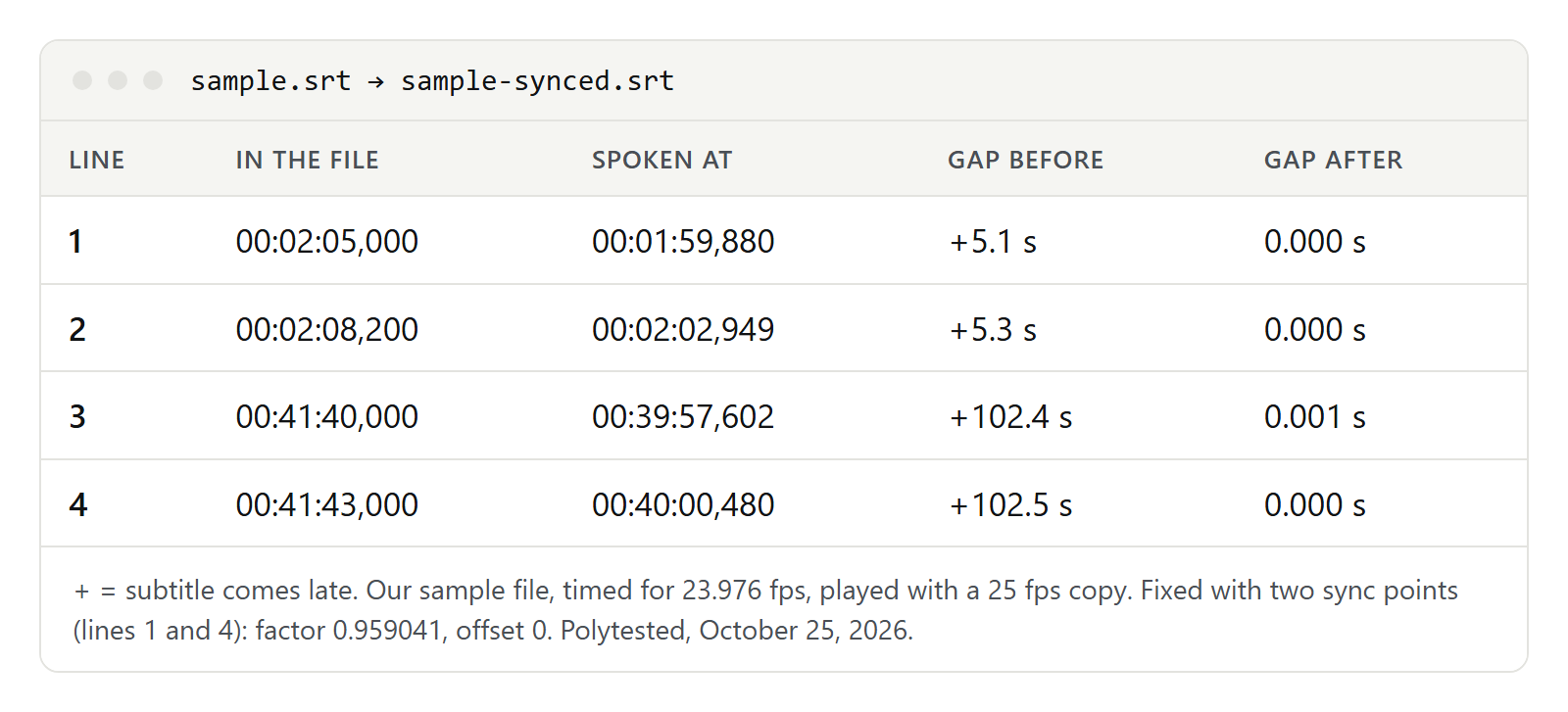
The factor also tells you the cause. 0.959041 is 23.976 divided by 25: the PAL speed-up from the drift table. A factor near 0.96 or 1.042 means 24 and 25 frames per second; 0.999 or 1.001 means 23.976 and 24. A factor of 1 with an offset is a plain shift.
Subtitle Edit has three tools for this, all under Synchronization:
- Point sync…: select a line, click Set sync point and set its correct time from the video; repeat for a line near the end. According to the documentation, more points give better results when the drift isn't even.
- Visual sync…: two video panes, "Start scene" and "End scene". Play each one to where its line should start and click Sync; Subtitle Edit adjusts all times linearly between the two points.
- Change frame rate…: if you know both rates, set the rate the subtitles were made for as "From frame rate" and the video's as "To frame rate". Subtitle Edit multiplies every time by from ÷ to and counts 23.976 as 24000/1001, so 23.976 to 25 gives the same 0.959041 as our two points. It fixes the speed only; if there is also an offset, shift afterwards. Change speed… does a similar job with a percentage.
A short script you can run
If you'd rather not install anything, this script does both fixes. You need Node.js. Save the code as srt-sync.mjs:
// srt-sync.mjs: moves every subtitle in an SRT file by a fixed time, or stretches the file
// between two sync points (for subtitles that drift further off as the video goes on).
//   node srt-sync.mjs in.srt out.srt shift -2.5
//   node srt-sync.mjs in.srt out.srt points 1=00:01:59,880 4=00:40:00,480
import { readFileSync, writeFileSync } from 'node:fs'

const [input, output, mode, ...args] = process.argv.slice(2)
const TIME = /(\d\d):(\d\d):(\d\d),(\d\d\d)/
const toMs = (t) => { const [, h, m, s, ms] = t.match(TIME); return ((+h * 60 + +m) * 60 + +s) * 1000 + +ms }
const toTime = (ms) => new Date(Math.max(0, Math.round(ms))).toISOString().slice(11, 23).replace('.', ',')

const src = readFileSync(input, 'utf8')
const starts = new Map() // subtitle number -> start time in ms
for (const m of src.matchAll(/^\uFEFF?(\d+)\r?\n(\d\d:\d\d:\d\d,\d\d\d) -->/gm)) starts.set(m[1], toMs(m[2]))

let factor = 1
let offset = 0
if (mode === 'shift') {
  offset = parseFloat(args[0].replace(',', '.')) * 1000 // seconds; negative = earlier
} else if (mode === 'points') {
  const [[n1, t1], [n2, t2]] = args.map((a) => a.split('='))
  if (!starts.has(n1) || !starts.has(n2)) throw new Error('Subtitle number not found')
  factor = (toMs(t2) - toMs(t1)) / (starts.get(n2) - starts.get(n1))
  offset = toMs(t1) - factor * starts.get(n1)
} else throw new Error('Mode must be shift or points')

let clipped = 0
const out = src.replace(/(\d\d:\d\d:\d\d,\d\d\d)( --> )(\d\d:\d\d:\d\d,\d\d\d)/g, (_, start, arrow, end) => {
  if (factor * toMs(start) + offset < 0) clipped++
  return toTime(factor * toMs(start) + offset) + arrow + toTime(factor * toMs(end) + offset)
})
writeFileSync(output, out, 'utf8')
console.log(`Factor ${factor.toFixed(6)}, offset ${(Math.round(offset) / 1000).toFixed(3)} seconds`)
if (clipped) console.log(`${clipped} subtitle(s) would start before 0:00 and now start at 0:00; check them`)- Shift:
node srt-sync.mjs sample.srt sample-shifted.srt shift -2.5moves everything 2.5 seconds earlier; a positive number moves it later. - Two points:
node srt-sync.mjs sample.srt sample-synced.srt points 1=00:01:59,880 4=00:40:00,480takes the number of a line and the time it should start, twice. It prints the factor and the offset, so you can see the cause.
It expects standard SRT timecodes with a comma before the milliseconds, leaves the text alone and saves UTF-8. If a shift would push a line before zero, it starts that line at zero and tells you.
When the cut is different: fix it scene by scene
If the subtitles are in sync and then jump at one point, your copy has something the subtitle file doesn't, or the other way round: a longer recap, an ad break in a TV recording, an extended scene. Plex's help lists the same causes for Auto-Sync failures: another edition of the film, or commercials in the recording.
- Find the first line that is off and measure the gap.
- Select that line, open Adjust all times… in Subtitle Edit, apply it to the selected lines and the lines after them, and shift by the gap.
- Play on to the next jump and repeat.
- If your copy lacks a scene, its lines now overlap the next scene: delete them.
The same happens with your own videos. If you export an SRT file from a transcript tool such as Fireflies or Descript and then trim the start of the video in another editor, every line comes late by exactly the length you cut. Shift by that amount, or export the subtitles again from the final edit.
Format and encoding traps
- Keep the timecode syntax. SRT writes a comma before the milliseconds, WebVTT a full stop. Strict platforms reject a file with the wrong one; see what an SRT file is and VTT files.
- Keep the encoding. Save the shifted file as UTF-8 again, or accented letters can break.
- No negative times. Shifting earlier than the first line's start would put it before zero. Check the first lines after a large shift.
- Frame-based formats such as MicroDVD .sub store frame numbers, not times, so the player has to know the frame rate. VLC reads it from a first line such as
{1}{1}23.976when the file has one. A wrong rate there causes exactly the drift described above. - Converting doesn't fix timing. Converting ASS or VTT to SRT keeps the times as they are, so sync before or after; see ASS to SRT.
- Sync first, translate second. A translation keeps the timecodes, so every language inherits the error; see how to translate subtitles. If your text has no times at all, that's not a sync problem: convert TXT to SRT first.