To convert TXT to SRT, you have to add what a text file doesn't have: a number, a start time and an end time for every subtitle. Renaming transcript.txt to transcript.srt changes nothing inside, so players and YouTube can't use it. How you add the times depends on what you have. A transcript with timestamps can be reformatted. Plain text plus the video can be synced automatically. Plain text alone has to be split and timed by hand. We converted our own sample transcript in four languages and checked every subtitle against Netflix's reading-speed limits.
Which way fits your file
| What you have | What to do | Free tools |
|---|---|---|
| Text with a timestamp on each line | Reformat it: numbers, end times, line breaks | The short script below, or a text editor |
| Plain text and the video | Let software match the text to the speech | YouTube Studio Auto-sync, Subtitle Edit's forced aligner |
| Plain text only | Split it into subtitles, time them by hand | Subtitle Edit, YouTube Studio |
Two shortcuts first. If the transcript came out of a tool that also makes subtitles, export SRT there: Fireflies lists SRT among its transcript downloads, and Descript exports subtitles as SRT or VTT. And if your file is WebVTT or LRC rather than plain text, it already has times; see what a VTT file is and how to convert LRC to SRT.
What a TXT transcript is missing
This is the sample we wrote for this guide, the first 40 seconds of an imagined video from a small online shop. Each line starts with the time it is spoken, as many transcription tools write it:
[00:00:00] Hi, I'm Dana, and this is the packing table in our little shop.
[00:00:05] Today I'll show you how we pack a ceramic mug so it arrives in one piece.
[00:00:10] First, wrap the handle on its own. That's the part that breaks most often.
[00:00:15] Then roll the whole mug in two layers of paper.
[00:00:18] [tape squeaking]
[00:00:20] Pick a box that leaves about two fingers of space on every side.
[00:00:24] Fill that space with crumpled paper until nothing moves when you shake the box, then tape the seams in an H pattern, top and bottom.
[00:00:35] That's it.
[00:00:37] Questions? Leave them in the comments below.
An SRT file needs four things per subtitle: a counter, a timecode line written hh:mm:ss,mmm --> hh:mm:ss,mmm, one or two lines of text, and a blank line. Our guide to SRT files explains the format. Compared with that, the transcript lacks the counters and every end time, and its lines are too long: one of them would fill three lines on screen. Its times are also whole seconds, so the result will be accurate to about a second. That's fine for most videos, but check the preview.
Way 1: the transcript already has timestamps
This is a reformatting job, and these are the rules we applied:
- One timestamp per subtitle. A transcript copied from YouTube's transcript panel puts each timestamp on its own line above its text. Our script read that layout too and produced exactly the same SRT file.
- End each subtitle when the next one starts, but after 7 seconds at most. Netflix's general requirements allow between 5/6 of a second and 7 seconds per subtitle.
- Give the last subtitle enough reading time. Divide its characters by the reading speed. Our last line has 44 characters; at 20 characters per second that is 2.2 seconds, so it ends at
00:00:39,200. - Break long lines. Netflix allows 42 characters per line and two lines per subtitle. Break after punctuation or before words such as "and", "in" or "of", and never between "the" and its noun.
- Split what doesn't fit into two lines into two subtitles, and share the time between them by length.
- Number the subtitles from 1, put a blank line after each, and save the file as UTF-8.
We wrote a small script that does steps 1 to 6 and then checks the result: numbering, the arrow, line length and characters per second. This is what it made from our sample:
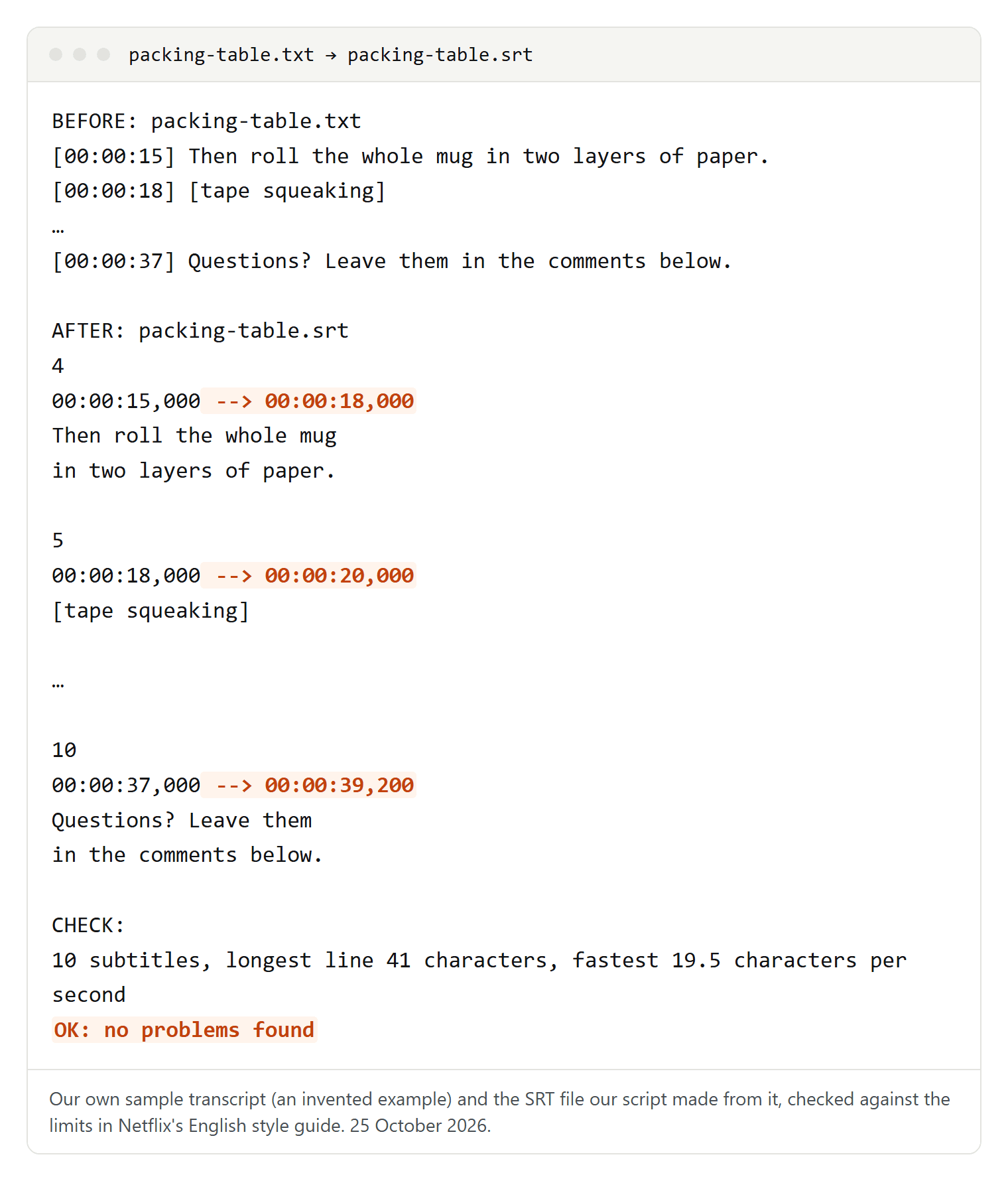
Then we wrote the same short scene in German, French and Spanish and ran the same conversion. Netflix's style guides set a lower reading speed for those three languages: 17 characters per second, against 20 for English.
| Language | Subtitles | Longest line | Fastest subtitle | Netflix limit | Too fast |
|---|---|---|---|---|---|
| English | 10 | 41 characters | 19.5 characters per second | 20 | 0 |
| German | 12 | 42 characters | 20.5 characters per second | 17 | 3 |
| French | 13 | 41 characters | 20.2 characters per second | 17 | 4 |
| Spanish | 10 | 42 characters | 17 characters per second | 17 | 0 |
No script can fix a subtitle that is too fast; that takes an editor. We shortened two German sentences and three French ones, and all subtitles came in under the limit. The same applies when you translate subtitles: the timing stays, so longer languages need shorter wording.
A short script you can run
If your transcript has a time at the start of each line, this script turns it into an SRT file. You need Node.js, which is free. Save the code as txt2srt.mjs and run node txt2srt.mjs transcript.txt transcript.srt:
// txt2srt.mjs: turns lines such as "[00:01:05] text" into an SRT file and lists subtitles to fix.
// Use: node txt2srt.mjs transcript.txt transcript.srt
import { readFileSync, writeFileSync } from 'node:fs'

const MAX_LINE = 42 // characters per line, two lines per subtitle
const MAX_CPS = 20 // characters per second: 20 for English, 17 for German, French and Spanish
const [input, output] = process.argv.slice(2)

const cues = []
for (const line of readFileSync(input, 'utf8').replace(/^/, '').split(/\r?\n/)) {
  const m = line.match(/^\[?(?:(\d{1,2}):)?(\d{1,2}):(\d{2})\]?\s+(.+)/)
  if (m) cues.push({ start: ((+(m[1] ?? 0) * 60 + +m[2]) * 60 + +m[3]) * 1000, text: m[4].trim() })
}

const time = (ms) => new Date(ms).toISOString().slice(11, 23).replace('.', ',')
const wrap = (text) => {
  if (text.length <= MAX_LINE) return text
  let cut = -1
  for (let i = 0; i < text.length; i++)
    if (text[i] === ' ' && (cut < 0 || Math.abs(i - text.length / 2) < Math.abs(cut - text.length / 2))) cut = i
  return cut < 0 ? text : text.slice(0, cut) + '\n' + text.slice(cut + 1)
}

let srt = ''
cues.forEach((cue, i) => {
  // End = start of the next subtitle, at most 7 seconds; the last one stays as long as reading needs.
  const next = cues[i + 1]?.start
  const end = next !== undefined ? Math.min(next, cue.start + 7000) : cue.start + Math.max(1000, Math.ceil((cue.text.length / MAX_CPS) * 1000))
  const lines = wrap(cue.text)
  srt += `${i + 1}\n${time(cue.start)} --> ${time(end)}\n${lines}\n\n`
  const cps = lines.replace('\n', '').length / ((end - cue.start) / 1000)
  if (lines.split('\n').some((l) => l.length > MAX_LINE)) console.log(`Subtitle ${i + 1}: too long for two lines, split it`)
  if (cps > MAX_CPS) console.log(`Subtitle ${i + 1}: ${cps.toFixed(1)} characters per second, shorten the text`)
})
writeFileSync(output, srt, 'utf8')
It reads times such as [00:01:05], 00:01:05 and 1:05 when the text follows on the same line. It breaks long lines at the space nearest the middle, which is quick but not always where a reader would break, so check every two-line subtitle. On our English sample it flagged one subtitle as too long for two lines: the 132-character sentence about the box, which you split by hand. The script writes the file as UTF-8 itself, so you don't have to redirect the output.
Way 2: plain text and the video
When the text has no times at all, software can listen to the video and place your words on it. This is called alignment, and it keeps your text exactly as written.
YouTube Studio, for your own videos. YouTube's help page describes it like this: sign in to YouTube Studio, choose Subtitles in the left menu and select the video. Click ADD LANGUAGE, pick the language, and under "Subtitles" click ADD. Then choose Auto-sync, type or paste the words, or upload a transcript file, and finish with EDIT and SAVE AND CLOSE. Setting the timings can take a few minutes, after which the subtitles are published on the video. The English help page also offers Upload file with a choice between With timing and Without timing; a transcript is the file without timing.
YouTube sets three conditions: the text must be in the language spoken in the video, that language must be one its speech recognition supports, and transcripts are not recommended for videos over an hour or with poor audio. Its tips for a transcript file: plain text (.txt), a blank line where a new caption must start, sounds in square brackets, and >> before a speaker change. Our sample, prepared that way:
>> DANA: Hi, I'm Dana, and this is the packing table in our little shop.

Today I'll show you how we pack a ceramic mug so it arrives in one piece.

[tape squeaking]
Once the timings are set, you can download the result from YouTube Studio as an SRT file. We haven't run Auto-sync on a video for this guide; the steps are from YouTube's help pages, opened on 25 October 2026.
Subtitle Edit, offline. This free subtitle editor has downloads for Windows, macOS and Linux. Choose File, Import, Plain text..., and under Split text at pick Blank lines or One line is one subtitle. The documentation then describes Align time codes via forced aligner..., which matches your text to the audio of the video without transcribing it. On first use it downloads an alignment model; the language-specific ones are about 200 to 300 MB. If the aligner doesn't support your language, Align time codes via "Speech to text"... transcribes the video first and matches your text to that. Save the result in SubRip format. We took this from the documentation of version 5.3.0 and haven't run the aligner ourselves.
Descript. Its Import transcript option (Replace transcript if the file is already transcribed) syncs your own text with the recording, but only for English, according to its help page. The subtitle export then lets you set the maximum characters per line.
Way 3: only the text, timed by hand
Without the video, nothing can know when each sentence is spoken, so every time you add is a guess until you check it against the video. Split the text first, then time it:
- Split into subtitles of at most two lines with 42 characters each, breaking at sentence ends and commas.
- Give each subtitle enough time: characters divided by the reading speed. Our subtitle "Then roll the whole mug / in two layers of paper." has 46 characters, so it needs at least 2.3 seconds in English. A subtitle of the same length in German, French or Spanish needs 2.7.
- Keep every subtitle between 5/6 of a second and 7 seconds on screen.
Subtitle Edit's Import plain text does the first two steps for you: without the video, it lays the subtitles out one after another from zero, with durations based on text length. You then move each one to the right place while the video plays. If you'd rather mark the times while you watch, what a time-coded transcript is shows ways to note them as you go.
What online TXT to SRT converters do
Most "convert TXT to SRT" sites don't listen to your video. They estimate the times from the text alone. Here is what their own pages said on 25 October 2026:
- SubtitleKit lays the subtitles out back to back with a fixed number of seconds per line, calls the times placeholders and treats timestamps already in the text as ordinary text.
- SozAI turns each paragraph into a subtitle, assumes about 150 words per minute and keeps each one between 2 and 8 seconds.
- Submagic assumes 170 words per minute, keeps each subtitle between 1.2 and 6 seconds and breaks lines at 42 characters.
- MConverter converts in its cloud or, for some formats, on your device, and says it deletes cloud files four hours after conversion.
Two pages promised more than a plain transcript can give. One says its converter keeps your subtitle timing, but the "TXT" it reads is a timed subtitle format. Another general subtitle converter accepts only ASS, SSA, SMI, SUB and VTT files, so a TXT file can't even be uploaded. The estimates are a starting point at best. For interviews or anything confidential, use an offline method.
Encoding: keep accents intact
YouTube requires SRT files in plain UTF-8, and its transcript tips recommend UTF-8 for every file that isn't in English. To save as UTF-8, its help page gives these steps:
- Notepad on Windows: File, Save as, then choose UTF-8 under Encoding.
- TextEdit on a Mac: Format, Make Plain Text, then File, Save and Unicode (UTF-8).
English text often survives a wrong encoding, which is why the problem goes unnoticed. Curly apostrophes, which Word inserts automatically, do not: in the Windows-1252 encoding they are single bytes that aren't valid UTF-8. The SRT guide linked above shows what wrongly decoded "ü" and "é" look like.
Check the file before you upload
To test our checker, we planted six typical mistakes in our English SRT file: two lines joined into one, an arrow typed with a dash, a full stop before the milliseconds, a repeated number, two overlapping subtitles, and the whole file saved as Windows-1252 with curly apostrophes. It found all six:
10 subtitles, longest line 63 characters, fastest 19.5 characters per second
- 5 line(s) not valid UTF-8, first: line 3 (save the file as UTF-8)
- line 6: the arrow uses a dash instead of two hyphens: write -->
- line 11: full stop before the milliseconds: SRT needs a comma
- line 20: expected subtitle number 5, found "4"
- subtitle 6: starts before subtitle 5 ends
- subtitle 1: line with 63 characters (maximum 42)
6 problem(s) found
Without a checker, go through this list:
- Subtitles numbered 1, 2, 3 and so on, with a blank line after each.
- Every arrow typed as two hyphens and a greater-than sign. Word processors turn two hyphens into a dash.
- A comma before the milliseconds.
- No subtitle starting before the previous one ends.
- At most two lines of 42 characters, and a reading speed of 20 characters per second in English, 17 in German, French and Spanish.
- The file saved as UTF-8, and a preview on the platform where you publish.
If you later need the plain text back, converting SRT to TXT removes the numbers and times again.