Yes, ChatGPT can listen to audio files, but only on a paid plan. Since October 6, 2026, you can attach a recording of up to 512 MB (MP3, WAV, M4A, OGG, FLAC and a few more) and ask for a transcript, a summary or answers about what was said. On the Free plan, audio uploads aren't available. Voice, dictation and the Mac recorder are separate features that work with your microphone, not with files. Below: what each feature does according to OpenAI's help center, what happens with video, your privacy settings, free alternatives and copy-ready prompts.
The short answer by situation
ChatGPT has four audio features, and people often mix them up. This table matches the most common situations to the right one, based on OpenAI's help pages as of November 6, 2026.
| Your situation | What to use | Plan |
|---|---|---|
| You have a recording (MP3, M4A, WAV…) | Upload it to a chat with +, then Add photos & files | Paid plans only |
| You're on the Free plan | Gemini, Whisper or Word, then paste the transcript into ChatGPT | Free routes below |
| You want to talk with ChatGPT out loud | Voice (Live, Advanced or Standard) | All plans, with limits |
| You want to speak a prompt instead of typing it | Dictation, the microphone icon | All plans |
| You want to record a meeting on a Mac | ChatGPT Record or the Meetings plugin | Paid plans, macOS app |
| You have a video file | Extract the audio track first | Paid plans for the audio upload |
| The recording is sensitive | A Temporary chat, or Whisper on your own computer | Any |
Upload an audio file to ChatGPT
Audio uploads are the feature that actually lets ChatGPT "listen" to a file you already have. OpenAI announced them in its release notes on October 6, 2026, and its help page describes them this way: you attach a supported audio file to a conversation and say what you want, such as a transcript or a summary.
Who can use it
OpenAI says audio uploads are available with paid ChatGPT subscriptions and workspaces, including Enterprise, and not on the Free plan "at this time." It adds that availability can still vary by workspace settings, region, app version and the model you've selected. So if you pay for ChatGPT and don't see the option, update the app or try the web version before assuming your plan is the problem.
Documents, spreadsheets and images are a different story: those uploads work on the Free plan too, with tighter daily limits.
How to upload a recording
- Open a new chat on the web or in the mobile app.
- Select + in the prompt area, then Add photos & files.
- Choose your audio file.
- Type what you want: "Transcribe this recording," "Summarize this meeting," or one of the prompts further down.
- Read the answer and ask follow-up questions in the same chat.
The follow-up step is where the feature shines. Once ChatGPT has the recording, you can ask "What did they say about the budget?" or "Turn this into a follow-up email" without uploading it again.
Supported formats and limits
| Item | What OpenAI says |
|---|---|
| Supported formats | WAV, MP3/MPEG, OGG/OGA, audio-only WebM, PCM, FLAC, AAC, M4A, audio-only MP4 |
| Not supported | WebM and MP4 files identified as video |
| Maximum file size | 512 MB per audio file |
| Long recordings | May be processed in smaller sections when Data Analysis is available; very long recordings may time out |
| File check | The file must contain a valid, decodable audio stream |
| Accuracy | Transcripts may contain errors, speaker identification may be unreliable, and quality varies by language |
If your recording ends in .m4a, .mp3, .wav, .ogg or .flac, it's on the list. If it has an unusual extension, our guide to transcribing OGG, WAV, MP4 and MOV files explains how to check what's inside and how to convert it.
What ChatGPT can do with a recording
OpenAI's help page lists the jobs it has in mind for audio, and they fall into three groups.
- Transcribe. Ask for a transcript, then ask questions about it. This is the base for everything else.
- Summarize and extract. Summarize a meeting with its decisions, open questions and next steps. Pull out requirements, examples or key takeaways from an interview or a lecture. Find what someone said about a specific topic.
- Transform. Turn the recording into structured notes, a meeting recap or a draft follow-up email.
Two warnings from the same page are worth keeping in mind. First, transcripts can contain errors, so check names, numbers and quotes against the original recording before you send anything on. Second, speaker identification "may be unreliable." If you need to know exactly who said what, give ChatGPT the names of the people and their roles, and still check the result.
What happens with video files
This is where many uploads fail. ChatGPT's audio upload feature doesn't accept MP4 or WebM files that it identifies as video, even though MP4 and WebM are on the audio list. The difference is what's inside: an "audio-only MP4" has a sound track and no picture.
Video attachments as such are a separate feature. OpenAI's image inputs FAQ says ChatGPT can accept video files as attachments, including on the Free plan, and may use tools to analyze them. It also warns that this analysis can be incomplete: ChatGPT may not analyze the entire video or accurately interpret its audio.
So if you want a transcript or a summary of what's said in a video, the reliable route is to extract the sound first and upload that as an audio file. With the free command-line tool FFmpeg, one line does it (its documentation describes -vn as the option that leaves out the video stream):
ffmpeg -i meeting-video.mp4 -vn meeting-audio.m4aFor YouTube videos you don't own, uploading isn't the way: our guide on how to summarize YouTube videos with AI covers the transcript routes.
Voice: Live, Advanced and Standard
Voice is a live conversation: you speak, ChatGPT answers out loud, and a transcript is added to the chat. It doesn't take audio files. OpenAI's Voice page lists three options under Settings > Voice:
- Live listens and speaks at the same time, so you can interrupt naturally. It can use web search and memory and work with text and images in the same chat. It doesn't support video or screen sharing.
- Advanced is the previous real-time Voice experience. OpenAI says to use it when you need video or screen sharing in the iOS and Android apps.
- Standard works turn by turn: it transcribes your speech first, then answers.
Usage of Live is counted over a rolling 24-hour window. OpenAI lists limited access on Free and three hours per window on Go (GPT-Live-1.1 Quip) and Plus (GPT-Live-1.1).
Can you play a recording into your phone so Voice "hears" it? It isn't a documented use, and OpenAI's own notes explain why it works poorly: Live is designed mainly for one-on-one conversation and isn't yet optimized for several speakers. Also, OpenAI says Voice transcripts aren't verbatim records. For a file, use the upload or one of the alternatives below.
If Voice keeps detecting the wrong language, set the language you speak most under Settings > Voice > Language.
Dictation: speak instead of typing
Dictation is the microphone icon in the message box. You record a prompt, OpenAI's models transcribe it, and the text appears in the box so you can edit it before sending. OpenAI's Voice page puts the difference simply: use Voice for a back-and-forth conversation, and Dictation when you want to review your words as text first.
OpenAI rolled out a new speech-to-text model for dictation on all plans on June 26, 2026. Its release notes say the update improves accuracy across languages and accents, including when people switch languages, and in noisy places. Since August 7, 2026, dictation on iOS retries once on its own after a connection problem or timeout.
Dictation is for your own voice in real time. It doesn't open audio files.
ChatGPT Record and the Meetings plugin on Mac
ChatGPT Record lives in the ChatGPT desktop app for macOS. You select Record at the bottom of a chat, ChatGPT transcribes live, and when you select Send, it uploads the transcript and creates notes you can edit or turn into an email or a project plan.
According to OpenAI's help page:
- It's available for Plus, Pro, Business, Enterprise and Edu workspaces, only in the macOS app.
- A session can last up to 4 hours (240 minutes); longer sessions stop and generate notes automatically.
- It can tell speakers apart and uses labels such as "Speaker 1" when it can't identify a name; you can rename speakers afterward.
- It works best in English today, and accuracy for other languages can vary.
- Automatic joining from your calendar works with Google Meet links only. For Zoom, Teams or Webex, you start Record yourself.
On September 29, 2026, OpenAI added a Meetings plugin in beta for Pro and Business users in the macOS app, which saves meeting summaries with action items.
OpenAI's page also tells you to check local laws and get the right consent before recording other people. That's a legal question we can't answer for you; read OpenAI's terms and the rules where you and the other participants live. For a structure to turn notes into proper minutes, see our guide on how to write meeting minutes.
Privacy: what OpenAI does with your audio
What happens to a recording depends on which feature you use and on one setting: Improve the model for everyone.
| Feature | How long audio is kept | Used for training? |
|---|---|---|
| Dictation | As long as the chat is in your history; deleted within 30 days after you delete the chat | Only if you chose to share audio (Include your audio recordings) |
| Voice (Live, Advanced) | Clips kept with the transcript for 30 days | Clips only if you share them; transcripts may be used if Improve the model for everyone is on |
| Voice (Standard) | Audio deleted after transcription | Not the audio, unless you share it |
| ChatGPT Record | Audio deleted after transcription | Audio never; transcripts and notes may be used if Improve the model for everyone is on (Free, Plus, Pro) |
| Uploaded files | Depends on where the file is saved and your workspace | Depends on your plan and data settings |
Some practical points from OpenAI's data controls pages:
- The main switch. On personal Free, Plus and Pro accounts, Improve the model for everyone is on by default. Turn it off under Settings > Data controls. You can also select "Do not train on my content" in OpenAI's Privacy Portal; either option is enough.
- The audio switch. Under the same menu, Include your audio recordings controls whether voice and dictation audio is shared. Turning it off stops sharing audio from both.
- Temporary chat. Temporary chats aren't used to improve OpenAI's models while they stay temporary. They may be kept for up to 30 days for safety reasons.
- Feedback counts. If you click thumbs up or thumbs down on an answer, the whole conversation may be used for training, even after you've opted out.
- Work accounts. OpenAI says it doesn't use content from Business, Enterprise and Edu workspaces or from the API to train its models by default.
- Deleting. Deleting a chat doesn't delete a copy of a file saved separately in your Library or Space. Delete that copy too.
For interviews with customers, patients or anyone who hasn't agreed to a cloud service, the safest choice is a transcript made on your own computer with Whisper, covered next.
No upload option? Free alternatives
If you're on the Free plan, or the file is too sensitive for a cloud service, you have three good routes. In each case you end with text, which any ChatGPT plan can work with.
Gemini file uploads
Google's help page for Gemini apps says you can upload "most file types," up to 10 files per prompt. Each non-video file can be up to 100 MB, and the total audio length is up to 10 minutes, or up to 3 hours with Google AI Pro or Ultra. You need to be signed in. Select Add files, then Upload files, and ask for a transcript. Ten minutes covers a voice memo or a short call, not a full meeting.
Whisper on your own computer
Whisper is OpenAI's open-source speech recognition model, released under the MIT License. It runs on your own computer, so the recording never leaves it. You need Python and FFmpeg, and the README gives the basic command:
whisper interview.m4a --model turbo --language EnglishWhisper reads any format FFmpeg can decode and can write plain text, SRT or VTT files (--output_format srt). The README notes that the turbo model isn't trained for translation; to translate speech into English, use medium or large with --task translate. Our guide to transcribing audio recordings for free walks through the setup step by step.
Word's Transcribe feature
If you have a Microsoft 365 subscription, Word can transcribe uploaded audio: Home > Dictate > Transcribe > Upload audio. Microsoft lists .wav, .mp4, .m4a and .mp3, allows 300 minutes of uploaded audio per month, and labels speakers as "Speaker 1," "Speaker 2" and so on. It works in Word for the web and in Word for Microsoft 365 on Windows (commercial accounts).
Paste the transcript into ChatGPT
With a transcript from any of these tools, open ChatGPT, paste the text (or attach it as a TXT or DOCX file, which works on the Free plan) and use the prompts below. Replace "this recording" with "this transcript" and they work the same way.
Audio in AI tools compared
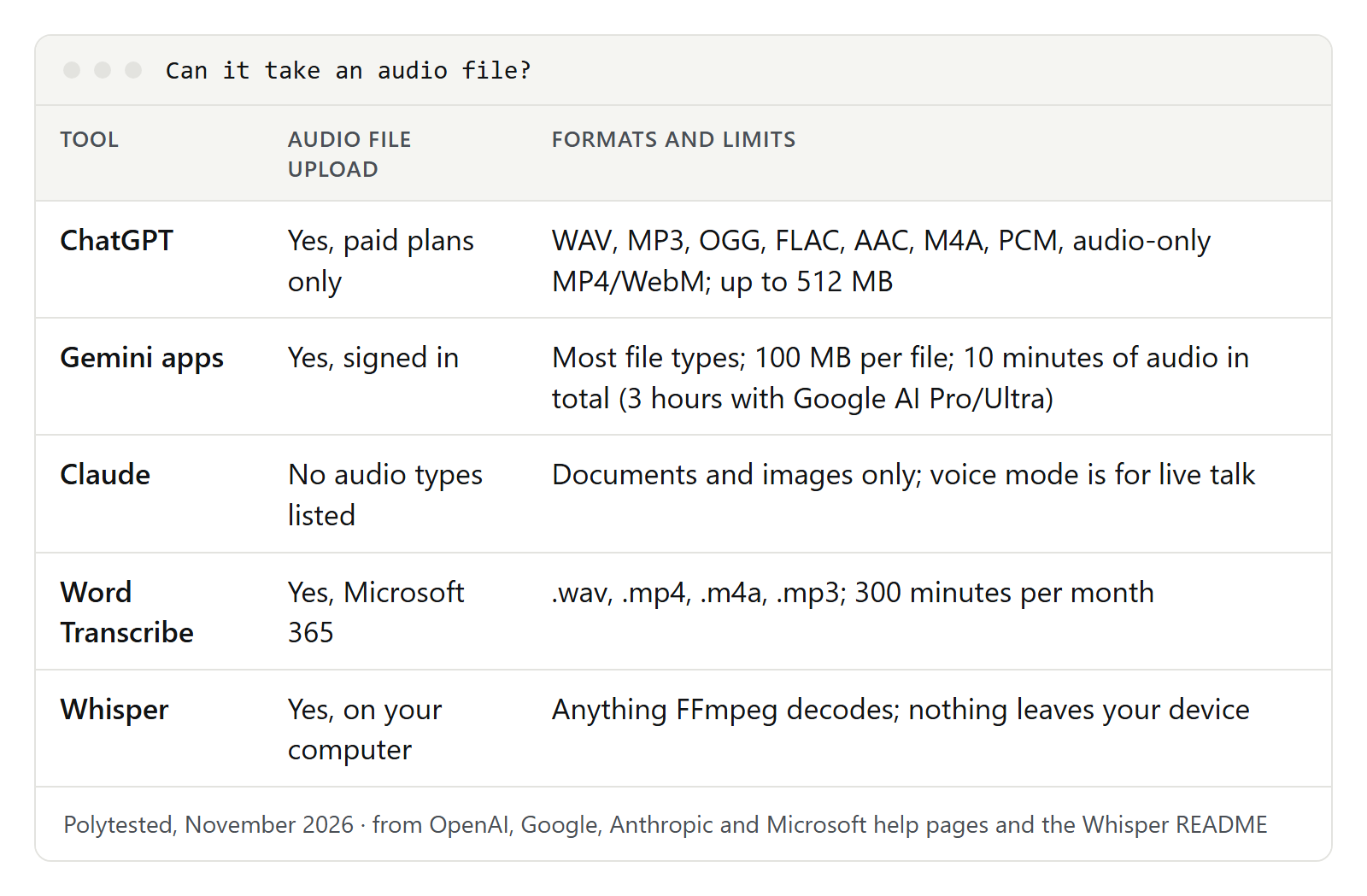
Here is what each vendor's own help page says about audio files, as of November 6, 2026. Claude is included because people often ask: its upload page lists documents and images only.
| Tool | Audio file upload | Formats listed | Main limits |
|---|---|---|---|
| ChatGPT | Yes, paid plans | WAV, MP3, OGG, FLAC, AAC, M4A, PCM, audio-only MP4 and WebM | 512 MB per file; long files may time out |
| Gemini apps | Yes, signed in | "Most file types" (no list) | 100 MB per file; 10 minutes of audio in total, 3 hours with Google AI Pro or Ultra |
| Claude | No audio types listed | Documents and images only | Voice mode is for live talk, not files |
| Word Transcribe | Yes, Microsoft 365 | .wav, .mp4, .m4a, .mp3 | 300 minutes of uploaded audio per month |
| Whisper | Yes, on your computer | Anything FFmpeg can decode | Your own hardware; no cloud upload |
Prompts for audio files
Each prompt below works with an uploaded recording or with a pasted transcript. Replace the parts in square brackets. They follow one pattern: say what the recording is, who the result is for and the format you want back. For long recordings, ask for the transcript first, then summarize and extract from it: each step is easier to check.
Summarize a meeting recording
This one asks for the three things people look for after a meeting and keeps the summary short enough to send.
This is a recording of a [team meeting / client call] about [topic].
The participants are [names and roles].
Write a summary for people who missed it:
1. Three to five sentences on what was discussed.
2. Decisions, as a bullet list.
3. Open questions nobody answered.
Mark anything you couldn't hear clearly as [unclear].
The last line matters: it asks ChatGPT to flag gaps instead of guessing.
Extract action items
Use this right after the summary, in the same chat, or on its own.
List every task agreed in this recording as a table with
these columns: task, owner, deadline, quote.
Put the exact words where the task was agreed in the quote column.
If no owner or deadline was said, write "not stated".
Don't add tasks that weren't mentioned.
The quote column makes checking easy: you can search for those words in the recording or transcript.
Translate a recording
ChatGPT can translate what's said into another language. Asking for a summary first keeps long translations manageable.
The speakers in this recording speak [Spanish].
1. Transcribe it in the original language.
2. Translate the transcript into [American English],
   keeping names, product names and figures unchanged.
3. Add a list of expressions that don't translate literally,
   with a short explanation of each.
For subtitles in another language, see the next prompt; for whole subtitle files, a dedicated tool keeps the timing intact.
Turn a recording into subtitle text
OpenAI doesn't document timestamps for audio uploads, so treat any timing ChatGPT gives you as a draft. This prompt gets the text into subtitle shape, which is the slow part.
Transcribe this recording as subtitle text in SRT format.
Rules:
- At most two short lines per subtitle.
- Split at natural pauses, never in the middle of a name.
- Clean up filler words like "um" and "you know".
I'll check the timecodes in a subtitle editor afterward.
If you need exact timing, Whisper writes SRT files with timecodes directly. Our guide on making SRT subtitles from audio shows both routes.
Analyze an interview
For research or user interviews, ask for themes with evidence, not opinions.
This is a [user research / job] interview with [role of the interviewee].
My research question: [what you want to find out].
1. List the main themes, each with two short direct quotes.
2. Note where the interviewee contradicts themselves or hesitates.
3. List follow-up questions I should ask next time.
Only use what is said in the recording.
When you have several interviews, our guide on how to analyze interview data explains how to build a coding frame across them.
More prompts for everyday recordings
A voice memo you recorded while walking can become a to-do list:
This is a voice memo I recorded for myself. Turn it into:
- a to-do list, grouped by [work / home / errands],
- a list of ideas worth keeping,
and drop anything that's just me thinking out loud.
A lecture can become study notes:
This is a recording of a lecture on [subject].
Write study notes with headings, the key terms and their
definitions, and five quiz questions with answers at the end.
A clean transcript you can share:
Transcribe this recording. Label each speaker as [Name 1] and
[Name 2]. Remove filler words and false starts, but don't change
the meaning. Keep figures exactly as spoken.
Troubleshooting
These are the problems OpenAI's help pages describe, with what to try.
- No audio option, or the upload is refused on Free. Audio uploads need a paid plan. Use Gemini, Whisper or Word and paste the transcript.
- "Not supported" for an MP4 or WebM. ChatGPT identified it as video. Extract the audio track with FFmpeg or another converter and upload the M4A or MP3.
- The file won't process at all. OpenAI says the file must contain a valid, decodable audio stream. A recording that's cut off or saved with the wrong extension can fail. Convert it to WAV or MP3 and try again.
- A long recording stops partway. OpenAI says very long recordings may time out. Split the file into parts and upload them one by one in the same chat.
- "Upload limit reached." OpenAI suggests checking that you're signed in to the right account, waiting until the retry time in the message, and checking the OpenAI status page. Failed attempts can count toward the limit.
- Wrong speakers. Name the participants in your prompt and describe their roles ("the interviewer asks the questions"). Check quotes against the audio.
- Poor audio. OpenAI's tip for Record applies everywhere: use a headset and reduce background noise.
- Errors in names and jargon. Give ChatGPT a list of names, product terms and abbreviations before it transcribes.
- Poor quality in another language. OpenAI says performance varies by language. Tell ChatGPT the language spoken, and for Voice or dictation, set it under Settings > Voice > Language.