The quickest free way to turn audio into an SRT file depends on where the file is going. For a YouTube video, let YouTube create automatic captions and download them from YouTube Studio. For an MP3, WAV or M4A on your computer, Clipchamp's autocaptions give you an .srt download in the browser, and OpenAI's free Whisper writes one offline with a single command. Whatever you use, the result is a draft: check the words, the line length and the timing before you publish. Below: every free route from the vendors' own help pages, two step-by-step guides, the rules for readable lines and fixes for common problems.
The short answer by situation
| Your situation | Route to try first | What you get |
|---|---|---|
| A video you publish on YouTube anyway | YouTube automatic captions, then Download subtitles in YouTube Studio | The caption track as a file, after you correct it |
| A short clip for social media | CapCut Auto captions, then Caption Export | An SRT or TXT file |
| An MP3, WAV or M4A and only a browser | Clipchamp autocaptions | An .srt download |
| A podcast or interview you edit as text | Descript, Export as subtitles | SRT or VTT with a maximum line length you set |
| Private recordings, long files, no upload | Subtitle Edit with Whisper, or Whisper on the command line | An SRT file made on your own computer |
| You only have Microsoft Word | Word's Transcribe | Text only, no SRT; see the workaround below |
| Many files, inside your own app | Azure Speech or Google Speech-to-Text | SRT output through their APIs |
What turning audio into SRT involves
An SRT file is plain text: numbered blocks, each with a start time, an end time and one or two lines of text. We explain the format in detail in what an SRT file is. To build one from audio, a tool has to do three jobs:
- Transcribe the speech into words.
- Time each piece of text against the audio.
- Split the text into short subtitle blocks that people can read in the time they're on screen.
Speech recognition tools are good at the first two jobs and uneven at the third. Some let you set a maximum number of characters per line; others cut wherever the speaker pauses. That's why the format of your file (MP3, WAV, M4A or MP4) matters much less than the settings you choose and the checking you do afterwards.
If you already have a transcript without timestamps, you don't need speech recognition at all. You need timing, which we cover in how to convert TXT to SRT.
Video editors and platforms that export SRT
YouTube automatic captions
YouTube creates automatic captions for uploaded videos in more than 60 languages, English and Spanish among them, according to its help page on automatic captioning. You can then download the track from YouTube Studio:
- Sign in to YouTube Studio and choose Subtitles in the left menu.
- Click the video.
- Next to the language, click Edit.
- Click the Options icon and choose Download subtitles.
Correct the automatic track first. In the same editor, Duplicate and edit creates your own copy of the automatic captions; fix the lines and click Publish. YouTube's help page doesn't say which file format the download uses. If you get a file that isn't .srt, convert it before you use it elsewhere; our guide to the VTT format shows how for WebVTT.
Two limits matter. YouTube only takes video uploads (its list of upload formats names video formats such as MPEG-4 and MOV), so an audio file has to become a video first, for example with a still image in a video editor. And YouTube says automatic captions may not appear when the video is too long, the sound is poor, there is a long silence at the start, or several people or languages overlap.
CapCut Auto captions
CapCut can generate captions in its desktop app, in the browser and on phones. On the desktop, its help page describes Captions in the left toolbar, then Auto captions, the audio source and the language, then Generate. Some versions place Auto captions under Text instead.
To get a file rather than a video with burned-in text, choose Caption Export instead of Video Export and pick SRT or TXT. CapCut's help page lists the rules: only captions made by Auto captions can be exported, not text you typed yourself, and other subtitle formats are not supported. CapCut also says some options, batch SRT export among them, depend on the platform, region and app version.
Clipchamp autocaptions
Clipchamp, Microsoft's video editor, works in the browser and accepts audio as well as video: its help page says autocaptions work with "video or audio assets that include voice." That makes it a good fit for an MP3 or WAV file. You choose one transcription language per video. In the personal version, the captions tab in the property panel has a download captions button that saves an .srt file; in the work version you find Download as .srt in the more options menu of the transcript tab.
Clipchamp processes the audio with Microsoft's Azure speech services and stores the caption data with your project. Its help page doesn't mention a line length setting.
Descript
Descript transcribes audio and video and lets you edit the recording by editing the text. When the transcript is right, choose Export in the top right corner, then Local export, and pick subtitles. The export settings are the most complete of any editor here:
- Format: .srt or .vtt.
- Show speakers: adds speaker labels to the file.
- Max characters per line and Max lines per card: control how the text is split.
Descript transcribes 26 languages, all written in the Latin alphabet, and only one language per file. Its Free plan includes 60 media minutes a month according to its pricing page (checked November 4, 2026); the paid plans are called Hobbyist, Creator, Business and Enterprise.
Word's Transcribe: no SRT, and what to do instead
Microsoft Word can transcribe uploaded recordings: Home, Dictate, Transcribe, then Upload audio. Microsoft's help page names four file types (.wav, .mp4, .m4a and .mp3), more than 80 locales and a limit of 300 minutes of uploaded audio per month with a Microsoft 365 subscription. It works in Word for the web and in Word for Microsoft 365 on Windows, in Edge or Chrome.
The catch: the help page offers Add all to document and a full transcript as a Word document, and no subtitle export. Two ways forward:
- Keep the text and add timing. Copy the transcript into a plain text file and follow how to convert TXT to SRT. If the video is on YouTube, its Auto-sync option (Upload file, then Without timing) can time a plain transcript for you. YouTube says the transcript must be in the language spoken in the video and doesn't recommend Auto-sync for videos over an hour or with poor audio.
- Start again with a route that writes SRT. For most people that is quicker than timing a transcript by hand.
For M4A recordings in particular, including iPhone voice memos, see how to transcribe an M4A file.
Offline: Subtitle Edit and Whisper
Subtitle Edit with Whisper
Subtitle Edit is a free, open-source subtitle editor. Its Video menu has Speech to text…, which runs a speech recognition engine of your choice. Several engines are based on Whisper, such as Whisper CPP, which its documentation describes as a local CPU engine, and Purfview Faster Whisper XXL. The documentation says engines and models download automatically on first use.
The steps from the documentation:
- Open the video file in Subtitle Edit.
- Go to Video, Speech to text…
- Choose an engine, a model (larger models usually improve accuracy but take more time and disk space) and the language, or auto-detect if the engine supports it.
- Optionally tick Post-processing to adjust timings, fix casing, merge short lines and split long lines.
- Click Transcribe.
Two features help with the checking. A quality report flags lines that are too short, too long, overlapping, non-speech lines such as "[Music]" and repeated lines. Batch mode transcribes several files at once and saves an .srt file next to each one. Subtitle Edit can also connect to online services such as Google Cloud Speech-to-Text, which need your own account.
Whisper on the command line
Whisper is OpenAI's open-source speech recognition model, released under the MIT License. Once it is installed with Python and ffmpeg, as its README describes, one command writes subtitles:
whisper interview.mp3 --language English --output_format srtWhat the options do, according to Whisper's own command help:
--output_format srtwrites only the SRT file. Without it, Whisper writes every format it knows: txt, vtt, srt, tsv and json.--languagesets the spoken language. Leave it out and Whisper detects the language itself.--modelpicks the model. The default isturbo, which the README calls an optimized version oflarge-v3. For English-only audio, the.enmodels tend to perform better, especially the smaller ones.
Whisper reads the file through ffmpeg, so MP3, WAV, M4A and MP4 all work as they are. The SRT file gets the name of the input file and is saved as UTF-8 in the current folder.
For developers: Azure Speech and Google Speech-to-Text
If you build captioning into your own product or process many files, two cloud services write SRT directly:
- Azure AI Speech: Microsoft's captioning quickstart has a
--srtoption (the default output is WebVTT),--maxLineLengthwith a default of 37 characters and--lineswith a default of two. Compressed input such as MP4 needs GStreamer. A phrase list raises the chance that names and industry terms are recognized. - Google Cloud Speech-to-Text (v2): batch recognition accepts an output format setting with
srtandvttfields. Google's documentation gives an upper limit of 480 minutes for asynchronous recognition.
Both need a cloud account with billing set up. Check each provider's pricing page before you start.
All routes side by side
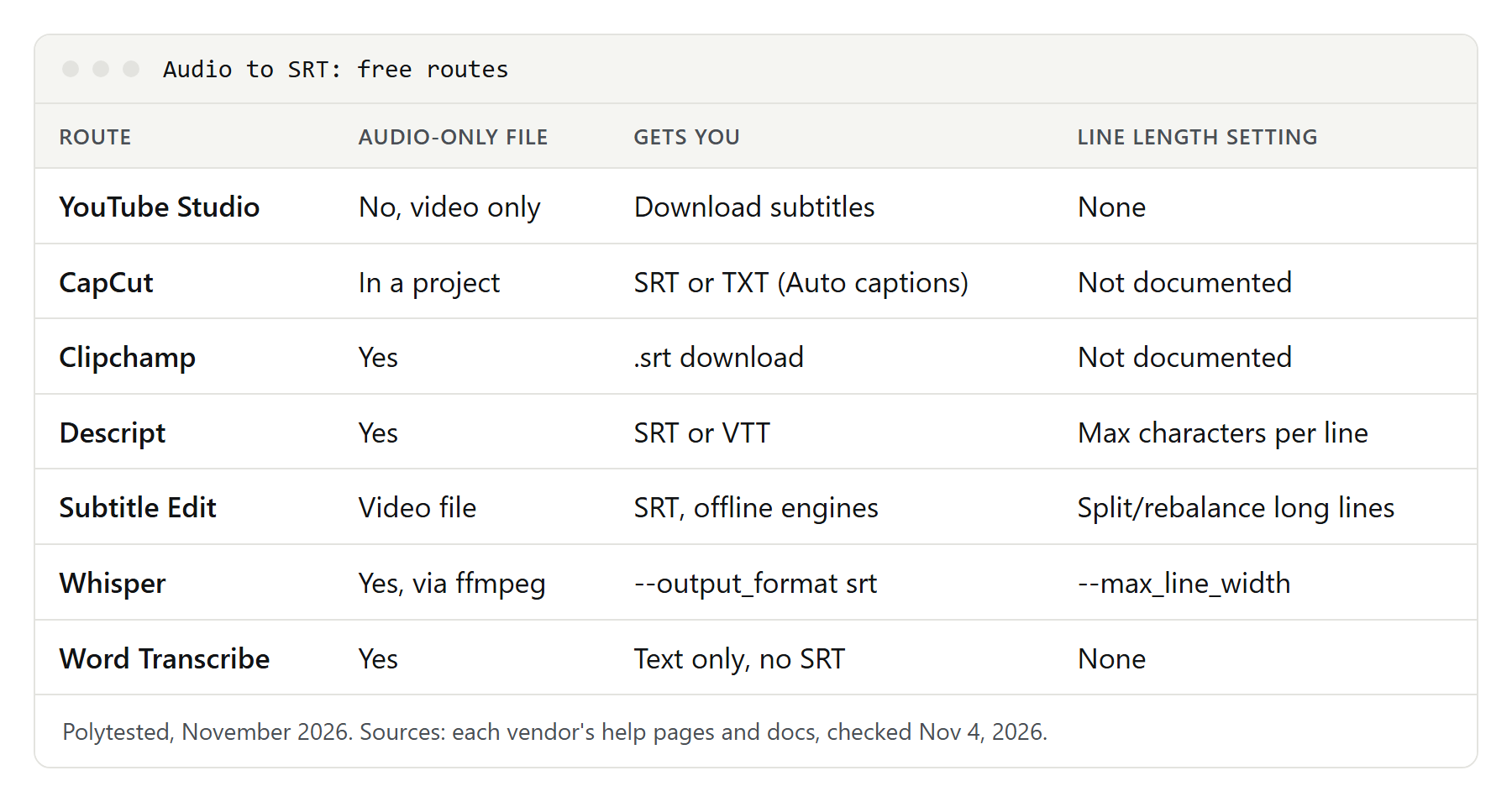
| Route | Takes audio-only files | SRT export | Line length setting | Runs on your computer |
|---|---|---|---|---|
| YouTube Studio | No, video uploads only | Download subtitles (format not named) | No | No |
| CapCut | In a project | SRT or TXT, Auto captions only | Not documented | Desktop app, processing not documented |
| Clipchamp | Yes | .srt download | Not documented | No, Azure speech services |
| Descript | Yes | SRT or VTT | Max characters per line | No |
| Subtitle Edit | Documented with video files | SRT | Split/rebalance long lines | Yes, with local engines |
| Whisper | Yes, through ffmpeg | --output_format srt | --max_line_width | Yes |
| Word Transcribe | Yes | No | No | No, audio kept in OneDrive |
Step by step: MP3 to SRT in Clipchamp
This route needs only a browser. The steps follow the help page for the personal version.
- Open Clipchamp and create a new video.
- Import your MP3, WAV or M4A file and drag it onto the timeline.
- Open the captions tab in the property panel (or click the captions icon in the preview) and turn on autocaptions.
- Choose the language spoken in the recording. Clipchamp transcribes one language per video.
- Wait for the transcript. Clipchamp says the time depends on your connection and the length of the file.
- Read the transcript and double-click any wrong word to correct it.
- Click the download captions button. Clipchamp saves an .srt file with your transcript.
Open the file in a plain text editor before you upload it anywhere, and check the length of the lines against the rules further down. Clipchamp's help page doesn't describe a setting for line length, so long lines have to be split by hand or in Subtitle Edit.
Step by step: any audio or video file to SRT with Whisper
This route works offline, so the recording never leaves your computer. You need Whisper and ffmpeg installed as the README describes.
- Open a terminal in the folder that holds your file.
- Run the basic command and name the language:
whisper meeting.m4a --language English --output_format srt- For subtitles with a set line length, add word timestamps and the line options:
whisper meeting.m4a --language English --output_format srt --word_timestamps True --max_line_width 42 --max_line_count 2- Open
meeting.srtin a text editor or in Subtitle Edit and check names, numbers and line breaks.
Whisper's command help explains the line options. --max_line_width is the number of characters before a line breaks, and --max_line_count the number of lines per subtitle; both require --word_timestamps True, and the line count has no effect without a width. With these options set, Whisper also starts a new subtitle after a pause of more than three seconds. --max_words_per_line is an alternative that limits words instead of characters.
If the audio contains names or technical terms, --initial_prompt passes some text to the model for the first part of the recording. A short line such as "Interview with Dr. Okafor about Kubernetes" gives it the spelling you want.
Make the subtitles readable: line length and reading speed
Automatic tools often produce lines that are too long or flash by too fast. Professional style guides give clear limits. Netflix's English (USA) style guide allows:
- 42 characters per line and at most two lines per subtitle.
- 20 characters per second of reading speed for adult programs, 17 for children's programs.
- Text on one line unless it is too long; when you break, the bottom line should be the longer one.
Netflix's general requirements add a minimum of five-sixths of a second and a maximum of seven seconds per subtitle, and its timing guide leaves a gap of two frames between subtitles.
The reading speed is simple arithmetic: a subtitle of 40 characters that stays on screen for two seconds asks for 20 characters per second, the upper limit. If a line is faster, shorten the text or give it more time.
Where to break a line matters too. Netflix's guide says to break after punctuation and before conjunctions or prepositions, and not to separate an article from its noun or a first name from a last name. We go deeper into size, line length and timing in the best subtitle fonts and how to set them.
You don't have to count by hand. Descript's Max characters per line, Whisper's --max_line_width and Subtitle Edit's Split/rebalance long lines (in the Tools menu, with Single line max length and Max number of lines) apply the limit for you.
A valid SRT file, block by block
This is what a clean result looks like. Use it to check what your tool produced:
1
00:00:00,800 --> 00:00:03,400
Thanks for coming in today.

2
00:00:03,700 --> 00:00:07,200
Let's start with how the project began
and who was involved.

3
00:00:07,600 --> 00:00:09,900
- Was it your idea?
- Partly, yes.
What to look for:
- A counter, then the timecode line, then one or two lines of text, then a blank line.
- Timecodes written
hh:mm:ss,mmm, with a comma before the milliseconds and an arrow of two hyphens and a greater-than sign. - No overlaps: each subtitle ends before the next one starts.
- Two speakers in one subtitle each get their own line with a dash.
- The file saved as UTF-8. YouTube says SRT files must be plain UTF-8 and ignores style markup.
Syncing and translating the result
Automatic SRT files are usually close to the speech, but a file can be early, late or drift, especially after you trim the video or add an intro. Shifting all timecodes, stretching a file between two sync points and fixing single scenes are all covered in how to sync subtitles.
For other languages, make one file per language and change only the text lines; counters and timecodes stay as they are. Translated lines often get longer, so check the line length again after translating. Which free translators keep an SRT file intact, and what to check afterwards, is in how to translate subtitles.
Troubleshooting
- YouTube shows no automatic captions. YouTube lists unfinished processing, an unsupported language, a video that is too long, poor sound, a long silence at the start and overlapping speakers or languages as reasons. Wait, then try a cleaner audio track.
- CapCut won't export captions. Only Auto captions can be exported. Choose Caption Export, not Video Export, update the app and save to a folder path without special characters. If export still fails in the browser, CapCut suggests exporting TXT and converting it.
- Clipchamp captions are missing or wrong. Its help page suggests reloading the editor, adding the clip again, converting the source to MP4 and checking whether a firewall, company network or browser extension blocks the speech service.
- Accents and special characters look garbled. The file isn't being read as UTF-8. CapCut recommends UTF-8 without a BOM. See the encoding section of what an SRT file is.
- Whisper repeats a line or writes text during silence. Subtitle Edit's quality report flags repeated lines and long subtitles with almost no text. In Whisper,
--condition_on_previous_text Falsemakes the model less prone to getting stuck in a loop, according to its command help, though the text may become less consistent; and--hallucination_silence_threshold(with word timestamps) skips long silent periods when a possible hallucination is detected. - The wrong language, or two languages in one file. Descript and Clipchamp transcribe one language per file. Set the language yourself instead of relying on detection, or split the recording. In Subtitle Edit, Purfview Faster Whisper XXL can detect the language per segment.
- Names are misspelled. Correct them once with find and replace. Whisper's
--initial_prompt, Azure's phrase list and Descript's transcription glossary (English only) help the next file. - Subtitles are one long line. Re-export with a line limit (Descript, Whisper) or run Split/rebalance long lines in Subtitle Edit.
Privacy before you upload
Online routes send your audio to the vendor. Clipchamp uses Microsoft's Azure speech services, and Word saves uploaded recordings in a Transcribed Files folder in your OneDrive, where you can delete them. When Subtitle Edit uses Google Cloud Speech-to-Text, long audio goes to a Cloud Storage bucket in your own Google account and is deleted after each run, according to its documentation.
For interviews, client calls or anything confidential, an offline route is the safer choice: Whisper and Subtitle Edit's local engines process the file on your computer. Whatever you use, only transcribe recordings you have the right to use; for questions about rights, check the tool's terms and, if needed, ask a lawyer.