The fastest free way to summarize YouTube videos in the US: tap Ask below a video on YouTube and pick a suggested prompt, or ask Gemini about the video. The way that works with any video that has captions and any AI chatbot: open the transcript, copy it, and paste it under a clear prompt in ChatGPT, Gemini or Copilot. For long lectures, add the YouTube link to Gemini Notebook. Below: every route by situation, copy-ready video summarizer prompts, lecture notes from your own recordings, and how to check the result.
The short answer by situation
| Your situation | Route | What you need |
|---|---|---|
| Quick summary while you watch | Ask below the video on YouTube | Signed-in account, age 13 or older, a video that shows the button |
| You want to name the video in a chat | Gemini app or gemini.google.com | Google account, Keep Activity on |
| The video already played in Chrome | Gemini in Chrome | Chrome on Windows, Mac or Chromebook Plus, signed in |
| Long lecture, several videos, study aids | Gemini Notebook | Link to a public video with captions |
| Exact format, any chatbot | Transcript plus ChatGPT, Gemini or Copilot | Copied transcript and a prompt from this guide |
| Video playing in Microsoft Edge | Copilot in Edge | Personal Microsoft account |
| A lecture you recorded yourself | Gemini Notebook audio upload, or transcribe first | The file, and permission to record |
How we chose: we included routes you can start without paying, in English, whose vendor documents what they need, what the free version allows and what happens to your data. Every fact comes from the vendor's own help page, opened on November 6, 2026. We don't list prices and we don't rank the options.
How AI video summaries work, and why captions matter
Most summarizers read text, usually the captions or transcript, not the picture. Gemini Notebook, for example, imports only the text transcript of a YouTube link, according to Google's help.
That has three consequences:
- No captions, no text. Without uploaded or automatic captions, many routes fail. To find videos with captions, use Filters and Subtitles/CC in YouTube search.
- Caption errors travel. YouTube says automatic captions can misrepresent speech because of mispronunciations, accents, dialects or background noise. By default, potentially inappropriate words appear as "[ __ ]". Whatever is wrong in the transcript is wrong in the summary.
- What's only on screen is missing. Slides, formulas, code and tables that nobody reads aloud never reach a summary built from the transcript.
Ask YouTube: a summary right on the watch page
Ask YouTube on the watch page is YouTube's own AI feature: tap Ask below the video, then pick a suggested prompt or type a question such as "Summarize this video in five points." On a smart TV, press the up or down arrow on the remote to show the video details and select the button there.
What YouTube's help says about it:
- Who and where: signed-in users aged 13 or older (or the minimum age in your country), in 77 languages, including English and Spanish. The United States, Canada and the United Kingdom are on the list of 194 countries and regions.
- Which videos: it appears on select videos only, so you won't see the button everywhere. It isn't available for supervised kid accounts or in the YouTube Kids app.
- Devices: the Android and iOS apps, computer browsers and smart TVs.
- How answers are made: large language models draw on information from YouTube and the web. YouTube adds that quality and accuracy may vary and that you shouldn't rely on the answers as medical, legal or financial advice.
- Your data: conversations linked to your account are deleted after 45 days. Human reviewers may read conversations, and reviewed ones are kept separately for up to three years. Don't type anything confidential.
Gemini, Gemini in Chrome and Gemini Notebook
The Gemini app
Gemini uses public YouTube information to help you understand a video, according to Google. You must be signed in, and Keep Activity must be on; the feature isn't available in Live chats or in Gemini in Google Messages. Google's example: go to gemini.google.com, ask Gemini to find videos on a topic, then ask "Summarize the first video." The help doesn't mention pasting a link, so name the title and channel.
On Android, open the Gemini overlay over a playing video, for example by long-pressing the power button. Google says you may see a suggestion to "ask about this video" when available; the Screen context setting has to be on.
You can also upload your own video file with Add files and Upload Files. Without a paid plan, total video length is limited to five minutes and audio to ten minutes; Google AI Pro or Ultra raise that to one hour of video and three hours of audio.
Gemini in Chrome
Gemini in Chrome can summarize audio and video you already played on media websites. Click Ask Gemini at the top of Chrome after watching. You need to be 13 or older, signed in to Chrome (not in Incognito), on a Windows computer, a Mac or a Chromebook Plus, and in a supported region; the United States is on Google's list. Google is releasing it gradually. The setting Media understanding, on by default, is at chrome://settings/ai/gemini.
Privacy in the Gemini app: Google says some chats are read by human reviewers, including trained reviewers from service providers, and reviewed chats are kept for up to three years. Activity is auto-deleted after 18 months by default. Temporary chats aren't used to train Google's models, but the YouTube feature needs Keep Activity on.
Gemini Notebook (formerly NotebookLM)
Gemini Notebook answers from the sources you add, which makes it a good fit for long videos, lectures and comparing several videos. It's available in the browser in the US and supports more than 80 languages.
- Open Gemini Notebook and create a notebook.
- On the left, select Add sources and paste the YouTube link. Separate several links with a space or a new line.
- Open the source for an automatic summary in the Source Guide, or ask a question in the chat. Google suggests specific questions that name the source rather than "Summarize this source."
What the help says about YouTube links:
- Only public videos with captions work, uploaded or automatic, and only the text transcript is imported.
- There's no length limit unless the caption file has more than 500,000 words.
- Videos uploaded less than 72 hours earlier may not import yet; videos without speech aren't supported.
- If a video is deleted or made private, the source disappears from your notebook within 30 days.
Free users can add up to 50 sources, each up to 500,000 words or 200 MB for uploaded files. Google says your data isn't used for training unless you give feedback, and asks you not to upload documents you don't have rights to.
ChatGPT, Copilot and other chatbots
ChatGPT
OpenAI's help covers documents, text, images and audio you attach, but not YouTube links. The reliable route is the transcript: paste it into the chat, or save it as a TXT file and attach it with + and Add photos & files.
- Free plan: text and document uploads work, but Free users are limited to three file uploads per day. Text files can hold up to 2 million tokens.
- Audio: audio uploads are for paid plans only, up to 512 MB per file. An MP4 works only if it's audio-only; files identified as video aren't supported.
- Privacy: on Free, Plus and Pro, your chats can be used for training by default. Turn it off under Settings, Data controls, Improve the model for everyone.
Copilot in Microsoft Edge
Microsoft says Copilot in Edge can summarize web pages, videos and PDFs. Sign in to Edge with a personal Microsoft account, open the video, select the Copilot icon in the upper-right corner and choose Create a Summary. Microsoft Copilot (free) is available at no cost.
Copilot may use the current page, its title, your open tabs and your browser history. To stop that, go to More (…), Copilot and AI, and turn off Allow Copilot to read context clues on the web. Microsoft stores conversations for 18 months by default, and you can opt out of model training.
Step by step: get the transcript first
This works with every chatbot, and you see exactly which text was summarized.
- Open the transcript. On a computer, expand the video description and click Show transcript. Our guide to getting a YouTube transcript shows how to copy all of it and strip the timestamps.
- Decide on timestamps. Keep them for prompts that point to moments (chapters, quotes, quizzes, the fact-check prompt); drop them for a plain summary. Formats are explained in time-coded transcripts.
- Paste into a text editor. For a very long video, save the text as a TXT file and attach it.
- Pick a prompt below, replace the parts in square brackets and paste the transcript underneath.
- Check the result against the video, at least for numbers, names and quotes (see "Check the summary" below).
For your own uploads, the caption file from YouTube Studio is the cleanest source. If a video has no captions at all, you need to transcribe it first; see how to transcribe an audio recording.
Video summarizer prompts to copy
Every prompt works with a pasted transcript, an attached TXT file or a source in Gemini Notebook (there, leave out the transcript lines). Replace everything in square brackets.
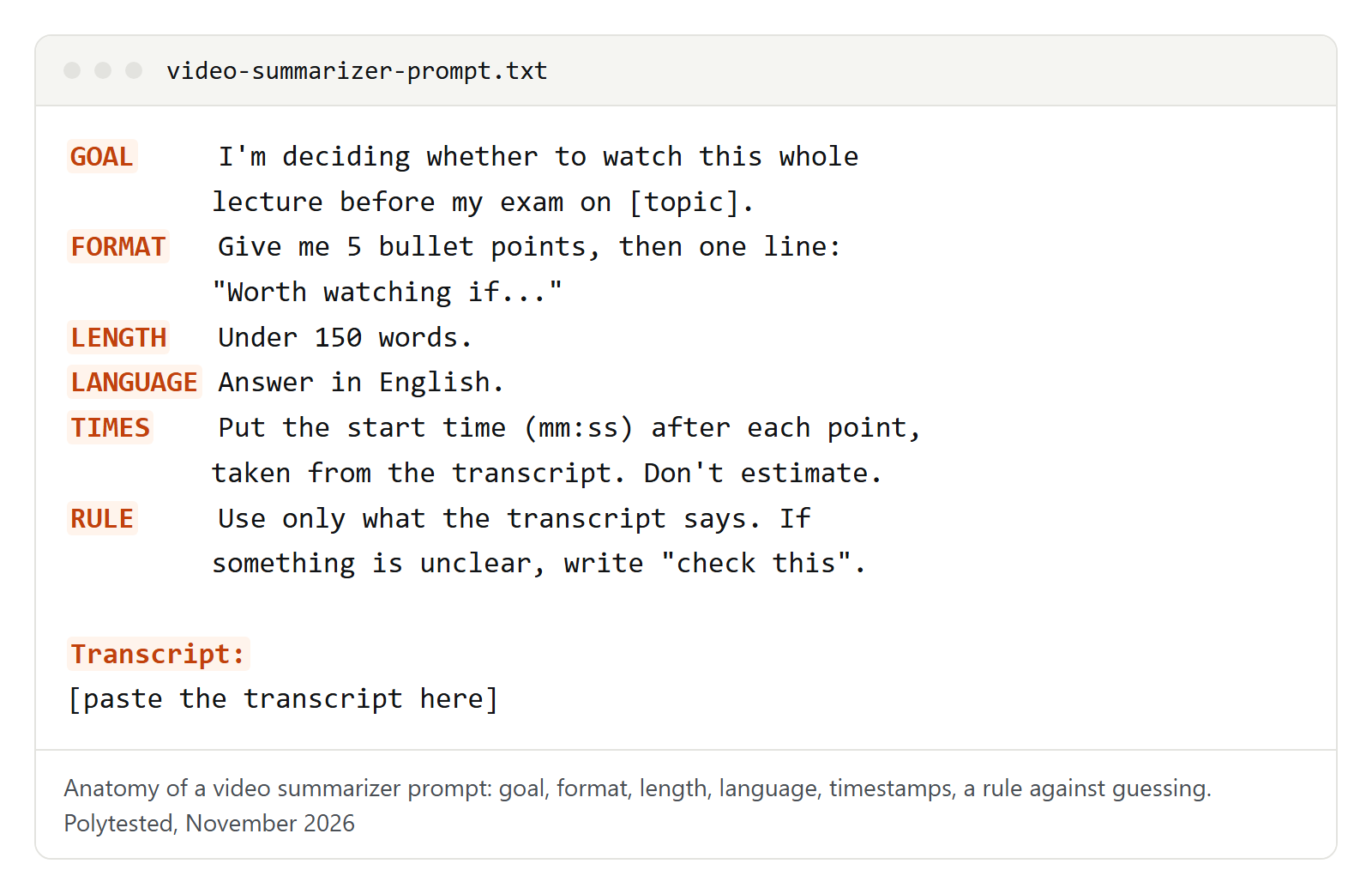
The five-sentence summary
For "Is this video worth my time?" The last line keeps the AI from filling gaps with outside knowledge.
Summarize the transcript below in five sentences.
Sentence 1: what the video is about and who is speaking.
Sentences 2 to 4: the main points, in the order of the video.
Sentence 5: who should watch the whole video, and who can skip it.
Use only information from the transcript.

Transcript:
[paste the transcript]
Chapters with timestamps
Useful when a video has no chapters. The transcript must keep its timestamps. YouTube's own chapters start at 00:00, as this prompt does.
Split this video into chapters based on the transcript.
For each chapter: start time in mm:ss, a short title, one sentence on what it covers.
Start the first chapter at 00:00.
Begin a new chapter when the topic changes, not after a fixed length.
Take every start time from the transcript; don't estimate.

Transcript with timestamps:
[paste the transcript]
Key quotes, word for word
When you want to cite the video or back up a claim.
Find the [number] most important statements in this video.
For each one, give an exact quote from the transcript in quotation marks, unchanged, with its timestamp.
If you can't find an exact quote for a point, write "no quote found" instead of rephrasing.

Transcript:
[paste the transcript]
Steps from a tutorial
Turns a how-to video into a checklist you can follow with the video closed.
Turn this tutorial into a numbered checklist I can follow without the video.
For each step: what to do, any setting or value the speaker names, and the timestamp.
List the tools or materials needed at the top.
Mark any step the speaker skips over quickly with "watch this part".

Transcript:
[paste the transcript]
Just the answer to your question
Often you need one part, not the whole video.
Using only the transcript, answer this question: [your question]
Give the timestamp of the passage and quote the key sentence.
If the video doesn't answer the question, say so clearly and don't guess.

Transcript:
[paste the transcript]
A video in another language, summarized in English
For talks and tutorials in a language you read slowly.
The transcript below is in [language]. Summarize it in English in [number] bullet points.
Keep technical terms in the original language in parentheses the first time they appear.
For quotes, give the original wording first, then an English translation.

Transcript:
[paste the transcript]
Study prompts: lecture to notes, quizzes and flashcards
These prompts do the job of an AI lecture summarizer or a video to notes converter.
Lecture notes
Name the subject so the AI picks out the right terms.
I'm reviewing a lecture in [subject] for [course or exam].
Turn the transcript into study notes with these sections:
1. Main topic in one sentence
2. Key terms with definitions, as the lecturer explains them
3. Main ideas as bullet points, in the order of the lecture
4. Examples the lecturer gives
5. Anything the lecturer stresses as important for the exam
Mark anything that seems unclear or incomplete in the transcript with "check".

Transcript:
[paste the transcript]
Quiz for self-testing
Questions first, answers separately, so you can test yourself.
Write a quiz of [number] questions based on the transcript.
Mix multiple-choice questions with four options and short open questions.
Only ask about things the video actually explains.
List all questions first. Then, under the heading "Answers", give each answer with the timestamp where the video covers it.

Transcript:
[paste the transcript]
Flashcards
The tab-separated format can be imported by many flashcard apps. In Gemini Notebook you can skip this prompt: select Flashcards or Quizzes in the Studio panel, choose easy, medium or hard, and add your own instructions. Google's help says flashcards can be downloaded as a CSV file.
Create [number] flashcards from this transcript.
Format: one card per line, front and back separated by a tab, no numbering.
Front: a term or a short question. Back: the answer in one or two sentences, as the video explains it.

Transcript:
[paste the transcript]
Compare two videos
Works best in Gemini Notebook with both videos as sources, or with both transcripts pasted into the same chat.
Compare the videos [title 1] and [title 2] on [topic].
1. Where do they agree?
2. Where do they disagree? Give the timestamp in each video.
3. What does only one of them cover?
Don't judge who is right; only describe what each one says.
Long transcripts: summarize in parts
For a very long lecture, send the transcript in parts with this prompt, then ask for one combined summary.
This is part [number] of [total] of a lecture transcript.
Summarize only this part in [number] bullet points, with timestamps.
Don't refer to other parts yet. When I write "all parts done", combine all part summaries into one summary with headings.

Transcript part:
[paste the part]
For more general prompts, see our prompts for ChatGPT.
Lectures you recorded yourself
If a lecture isn't on YouTube, you work from your own recording. First make sure you're allowed to record: ask the lecturer and anyone else who speaks, and check your school's rules. OpenAI's help also asks you to get the right consents before recording others. This isn't legal advice.
- Gemini Notebook accepts audio files, including MP3, M4A, WAV and MP4, and transcribes them when you import them. Each file can be up to 200 MB. Add the slides as a PDF as a second source, so terms and formulas from the slides aren't lost, then use the lecture notes prompt.
- Gemini app: without a paid plan, audio uploads are limited to ten minutes in total, too short for most lectures.
- ChatGPT: audio uploads only on paid plans, up to 512 MB per file.
- Transcribe first: if the recording shouldn't leave your computer, transcribe it locally and share only the text. Our guide to audio to SRT also covers making a caption file from a recording.
Meetings: Microsoft Teams creates an intelligent recap with a Teams Premium or Microsoft Copilot license; Google Meet's "Take notes for me" needs an eligible Google Workspace edition or Google AI plan. To turn a summary into proper minutes, see how to write meeting minutes.
Browser extensions and summary sites
Extensions add a summary button to YouTube; summary sites take a pasted link. Details from the Chrome Web Store as of November 6, 2026:
- YouTube Summary with ChatGPT & Claude (Glasp Inc.): free with in-app purchases, summaries with or without timestamps and a Copy Transcript button. The listing says it collects personally identifiable information and website content; last updated October 17, 2026.
- Eightify (Rational Expressions Inc.): a seven-day free trial, then a subscription; summaries and translations in more than 40 languages. Last updated November 14, 2025.
- Summary sites: many offer a few free summaries a day, credits or a trial. Read the limits and privacy policy first.
Before installing an extension, read its permissions. Google's Chrome Web Store help rates "your data on all the websites you visit" as a medium alert: the extension can read and change data on every page you visit, including your bank's.
What you may do with someone else's video and transcript, such as publishing a summary, depends on YouTube's Terms of Service and copyright law. This isn't legal advice.
All options compared
| Route | Free to use | What you need | Limits without a paid plan | Data, per the vendor |
|---|---|---|---|---|
| Ask YouTube | yes, with an account | Signed in, 13 or older, a video with the button | select videos only | deleted after 45 days, reviewed ones kept up to three years |
| Gemini app | yes, more with Google AI Pro or Ultra | Account, Keep Activity on | own video files five minutes, audio ten minutes | human reviewers, reviewed chats up to three years |
| Gemini in Chrome | yes | Chrome signed in, supported region and computer | gradual release | see Google's Gemini in Chrome help |
| Gemini Notebook | yes | Public video with captions, or a file | 50 sources, each 500,000 words or 200 MB | not used for training unless you give feedback |
| ChatGPT | yes, audio on paid plans only | Transcript as text or TXT | three file uploads per day, no video files | training on by default, can be turned off |
| Copilot in Edge | yes | Edge, personal Microsoft account | not stated in the help | stored 18 months, training opt-out |
| Extensions and sites | partly, some trial only | Install or account, page access | depends on the tool | read the listing and privacy policy |
Check the summary: where AI gets it wrong
Treat every summary as a draft. Check these against the video:
- Numbers, names and technical terms: caption errors hit these hardest, and the AI copies them.
- Timestamps: spot-check two or three; clicking a line in the transcript jumps to that moment.
- Quotes: compare every quote you plan to use with what was actually said.
- Long videos: Google warns that very large uploads can miss details. Ask about sections one at a time.
- Opinion versus fact: a summary can turn "I think" into a flat statement.
- On-screen content: slides, charts and on-screen text are missing from transcript-based summaries.
Send this prompt in the same chat after any summary:
List every number, name, date and claim in your summary.
For each one, give the timestamp in the transcript you based it on.
Mark anything without a clear passage as "unsure".
When it doesn't work: problems and fixes
| Problem | Likely cause | What helps |
|---|---|---|
| No Ask button under the video | Not a selected video, supervised account, not signed in | Use the transcript with a chatbot |
| Gemini Notebook won't import the link | No captions, invalid link, unsupported language, video under three days old | Check captions, try later, or paste the transcript as text |
| Gemini won't help with the video | Keep Activity is off, or you're in a Live chat | Turn the setting on, ask in a normal chat |
| No Ask Gemini button in Chrome | Gradual release, Incognito, not signed in, unsupported device | Use the Gemini app or Gemini Notebook |
| ChatGPT rejects the MP4 | The file is identified as video | Upload audio only (paid plans) or use the transcript |
| Upload limit reached | ChatGPT Free: three files per day; Gemini: rolling limits | Paste the text into the chat, or wait |
| No transcript for the video | No automatic captions, for example because of poor sound, long silence at the start or overlapping speakers | Transcribe the audio yourself |