To turn an OGG file into text, upload it to a tool that lists OGG, such as Otter, ChatGPT on a paid plan or TurboScribe's free tool, or run the free, offline Whisper, which reads every format on this page. Microsoft Word's Transcribe, Fireflies and the Descript app don't take an .ogg file, so convert it to WAV first with VLC or one ffmpeg command. The same logic works for WAV, MP4, MOV, WebM and FLAC: check the tool's list, then convert only if the format is missing. Below: who accepts what, and the exact steps for each format.
Which tool takes which file format
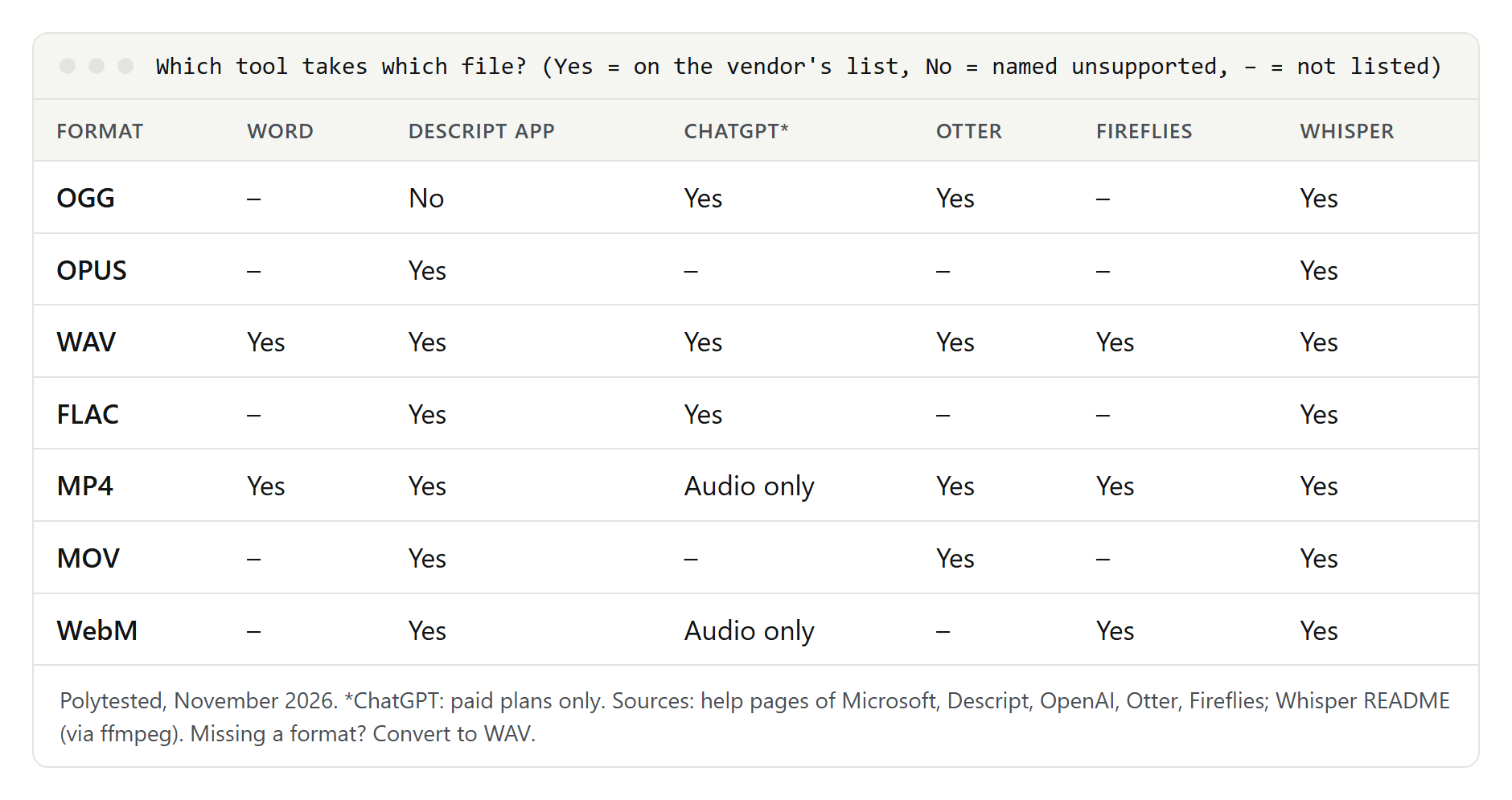
The table below comes from each vendor's own help or tool page, opened on November 6, 2026. "Yes" means the format is on the vendor's list, "No" means the vendor names it as unsupported, and a dash means it isn't on the list.
| Tool | OGG | OPUS | WAV | FLAC | MP4 | MOV | WebM |
|---|---|---|---|---|---|---|---|
| Word's Transcribe | – | – | Yes | – | Yes | – | – |
| Descript app | No | Yes | Yes | Yes | Yes | Yes | Yes |
| ChatGPT (paid plans) | Yes | – | Yes | Yes | Audio-only files | – | Audio-only files |
| Otter | Yes | – | Yes | – | Yes | Yes | – |
| Fireflies | – | – | Yes | – | Yes | – | Yes |
| TurboScribe free tool | Yes | Yes | Yes | Yes | Yes | Yes | – |
| Whisper (offline) | Yes | Yes | Yes | Yes | Yes | Yes | Yes |
A few points the table can't show:
- Google Docs voice typing isn't on the list at all. Google's help page describes it only for speaking into your computer's microphone. It has no file upload, so it can't transcribe an OGG, WAV or MP4 file.
- Gemini says its apps support "most file types" without a list. Uploaded audio can be up to 10 minutes in total, or 3 hours with Google AI Pro or Ultra, and each non-video file up to 100 MB.
- ChatGPT takes audio files only on paid plans, up to 512 MB each. OpenAI's page says MP4 and WebM files that are identified as video are not accepted, so you send the audio track alone.
- Whisper hands every file to ffmpeg, which decodes it and turns it into mono audio at 16,000 samples per second. Anything ffmpeg can open, Whisper can transcribe.
If your file is an M4A, from iPhone Voice Memos for example, our M4A transcription guide covers it in detail, and MP3 has its own section in our guide to transcribing an audio recording. This page is about the other formats.
What OGG, WAV, FLAC, MP4, MOV and WebM are
A file extension names the container, the box. The sound inside is stored with a codec. Most "file not supported" errors come from a codec the tool doesn't expect, not from the box itself.
| Extension | Container | Audio usually inside | Good to know |
|---|---|---|---|
.ogg, .oga | Ogg, an open format from the Xiph.org Foundation | Vorbis or Opus | Two different codecs can hide behind the same extension |
.opus | Ogg | Opus | The extension the Ogg Opus standard recommends; it is still an Ogg file |
.wav | WAVE (RIFF), from Microsoft and IBM, 1991 | Nearly always uncompressed PCM | Large files, accepted almost everywhere |
.flac | FLAC | FLAC, compressed without loss | Smaller than WAV, same sound |
.mp4 | MPEG-4 Part 14 | Usually AAC | Video with sound, or sound alone |
.mov | QuickTime, from Apple | Usually AAC or PCM | MP4 grew out of it, but the two aren't interchangeable |
.webm | WebM, based on Matroska | Opus or Vorbis | Made for the web, often with VP8 or VP9 video |
Two details matter for transcription:
- Opus and Vorbis are both "OGG". MDN Web Docs notes that an Ogg file with only an Opus track is sometimes called an Opus file and may end in .opus, but it is still an Ogg file. The Ogg Opus standard, RFC 7845, recommends that .opus extension.
- MP4 and MOV can carry many codecs. A tool that "supports MP4" may still reject a file whose audio track is in a codec it can't read. Descript, for example, lists AAC, MP3 and PCM audio in MP4 and MOV files, but not FLAC or Opus.
Check what's inside a file before you convert
You can tell the codec in about ten seconds, which saves a pointless conversion.
- VLC on Windows or Linux: open the file, then Tools > Codec Information. The window shows each stream in the file, audio and video, with its codec.
- ffmpeg: if you have it installed, run the command below. Look for the line that contains
Audio:. The first word after it is the codec, for exampleopus,vorbis,aacorpcm_s16le.
ffprobe -hide_banner voice-note.oggIf the line says Audio: opus in a file that ends in .ogg, you have the kind of file Descript's app turns away but accepts as .opus. If a video has two audio streams, for example two languages, note which one you need; ffmpeg's documentation says it picks the audio stream with the most channels when you don't choose.
OGG to text: Opus, Vorbis and voice notes
OGG files usually come from messaging apps, web recorders and open-source software. Telegram's Bot API, for example, describes voice messages as OGG files encoded with Opus. If a voice message you saved from WhatsApp ends in .opus or .ogg, it is the same kind of file.
Your routes, from the least to the most work:
- A tool that lists OGG. Otter, ChatGPT on a paid plan and TurboScribe's free tool name OGG; TurboScribe also lists OPUS. Upload the file as it is.
- Descript with an .opus file. Descript's help page lists OPUS as a supported container and OGG as unsupported. Its own table shows Opus audio accepted inside an .opus file. A Vorbis file is a different case: the app doesn't list it in any container.
- Whisper on your computer. It reads both .ogg and .opus directly. See the commands below.
- Convert, then upload. For Word, Fireflies or any tool without OGG on its list, convert to WAV or MP3 first (see the VLC and ffmpeg sections).
Whisper: OGG straight to text
Whisper needs Python and ffmpeg; the installation steps are in our M4A guide. Then one line per file is enough:
whisper voice-note.ogg --model turbo --language English --output_format txt
whisper voice-note.opus --model turbo --language Spanish --output_format txt
The first line writes voice-note.txt next to the recording. Set --language when you know it: without it, Whisper guesses the language from the first 30 seconds, which can go wrong in a short note that starts with a name or a greeting in another language. Use --output_format srt when you need subtitles with timestamps; our audio to SRT guide explains the options for line length.
A short voice note in a chat assistant
For a clip of a minute or two, a chat assistant is quick. In ChatGPT on a paid plan you attach the OGG and ask, for example:
Transcribe this voice message word for word in its original language. Keep filler words out, keep names exactly as spoken, and mark anything you can't make out as [unclear].OpenAI's help page warns that transcripts may contain errors and that speaker identification may be unreliable, so check names and numbers against the recording.
WAV to text
WAV is the easiest format to transcribe, because almost every tool accepts it: Word, Descript, ChatGPT, Otter, Fireflies, TurboScribe and Whisper all list it. The usual problem is size, not support. Uncompressed audio is large: a 16-bit stereo WAV at 44,100 samples per second takes about 635 MB per hour, and the same recording in mono at 16,000 samples per second about 115 MB.
That matters for upload limits:
- Fireflies takes audio files up to 500 MB and 150 minutes each.
- Gemini takes non-video files up to 100 MB.
- The Descript Free plan allows files up to 1 GB.
- Word's Transcribe names no size limit, but allows 300 minutes of uploaded audio a month with Microsoft 365.
If a WAV is too big, compress it rather than cut it: FLAC keeps every sample (Descript, ChatGPT, TurboScribe, Whisper), MP3 works everywhere.
Convert a WAV file to text in Word
- Open Word for the web in Microsoft Edge or Chrome, signed in with your Microsoft 365 account.
- Go to Home > Dictate (the dropdown arrow) > Transcribe.
- In the Transcribe pane, select Upload audio and choose the WAV file.
- Keep the pane open. Microsoft says transcription can take up to about the length of the recording.
- Add the whole transcript or single sections to the document.
Word keeps one transcript per document and stores the audio in a Transcribed Files folder in your OneDrive. Our guide to speech to text in Word covers the other options there, Dictate included.
MP4 to TXT: transcripts from video files
MP4 is the most widely accepted video format in the table: Word, Descript, Otter, Fireflies, TurboScribe and Whisper list it. Meeting recordings are often MP4 too; Microsoft, for example, says a Teams meeting recording is an .mp4 file.
Two traps:
- ChatGPT wants audio only. A normal video MP4 is turned away; extract the sound first (ffmpeg section).
- Video files are big. Fireflies' Free plan takes video files up to 100 MB but audio up to 500 MB, and Gemini's free tier takes 5 minutes of video in total. The audio track alone is far smaller.
For a plain text file, Whisper writes a .txt next to the video:
whisper meeting.mp4 --model turbo --language English --output_format txtIf you need the words with timestamps, export SRT or VTT instead of TXT; our guide to the VTT file shows how to turn a caption file back into plain text.
MOV to transcript: videos from a Mac or iPhone
MOV is Apple's QuickTime format. Descript, Otter, TurboScribe and Whisper list it. Word's Transcribe, ChatGPT and Fireflies don't, so for those three you need a different file.
On a Mac you don't need any extra software:
- Open the MOV in QuickTime Player.
- Choose File > Export As > Audio Only.
- Name the file and click Save.
Apple says the result is an MPEG-4 audio file with an AAC track, which is an M4A file. Word, ChatGPT and Fireflies all accept M4A, so upload that. On Windows, VLC or ffmpeg do the same job (sections below).
If the MOV is a screen recording with no one speaking, there is nothing to transcribe. Check that the file has an audio track first, for example in VLC under Tools > Codec Information.
WebM, FLAC and other formats
WebM is accepted by the Descript app, Fireflies and Whisper. ChatGPT takes it only as an audio-only file, and Word and Otter don't list it. For Word, convert to WAV or MP3.
FLAC is accepted by the Descript app, ChatGPT, TurboScribe and Whisper. Word, Otter and Fireflies don't list it. Because FLAC is lossless, converting it to WAV changes nothing in the sound; the file just gets bigger.
Other formats you may run into:
- AAC (.aac): Descript, ChatGPT, Otter and TurboScribe list it.
- WMA and WMV: Otter and TurboScribe list them; the Descript app doesn't take WMA.
- MKV and AIFF: Descript lists both, Otter lists MKV, Whisper reads both.
When a format isn't in this list and a tool refuses the file, convert it to WAV. It is the one format every tool in our table takes.
When to convert first, and to which format
Convert only when you have a reason. Every lossy conversion, such as Opus to MP3, throws away a little detail; converting to WAV or FLAC loses nothing, but makes the file larger.
| Situation | Convert to | Why |
|---|---|---|
| The tool doesn't list your format | WAV | Every tool in our table accepts it |
| WAV would be too big for the upload limit | MP3 (or FLAC where it's accepted) | Much smaller; FLAC keeps every sample |
| A video for ChatGPT | M4A or MP3 with no video | ChatGPT turns away MP4 and WebM files identified as video |
| A video for Word, Gemini or Fireflies | M4A, WAV or MP3 | Audio files are smaller than video and face higher limits |
| An .ogg file with Opus for Descript | WAV, or keep Opus in an .opus file | The app accepts .opus, not .ogg |
| Whisper on your computer | Nothing | It reads every format here |
For the format to aim at: mono at 16,000 samples per second is what Whisper turns every file into, and it keeps WAV files small. If a tool's help page recommends a higher sample rate, keep the original rate instead.
How to convert with VLC (free, Windows, Mac, Linux)
VLC is a free media player that also converts files. The steps follow VideoLAN's documentation for VLC 3.0 on the desktop:
- Open VLC and choose Media > Convert / Save. On a Mac, the menu item is called Convert / Stream and the windows look different.
- Click Add, select your OGG, MOV, MP4 or WebM file and click Open.
- Click Convert / Save at the bottom of the window.
- Under Profile, choose Audio - MP3 for a small file, or Audio - CD for a WAV file (VLC's code shows this profile writes uncompressed 16-bit audio into a WAV container).
- Under Destination file, click Browse, pick a folder and type a file name ending in .mp3 or .wav.
- Click Start. The new file appears in the folder you chose.
VLC has no "WAV" profile by name, and Audio - FLAC and Audio - Vorbis (OGG) are also on the list if you need them. The profile names stay in English even when VLC's menus are in another language.
How to convert with ffmpeg (one line per file)
ffmpeg is a free command-line tool that reads all the formats on this page. Whisper's README lists the install commands: brew install ffmpeg on a Mac, choco install ffmpeg or scoop install ffmpeg on Windows, and sudo apt install ffmpeg on Ubuntu or Debian. Then open a terminal in the folder with your file.
Any audio or video file to WAV (mono, 16,000 samples per second, 16-bit), the version every tool accepts:
ffmpeg -i voice-note.ogg -vn -ac 1 -ar 16000 -c:a pcm_s16le voice-note.wav-vn drops any video, -ac 1 makes it mono, -ar 16000 sets the sample rate and pcm_s16le writes uncompressed 16-bit audio. Replace voice-note.ogg with your MOV, MP4, WebM or OPUS file.
To MP3, when the WAV would be too big:
ffmpeg -i interview.wav -vn -c:a libmp3lame -b:a 128k interview.mp3Audio track out of a video, without re-encoding. This keeps the sound exactly as it is, but works only when the audio is AAC, the usual case in MP4 and MOV:
ffmpeg -i meeting.mov -vn -c:a copy meeting.m4aIf ffmpeg answers with an error about the codec, use the WAV command instead.
Cut a long file into parts, for example for a 10-minute limit:
ffmpeg -i lecture.wav -ss 0 -t 600 part-1.wav
ffmpeg -i lecture.wav -ss 600 -t 600 part-2.wav
-ss is the start in seconds and -t the length. Cutting at round numbers may split a sentence; check the edges of each part in the transcript.
A whole folder at once, every OGG file to WAV. In PowerShell on Windows:
Get-ChildItem *.ogg | ForEach-Object { ffmpeg -i $_.FullName -vn -ac 1 -ar 16000 -c:a pcm_s16le ($_.BaseName + ".wav") }In the Terminal on a Mac or Linux:
for f in *.ogg; do ffmpeg -i "$f" -vn -ac 1 -ar 16000 -c:a pcm_s16le "${f%.ogg}.wav"; doneChange *.ogg and .ogg to *.mov, *.webm or any other extension.
Converting in Audacity
Audacity, the free audio editor, opens WAV, AIFF, MP3, Ogg Vorbis, FLAC and MP2 files as shipped. According to its manual, M4A, MP4 and the sound of most video files need the optional FFmpeg library, which Audacity's support site explains how to install. The steps below follow the manual for Audacity 3.7; version 4.0, the current one, has rebuilt windows, so names may differ slightly.
- File > Import > Audio and choose your file, or drag it into the window.
- If it is a long recording, cut it or remove silence now.
- File > Export Audio, choose WAV or MP3 as the format, and save.
When a file won't transcribe
| What happens | Likely cause | What to do |
|---|---|---|
| "File not supported" for an OGG file | The tool doesn't list OGG, or it accepts only .opus | Convert to WAV, or check the codec and use .opus for Descript |
| A tool lists MP4 but rejects your file | Unusual audio codec inside | Check with ffprobe; convert to WAV |
| ChatGPT refuses an MP4 or WebM | The file is identified as video | Extract the audio track first |
| Upload stops partway | File over the size limit | Use mono WAV, MP3 or FLAC, or split the file |
| Only part of the recording appears | Length limit, such as 30 minutes on Otter's free Basic plan | Split the file, or check the plan's per-file limit |
| Text in the wrong language | Automatic detection guessed wrong | Set the language yourself; in Whisper use --language |
| Empty transcript from a video | No audio track, or the wrong track | Check the streams in VLC or ffprobe |
| Google Docs shows no upload option | Voice typing works with the microphone only | Use Word, an upload tool or Whisper |
Some guides suggest playing the file through the speakers into Google Docs voice typing. The sound then reaches the microphone with every noise in the room; a tool that takes the file is cleaner. Our guide to Google Docs voice typing shows what that feature is built for.
Privacy before you upload
A format doesn't change where your file goes. Before you upload a recording, check three things:
- Who is on it. Voice notes and meetings contain other people's voices. Ask them before you upload. Where law comes into it, read the vendor's terms; this guide isn't legal advice.
- Where it is stored. Word keeps the audio in your OneDrive; other services keep files on their servers, for as long as their privacy pages say.
- Whether it leaves your computer. Whisper, VLC, Audacity and ffmpeg run on your own machine, the safer route for anything confidential.
When you have the text, read it once against the recording, especially names and numbers.