First, find out which kind of subtitles you have. Soft subtitles are a separate track or file: you switch them off in the player, or you delete the track for good with MKVToolNix, Subtitle Edit, HandBrake or ffmpeg, and the picture stays untouched. Burned-in (hard) subtitles are drawn into every frame. No setting removes them. You can only crop them off, cover or blur them, or let an AI tool paint over them, and each of these changes the picture. Our own test below shows the difference in a single frame.
First, find out which kind you have
Four quick checks, in this order:
- Open the player's subtitle menu. In VLC, that's the Subtitle menu. If it lists a track and choosing Disable makes the text vanish, the subtitles are soft.
- Pause on a line and switch subtitles off. If the words stay, they are part of the picture. One exception, a "forced" track, is explained further down.
- Look next to the video file. A file with the same name and the ending .srt, .vtt or .ass is an external subtitle file, and many players load it on their own.
- List the tracks. For an MKV file,
mkvmerge --identify movie.mkvfrom MKVToolNix prints every track with its ID, subtitle tracks included.
Picture-based tracks, such as DVD subtitles (VobSub) and Blu-ray subtitles (PGS), are still soft. They are images, but they sit in their own track and can be switched off like text.
| Question | Soft subtitles | Burned-in subtitles |
|---|---|---|
| Where they live | A track inside the MKV or MP4 file, or a separate SRT, VTT or ASS file | In the pixels of every frame |
| Switch off in the player | Yes | No |
| Remove without touching the picture | Yes, by remuxing | No |
| Get the text out | Copy the track out, or OCR for picture-based tracks | OCR of the video, or transcribe the audio |
| Typical cases | MKV files with several languages, DVD and Blu-ray subtitles, files from a subtitle editor | Social media clips with captions drawn on, open captions |
"Remuxing" means copying the video and audio into a new file without encoding them again, so the quality stays exactly the same.
Our test: a WebVTT track next to burned-in text
On 28 October 2026 we made a 3-second test video ourselves: a simple drawn scene with one line of text painted into every frame. We played it in Chrome 156 in an HTML5 video element, added a WebVTT subtitle file as a track, paused at about 1.2 seconds and switched the track through its modes.
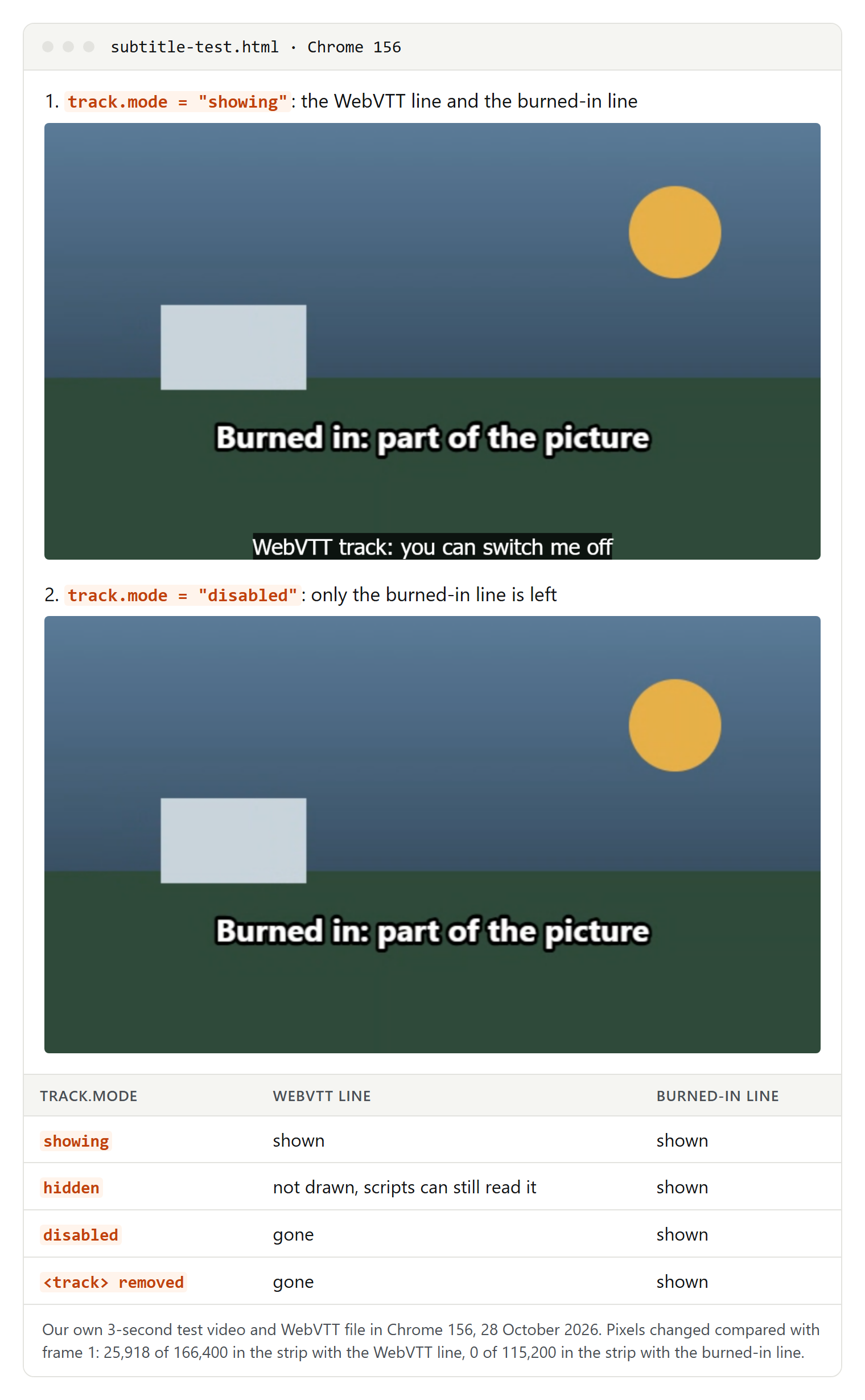
What happened:
- "showing": both lines were on screen.
- "hidden": the WebVTT line disappeared, but the browser still kept the active cue, so a script could read its text.
- "disabled": the WebVTT line disappeared and the browser ignored the track, as MDN describes the modes.
- Track element removed: same picture, and no text tracks left.
- The burned-in line never moved. We compared every screenshot with the first one. In the strip with the WebVTT line, 25,918 of 166,400 pixels changed, about 16 percent. In the strip with the burned-in line, not a single pixel changed.
That is the whole guide in one frame: the player draws a soft subtitle on top of the video, so it can stop drawing it. A burned-in subtitle is the video.
On a website, this is all it takes:
<video src="clip.webm" controls>
  <track kind="subtitles" src="clip-en.vtt" srclang="en" label="English">
</video>
<script>
  const track = document.querySelector('video').textTracks[0]
  track.mode = 'disabled' // 'hidden' keeps the cues readable for scripts
</script>
According to MDN, a track starts in "disabled" mode unless it has the default attribute, so leave that attribute out if subtitles should start switched off. In our test on 15 October 2026, the built-in player of Chrome 155 and Edge 155 had no direct subtitle button: the menu sat behind the button for more media controls and listed each track by its label. More on track kinds in subtitles vs closed captions and in our VTT file guide.
Turn subtitles off while you watch
To watch without subtitles, leave the file alone and switch them off in the player.
VLC
VLC's documentation says subtitles are enabled by default. To change that:
- For the current video: open Subtitle, then Sub Track, and choose Disable.
- With the keyboard: in VLC 3.0's default shortcuts, V cycles through the subtitle tracks and Shift+V switches subtitles on and off on Windows and Linux. On a Mac, the keys are S and Shift+S.
- For every video: go to Tools, Preferences, Subtitles/OSD, untick Enable subtitles and click Save.
DVD subtitles are images, VLC notes, so you can't change their font, but you can switch them off in the same menu.
YouTube, streaming services and web players
On YouTube, Netflix and similar services, the subtitles are files on their side: you can switch them off, not change them. For every YouTube setting, including captions that switch on by themselves, see how to turn YouTube subtitles on or off. Embedded players on other websites have their own menus.
When a subtitle file keeps loading by itself
Sometimes the text comes from a file next to the video. VLC 3.0's source code shows how:
- The option "Autodetect subtitle files" is on by default and matches subtitle files to the video's file name.
- At the default setting, a file whose name starts with the video's name and adds more characters also counts, such as
holiday.en.srtnext toholiday.mkv. - VLC also looks in subfolders called
subtitlesandsubs.
So rename the subtitle file, move it or delete it. The video file itself never changes. For what is inside such a file, see what an SRT file is.
Remove subtitle tracks for good
For a file without subtitle tracks, or with only the ones you need, remux it. MKVToolNix and Subtitle Edit copy video and audio unchanged; HandBrake always encodes the video again.
MKVToolNix GUI (for MKV files)
- Open MKVToolNix GUI and, in the multiplexer, click Add source files and pick your video.
- In the list Tracks, chapters and tags, untick every subtitle track you don't want.
- Check Destination file and give it a new name, so the original stays as it is.
- Click Start multiplexing.
The result is always an MKV file: mkvmerge, which does the work, writes Matroska files.
mkvmerge on the command line
The same in a terminal, following the mkvmerge documentation:
mkvmerge --identify movie.mkv
mkvmerge -o movie-no-subs.mkv --no-subtitles movie.mkv
mkvmerge -o movie-english-subs.mkv --subtitle-tracks eng movie.mkv
mkvmerge -o movie-without-track-3.mkv --subtitle-tracks '!3' movie.mkv- The first line lists the tracks and their IDs. The documentation stresses that these IDs are not simply track numbers, so always look them up first.
--no-subtitles(short-S) copies no subtitle track at all.--subtitle-trackskeeps only the listed tracks. Language codes such asengorspawork when the file has language tags. An exclamation mark reverses the list: everything except track 3.
Subtitle Edit (MKV, WebM and MP4)
The free editor Subtitle Edit has a window for subtitle tracks inside a video:
- Open the video and choose Video, Add/remove embedded subtitles….
- Select a track and click Delete, or click Clear to mark all of them.
- Click Generate and choose a file name.
Subtitle Edit needs FFmpeg for this and offers to install it. Its documentation says the original video isn't overwritten unless you choose the same name. For MP4 files, a separate window copies the video and audio and rewrites the remaining subtitles as MP4 timed text, a plain format without styling.
HandBrake
HandBrake's documentation describes it as a video converter that can add or remove soft subtitles, but can't pass video through without converting it. Use it when you want to convert the file anyway:
- Open the video and go to the Subtitles tab.
- Remove the tracks you don't want with the remove button next to each track, or click Clear to remove all of them (button names from the Windows version).
- Make sure Burn In isn't ticked for any track you keep.
- Click Start Encode.
If HandBrake keeps adding subtitles, open Selection Behavior… on the Subtitles tab and set Track Selection Behaviour to None: according to the documentation, no subtitle tracks will be added. Untick Add Closed Captions when available if you don't want captions copied either.
Remove subtitles with ffmpeg
ffmpeg is a free command-line tool. We haven't run it for this guide; the commands follow its official documentation:
ffmpeg -i movie.mkv -map 0 -map -0:s -c copy movie-no-subs.mkv
ffmpeg -i movie.mkv -map 0 -map -0:s:1 -c copy movie-without-second-sub.mkv
-map 0takes every stream of the file.-map -0:sis a "negative" mapping: it drops all subtitle streams again.-0:s:1drops only the second one, because counting starts at 0.-c copycopies the streams without encoding them. The documentation says this is very fast with no quality loss, but it may not work in every case, for example when the target container needs information the source doesn't have.
You'll also see -sn recommended. It does switch off subtitles, but without -map, ffmpeg picks only one video stream and one audio stream, the one with the most channels. A file with English 5.1 audio and a Spanish stereo track would lose the Spanish audio. With a single audio track, ffmpeg -i movie.mkv -sn -c copy movie-no-subs.mkv is fine.
Closed captions inside the video stream
Recordings from US television can carry closed captions (CEA-608 or CEA-708) inside the video stream itself, not as a separate track. HandBrake reads them from DVDs and some broadcast streams. ffmpeg's documentation shows how to remove all SEI data from an H.264 stream, closed captions included, without re-encoding:
ffmpeg -i recording.mp4 -map 0 -c copy -bsf:v "filter_units=remove_types=6" recording-no-cc.mp4This also removes other information stored the same way, so keep the original.
Subtitles that come back: default and forced flags
Matroska files have two flags that explain most "I switched them off and they came back" cases. The MKVToolNix FAQ describes them like this:
- "Default track": this track may be played by default, taking the viewer's preferences into account. A subtitle track with this flag often starts by itself every time.
- "Forced display": this track must be shown whatever the viewer has selected. It's meant for subtitles that only translate foreign-language parts, so a player may show it even with subtitles switched off.
You can change both without remuxing. The mkvpropedit documentation gives this example for the first subtitle track:
mkvpropedit movie.mkv --edit track:s1 --set flag-default=0In MKVToolNix GUI, the header editor changes the same flags with a few clicks. If a forced track still bothers you, remove it as described above.
HandBrake has a trap here. When the output is MP4, it can't pass Blu-ray PGS subtitles through, so it can only burn one of them in. Its burn-in setting can also tick Burn In automatically, for example for a foreign-audio track, and even the setting None still burns in tracks the container can't hold, as the Windows version explains. If you convert an MKV with Blu-ray subtitles to MP4, remove those tracks first, or choose MKV as the output.
Your own YouTube video
On YouTube, the subtitles you uploaded or YouTube created are separate tracks. YouTube's help describes how to delete one:
- Sign in to YouTube Studio and select Subtitles in the left menu.
- Open the video. For the language you want to delete, select Options in the "Subtitles" column, then Delete.
- Confirm with Delete captions.
YouTube says this deletes the captions completely from the video and your Google Account, so download a copy first if you might need it again: how to download YouTube subtitles. Automatic captions are published on the video automatically when they're available, according to YouTube's help.
Text that you burned into the video before uploading isn't a caption track, so these settings can't reach it. YouTube Studio's editor can blur it instead: open the video, choose Editor, then Blur and Custom blur, drag the box over the text, set when the blur starts and ends on the timeline, select Fix blur position and click Save. YouTube notes two limits: for unedited videos with more than 100,000 views, you may only be able to save face blurs unless the channel is in the YouTube Partner Program, and since June 2025 saved editor changes can't be undone with "Revert to original".
Burned-in subtitles: crop, cover or blur
Asked whether VLC can switch off burned-in subtitles, the VideoLAN wiki answers: "You can't." Every method changes the picture, and every method that creates a new file encodes the video again. Start with the simplest one that looks acceptable. The ffmpeg commands below come from its filter documentation; we haven't run them.
Crop them off
This works when the text sits in a black bar or very close to the bottom edge.
- While watching: VLC's Video, Crop menu offers fixed aspect ratios. Its documentation mentions cutting black bars at the top and bottom.
- In a new file: in HandBrake, open the Dimensions tab, set cropping to Custom and enter a value for Bottom. Or use ffmpeg:
ffmpeg -i clip.mp4 -vf "crop=iw:ih-120:0:0" -c:a copy clip-cropped.mp4This keeps the full width and cuts 120 rows of pixels from the bottom. The picture gets a different aspect ratio.
Cover them with a bar
A plain bar is honest and quick, and it gives you room for new subtitles. Add those as a soft track afterward, not burned in again.
ffmpeg -i clip.mp4 -vf "drawbox=x=0:y=ih-120:w=iw:h=120:color=black:t=fill" -c:a copy clip-bar.mp4Blur them with delogo
ffmpeg's delogo filter fills a rectangle by interpolating the pixels around it. Its documentation openly warns that the result can sometimes look uglier than the logo. Add show=1 first to see a green frame where it will work, then remove it for the real run:
ffmpeg -i clip.mp4 -vf "delogo=x=160:y=600:w=960:h=100:show=1" -c:a copy delogo-test.mp4On a calm background the smudge is barely visible; over faces or a moving scene it is obvious.
AI subtitle removers: what they do and where they fail
Several online tools promise to erase burned-in subtitles. On 28 October 2026, their own pages said:
- CreatOK: you upload the video, the AI detects and removes subtitles frame by frame, and you download the result. The page mentions a free monthly quota.
- Pollo AI: the tool detects visible text and rebuilds the scene behind it; you confirm the caption region before it removes the text.
- Wink: an automatic mode and a manual mode in which you paint over the text yourself, with a before-and-after preview.
We haven't tested these tools, and their quality claims, such as "lossless", are their own. What no tool can do is bring back what was really behind the letters. It invents pixels that look plausible. Check the result before you publish it:
- Watch at normal speed and then step through frame by frame where one subtitle ends and the next begins. Flicker and leftover outlines show up there.
- Look at faces, hands and moving objects that pass through the text area. These are the hardest cases.
- Look at straight lines and fine textures, such as buildings, horizons, grass or fabric.
- Think about the upload. Your video goes to someone else's server: read their privacy terms and keep confidential material off it.
- Use only videos you own or are allowed to edit. This is a general note, not legal advice.
The best removal is not needing one: if you made the video in Descript, CapCut, Premiere or another editor and still have the project, switch the captions off there and export again.
Extract subtitles instead of deleting them
Sometimes you want the text, not a clean picture:
- A text track in an MKV:
mkvextract movie.mkv tracks 2:movie.en.srtsaves the track with ID 2. According to its documentation, simple text subtitles are written as SRT, ASS tracks as ASS, WebVTT as WebVTT, Blu-ray PGS as SUP and DVD VobSub as a SUB and IDX pair. Text is saved as UTF-8 unless you set another character set with-c. - A text track in MKV or MP4 with ffmpeg:
ffmpeg -i movie.mkv -map 0:s:0 movie.srtsaves the first subtitle stream. An SRT output only accepts text subtitles. To turn styled ASS subtitles into SRT, see how to convert ASS to SRT. - A picture-based track: Subtitle Edit reads Blu-ray and DVD subtitles, also from inside an MKV, through File, Import, Image-based subtitle for OCR…, turns them into text with character recognition, and you save the result as SRT.
- Burned-in subtitles: Subtitle Edit's Video, OCR burned-in subtitle… scans the part of the frame where the text appears, the bottom third by default, a few frames per second, and builds subtitle lines with times. Check every line afterward. Often it's faster to transcribe the audio instead.
- A YouTube video: see the YouTube download guide linked above.
Which method to use
| Situation | Method | Changes the picture? |
|---|---|---|
| Soft track, you're only watching | VLC: Subtitle, Sub Track, Disable | No |
| External SRT or VTT next to the video | Rename, move or delete the file | No |
| MKV with tracks you never want | MKVToolNix GUI or mkvmerge --no-subtitles | No |
| MP4 with a text track | Subtitle Edit, or ffmpeg with -map -0:s -c copy | No |
| A track that starts by itself | Clear the default flag with mkvpropedit | No |
| Captions inside the video stream | ffmpeg filter_units | No |
| Caption track on your own YouTube video | YouTube Studio: Subtitles, Options, Delete | No |
| Burned in, inside a black bar | Crop | Yes, smaller frame |
| Burned in, over a calm background | Bar or delogo | Yes |
| Burned in, over a busy scene | AI remover, then check every scene | Yes, invented pixels |
When it doesn't work
- The subtitles appear twice. Usually one copy is burned in and the other is a soft track. Descript's help describes exactly this: a local export embeds subtitle tracks in the file, so a video that also has captions in the picture can show doubled captions in web players. Switch off subtitles in the player, or, as Descript suggests, publish through its web link.
- The text is still there after Disable. Check in this order: a forced track, an external file next to the video, captions inside the video stream, or burned-in text. Also check your device: Chrome, Android and Windows 11 can add live captions to any video, and the player's menu can't turn those off.
- The new file won't play. Stream copy doesn't work for every combination of codec and container. Keep the original, try MKV as the output, or use HandBrake and accept that it encodes again.
- You want new subtitles after removing the old ones. Add them as a separate file, not burned in, so nobody has this problem again.