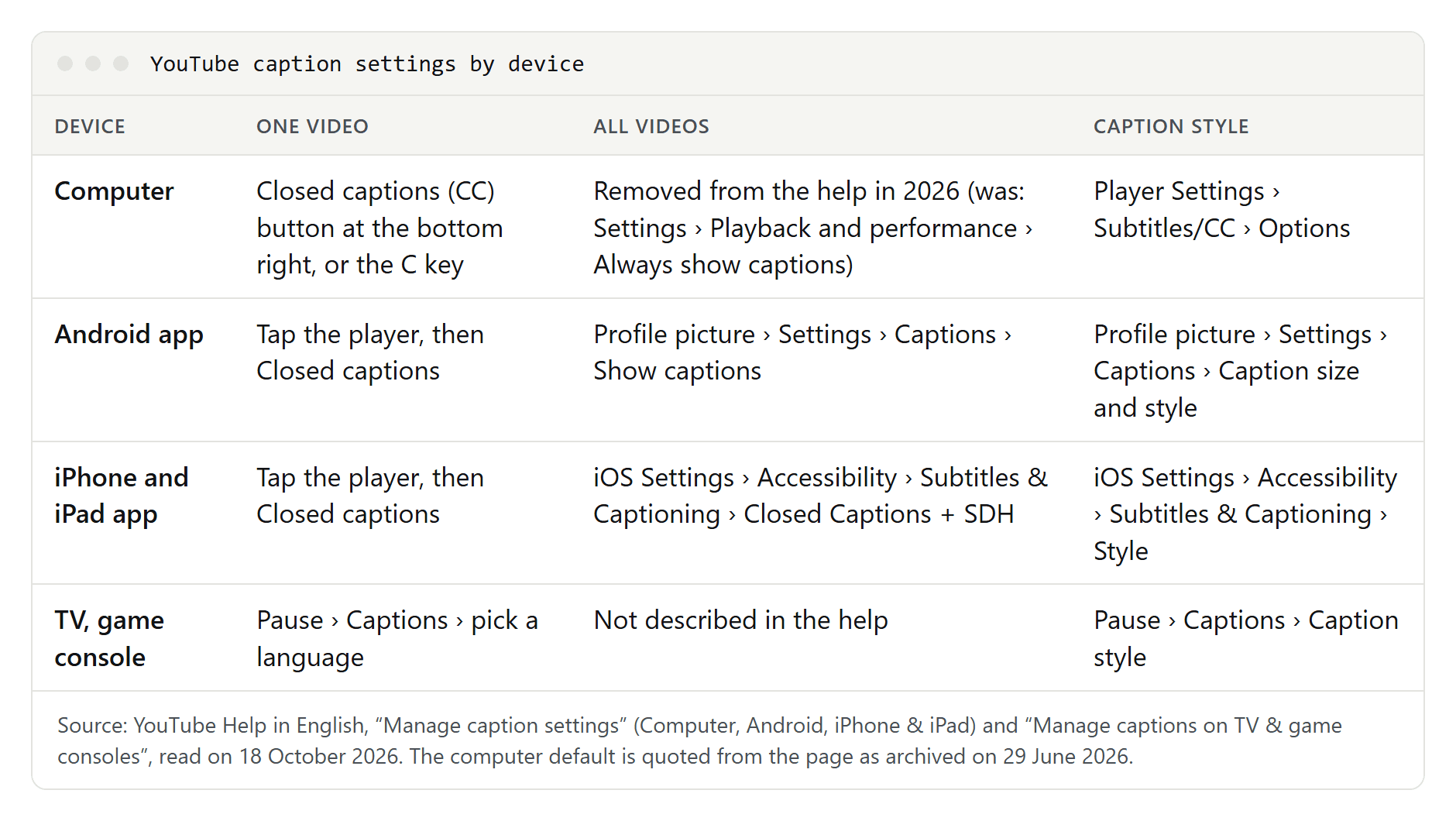
To turn YouTube subtitles on or off on a computer, click the Closed captions (CC) button at the bottom right of the player, or press C. In the YouTube app, tap the video once, then tap the CC button. To pick another language, open Settings in the player, then Subtitles/CC. To keep captions off or on for every video, use Show captions in the Android app or Closed Captions + SDH in your iPhone's accessibility settings. The computer's "Always show captions" option is gone from YouTube's help. All steps below come from YouTube Help, read on 18 October 2026.
Turn subtitles on or off for one video
- On a computer: click Closed captions at the bottom right of the player, and click it again to turn captions off. The button only appears when the video has captions.
- With the keyboard: press C to show captions and press it again to hide them. YouTube's help adds that in its new computer layout you have to click the video player once before keyboard shortcuts work.
- In the YouTube app on Android, iPhone or iPad: tap the video once to bring up the controls, then tap Closed captions. If the button isn't there, the video has no captions.
- On a TV, game console or streaming device: pause the video, select Captions and pick a language. If the icon is visible but can't be selected, the video has no captions. YouTube's TV help doesn't describe how to switch captions off again.
Turn captions off (or on) for every video
Phones have a default setting. On a computer, there may no longer be one.
- Android app: tap your profile picture, then Settings, then Captions. With Show captions on, YouTube will "always serve captions when available", as its help page puts it. Turn the switch off if you don't want that.
- iPhone and iPad: here the YouTube app follows iOS. Open the Settings app, go to Accessibility, then Subtitles & Captioning under "Hearing", and turn off Closed Captions + SDH. Apple describes this switch as the one for people who prefer closed captions or subtitles for the deaf and hard of hearing whenever they're available.
- Computer: YouTube's English help used to describe a default for this: profile picture, Settings, Playback and performance, then the checkboxes Always show captions and Include auto-generated captions (when available). The page still had that section on 29 June 2026, in a copy kept by the Internet Archive. The version we read on 18 October 2026 no longer mentions it. Look under Playback and performance in your account to see whether the checkboxes are still there for you. If they're gone, the CC button and the C key are what's left.
Change the caption language or auto-translate
Many videos have more than one caption track: the channel's own captions, automatic ones made by YouTube, or both, sometimes in several languages.
- On a computer: click Settings (the gear icon), then Subtitles/CC, and pick a track. If your language isn't listed, choose Auto-translate and pick it there. That's the path we used in the English interface on 13 October 2026.
- In the app: YouTube's help says to tap More at the top right of the player, then Captions, and select a language, or Auto-translate if yours isn't in the list.
What the menu looked like on an English n8n tutorial on 13 October 2026: "Off", "English - English" (the channel's own track), "English (auto-generated)" and Auto-translate. After we picked German, the active track read "English - English >> German": first the source track, then the language it's being translated into.
Auto-translate is machine translation of an existing track. It needs captions to start from, and it's only as good as they are. Our guide on how to translate a YouTube video covers the details. If a voice in your language replaces the original speaker, that's dubbed audio, a separate setting under Settings, Audio track; see how to turn off YouTube auto-dubbing.
Change the caption font, color and size
- On a computer: Settings, Subtitles/CC, Options. YouTube's help lists what you can change: the font, its color, opacity and size; the background color and opacity; the window color and opacity; and the character edge style. Your choices stay as the default format until you change them again or click Reset.
- Size by keyboard: when we opened YouTube's own shortcut overview (Shift+?) on 14 October 2026, in the German interface, it listed + and - for stepping through caption font sizes. YouTube's help page on keyboard shortcuts doesn't mention them; we checked the English version on 18 October 2026.
- Android app: profile picture, Settings, Captions, Caption size and style.
- iPhone and iPad: in the iOS Settings app, Accessibility, Subtitles & Captioning, Style. Pick a style or tap Create New Style. Apple lists font, size and color; background color and opacity; and text opacity, edge style and highlight.
- TV: pause, select Captions, then Caption style. You can change the font and its look, plus the background and the window the captions sit in.
YouTube puts subtitles and closed captions in one menu. What separates the two, and why it matters for viewers who can't hear the audio, is in subtitles vs closed captions.
Why YouTube captions turn on by themselves
If captions keep coming back, one of these is usually behind it.
- The video is in another language. YouTube says it uses signals, such as your language, your location and the videos you watched recently, to match a video's language, including its captions, to you, and that the result can differ from your main language setting. When a video loads, YouTube sends the player a recommendation on whether captions should start. In our test on 14 October 2026, signed out, that recommendation was "on" for two English videos with a German subtitle track when the interface was in German, and "off" when it was in English. For a German news broadcast in the German interface, it was "off". We couldn't confirm that the player always follows it: in our test browser, captions were on in every case.
- Show when muted. In the app, tap the player, then Settings and Captions. If Show when muted is on, captions appear when the sound is off. YouTube says the option exists on phones and tablets.
- Your iPhone's automatic subtitles. Apple's iPhone guide for iOS 27 lists three switches under Settings, Accessibility, Subtitles & Captioning, Automatic Subtitles: When Languages Don't Match, Show When Muted and Show on Skip Back. They work in "supported apps"; Apple doesn't say whether YouTube is one of them.
- Captions that don't come from YouTube. Chrome (Live Caption), Android (Live Caption) and Windows 11 (Live captions) can caption any audio on your device. YouTube's CC button can't switch them off; do it where they were turned on.
- Embedded videos. A website that embeds a YouTube video can set the player parameter
cc_load_policyto 1. According to YouTube's developer documentation, captions are then shown by default "even if the user has turned captions off". - Burned-in subtitles. When the text is part of the picture itself, no setting can remove it.
| Cause | Where to switch it off |
|---|---|
| Video in another language than your interface | CC button or C key, for each video |
| Show captions on (Android app) | Profile picture, Settings, Captions |
| Closed Captions + SDH on (iPhone, iPad) | iOS Settings, Accessibility, Subtitles & Captioning |
| Show when muted on (app) | Player Settings, Captions |
| Automatic Subtitles (iPhone with iOS 27) | iOS Settings, Accessibility, Subtitles & Captioning, Automatic Subtitles |
| Live Caption (Chrome) | More, Settings, Accessibility |
| Live Caption (Android) | Volume controls, or Settings, Accessibility, Live Caption |
| Live captions (Windows 11, version 22H2 and later) | Windows logo key + Ctrl + L, or Settings, Accessibility, Captions |
Embedded player with cc_load_policy | Set by the website that embeds the video |
| Burned-in text | Can't be switched off |
When captions don't show up
- There's no CC button, or it's grayed out on a TV. The video has no captions: the owner didn't add any, and YouTube didn't create automatic ones.
- Automatic captions are missing. YouTube's help gives these reasons: the audio is complex and still being processed, automatic captions don't support the video's language, the video is too long, the sound is poor or YouTube doesn't recognize the speech, there's a long silence at the start, or several people talk over each other or in different languages at the same time.
- The video was just uploaded. Automatic captions may not be ready at upload; the processing time depends on how complex the audio is.
- It's a live stream. Automatic captions for live streams exist only in English, and only for streams at normal latency. When the stream ends, the live captions don't stay on the video; YouTube creates new automatic captions for the recording, and they can differ.
- The C key does nothing. In YouTube's new computer layout, click the player first.
What "auto-generated" captions are
Automatic captions come from YouTube's speech recognition. In the English interface, their track carries the label "(auto-generated)": "English (auto-generated)" on the n8n tutorial, "French (auto-generated)" on a French video we opened in October 2026. YouTube's help page lists 67 languages for them, including English, Spanish, French and German. On a video with audio tracks in several languages, they're made in the default language only.
YouTube warns that their quality varies: mispronunciations, accents, dialects and background noise cause errors, and it asks creators to review them. English automatic captions also support what YouTube calls expressive captions, which show the intensity of speech in capital letters, sounds such as sighs and gasps, and background noises. If a channel has uploaded its own track, pick that one; it's usually cleaner. To read captions as text instead of watching them, see how to get a YouTube transcript.
For creators: add subtitles to your videos
- Sign in to YouTube Studio and select Subtitles in the left menu.
- Select the video, click Add language and choose the language.
- Under Subtitles, click Add and pick a method: Upload file (with or without timing), Auto-sync (type the words or upload a transcript, and YouTube sets the timing) or Type manually while the video plays.
- Save or publish, depending on the method.
A few points from YouTube's help:
- Sound cues: when you type captions, add text like [applause] or [thunder] so viewers know what's happening.
- Automatic captions are published on their own once they're ready. Review them under Subtitles: open the video, click More next to the track, then edit or remove what's wrong.
- Bleeped words: by default, the Don't show potentially inappropriate words setting replaces such words in automatic captions with "[ __ ]". You can turn it off in Studio under Settings, Channel, Advanced settings.
- On your own website: the player parameter
cc_lang_prefsets the caption language of an embedded video. Together withcc_load_policyset to 1, the player shows captions in that language as soon as it loads.
Caption files themselves, their format and their encoding are explained in our guide to SRT files.