To use speech to text in Microsoft Word, open your document, go to Home > Dictate, wait for the microphone to turn on and start talking. Say "comma", "period" or "new line" for punctuation, and "stop dictation" when you're done. Dictate needs a Microsoft 365 subscription and an internet connection. For a recording you already have, Word for the web has Transcribe. Without Microsoft 365, press Windows key + H on a Windows PC: Windows' own voice typing types into Word, too.
Which speech feature in Word you need
Word has three ways to turn speech into text and three ways to turn text into speech. The facts in this guide come from Microsoft's and Apple's own help pages as of November 4, 2026.
| Your situation | Use | How to start |
|---|---|---|
| You want to talk and see the words appear | Dictate | Home > Dictate (Option + F1 on a Mac) |
| You have an audio file or want to record a meeting | Transcribe | Home > Dictate > Transcribe in Word for the web |
| You have Word but no Microsoft 365 subscription | Windows voice typing | Windows key + H, with the cursor in your document |
| You write in Word on an iPhone, iPad or Android phone | Dictate in the Word app or your keyboard's microphone | Tap the microphone icon |
| You want Word to read your document out loud | Read Aloud | Review > Read Aloud, or Ctrl + Alt + Space |
| You want to hear only a few selected sentences | Speak (Windows) or Read Aloud with a selection | Select the text, then start it |
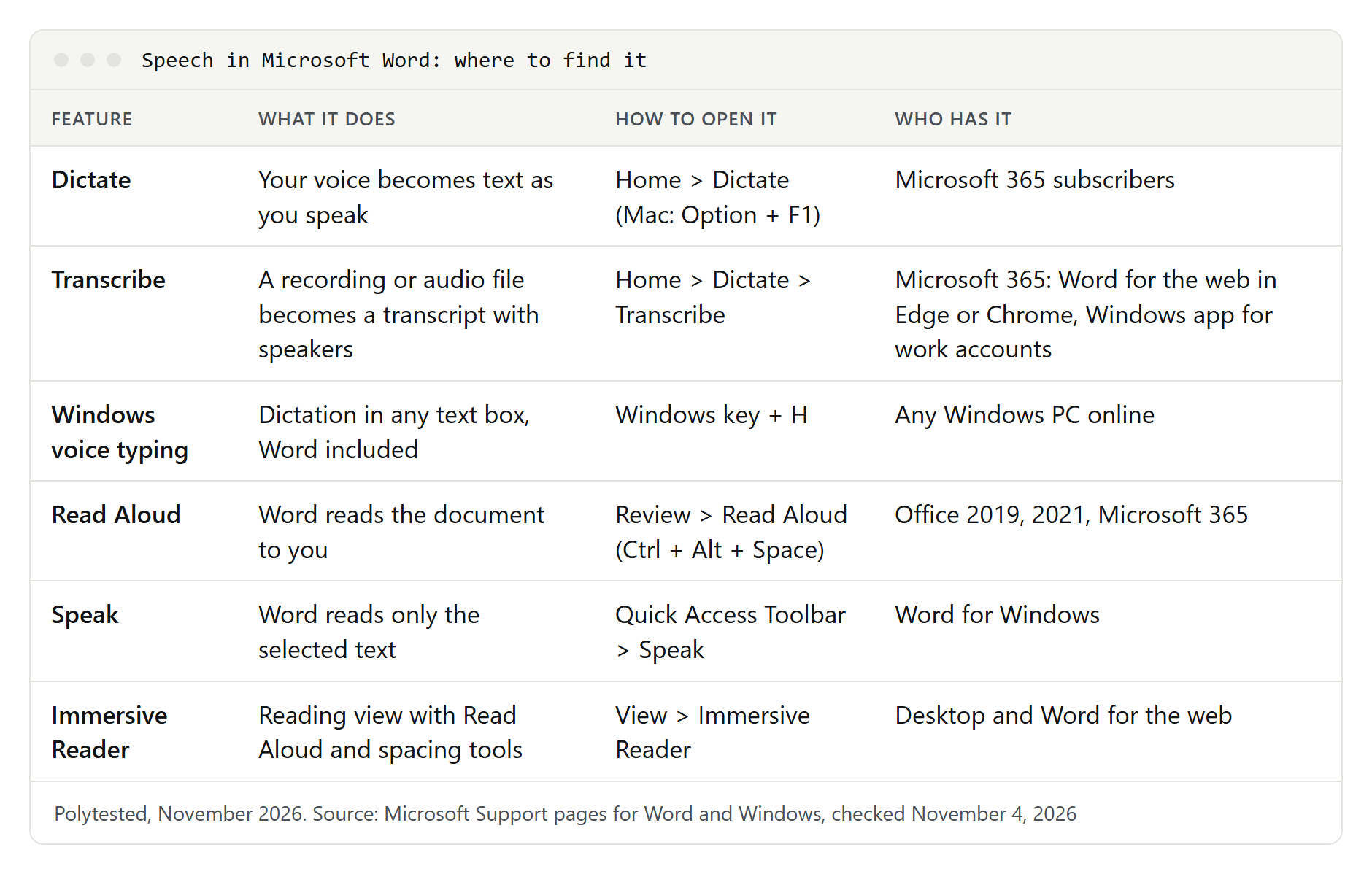
Who can use Dictate. Microsoft's help page says plainly that the dictation feature "is only available to Microsoft 365 subscribers." Its troubleshooting section adds that Dictate isn't available in Office 2016 or 2019 for Windows without Microsoft 365, and that you need Windows 10 or later. Every version needs a microphone and a reliable internet connection, because the speech is recognized on Microsoft's servers.
How to dictate in Word on Windows and Mac
- Sign in to Word with the Microsoft account or work account that has your Microsoft 365 subscription.
- Open a new or existing document and click where you want the text to go.
- Go to Home > Dictate. On a Mac, you can also press Option + F1.
- Wait until the Dictate button shows that it's listening. The first time, Windows or macOS may ask whether Word may use the microphone; allow it.
- Speak in full sentences at a normal pace. The words appear on the page as you talk.
- Say "pause dictation" for a break, or click the microphone. To start again, click the microphone in the small floating dictation toolbar, or use the shortcut Microsoft names for resuming: Alt plus the backtick key (on a US keyboard, the key above Tab).
- Say "stop dictation" or "close dictation" when you're done.
You can mix typing and dictating: fix a mistake with the keyboard, click where you want to continue and keep talking. Word may mark words it thinks it misheard and offer alternatives; if a marked word is already right, select Ignore.
On a Mac, Word uses the same button and commands. macOS also has its own Dictation, which works in Word without a subscription; see our guide to Dictation on Mac.
Dictate in Word for the web and on your phone
Word for the web
In a browser, Dictate works the same way: open the document in Word for the web, go to Home > Dictate, select the button and talk; select it again when you're done. The first time, your browser asks for permission to use the microphone.
Word for the web has more voice commands than the desktop app. Only Microsoft's web list has commands to insert and edit tables, jump between sentences, paragraphs and table cells, change the font size and color, apply styles and highlight text. Say "show more commands" while dictating to open the help pane with the full list.
iPhone, iPad and Android
In Word for iPhone, iPad and Android, open the document, tap the microphone icon, wait for Dictate to listen and speak. Microsoft's mobile page lists only a few commands, such as "insert space", "backspace", "pause dictation" and "show all commands", besides saying punctuation.
Without Microsoft 365, use your keyboard's microphone instead. On an iPhone, turn it on in Settings > General > Keyboard > Enable Dictation; Apple says dictation is processed on the device in many languages. On Android, use the microphone on Gboard. Our Google Docs voice typing guide explains both keyboards, and the steps are the same in Word.
Dictation settings and languages
The gear icon next to the Dictate microphone opens four settings:
- Spoken Language: by default, your document's language; change it if you speak another one.
- Microphone: which microphone Word listens to.
- Auto Punctuation: Word adds punctuation by itself as you speak. It appears only for languages that support it.
- Filter sensitive phrases: potentially sensitive words are masked with asterisks. The mobile help page calls this setting Profanity filter.
Microsoft splits the languages into two groups. Fifteen are fully supported, and 36 more are in preview. Microsoft warns that preview languages may be less accurate and may have only limited punctuation.
| Group | Languages |
|---|---|
| Supported | Chinese (China); English (Australia, Canada, India, United Kingdom, United States); French (Canada, France); German (Germany); Hindi; Italian (Italy); Japanese; Portuguese (Brazil); Spanish (Spain, Mexico) |
| Preview | Arabic (Bahrain, Egypt, Saudi Arabia); Bulgarian; Chinese (Traditional, Hong Kong; Taiwan); Croatian; Czech; Danish; Dutch (Netherlands); English (New Zealand); Estonian; Finnish; Greek; Gujarati; Hebrew; Hungarian; Irish; Korean; Latvian; Lithuanian; Maltese; Marathi; Norwegian (Bokmål); Polish; Portuguese (Portugal); Romanian; Russian; Slovak; Slovenian; Swedish; Tamil; Telugu; Thai; Turkish; Vietnamese |
Commands in other languages. Microsoft publishes command lists for each language, but outside English they cover punctuation and, for some languages, symbols, math and currency signs. The editing, selection, formatting, list and comment commands below appear only in the English list, so in French or Spanish you edit and format with the keyboard.
Punctuation and symbols you can say
These commands work in Word on Windows, Mac and the web. Say the words in the left column; Word types the mark.
| Say | You get |
|---|---|
| "period" or "full stop" | . |
| "comma" | , |
| "question mark" | ? |
| "exclamation mark" or "exclamation point" | ! |
| "colon" / "semicolon" | : / ; |
| "new line" | a line break |
| "apostrophe-s" | 's |
| "open quotes" … "close quotes" | " … " |
| "begin single quote" … "end single quote" | ' … ' |
| "hyphen" | - |
| "ellipsis" or "dot dot dot" | ... |
| "open parentheses" … "close parentheses" | ( … ) |
| "open bracket" … "close bracket" | [ … ] |
| "open brace" … "close brace" | { … } |
Note what's missing: Microsoft's English list for Word has no "new paragraph" command. Say "new line" twice, or press Enter.
| Say | You get |
|---|---|
| "asterisk" / "underscore" / "at sign" / "ampersand" | * / _ / @ / & |
| "forward slash" / "backslash" | / / \ |
| "m-dash" / "n-dash" | — / – |
| "number sign" / "percent sign" / "degree symbol" | # / the percent sign / ° |
| "plus sign" / "minus sign" / "equal sign" / "plus or minus sign" | + / - / = / ± |
| "section sign" / "paragraph mark" / "copyright sign" | § / ¶ / © |
| "dollar sign" / "euro sign" / "pound sterling sign" | the currency sign |
| "smiley face" / "winky face" / "heart emoji" | the text emoticon |
Voice commands for editing, formatting, lists and comments
These come from Microsoft's English lists. For [1-100], say a number ("delete last three words"); for [x] or [word or phrase], say words from your text.
Delete and undo
| Say | What happens |
|---|---|
| "delete" (alone) | Removes the last word or punctuation mark before the cursor |
| "delete that" or "scratch that" | Removes the last thing you said |
| "delete [word or phrase]" | Removes that word or phrase |
| "delete last [1-100] words" (or characters, sentences, paragraphs) | Removes that many units before the cursor |
| "delete next [1-100] characters" | Removes characters after the cursor |
| "backspace [1-100]" | Presses Backspace that many times |
| "insert space" | Adds a space |
| "undo" | Undoes the last change |
Select and move around
| Say | What happens | Where Microsoft lists it |
|---|---|---|
| "select [word or phrase]" | Selects it | Desktop and web |
| "select that" | Selects what you just said | Desktop and web |
| "select last [1-100] words" (or sentences, paragraphs) | Selects backward | Desktop and web |
| "select from [x] to [y]" | Selects a range | Desktop and web |
| "unselect that" or "remove selection" | Clears the selection | Web |
| "go to the next paragraph", "go to the next cell" | Moves the cursor, also through a table | Web |
Format text
| Say | What happens | Where Microsoft lists it |
|---|---|---|
| "bold", "italics", "underline", "strikethrough" | Turns the style on for what you say next | Desktop and web |
| "bold [word or phrase]", "underline that", "italicize last sentence" | Formats existing text | Desktop and web |
| "remove bold", "remove italics from that" | Removes the style | Desktop and web |
| "capitalize [word]", "uppercase that", "lowercase last word" | Changes the case | Desktop and web |
| "align center", "increase indent", "clear formatting" | Aligns, indents or clears the paragraph | Desktop and web |
| "highlight [word or phrase]" | Highlights text | Web |
| "set font size to [size]", "change font color to [color]" | Changes size or color | Web |
| "apply [style name] style" | Applies a style such as a heading | Web |
Microsoft's example shows how these fit together: dictate "review by tomorrow", then say "bold tomorrow", and only that word turns bold.
Lists, tables and comments
| Say | What happens | Where Microsoft lists it |
|---|---|---|
| "start bullet list", "start numbered list" | Starts a list | Desktop and web |
| "next item", "exit list" | Adds the next item, or ends the list | Desktop and web |
| "add comment", or "add comment [text]" | Opens an empty comment, or adds one with that text | Desktop and web |
| "insert table", "insert [c] by [r] table" | Inserts a table | Web |
| "insert row", "insert column", "delete row", "exit table" | Edits the table | Web |
| "pause dictation", "stop dictation", "close dictation" | Pauses or ends Dictate | Desktop and web |
| "show commands", "show help" | Opens the list of commands | Desktop and web |
| "resume dictation" | Continues after a pause | Web |
How to transcribe a recording or audio file in Word
Transcribe works on a recording, made in Word or uploaded, and creates a transcript with timestamps and separate speakers in a side pane.
Where it works. Word for the web in the new Microsoft Edge or Chrome, online. In the desktop app, Microsoft says it is currently only in Word for Microsoft 365 on Windows in what Microsoft calls commercial tenants, meaning work accounts; government tenants use the web version. Transcribe isn't listed for Word for Mac or the mobile apps.
Limits. With a Microsoft 365 subscription, you can transcribe up to 300 minutes of uploaded audio per month; with a Microsoft Copilot license, up to 30,000 minutes. Microsoft lists more than 80 locales for Transcribe, more than Dictate supports.
Upload an audio file
- Sign in to Microsoft 365 and open a document in Word for the web.
- Go to Home, open the Dictate drop-down and select Transcribe.
- In the Transcribe pane, select Upload audio.
- Choose a .wav, .mp4, .m4a or .mp3 file.
- Keep the pane open. Microsoft says it can take up to about the length of the audio; you can work in other tabs meanwhile.
A voice memo from an iPhone is usually an M4A file and can go straight in; our guide to transcribing an M4A file covers what to do when one won't upload.
Record in Word
Go to Home > Dictate > Transcribe and select Start recording. No text appears while you record; the transcript comes after Save and transcribe now. Microsoft's tips: check which microphone is the input, since a headset won't pick up people in the room, and for a video call, don't wear a headset, so the recording also catches your speakers. Ask everyone's permission before you record.
Edit speakers and add the transcript to your document
- Speaker labels: Word labels the voices "Speaker 1", "Speaker 2" and so on. Hover over a section, select Edit transcript section, type the name and choose Change all Speaker [x]. Our guide to speaker label formats helps you choose how names should look.
- Playback: select a timestamp to hear that part again, at up to double speed.
- Into the document: Transcribe doesn't add text by itself. Hover over a section and select Add section to document, or select Add all to document for the whole transcript.
Each document holds one transcript: a New transcription deletes the old one from the pane, but text you already added stays. The audio is saved in a Transcribed Files folder in your OneDrive. People you share the document with can read the transcript, but playback is off for them by default unless you also share the audio file from OneDrive.
For other ways to turn audio into text, including free tools that run on your own computer, see our guide on how to transcribe an audio recording for free.
No Microsoft 365? Windows voice typing works in Word
Windows has its own speech to text, and it types into any text box, including Word versions that have no Dictate button.
- Click in your Word document where the text should go.
- Press Windows key + H. On a touchscreen, tap the microphone on the touch keyboard.
- Wait for "Listening..." and speak.
- Say "stop listening", or select the microphone, when you're done.
Microsoft says voice typing needs an internet connection and uses online speech recognition powered by Azure Speech services. Windows 11 lists 46 voice typing languages; to dictate in another one, add it in Settings > Time & language > Language & region and switch the input language with Windows key + Spacebar.
The gear icon in the voice typing bar has automatic punctuation, a profanity filter, the default microphone and the launcher. On Copilot+ PCs, fluid dictation corrects grammar, punctuation and filler words as you speak, using on-device models, in all English locales.
| Say | What happens |
|---|---|
| "stop listening" or "pause voice typing" | Stops voice typing |
| "delete that" or "scratch that" | Deletes what you just said, or the selection |
| "select that" | Selects what you just said |
| "press enter" / "press tab" / "backspace" | Presses that key |
| "new line" / "new paragraph" | Starts a new line or paragraph |
| "undo that" | Undoes the last change |
Unlike Dictate, it has "new paragraph" but no formatting, list or comment commands. On Windows 10, Windows key + H opens the dictation toolbar; say "stop dictation" to end it.
Dictate, Transcribe and voice typing compared
| Feature | Dictate | Transcribe | Windows voice typing |
|---|---|---|---|
| Best for | Writing by voice | Recordings and meetings | Word without Microsoft 365 |
| Where | Windows, Mac, web, iPhone, iPad, Android | Word for the web; Windows app for work accounts | Any app on Windows |
| Needs | Microsoft 365, internet | Microsoft 365, internet, Edge or Chrome on the web | Windows, internet |
| Audio files | No | .wav, .mp4, .m4a, .mp3 | No |
| Speaker labels | No | Yes | No |
| Formatting by voice | Yes, in English | No | No |
| Auto-punctuation | Yes, in supported languages | Not described | Yes, as a setting |
Text to speech in Word: Read Aloud, Speak and Immersive Reader
The opposite direction is built in as well, with three tools.
Read Aloud
Read Aloud reads your document from the cursor onward and highlights each word as it goes. Microsoft says it's available in Office 2019, Office 2021 and Microsoft 365.
- Click where the reading should start; put the cursor at the top to hear the whole document.
- Go to Review > Read Aloud.
- Use the controls to play, pause or skip to the previous or next paragraph. The gear icon has the reading speed and the voice.
- Select X to stop.
To hear only part of the text, select it first. In Word for the web, use Immersive Reader (below). On an iPad or Android phone, tap the menu icon, then Read Aloud; on an iPhone, it's on the Review tab of the ribbon.
| Action | Windows | Mac |
|---|---|---|
| Start Read Aloud | Ctrl + Alt + Space | Ctrl + Option + Space |
| Play or pause | Ctrl + Space | Option + Space |
| Next paragraph | Ctrl + Right Arrow | Option + Down Arrow |
| Previous paragraph | Ctrl + Left Arrow twice | Option + Up Arrow |
| Faster / slower | Alt + Right Arrow / Alt + Left Arrow | — |
Read Aloud uses the proofing language set for the document, so if it reads German text with an English voice, change the language under Review > Language. Interactive Read Aloud, which lets you ask Copilot about the document while it reads, is only for Microsoft Copilot license users.
Speak
Speak reads only the text you select, and Microsoft says it's available for Windows only. It isn't on the ribbon, so add it once: next to the Quick Access Toolbar, select Customize Quick Access Toolbar > More Commands, choose All Commands, scroll to Speak, select Add and then OK. From then on, select text and click the Speak icon.
Immersive Reader
Go to View > Immersive Reader for a full-screen reading view with Column Width, Page Color, Line Focus, Text Spacing, Syllables and Read Aloud. In Word for the web, it's under View > Document Views > Immersive Reader: select Play at the bottom, and use the gear icon to change the speed or choose a male or female voice. On a Mac, the same tools are under View > Learning Tools.
For reading web pages, PDFs and other apps aloud, see our guide to having text read aloud for free.
Dictate not working in Word? Fixes for each problem
The Dictate button is missing
- Check that you're signed in to Word with the account that has an active Microsoft 365 subscription (File > Account).
- Office 2016 or 2019 for Windows without Microsoft 365 doesn't have Dictate; use Windows key + H instead. Dictate also needs Windows 10 or later.
- On a work or school computer, your administrator may have turned off what Microsoft calls connected experiences that analyze content. Dictate is one of them, so it disappears or stops working. Only the administrator can change that policy.
The Dictate button is grayed out
Microsoft's answer: the document is read-only. If Word shows Enable Editing, select it, or save a copy you may edit. Also check that experiences that analyze your content are on under File > Account > Account Privacy > Manage Settings.
"We don't have access to your microphone"
Close other apps or browser tabs that may be using the microphone and try again. In Word for the web, refresh the page, select Dictate and allow the browser to use the microphone. On Windows, also open the microphone privacy settings and make sure apps, including desktop apps, may use the microphone.
"We can't detect your microphone"
The same fix applies to "There is a problem with your microphone": check that it's plugged in, test it in your sound settings and choose it in the Dictate gear menu.
"Dictation can't hear you," or nothing appears
Check that the microphone isn't muted, raise its input level and move somewhere quieter. With a built-in microphone, try a headset.
Wrong words, or the wrong language
Open the gear menu and check the Spoken Language: Dictate starts with the document's language, which may not be the one you speak. Preview languages can bring more errors. Otherwise, Microsoft points to a stable connection, less background noise and speaking more deliberately.
Privacy: what Microsoft does with your voice
- Dictate: Microsoft says the service doesn't store your audio or the transcribed text. Your speech is sent to Microsoft and used only to give you the text.
- Transcribe: your audio is sent to Microsoft to create the transcript, and Microsoft says the service doesn't keep the audio or the results afterward. Your own copy of the recording stays in the Transcribed Files folder in your OneDrive until you delete it.
- Read Aloud: Microsoft says it doesn't store your content or audio and uses the text only to produce the audio.
- Windows voice typing: runs on Azure Speech services online, except fluid dictation on Copilot+ PCs, which uses on-device models.
Word's speech features are connected experiences: you can switch them off under File > Account > Account Privacy > Manage Settings, but Dictate and Transcribe then stop working, and in organizations an administrator controls them by policy. For confidential client or patient material, check your organization's rules first; this isn't legal advice, and Microsoft's privacy terms apply.