To use speech to text in Google Docs on a computer, open your document, click Tools > Voice typing (or press Ctrl + Shift + S, ⌘ + Shift + S on a Mac), click the microphone and start talking. Say "period" or "new paragraph" for punctuation and "stop listening" when you're done. Google lists the latest Chrome, Edge and Safari as supported browsers, and editing commands such as "select paragraph" work only in English. Google documents Voice typing for computers only; on a phone, you dictate with your keyboard's microphone.
Which option fits your situation
The facts in this guide come from Google's, Apple's, Microsoft's and Descript's own help pages as of November 2, 2026.
| Your situation | Use | How to start |
|---|---|---|
| Writing in Docs on a computer, in Chrome, Edge or Safari | Docs Voice typing | Tools > Voice typing, or Ctrl + Shift + S (⌘ + Shift + S on a Mac) in Chrome |
| Writing speaker notes in Slides | Dictate speaker notes | Tools > Dictate speaker notes |
| Docs app on an Android phone or tablet | Gboard's microphone | Tap the microphone at the top of the keyboard |
| Docs app on an iPhone or iPad | Apple Dictation or Gboard | Tap the microphone on the keyboard |
| Firefox or another browser Google doesn't list | Your system's dictation | Windows key + H on Windows, Dictation on a Mac, Search + D on a Chromebook |
| A recording you want as text in Docs | A transcription tool, then Docs | See the section on recordings below |
How to turn on Voice typing on a computer
- Check that your microphone is connected and switched on.
- Open your document in Google Docs in Chrome, Edge or Safari.
- Click Tools > Voice typing. A microphone box appears.
- Click the microphone and speak clearly, at a normal volume and pace. The first time, your browser asks whether Docs may use the microphone: allow it.
- Click the microphone again when you're done, or say "stop listening".
The shortcut. Google's list of Docs shortcuts gives Ctrl + Shift + S on Windows and ChromeOS and ⌘ + Shift + S on a Mac, and marks it as available in Chrome. In Edge or Safari, use the Tools menu if the shortcut does nothing.
Browsers. As of November 2, 2026, Google's help page names the latest versions of Chrome, Edge and Safari; some guides still say Chrome only. Firefox isn't on Google's list. Google also explains that your browser controls the speech-to-text service: it decides how your speech is processed and then sends the text to Docs.
Work or school accounts. If Voice typing is missing, Google says your administrator may have turned it off for your organization.
Fix mistakes as you go. The microphone can stay on: click the mistake, fix it with the keyboard, click where you want to continue and keep talking. Right-click a word underlined in gray to see alternatives.
Speech to text in Google Docs on a phone or tablet
Google's Voice typing help has no Android or iPhone version; its steps start in a browser on a computer. On a phone or tablet, open the document in the Docs app, tap where you want the text, and use your keyboard's microphone.
Android: Gboard
- Make sure Gboard is your keyboard.
- In the Docs app, tap where you want to type.
- Tap the Microphone at the top of the keyboard.
- When you see "Speak now", say what you want written.
Gboard understands the same six punctuation phrases as Docs, listed below. To replace a word, touch and hold it, tap the microphone and say the new word. Google notes that talk-to-text doesn't work in every language.
On a Pixel 6 or later, Gboard's advanced voice typing adds punctuation automatically and takes commands such as "delete last word", "clear" (deletes the last sentence) and "stop". It works in English, French, German, Italian, Japanese and Spanish, and Google says the spoken text stays on the device, except when you use "Fix it" or detailed edits.
iPhone and iPad: Apple Dictation or Gboard
- Turn dictation on once: Settings > General > Keyboard > Enable Dictation.
- In the Docs app, tap where you want to type.
- Tap the microphone on the keyboard and start speaking.
- To stop, tap the microphone, say "stop dictation", or stay silent: Apple says dictation stops on its own after 30 seconds of silence.
In supported languages, Apple Dictation adds commas, periods and question marks automatically (switch this off under Auto-Punctuation in the same Keyboard settings). It dictates in the language of your current keyboard. Gboard for iPhone and iPad (iOS 9 or later) works the same way: tap the microphone, then speak.
Punctuation you can say in Google Docs
Google's help page lists six spoken punctuation commands:
- "Period"
- "Comma"
- "Exclamation point"
- "Question mark"
- "New line"
- "New paragraph"
Google adds that punctuation might not be available in every language. Its help page doesn't describe automatic punctuation for Docs, so plan to say each mark yourself. That is the biggest difference from Apple Dictation and Gboard's advanced voice typing, which add commas and periods on their own.
Every Google Docs voice command, grouped
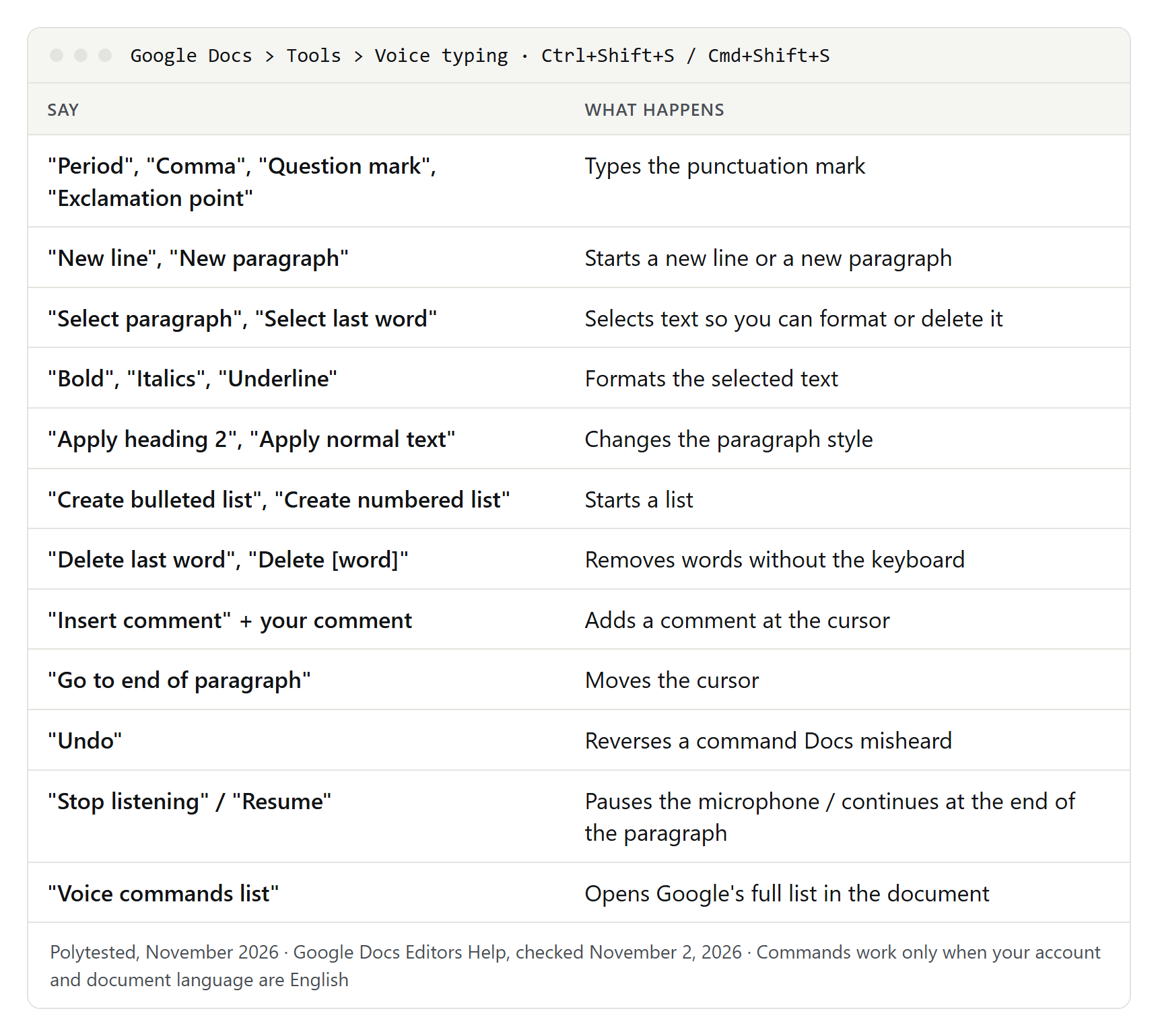
Voice commands work only in English: Google says your account language and your document language must both be English. They don't work in Slides speaker notes. To open Google's own list inside your document while you dictate, say "voice commands list" or "voice typing help".
Select text
| What to select | Say |
|---|---|
| A word or phrase | "Select [word or phrase]" |
| Everything | "Select all", "Select all matching text" |
| List items | "Select list item", "Select list items at current level" |
| Characters | "Select next character", "Select next [number] characters", "Select last character", "Select last [number] characters" |
| Words | "Select word", "Select next word", "Select next [number] words", "Select last word", "Select last [number] words" |
| Lines | "Select line", "Select next line", "Select next [number] lines", "Select last line", "Select last [number] lines" |
| Paragraphs | "Select paragraph", "Select next paragraph", "Select next [number] paragraphs", "Select last paragraph", "Select last [number] paragraphs" |
| Nothing | "Deselect", "Unselect", "Select none" |
Format text
Select the text first, then say the command.
| Group | Say |
|---|---|
| Styles | "Apply heading [1–6]", "Apply normal text", "Apply subtitle", "Apply title" |
| Text style | "Bold", "Italicize" or "Italics", "Underline", "Strikethrough", "Subscript", "Superscript" |
| Case | "Uppercase", "Lowercase", "Title case" |
| Color | "Text color [color]", "Highlight", "Highlight [color]" |
| Font size | "Increase font size", "Decrease font size", "Font size [6–400]", "Make bigger", "Make smaller" |
| Indent and spacing | "Increase indent", "Decrease indent", "Line spacing single", "Line spacing double" |
| Alignment | "Align left", "Align center", "Align right", "Align justified", "Left align", "Center align", "Right align" |
| Columns | "Apply 1 column", "Apply 2 columns", "Apply 3 columns", "Column options", "Insert column break" |
| Lists | "Create bulleted list", "Create numbered list", "Insert bullet", "Insert number" |
| Remove formatting | "Clear formatting", "Remove formatting", "Remove bold", "Remove italics", "Remove strikethrough" |
Colors you can name: red, red berry, orange, yellow, green, cyan, blue, cornflower blue, purple, magenta, black, white and gray. Except for black and white, add "light" or "dark" and 1 to 3 (1 to 4 for gray), as in "highlight dark purple 3". "Highlight" alone uses yellow.
Edit and insert
| Group | Say |
|---|---|
| Clipboard | "Copy", "Cut", "Paste" |
| Delete | "Delete" (the word before the cursor), "Delete last word", "Delete [word or phrase]" |
| Links | "Insert link" and then the web address, "Copy link", "Delete link" |
| Table of contents | "Insert table of contents", "Update table of contents", "Delete table of contents" |
| Comments and bookmarks | "Insert comment" and then your comment, "Insert bookmark" |
| Page elements | "Insert header", "Insert footer", "Insert footnote", "Insert equation", "Insert horizontal line", "Insert page break" |
Tables
| Task | Say |
|---|---|
| Create a table | "Insert table", "Insert table [1–20] rows by [1–20] columns" |
| Add a row | "Insert row", "Insert new row", "Insert new row above", "Insert new row below" |
| Add a column | "Insert column", "Insert new column", "Insert new column on the left" |
| Delete | "Delete row", "Delete column", "Delete table", or "Remove" instead of "Delete" |
| Leave the table | "Exit table" |
Move around the document
Navigation commands are built from parts: a verb, a direction and a target.
| Start with | Then | Then a target | Example |
|---|---|---|---|
| "Go to" or "Move to" | "start of" or "end of" | paragraph, line, column, row, table, document | "Go to end of paragraph" |
| "Go to" or "Move to" | "next" or "previous" | character, word, line, paragraph, page, heading, heading [1–6], link, list, list item, image, table, row, column, footnote, formatting change, misspelling | "Go to next misspelling" |
| "Go" or "Move" | "forward" or "backward" | [number] characters, [number] words | "Move backward 3 words" |
| "Go" or "Move" | "up" or "down" | [number] lines, [number] paragraphs | "Go down 2 paragraphs" |
| "Scroll" | "up" or "down" | — | "Scroll down" |
Stop, resume and accessibility
| Task | Say |
|---|---|
| Turn the microphone off | "Stop listening" |
| Continue at the end of the paragraph | "Resume", "Go to the end of the paragraph", "Move to the end of the paragraph" |
| Continue somewhere else | "Resume with [word or phrase]", "Go to the end of the line", "Move to the end of the line", "Go to [word]" |
| Open the command list | "Voice typing help", "Voice commands list" |
| Hear where you are | "Speak cursor location", "Speak from cursor location", "Speak selection", "Speak selection formatting" |
| Hear table positions | "Speak table cell location", "Speak table row and column headers", "Speak table column header", "Speak table row header" |
The "speak" commands need screen reader support: Tools > Accessibility settings, then check Turn on screen reader support. Google recommends headphones so the spoken feedback isn't typed into your document.
What works in which language, and where
Dictation works in many languages; commands don't. Google's rules at a glance:
| Feature | Docs, English account and document | Docs, other languages | Slides speaker notes | Slides captions |
|---|---|---|---|---|
| Dictation | Yes | Yes, in the languages Google lists | Yes | Yes, on screen only |
| Spoken punctuation | Yes | Might not be available | Not stated by Google | No punctuation in captions |
| Editing and formatting commands | Yes | No | No | No |
Voice typing in Google Slides: speaker notes and captions
Speaker notes. Open your presentation in a browser on your computer and click Tools > Dictate speaker notes. The notes open with a microphone box: click the microphone, speak, and click it again to stop. Voice commands aren't available here, so format your notes by hand afterwards.
Live captions while you present. Slides can also show your words as captions:
- Connect to the internet and open the presentation.
- Start presenting: Ctrl + F5 on Windows, ⌘ + Shift + Enter on a Mac, Ctrl + Search + 5 on ChromeOS.
- Turn on captions with Ctrl + Shift + C (⌘ + Shift + C on a Mac), or through the options at the bottom left of the presenter screen.
Google points out that captions have no punctuation, aren't saved, and switch off with the microphone after 30 minutes without activity on your computer.
Languages and accents
Google's list for Voice typing has 119 entries, from Afrikaans to Zulu, counting regional variants separately. Among them:
- English: 13 variants: US, UK, Canada, Australia, Ireland, India, New Zealand, South Africa, Nigeria, Kenya, Ghana, Tanzania and the Philippines.
- Spanish: 21 entries, including Spain, Mexico, the US, Argentina, Colombia and a general Latin America variant.
- French, German and Dutch: one entry each. Portuguese: Brazil and Portugal.
Set the document language. Click File > Language and pick the language you write in. Voice commands need English here.
Set your account language. Commands need an English account language too: at myaccount.google.com/language, click Language, then Edit, choose English, and reopen your browser.
Pick the language you speak. Google's current help page doesn't say how to choose the dictation language. Many guides show a language menu next to the microphone; if you see one, choose your exact variant. Dictating in German or Spanish works, but commands stay English-only.
Tips for more accurate dictation
Google's advice comes down to a quiet room, a good microphone and clear speech. In practice:
- Use an external microphone or headset; Google suggests plugging one in when Docs has trouble hearing you.
- Check which microphone the browser uses. In Chrome, pick your default microphone in the drop-down under Settings > Privacy and security > Site settings > Microphone.
- Speak clearly at a normal pace and volume, as Google advises. For commands, slow down a little.
- Pause before and after each command, and watch the bubble next to the microphone: it shows the last command Docs heard. Google says a command's words may appear in the text for a moment before it runs. If Docs misheard, say "undo".
- Dictate in short paragraphs and read each one before you continue, while you still remember what you said.
- Type names and jargon. Speech recognition can mishear unusual names, brands and abbreviations. Type them, or fix them at the end with find and replace.
- Proofread by ear. Listening reveals missing words that your eyes skip; our guide to read aloud extensions for Chrome includes tools that read Google Docs.
How to transcribe a recording into Google Docs
Voice typing listens to your microphone only; Google's help describes no way to open an audio file. Playing a recording aloud next to the microphone may work for a short, clear clip, but echo and room noise get in the way. For anything longer, use a transcription tool and bring the text into Docs:
| Tool | What you need | How the text reaches Docs |
|---|---|---|
| Recorder app | A Pixel phone | In the recording, tap More > Share > Share transcript to Google Docs |
| Google Meet transcripts | A Workspace edition with Transcripts, such as Business Standard, Business Plus or Workspace Individual; English, French, German, Italian, Japanese, Korean, Portuguese or Spanish | Saved automatically in the organizer's Google Drive, in the Google Meet folder |
| Word Transcribe | A Microsoft 365 subscription; Microsoft allows up to 300 minutes of uploaded audio a month | Add the transcript to the Word document, then upload it to Drive |
| Descript | A Descript account; its Free plan includes transcription and 60 media minutes a month | Export the transcript as a .docx file, then upload it to Drive |
Word Transcribe takes .wav, .mp4, .m4a and .mp3 files (Home > Dictate > Transcribe > Upload audio) and labels speakers.
Descript transcribes 26 languages written in the Latin alphabet, according to its help center, one language per file. It exports transcripts as .docx, .txt, .rtf, .md or .html, with speaker labels and timecodes if you want them.
To open a .docx file in Google Docs: upload it to Google Drive, double-click it, click Open with Google Docs, then File > Save as Google Docs. If you do this often, turn on Convert uploaded files to Google Docs editor format in Drive's settings.
More help: how to transcribe an audio recording for free covers Whisper, Word and the iPhone, and transcribing an M4A file helps with voice memos. For timestamps, see what a time-coded transcript is; for interviews, how to transcribe an interview; and to turn a meeting transcript into something people read, our meeting minutes template.
Voice typing not working? Fixes for each problem
The browser blocks the microphone
The first time you click the microphone, the browser asks for permission. If you refused, allow it here:
- Chrome: go to Settings > Privacy and security > Site settings > Microphone. Under the sites that aren't allowed, select docs.google.com and change the permission to Allow.
- Edge: go to Settings > Privacy, search, and services > Site permissions > All sites, select the Docs site and set Microphone to Allow.
- Safari on a Mac: go to Safari > Settings > Websites > Microphone and set docs.google.com to Ask or Allow.
On a work or school computer, the administrator may control these settings.
Windows or macOS blocks the browser
- Windows 11: open Start > Settings > Privacy & security > Microphone and turn on Microphone access and Let apps access your microphone. Microsoft notes that apps missing from the per-app list are usually desktop apps, controlled by Let desktop apps access your microphone: turn that on too.
- Mac: open Apple menu > System Settings > Privacy & Security > Microphone and turn access on for your browser. Your Mac may ask you to quit and reopen Chrome before the change applies.
Voice typing is missing or grayed out
- Unsupported browser: switch to the latest Chrome, Edge or Safari, or update yours.
- Phone or tablet: Voice typing isn't documented for the Docs apps; use your keyboard's microphone.
- Work or school account: your administrator may have turned the feature off.
- The shortcut does nothing: Google marks Ctrl + Shift + S as a Chrome shortcut; in Edge or Safari, use Tools > Voice typing.
"We're having trouble hearing you," or no sound at all
Google suggests a quieter room, an external microphone and a higher input volume in your system's sound settings. If nothing comes through, check that the microphone is plugged in, that a headset's mute switch is off, and that no other app or call tab is using it. Then restart the browser and, if needed, the computer.
Voice typing stops listening
You may have said "stop listening" or clicked the microphone by accident; say "resume" or click it again. Chrome's help adds that a site can't start recording while you're in another tab or app, so click back into the document before you click the microphone.
Commands are typed as text
Both your account language and the document language must be English. Then speak slowly, pause around each command, and say "undo" if a command lands in your text.
The wrong language comes out
Check File > Language and the language menu next to the microphone, if you have one. On a phone, switch to the keyboard of the language you speak: Apple Dictation and Gboard follow the active keyboard. ChromeOS dictation requires the spoken language to match the device language.
Dictation outside Docs: Windows, Mac and Chromebook
If your browser isn't supported, your computer's own dictation types into Google Docs too, though Docs' voice commands won't work with it.
| System | How to start | Good to know |
|---|---|---|
| Windows 11 | Windows key + H with the cursor in a text box | Needs an internet connection; uses Microsoft's online speech recognition (Azure Speech); say "stop listening" to end |
| Mac | Microphone key, your Dictation shortcut or Edit > Start Dictation | Turn it on in System Settings > Keyboard > Dictation; stops after 30 seconds without speech |
| Chromebook | Search + D or Launcher + D | Turn on in Settings > Accessibility > Dictation |
Windows voice typing supports German, French, Spanish and many other languages; switch with Windows key + Spacebar. On a Mac, add languages under Dictation in Keyboard settings.
Privacy: who processes your voice
It depends on the tool:
- Docs Voice typing: Google says your browser controls the speech-to-text service and decides how your speech is processed, so check your browser maker's privacy information.
- Gboard advanced voice typing: spoken text stays on the device, except with "Fix it" or detailed edits.
- Apple Dictation on iPhone: processed on the device in many languages, without an internet connection. On a Mac, Keyboard settings show whether dictation is processed on the device.
- Windows voice typing: online speech recognition through Microsoft's Azure Speech services.
For confidential text, such as health or client data, prefer on-device processing and check your employer's rules first.