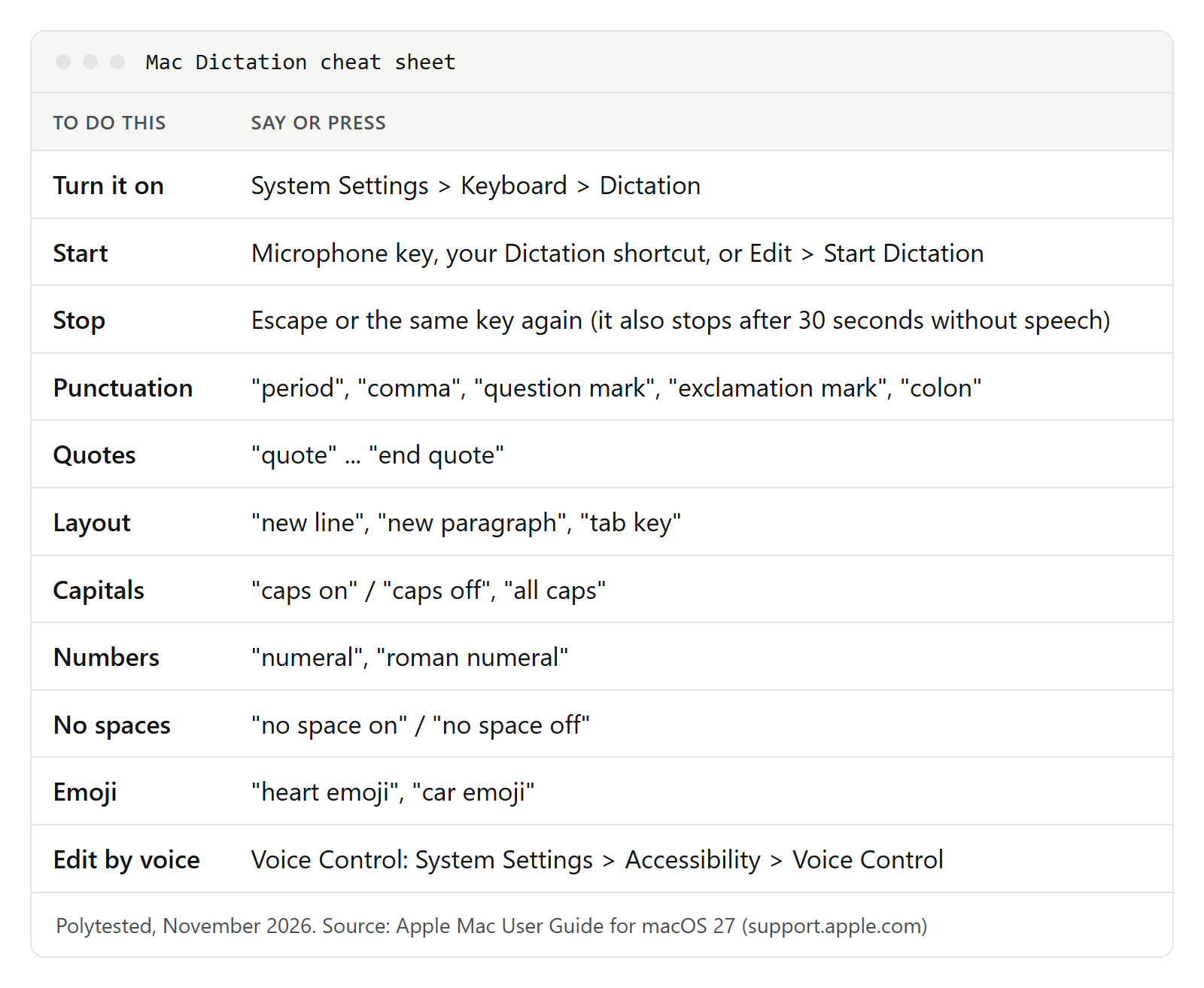
To use dictation on a Mac, turn it on once under Apple menu > System Settings > Keyboard > Dictation. Then click where you want the text, press the Microphone key (or your Dictation shortcut, or choose Edit > Start Dictation) and start talking. Say "comma" or "new paragraph" for punctuation and layout, and press Escape when you're done. Dictation also stops on its own after 30 seconds without speech. Below: every command Apple lists, Voice Control for editing by voice, transcribing recordings and files, privacy settings and fixes.
Which speech-to-text option fits your situation
macOS has several ways to turn speech into text, each for a different job:
| Your situation | Use | Where to find it |
|---|---|---|
| Writing an email, message, note or document in any app | Dictation | System Settings > Keyboard > Dictation |
| Selecting, correcting and formatting text by voice, or using the Mac hands-free | Voice Control | System Settings > Accessibility > Voice Control |
| A Word document | Dictation or Word's own Dictate | Home > Dictate in Word |
| A Google Doc in your browser | Dictation or Docs Voice typing | Tools > Voice typing in Google Docs |
| A lecture, interview or meeting you want to record with a transcript | Notes or Voice Memos | Record Audio in a note, or the Voice Memos app |
| Following audio as it plays, such as a call or a podcast | Live Captions | System Settings > Accessibility > Live Captions |
| An audio file you already have | Word for the web Transcribe or Descript | Home > Dictate > Transcribe, or Descript's Script editor |
Everything here except Word, Google Docs and Descript is built into macOS. The steps follow Apple's Mac User Guide for macOS 27, checked on November 2, 2026; on older versions, some names differ slightly. For the opposite, your Mac reading text out loud, see how to have text read aloud.
How to turn on Dictation on a Mac
- Choose Apple menu > System Settings, then click Keyboard in the sidebar. You may need to scroll down.
- Go to Dictation and turn it on, then click Enable.
- If your Mac asks whether you want to improve Siri and Dictation, click Share Audio Recordings to let Apple store audio of your Siri and Dictation interactions (Apple says it may review a sample), or Not Now.
The same section holds Languages, Shortcut and Auto-punctuation (all covered below) and Microphone source, where you pick the microphone your Mac listens to; Automatic lets the Mac choose the device you're most likely to use.
The short text below the Dictation switch tells you whether your dictation is processed on your Mac or sent to Siri servers. To change your audio-sharing choice later, go to System Settings > Privacy & Security > Analytics & Improvements and turn Improve Siri & Dictation on or off.
How to start and stop dictating
- In any app, click where you want the text to go.
- Start Dictation in one of three ways: press the Microphone key if your keyboard has one in the row of function keys, use your Dictation shortcut, or choose Edit > Start Dictation in the menu bar.
- When the cursor is highlighted and pulsing, or you hear the tone, speak.
- To stop, press Escape, the Microphone key or your shortcut again.
Details from Apple's guide that make dictation smoother:
- Press and release the Microphone key. Pressing and holding it starts Siri instead (when Siri is on).
- There's no length limit, but Dictation stops when it hears no speech for 30 seconds. If you pause to think, start again.
- You can type while you talk on a Mac with Apple silicon; the cursor stops pulsing while you type and picks up again afterwards.
- Blue underlines mark doubtful words. If you said "flower" and got "flour", click the word and choose an alternative.
- Line breaks appear at the end: "new line" and "new paragraph" are applied when you finish dictating.
Choose a Dictation shortcut that suits you
In System Settings > Keyboard > Dictation, click the Shortcut pop-up menu and pick an option, or choose Customize and press your own keys, for example Option-Z.
Your choice can change another setting: Press fn key to (or Press Globe key to) offers Change Input Source, Show Emoji & Symbols, Start Dictation (press twice) or Do Nothing. Pick "Press Fn (Function) Key Twice" as your shortcut and Apple says this switches to Start Dictation automatically. Apple's list of Mac keyboard shortcuts also gives Fn-D to start or stop dictation, and Fn pressed twice to open the Character Viewer, which is why a double press sometimes opens emoji.
Auto-punctuation, and when to turn it off
In supported languages, Dictation adds commas, periods and question marks as you speak. You can still say punctuation out loud whenever you want a specific mark, such as a colon or an exclamation mark.
Turn it off in System Settings > Keyboard > Dictation > Auto-punctuation when you want full control, for example for a shopping list or short labels.
Apple's feature availability page lists auto-punctuation for English in the US, the UK, Canada, Australia, India and several other countries, but not for English in Ireland, New Zealand or South Africa. Spanish (United States) and Spanish (Mexico) are on the list; German (Austria) isn't.
On macOS 27, Apple adds one more layer: with Apple Intelligence, dictation uses an on-device model to improve spelling, punctuation and capitalization. Apple lists it for English only (nine English variants, US and UK included), on Macs with M3 or later and at least 12GB of unified memory.
Every punctuation and symbol command
Apple lists these commands as always available while you dictate. Say the command where you want the mark to appear.
| Say | You get |
|---|---|
| period, point, dot or full stop | . |
| comma | , |
| question mark | ? |
| exclamation mark | ! |
| colon | : |
| semicolon | ; |
| ellipsis | … |
| hyphen | - |
| dash | an en dash – |
| apostrophe | an apostrophe |
| quote / end quote | opening and closing quotation marks |
| begin single quote / end single quote | opening and closing single quotation marks |
| open parenthesis / close parenthesis | ( and ) |
| open square bracket / close square bracket | [ and ] |
| open brace / close brace | { and } |
| open angle bracket / close angle bracket | < and > |
The symbol commands cover typography, math, money, emoticons and legal marks:
| Group | Say | You get |
|---|---|---|
| Typography | ampersand | & |
| Typography | asterisk | * |
| Typography | at sign | @ |
| Typography | backslash / forward slash | \ and / |
| Typography | caret | ^ |
| Typography | center dot / large center dot | a small or a large dot |
| Typography | degree sign | ° |
| Typography | hashtag or pound sign | # |
| Typography | percent sign | % |
| Typography | underscore | _ |
| Typography | vertical bar | | |
| Math | equal sign / plus sign / minus sign | =, + and - |
| Math | multiplication sign | x |
| Math | greater than sign / less than sign | > and < |
| Currency | dollar sign / cent sign | $ and ¢ |
| Currency | pound sterling sign / euro sign / yen sign | £, € and ¥ |
| Emoticons | smiley face / frowny face / winky face | :-), :-( and ;-) |
| Emoticons | cross-eyed laughing face | XD |
| Legal marks | copyright sign / registered sign / trademark sign | ©, ® and ™ |
In many languages you can also insert emoji by name: say "heart emoji" or "car emoji". Apple's feature page lists emoji dictation for 33 language versions, including English, French, German and Spanish.
Formatting and capitalization commands
These commands change layout and letter case. The "on" and "off" pairs work on the phrase that follows, so say the "off" command as soon as you're done.
| Say | What it does | Handy for |
|---|---|---|
| new line | Starts a new line, like pressing Return once | Addresses, short lists |
| new paragraph | Starts a new paragraph, like pressing Return twice | Emails, longer text |
| tab key | Moves the cursor to the next tab stop | Simple columns |
| numeral | Writes the next phrase as a number | Quantities, house numbers |
| roman numeral | Writes the next phrase as a Roman numeral | Chapters, outlines |
| no space on / no space off | Writes the next phrase without spaces, then returns to normal | Usernames, hashtags, file names |
| caps on / caps off | Writes the next phrase in Title Case, then returns to normal | Headings, titles |
| all caps | Writes the next word in capital letters | Acronyms |
| all caps on / all caps off | Writes the next phrase in capital letters, then returns to normal | Warnings, labels |
Just as important is what's missing: Apple's list for standard Dictation has no commands for selecting, deleting, moving the cursor or undoing. You fix mistakes with the keyboard and trackpad, or use Voice Control to do it by voice.
Voice Control: edit and control your Mac by voice
Voice Control is the accessibility feature for using a Mac entirely by voice. Besides dictating, you can select, replace and format text, click buttons, open apps and scroll.
Turn it on under Apple menu > System Settings > Accessibility > Voice Control. The first time, your Mac needs the internet for a one-time download from Apple; after that, Voice Control works offline. Open Tutorial in the same settings gives you a guided practice run.
One rule surprises many people: while Voice Control is on, standard Dictation isn't available. Voice Control does the dictating instead.
Voice Control has four modes for text:
| Say | What happens |
|---|---|
| "Dictation mode" | Words that aren't commands are typed as text (the default) |
| "Spelling mode" | Letter by letter, for web addresses or unusual names; "Alfa Bravo Charlie" gives "abc". Not in every language. |
| "Command mode" | Only commands count; nothing you say is typed |
| "Swift mode" | Writes Swift code as you read it out |
These commands cover everyday editing and navigation. Those marked with an asterisk come from Apple's Voice Control technical brief of September 2019; the rest from its current guide.
| Say | What happens |
|---|---|
| "Show commands" | Lists the commands available in the current app |
| "Stop listening" / "Start listening" | Pauses or resumes Voice Control |
| "Show numbers" / "Show names" | Labels clickable items so you can say their number or name |
| "Open Mail", "Click Done", "Scroll down" | Opens apps, clicks buttons and scrolls |
| "Replace cat with dog" | Swaps one word or phrase for another |
| "Delete" or "Uppercase" plus a number | Acts on the numbered word or line when text numbers are shown |
| "Select previous word"* | Selects the word before the cursor |
| "Extend selection backward by one sentence"* | Widens the selection to the whole sentence |
| "Move up two lines"*, "Capitalize that"* | Moves the cursor, then capitalizes the word there |
| "Correct" plus a word* | Shows alternatives for a word you dictated |
| "Delete that"* | Removes what you just dictated |
| "Insert thumbs-up emoji"* | Inserts an emoji by name |
Apple's complete, current list sits in System Settings > Accessibility > Voice Control > Commands, where you can search, see examples and turn single commands off. Between commands said in quick succession, Apple recommends a pause of about half a second.
Custom vocabulary and your own commands
If Voice Control keeps getting a client's name or a technical term wrong, open Vocabulary in Voice Control settings and add it, with a recording of how you say it if you like. Apple allows up to 1000 terms. To record pronunciations, standard Dictation must be turned on in Keyboard settings. You can also select a word and say "Add to vocabulary", or import a text file with one term per line. A dimmed Vocabulary button means your Voice Control language doesn't support it.
Custom commands save repeated typing. Under Commands, add a command, enter a phrase in When I say and pick an action such as Paste Text (your work address, a sign-off), Press Keyboard Shortcut or Run Shortcut. Apple advises names of two or more words that don't sound like other commands. Saying "Make this speakable" opens the new-command window directly.
Voice Control supports fewer languages than Dictation: Apple's feature page lists 20, including English for the US, the UK, Canada, Australia and India, and Spanish for the US, Mexico and Spain.
Languages, and what runs on your Mac
Apple's macOS feature availability page listed 63 language and region versions for Dictation on November 2, 2026, including English for 15 countries and Spanish for the US, Mexico, Spain, Chile and Colombia.
To add a language: go to System Settings > Keyboard > Dictation, click Edit next to Languages and select a language and region. Deselect one to remove it.
To switch while you dictate: click the language abbreviation next to the cursor, or press the Globe key (if your keyboard has one) and choose. If you dictate in English and Spanish every day, set up both.
On-device processing depends on the language. Apple's page lists 49 language versions for "On-Device and Modeless Dictation" (modeless means typing and dictating at once) and notes that they need speech models downloaded to the Mac. For your own Mac, the reliable check is the text below the Dictation switch in Keyboard settings. Apple adds that dictating into a search box isn't covered by it.
Dictating in Word and Google Docs
Dictation works anywhere you can type, from Mail and Notes to a web form. Word and Google Docs also have speech-to-text of their own, with different strengths.
Microsoft Word for Mac
macOS Dictation works in Word like anywhere else. Word also has its own Dictate button: go to Home > Dictate while signed in to Microsoft 365, or press Option + F1. Microsoft says it needs a microphone and a reliable internet connection and is available only to Microsoft 365 subscribers.
Its advantage is editing by voice. In English, Microsoft lists phrases such as "delete that", "select that", "bold", "create bullet list", "insert comment", "undo" and "show commands", with lists for other languages on the same page.
Google Docs
Google Docs has Voice typing under Tools > Voice typing, and Google lists Chrome, Edge and Safari as supported browsers. Google notes that the browser handles the speech-to-text and that voice commands such as selecting and formatting work only in English, with both the account language and the document language set to English. In other browsers, macOS Dictation works in a Google Doc like in any text field. Our Google Docs voice typing guide lists every Docs command.
If the browser can't hear you, open System Settings > Privacy & Security > Microphone and turn access on for that browser.
How to transcribe a recording or an audio file on a Mac
Dictation listens to a microphone; its settings let you choose a microphone, not a file. For recordings, macOS has three other built-in features, and two outside services take files you already have.
Notes: record with a live transcript
In a note, choose Record Audio from the toolbar and click the record button. You can watch the live transcript and keep typing in the note meanwhile. Afterwards, double-click the recording: click any text to hear that moment, use Find in Transcript, or choose Add Transcript to Note or Copy Transcript. With Apple Intelligence, Notes can also summarize it.
Apple lists transcription in Notes for Macs with M1 or later, with the device language set to English (Australia, Canada, New Zealand, South Africa, UK or US), Spanish, Portuguese, Italian, French, German, Japanese, Korean or Chinese. Deleting a recording deletes its transcript too.
Voice Memos
Voice Memos shows a transcript while you record or afterwards; select text, Control-click and choose Copy. Search finds words inside transcripts. iPhone recordings appear on the Mac when Voice Memos is turned on in iCloud on both devices, and Apple says older recordings are transcribed automatically when you open them, if they contain speech. Apple's guide doesn't describe importing other audio files, and transcription isn't available in every country or region. For other iPhone recordings, see how to transcribe an M4A file.
Live Captions
System Settings > Accessibility > Live Captions transcribes audio from any app, or from your microphone, in real time. Apple says audio is processed on the device and the feature needs a Mac with Apple silicon. Apple doesn't describe saving the captions, so this is for following along, and it warns that accuracy may vary and shouldn't be relied on in high-risk or emergency situations.
Word for the web: Transcribe
Microsoft's help page lists Transcribe for Word for Windows and Word for the web, not for Word for Mac. On a Mac, open the document in Word for the web in Edge or Chrome, signed in with Microsoft 365, and go to Home > Dictate > Transcribe. Choose Upload audio (.wav, .mp4, .m4a or .mp3) or Start recording. Microsoft labels speakers, stores the audio in a Transcribed Files folder in OneDrive and allows up to 300 minutes of uploaded audio per month with a Microsoft 365 subscription.
Descript
Descript's Mac app needs macOS 14 Sonoma or later, according to its system requirements. Drag an audio or video file into the Script editor; it's transcribed once the upload to Descript's cloud has finished. Descript lists 26 transcription languages, all in the Latin alphabet, supports one language per file and says files longer than 15 hours won't transcribe automatically. Transcripts export as .docx, .txt, .rtf, .md or .html, with timecodes if you want them.
| Option | Existing file? | What you get | Needs |
|---|---|---|---|
| Notes | No, records in the note | Searchable transcript | M1 or later, supported language |
| Voice Memos | Own and synced iPhone recordings | Searchable transcript | Your region |
| Live Captions | No, live audio | Captions on screen | Apple silicon |
| Word for the web | Yes: wav, mp4, m4a, mp3 | Transcript with speakers | Microsoft 365, Edge or Chrome |
| Descript | Yes | Editable transcript, export | Account, cloud upload |
For a free route that stays offline, our guide to transcribing an audio recording covers Whisper on a laptop. If the recording is a meeting, our meeting minutes guide shows how to turn a transcript into minutes.
Privacy: what happens to your voice
- On your Mac or on Apple's servers: the text below the Dictation switch tells you. Apple's privacy page says that otherwise, what you say is sent to and processed by Apple.
- Audio: Apple says it doesn't store your dictation audio unless you opt in to Improve Siri & Dictation. Other request data, such as device details and performance statistics, is linked to a random identifier that changes several times an hour and isn't tied to your Apple Account. Apple may keep it for up to two years to improve Siri, Dictation and related features.
- Switches: System Settings > Privacy & Security > Analytics & Improvements has Improve Siri & Dictation and, for Voice Control recordings, Improve Assistive Voice Features.
- Other apps: apps that want your voice appear under Microphone and Speech Recognition in Privacy & Security. The recording indicator in Control Center shows when the microphone is in use.
- Online services: Word's Dictate and Transcribe and Descript work online under Microsoft's and Descript's own terms. Ask people before you record them; rules on recording differ by place, and this isn't legal advice.
- Work Macs: an administrator can force on-device-only dictation on Macs with Apple silicon, so dictated text isn't sent to Siri servers.
Dictation not working on Mac? Fixes for each problem
| Problem | What to check |
|---|---|
| Nothing happens when you press the shortcut | Dictation is on in Keyboard settings, the shortcut is the one you think, and you press and release the Microphone key rather than hold it. Try Edit > Start Dictation to rule out the shortcut. |
| A double press on Fn opens emoji | Set Press fn key to to Start Dictation, or pick another Dictation shortcut. |
| Dictation is missing or locked | On a work or school Mac, device management can block it; ask your IT team. On a family Mac, check Screen Time > Content & Privacy > Intelligence & Siri > Siri & Dictation. |
| Dictation stopped working after you turned on Voice Control | That's expected: Voice Control does the dictating. Turn Voice Control off, or say "Dictation mode". |
| Your Mac doesn't react to your voice | Check Microphone source in Keyboard settings. In Sound > Input, select the microphone and raise its input volume. Don't cover the built-in microphone. |
| It stops in the middle | It ends after 30 seconds without speech. Start it again. |
| Wrong words or a mix of languages | Choose the right language and region; switch with the abbreviation next to the cursor or the Globe key. |
| It asks for a connection | Check the text below the Dictation switch and your Network settings. |
| It works in Notes but not on a website | Allow the browser in Privacy & Security > Microphone, and allow the microphone for that site in the browser. |
Tips for cleaner text
Apple's advice: sit as you normally do at your Mac, speak clearly at a normal volume, avoid background noise, and use a headset microphone in noisy or echoing rooms. Beyond that, dictate whole sentences rather than single words, check blue-underlined words before you send anything, and for long drafts, dictate first and edit afterwards.