You can have text read aloud for free without installing anything. In Microsoft Edge, Ctrl + Shift + U reads any web page or PDF; Chrome reads aloud in reading mode and Firefox in Reader View. Outside the browser, Windows Magnifier reads text in any app with Ctrl + Alt + Enter, Word has Read Aloud, Android has Select to Speak, and iPhone and Mac keep their reading features under Read & Speak. We listed the English voices that Edge and Chrome offer and checked, feature by feature, whether your text goes to a server.
The quickest way on each device
| Device or app | Feature | How to start it |
|---|---|---|
| Microsoft Edge | Read aloud | Ctrl + Shift + U (Mac: Command + Shift + U), or right-click the page |
| Chrome on a computer | Reading mode with read aloud | Right-click › Open in reading mode, then Play |
| Firefox | Reader View with Read aloud | Enter Reader View in the address bar, then Read aloud (N) |
| Windows 11, any app | Magnifier reading | Windows key + Plus sign, then Ctrl + Alt + Enter |
| Word | Read Aloud | Review › Read Aloud, or Ctrl + Alt + Space |
| Android | Select to Speak | Settings › Accessibility › Select to Speak |
| Chrome on Android | Listen to this page | More › Listen to this page |
| iPhone and iPad | Speak Selection, Speak Screen | Settings › Accessibility › Read & Speak |
| Safari on iPhone | Listen to Page | Page menu › Listen to Page |
| Mac | Speak selection | System Settings › Accessibility › Read & Speak, then Option-Esc |
Which one fits depends on what you want to hear:
- A web page: Edge, Chrome or Firefox on a computer; on a phone, Listen to this page in Chrome for Android or Listen to Page in Safari.
- Your own writing: Read Aloud in Word, or Magnifier reading in any Windows program.
- A PDF: Edge or the free Acrobat Reader.
- A passage in any app: Speak Selection on iPhone, Speak selection on Mac, Select to Speak on Android.
Our test: the English voices in Edge and Chrome
How good reading aloud sounds depends on the voice. On 14 and 15 October 2026 we asked Edge 155 and Chrome 155 on a Windows 11 test PC which voices they offer a web page, and we read Chrome's list again on 17 October; it hadn't changed.
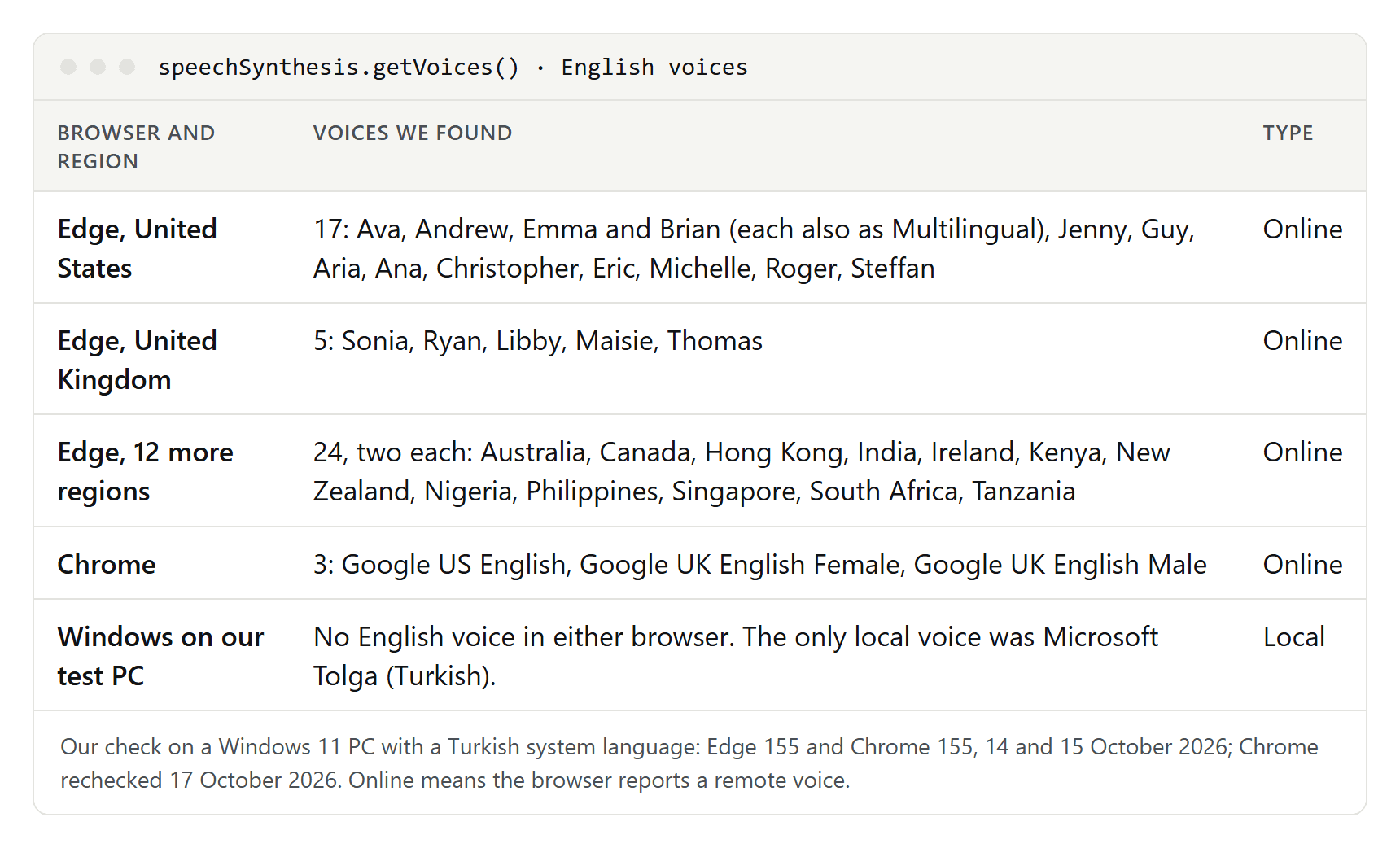
What we found:
- Edge offered 46 English voices for 14 regions, every one with "Online (Natural)" in its name: 17 for the United States, including Multilingual versions of Ava, Andrew, Emma and Brian, 5 for the United Kingdom, and two each for 12 more regions from Australia to South Africa. Edge's full list had 322 voices.
- Chrome offered three English voices, Google US English and Google UK English Female and Male, and reported all three as remote. Its full list had 20 voices: 19 Google voices and one Windows voice.
- Windows added no English voice. Our test PC runs Windows in Turkish, and the only local voice in both lists was Microsoft Tolga (Turkish). Voices installed in Windows show up in both browsers, as Tolga did, and they work on your device.
A second detail matters if you like to follow along. When we had a German test sentence spoken through the same interface on 14 and 15 October 2026, Microsoft's online voices reported each word as they reached it, which is what a read-aloud tool needs to highlight the current word. Chrome's Google Deutsch voice reported only the start and the end.
Microsoft Edge: read web pages and PDFs aloud
Edge comes with Windows and has the biggest choice of voices. According to Microsoft:
- Open the web page.
- Right-click anywhere on the page and choose Read aloud, or press Ctrl + Shift + U (Command + Shift + U on a Mac). It is also in the Settings and more menu, the three dots; if it isn't listed there, look under More tools.
- A toolbar appears at the top of the page. It pauses, jumps to the previous or next paragraph, and opens Voice options, where you change the voice and the speed.
For long articles, press F9 first. Edge then opens Reading mode, which some of Microsoft's help pages still call Immersive Reader: the text without menus and ads, with buttons for Read aloud, Translate, Summarize, Explain and Chat with Copilot. To read only part of a page, select it, right-click and choose Open selection in Reading mode. Reading mode works on supported pages only. If you would rather hear the page in another language, Translate is one click away; our guide to translating a web page covers the other options.
PDFs work the same way: open the file in Edge and start Read aloud. Edge highlights the text as it reads, and Microsoft lists read aloud for PDFs since Edge 84.
Chrome, Firefox and Safari
Chrome on a computer reads aloud only in reading mode. Google's steps:
- Right-click the page and select Open in reading mode. The shortcut is Alt + Shift + R on Windows, Linux and ChromeOS, and ⌘ + Option + R on a Mac.
- At the top right, select Play. Playback speed changes the pace.
- Under Settings › Voice selection you pick a voice and can Preview it. Voice highlight offers Adaptive highlighting, Word, Sentence or Off.
Reading mode downloads Google's natural voices for your language automatically, so its voices differ from the three in our list; if the download fails, it uses the system voice. It doesn't work on every site, for example forums, forms or login pages. If the content doesn't show up, highlight it on the page first.
Firefox reads aloud in Reader View. Click Enter Reader View in the address bar, or press F9 on Windows. In Reader View, Read aloud (N) opens the controls: Start, Back, Forward, a Speed slider and a Voice list set to Default. These labels come from Firefox's own interface files.
Safari on iPhone reads supported web pages: tap the Page menu button, then Listen to Page. You pause and resume from the same menu.
Windows without a browser: Magnifier and Narrator
Windows has two built-in readers that work outside the browser.
Magnifier is the lesser-known one, and the most useful for your own texts. Microsoft's steps:
- Turn Magnifier on with the Windows key + Plus sign (+); the Windows key + Esc turns it off.
- Put the cursor where reading should start and press Ctrl + Alt + Enter. The same keys pause and resume.
- Or hold Ctrl + Alt and click where you want reading to begin.
- Ctrl + Alt + K reads the next sentence, Ctrl + Alt + H the previous one. Any other key stops reading.
Narrator starts with Ctrl + Windows logo key + Enter. It is a full screen reader that also reads buttons, menus and dialogs: usually too much if you can see the screen, essential if you can't.
Microsoft offers natural voices for Narrator: Aria, Jenny and Guy for US English, Sonia and Ryan for British English, Neerja and Prabhat for English (India). Microsoft says they run on the device and work without an internet connection once downloaded; only the preview needs one. To add one, open Narrator settings with the Windows key + Ctrl + N, select Add next to Add natural voices, pick a voice and install it.
The classic voices are David, Mark and Zira for US English. A missing language is added under Narrator settings › Add legacy voices, then Manage voices › Add voices.
Word, Outlook and Google Docs
For your own documents, Word is the most comfortable option, as long as you have Office 2019, Office 2021 or Microsoft 365. According to Microsoft:
- On the Review tab, select Read Aloud, or press Ctrl + Alt + Space.
- Ctrl + Space plays and pauses, Ctrl + Right arrow skips to the next paragraph, and Alt + Left or Right arrow makes reading slower or faster.
- The gear icon opens the Reading speed slider and Voice Selection.
In Word for the web, go to View › Document Views › Immersive Reader and select Play; there you choose a female or male voice. On Windows, the Speak selected text icon in the Quick Access Toolbar reads only the selection. Word reads in the document's proofing language, so a wrong accent often means a wrong proofing language. Microsoft states that Read Aloud doesn't store your content or audio data.
Listening is also a good proofreading trick: missing and doubled words are easier to hear than to see, and Microsoft names proofreading as the first reason to listen to a document.
Outlook: in classic Outlook, turn on File › Options › Accessibility › Show Read Aloud once, then select Read Aloud on the Home tab. New Outlook and Outlook on the web can't read inside the reading pane; use View › Immersive Reader and press Play.
Google Docs has no voice of its own. The commands in its Verbalize to screen reader submenu send their output to a screen reader. To hear a Google document, use your browser's read-aloud feature or Windows Magnifier.
PDFs and printed text
For PDFs you have two free options: Edge, as described above, and Adobe Acrobat Reader. In Reader, choose View › Read Out Loud, then Read This Page Only or Read to End of Document; reading starts on the page you are viewing. You pause or stop from the same menu. Voice and speed are under Edit › Preferences › Reading: clear Use Default Voice to pick another voice, and change the Words Per Minute value.
If a PDF stays silent, it is often a scan: the file holds a picture of the page, not text. Adobe notes that text must be recognized as text rather than sit inside an image, so run text recognition (OCR) first.
Text on paper can be read aloud too, without typing it:
- iPhone: in the Magnifier app, tap the Detection Mode button, make sure Text is selected and point the rear camera at the text. If you hear nothing, turn off Silent mode. Apple says text detection isn't available in every language and shouldn't be relied on in emergencies or for navigation.
- Android: open the Google Camera app, point it at the text, start Select to Speak with its shortcut and drag your finger over the text. Google lists English, French, Spanish and 15 more languages for this.
Android phones and tablets
Android's reading tool is Select to Speak. Some steps need Android 11 or later:
- Open Settings, tap Accessibility, then Select to Speak. If it is missing, update Android Accessibility Suite from Google Play.
- Turn on Select to Speak shortcut.
- Start it with the shortcut, a two-finger swipe up (three fingers with TalkBack on) or the Accessibility button, then tap the text you want to hear, or tap Play for everything on screen.
For a single passage you don't even need the shortcut: select the text, tap More in the pop-up menu, then Read aloud. Under Select to Speak › Settings, Read in background keeps it reading while you switch apps. On phones from Samsung and other makers, menus can look different.
Chrome for Android adds Listen to this page in the More menu. It has two modes. Standard playback reads every word; it requires the setting Make searches and browsing better. AI playback turns the page into a podcast-style conversation; it needs Chrome set to English, and Google says it is the default when it is available. If you want the actual text, tap Switch playback mode. Under Options you choose a Voice, and playback continues with the screen locked.
Google also offers a separate Reading mode app on Google Play. Its listing says it supports English, French, Italian and Spanish, runs on phones with Android 9 or later and never sends content off your phone.
iPhone, iPad and Mac
On iPhone and iPad (iOS 26 and later), the reading features live under Settings › Accessibility › Read & Speak. Apple describes:
- Speak Selection: select text and tap Speak.
- Speak Screen: swipe down with two fingers from the top of the screen to hear everything on it. Show Controller keeps the controls visible. You can also ask Siri to "Speak screen."
- Accessibility Reader: a full-screen reading view; with Autoplay on, it starts reading by itself.
- Voices, Default Language, Detect Languages and Speaking Rate change how it sounds.
Older guides still say Spoken Content: that was the name in iOS 18 and earlier, before Apple renamed it in iOS 26.
On a Mac, turn the feature on once: Apple menu › System Settings › Accessibility › Read & Speak, then turn on Speak selection. After that, select text and press Option-Esc; press it again to stop. Many apps also offer Edit › Speech › Start Speaking. In macOS 15 the setting was called Spoken Content.
Free online readers and AI features: what you actually get
Many websites let you paste text and have it read aloud. Their own pages, which we read on 14 October 2026, are worth a closer look:
- The free basic voices are often your own. TTSReader's privacy policy says that without premium, voices come from your browser's speech interface, so your browser's and operating system's privacy terms apply. NaturalReader describes its Free Voices as basic, non-AI voices preinstalled on most devices.
- AI voices come with limits. Natural-sounding voices usually need a quota, an account or a subscription; check the limits on the service's own page.
- Your text leaves the device. For premium voices, TTSReader names Google, Microsoft, OpenAI, ElevenLabs, xAI and TogetherAI as recipients and says the texts are not used for training.
- Audio files are a separate question. The built-in features read to you; they don't save an audio file. To publish speech, for example in a video, read the service's license terms first.
Reading aloud is also not the same as the AI features next to it. Edge's Reading mode offers Summarize and Explain through Copilot, Chrome for Android has AI playback, and Word's interactive Read Aloud needs a Copilot license. For proofreading, studying or anything where the exact wording matters, use the word-for-word modes. How synthetic voices work is explained in our guide what TTS is.
Privacy: which voices send your text to a server
Whether your text leaves your device depends on the voice, not on the app:
- Edge: Microsoft's Edge privacy document describes two routes. With a voice installed on your device, speech is generated locally and nothing goes to Microsoft's servers. With a voice that has "Online" in its name, the text and a randomly generated token are sent to Microsoft, encrypted, and the text and the audio file are deleted right after conversion. All 46 English voices Edge offered us were online voices.
- Chrome: the browser marks each voice as local or remote; MDN explains that a remote voice comes from a remote speech service. In our network check on 14 October 2026, Chrome reading a German test sentence with its Google Deutsch voice sent the whole sentence in the address of a request to Google. Edge with an online voice opened a connection to Microsoft, and a local Windows voice sent no request at all.
- Chrome on Android: Listen to this page needs Make searches and browsing better. With Google as your default search engine, that setting also sends the address of the page you are viewing to Google.
- Windows Narrator: the natural voices work on the device after download.
- Word: Microsoft says Read Aloud doesn't store your content or audio.
For contracts, medical letters or other confidential text, use a local voice. For the opposite direction, speech to text, see our guide to transcribing audio.
If it doesn't work
- The voice has the wrong language or accent: choose a voice for the text's language in the feature's voice settings. In Word, check the document's proofing language. In Windows, add voices through Narrator settings › Add legacy voices.
- Chrome offers no reading mode: Google says it doesn't work on all sites. Highlight the content first, or try Edge or Firefox.
- A PDF isn't read: probably a scan without text. Run OCR first.
- Read Aloud is missing in Word: it exists only in Office 2019, Office 2021 and Microsoft 365. Microsoft also suggests signing in to your Microsoft 365 account and restarting Word.