The safest speaker label format is the speaker's name or a generic label, a colon, one space, then the words, with every change of speaker on a new line: Speaker 1: Thanks for joining. Use a real name only when the recording or the client gives it to you, number unnamed voices in the order they first speak, and never invent descriptive labels like "Tall guy". When a client or platform has its own style guide, its rule beats every general rule, including the ones below.
What a speaker label is
A speaker label (also called a speaker ID, speaker tag or speaker identification) is the short text at the start of a turn that tells the reader who is talking. It isn't part of the audio; the transcriber adds it so a reader can follow the conversation.
A label has up to four parts:
- The identifier: a name ("Dana Ruiz"), a first name ("Dana"), a role ("Interviewer"), a number ("Speaker 2"), or a code ("P04").
- The separator: almost always a colon. Some guides add a tab after it, most a single space.
- Styling: plain, bold, italic or uppercase, depending on the guide.
- A timestamp (optional): before the label, after it, or on the line above.
In software, splitting a recording by voice is called speaker diarization. It answers "which parts come from the same voice?", not "who is this?", which is why automatic transcripts say "Speaker 1" until someone adds names.
The short answer by situation
| Situation | Label to use | Example |
|---|---|---|
| Name said in the audio or given by the client | The name, the same form every time | Dana Ruiz: then Dana: if the guide allows |
| Name unknown, voice can be followed | Speaker + number, in order of first appearance | Speaker 1: Speaker 2: |
| Name unknown, role is clear | The role, if the guide allows roles | Interviewer: Respondent: |
| You are not sure who said a line | The guide's uncertainty mark, or a neutral label | ?Speaker 3: (GoTranscript) |
| Too many voices to follow | A group label | Audience: Students: |
| Two people say the same thing at once | A unison label, where the guide has one | Together: |
| Research interviews for analysis software | Short, unique codes used the same way in every file | I: P04: |
| No style guide at all | Name or Speaker + number, colon, one space, new line | Speaker 1: Hello. |
The common formats side by side
Most transcripts you'll see use one of a handful of patterns. They differ in what the identifier is, how it is styled and where the time goes.
| Format | Example | Typical use |
|---|---|---|
| Full name | Dana Ruiz: We launched in March. | Interviews, podcasts, published transcripts |
| First name | Dana: We launched in March. | Informal meetings, after the full name appeared once |
| Title and last name | Dr. Ruiz: The results were mixed. | Medical, academic, formal panels |
| Role | Interviewer: When did you launch? | Research interviews, focus groups |
| Speaker + number | Speaker 1: When did you launch? | Default when names are unknown |
| Initials or codes | DR: We launched in March. | Research data, anonymized files |
| Q and A | Q: When did you launch? | Interviews, depositions |
| Uppercase name | MR. SMITH (Q): Where were you? | Legal transcripts |
| Bold label | **Dana:** We launched in March. | Word documents, GoTranscript style |
| Label with timestamp | [00:01:15] Speaker 1: Hello. | Time-coded transcripts |
| Caption chevrons | >> (Dana): We launched in March. | Closed captions |
The same short exchange in two of these styles:
Dana Ruiz: We launched the booking page in March.
Leo Park: And the phone calls?
Dana Ruiz: They dropped, but people still call on Mondays.[00:00:04] Speaker 1: When did you launch the booking page?
[00:00:07] Speaker 2: In March. The calls dropped after that.
[00:00:12] Speaker 1: Did anything surprise you?Captions work differently. James Madison University's captioning guide marks a new on-screen speaker with two chevrons and adds a name in parentheses only when the speaker is off screen or unclear. WebVTT files, which Zoom and Teams offer for transcripts, can carry the name as a "voice" tag defined in the W3C specification:
00:00:04.000 --> 00:00:06.500
<v Dana Ruiz>We launched the booking page in March.

00:00:07.000 --> 00:00:09.000
<v Leo Park>And the phone calls?
For timestamp formats, see our guide to time-coded transcripts; for full styles from verbatim to edited, our transcript examples.
What the public style guides say
Several transcription companies publish the style guides their freelancers follow. They agree on the basics and differ on details, which is exactly what test questions ask about. The table sums up the guides we could open.
| Guide | Default for unknown names | Format | Notable rule |
|---|---|---|---|
| Rev, Transcription Style Guide v5 | Speaker 1, Speaker 2 | Label, then text | Never invent descriptive labels |
| GoTranscript guidelines | Role, e.g. Interviewee | Bold, colon, one space, no Tab | ? before the label when unsure |
| Speechpad general style guide | Man: / Woman: | No all caps unless asked | No tag when there is only one speaker |
| Tigerfish style guide | Male Voice: / Female Voice: | Colon, then a tab | Don't number speakers |
| Scribie default format | Speaker 1, Speaker 2 | New paragraph at each change | Numbers follow order of first appearance |
| Atomic Scribe | Q: / A:, Moderator: / Respondent: | Labels in italics | Full speaker ID only when the project asks |
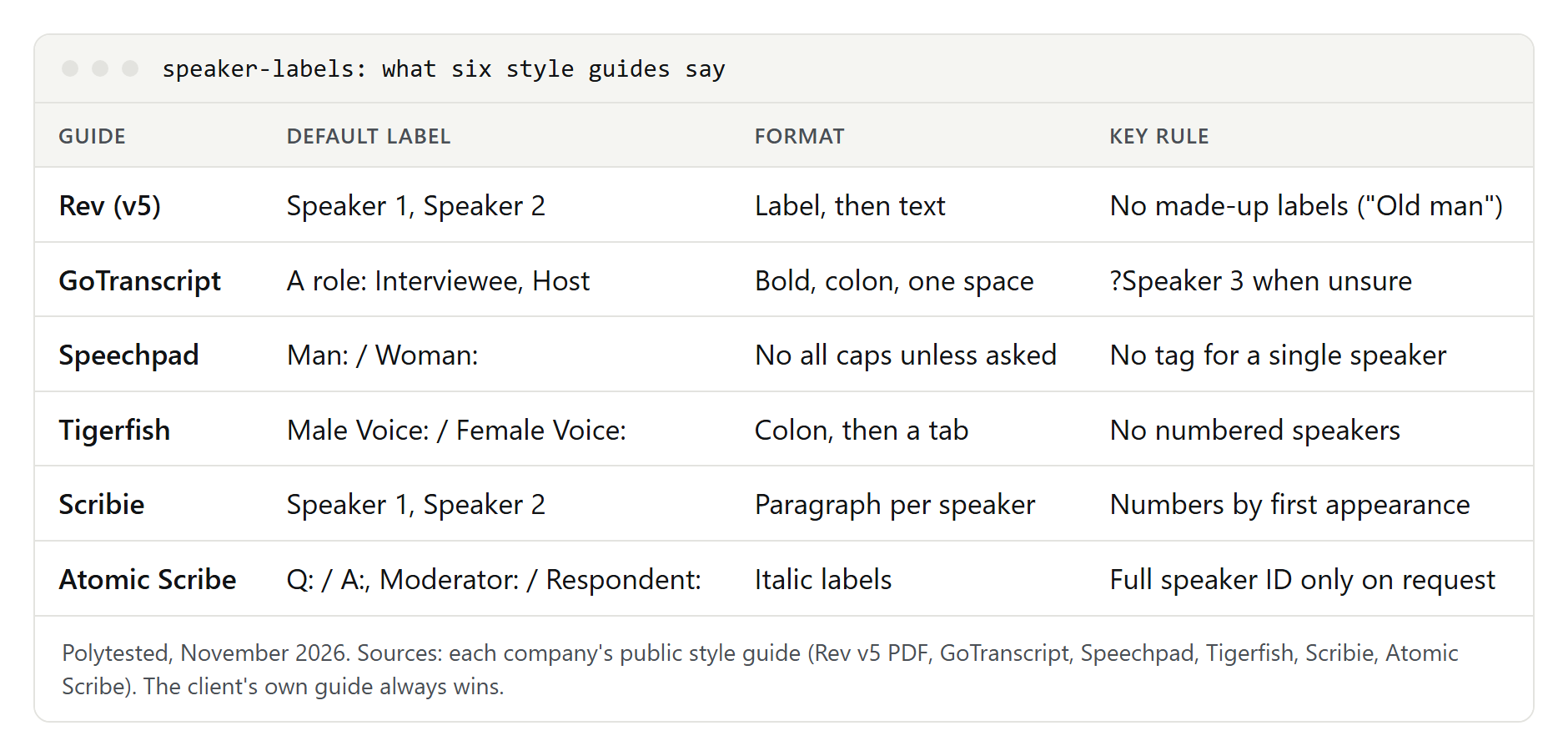
Rev
Rev's public style guide PDF (version 5, file last modified in May 2022) starts with provided labels: names from the customer must be used when the speaker says their own name, when another speaker addresses them by name, when there is one speaker and one name, or when names can be matched by elimination. Otherwise inferred labels apply: Speaker + number is the default; a name when it can reasonably be inferred; a role such as Interviewer, Doctor or Translator is optional; a group label such as Students, Audience or Camera Crew only when there are too many people to follow. Made-up descriptions, its examples being "Old man" and "Blue shirt guy", earn the lowest formatting score.
GoTranscript
GoTranscript's guidelines put the label in bold, followed by a colon and one press of the space bar, never the Tab key. Even a single speaker gets a label. Use the name if it is said in the audio or appears in the file title; otherwise a role as descriptive as possible, such as Interviewer, Interviewee, Participant 1, Host or Caller. After the full name, the first name alone is allowed. An update dated March 9, 2022 added a rule few guides have: when you can't tell who is speaking, put a question mark before the label, as in ?Speaker 3:.
Speechpad
Speechpad's general style guide uses no tag when only one person talks, no all caps unless instructed, the first name when known, and title plus last name when a title is given ("Dr. Fitzpatrick:"). Unknown people are "Man:" or "Woman:", numbered only if you can follow their voices reliably; interviews use "Interviewer:" and "Interviewee:".
Tigerfish
Tigerfish's guide (its revision line reads 6/10) separates label and text with a colon and a tab, allows only a fixed list of labels (including Male Voice, Female Voice, Interviewer, Respondent and Facilitator) and forbids others such as "Speaker" and "Moderator". Numbering is allowed only as a temporary aid: if search and replace can't turn the numbers into names, they come out before you submit.
Scribie, Atomic Scribe and research software
Scribie's default format uses names when the audio identifies speakers and otherwise "Speaker 1", "Speaker 2" by order of first appearance. Atomic Scribe puts tags in italics, with "Q:" and "A:" for interviews and "Moderator:" and "Respondent:" for focus groups. For qualitative analysis software, import rules matter more than looks: the ATLAS.ti manual asks for one unique identifier per speaker, used consistently, and recognizes name: or @name: at the start of a turn. More in our guide to analyzing interview data.
Where the guides disagree
If you work for more than one client, these are the differences that cause mistakes:
- Gender labels. Speechpad and Tigerfish use them; the JMU captioning guide says to avoid labels that unnecessarily gender a speaker, and Rev's default is Speaker + number. Use them only when your guide asks.
- One speaker. GoTranscript labels a single speaker; Speechpad doesn't.
- Numbers. Rev and Scribie number unknown speakers; Tigerfish forbids numbers in the final file.
- Roles. Optional at Rev, preferred at GoTranscript, a fixed list at Tigerfish.
- Separator and styling. One space (GoTranscript) or a tab (Tigerfish); bold, italics (Atomic Scribe) or plain; all caps in Rev's legal transcripts, but not in Speechpad's general ones.
- Uncertainty. Of the guides above, only GoTranscript defines a mark for it.
None of these is "the correct" rule in general. Each is correct for its own client.
Unknown speakers and names you learn later
A name counts as known when the person says it ("I'm Dana"), someone else uses it ("What do you think, Dana?"), the client gives it, or, for GoTranscript, it appears in the file title. A guess from context doesn't count.
Give a nameless voice the next free number in order of first appearance and keep it for the whole file. If you learn the name later, replace the number everywhere, so the transcript doesn't switch from "Speaker 3" to "Dana" halfway through; Tigerfish describes exactly this use of search and replace.
Keep one form throughout: "Dr. Ruiz", "Dana" and "Dana Ruiz" in one file look like three people. GoTranscript allows the first name after the full name has appeared once; pick one approach and stick to it.
When two people share a first name, Speechpad's guide adds the last initial ("Lois L." and "Lois K."), or full names when even the initials match.
Crosstalk, overlap and interruptions
The guides handle overlapping speech like this:
- You can make out both speakers: transcribe each person's words under their own label, one after the other (Speechpad).
- You can't make it out: GoTranscript uses a
[crosstalk]tag, on its own line or where the overlap happens; Speechpad uses[crosstalk HH:MM:SS]with the time. Rev's guide lists no crosstalk tag and says not to create tags it doesn't list; its tag for words you can't make out is[inaudible hh:mm:ss]. - Someone is cut off and then continues: GoTranscript ends the broken-off part with a single dash and starts the continuation, under the same speaker's label, with another single dash. A double dash is for a false start or a sentence that is never finished.
- Everyone says the same thing: Speechpad allows "Together:"; the JMU captioning guide uses
>>> (All):.
**Dana:** I think we should move the launch to-
**Leo:** Mm-hmm.
**Dana:** -the last week of March.
[crosstalk]
**Leo:** Fine, March it is.
Special cases: latecomers, interpreters, groups and more
A speaker who joins late. Give them the next free number when they first speak. Don't renumber the speakers before them, even if the newcomer talks more.
Interpreters. Speechpad separates two cases: an interpreter who only renders someone else's words gets no label (the original speaker's line carries the foreign-language note), while one who also speaks for themselves gets a label for those turns. Rev lists "Translator" as a role label and says you needn't mark the foreign language every time a translated respondent speaks.
Interviewer: How long have you run the bakery?
Respondent: [foreign language 00:02:10]
Interpreter: She says since before her daughter was born.
Interpreter: I'll ask her to repeat the last part.
Groups and audiences. Use a group label such as "Audience:" or "Students:" only when individual voices can't be followed. Rev's guide says a group label is not a substitute for a reasonable effort to tell people apart.
One speaker. Lectures, dictations and voice memos: follow the guide. GoTranscript labels the single speaker, Speechpad leaves the tag out, and Scribie uses the name or "Speaker 1" throughout.
Anonymized research. Use codes ("P01", "P02") that don't reveal identity, keep a separate key file, and use the same code for the same person in every transcript. Our guide on how to transcribe an interview covers the notation key and consent.
How to answer "which speaker label is correct" questions
Work through five checks in this order: is the name really known, is the generic label used correctly, was a label invented, is the punctuation right, and does the answer follow the platform's own guide. The examples below are our own; the reasoning uses the guides above.
Example 1. The interviewer never says her name. The guest says, "Thanks, I'm Dana Ruiz." Which is correct? A) Woman 1: and Woman 2: B) Interviewer: and Dana Ruiz: C) Host lady: and Dana: D) Speaker 1: and Dana Ruiz:
B is the best answer in most guides: the guest named herself, and the interviewer's role is clear. D is also acceptable under Rev's rules, which allow Speaker + number when no name is given. A uses gender labels, which several guides avoid. C is always wrong, because "Host lady" is an invented description.
Example 2. Which label is written correctly? A) speaker 1: B) Speaker1: C) Speaker 1: D) SPEAKER 1 :
C. It has a capital letter, a space before the number, the colon right after the number and one space before the text. A has a lowercase letter and B is missing a space. D uses all caps, which Speechpad's guide rules out unless the instructions ask for it, and a space before the colon, which none of the guides above show.
Example 3. Two people talk. The first is never named; the second is introduced as "our CFO" but not by name. No style guide is given. A) Speaker 1: and CFO: B) Speaker 1: and Speaker 2: C) Man: and Finance guy:
A and B are both defensible: A uses a role the audio states, B is the neutral default. C is wrong twice, a gender label plus an invented description. A guide that prefers roles (GoTranscript) or numbers (Rev) decides between A and B.
Example 4. The customer gave the names "Arnold" and "Gustav". One speaker asks, "What do you think, Gustav?" and the other answers. Who is the second speaker?
Gustav. Rev's guide names exactly this case: you can use a provided name when another speaker addresses the person by it. The first speaker then becomes Arnold by elimination, if there are only two people.
Example 5. A lecture hall. Several students call out answers at once and you can't tell them apart. A) Student 1: Student 2: Student 3: B) Students: C) Audience member in front:
B. Numbered students would claim a distinction you can't hear, and C is an invented description.
When a question seems to have two right answers, look for the detail that matches the platform's own rules. That is usually what the question is testing.
How transcription tools label speakers
Automatic tools separate voices first and name them second. Separation gives you "Speaker 1" or "Unknown Speaker"; names come from you, from the meeting's participant list, or from voice profiles the tool learned earlier. What each vendor documents:
- Microsoft Word (Transcribe): speakers appear as "Speaker 1", "Speaker 2". To rename, hover over a section, select Edit transcript section, change the label and select Change all Speaker [x], then Confirm. Add all to document puts the transcript into your file as normal text.
- Descript: automatic speaker detection works on files up to five hours; then Identify speakers plays a sample of each voice so you can name it. Type @ in the script to add a label, use Edit speaker to rename, or Replace with speaker throughout project to swap one speaker for another. On export, the Include... settings decide whether labels appear, and whether in every paragraph.
- Otter: new voices show as "Speaker 1", "Speaker 2"; voices it can't separate show as an unknown speaker. Tagging a "Speaker #" once tags all their paragraphs; retagging a wrong paragraph fixes only that paragraph. A rename applies across all your conversations, and Rematch applies newer voice data to old "Speaker #" labels. Tagging works only after the recording stops.
- Fireflies: uploaded files get "Speaker 1", "Speaker 2" and so on, and recordings from the desktop app's no-bot Take Notes mode also show numbered speakers. Click a label, type the name, then choose Apply to current speaker or Apply to all "Speaker X". Only the meeting owner can edit labels, and summaries don't update on their own: use Regenerate notes. Downloads have Include speaker labels and Include timestamps options and need a Pro plan or higher.
- Zoom (cloud recording transcripts): lines from someone Zoom can't identify appear under "Unknown Speaker"; hover over it and click the pencil icon to name them. Transcripts are saved as VTT files.
- Microsoft Teams: the transcript shows each speaker's name and a timestamp and downloads as .docx or .vtt. You can hide your own name beforehand by turning off Automatically identify me in live captions and live transcripts (Settings, Accessibility, Captions and transcripts). In Teams Rooms, people without a voice profile appear as "Speaker 1,2 (Room name)"; voice identification stops working when more than 50 invited participants have enrolled voices.
- Google Meet: transcripts are saved as a Google Docs file in the organizer's Drive, with a list of attendees, which helps you match voices to names.
Fireflies' help page warns that overlapping or unclear audio can put words under the wrong speaker, so whatever tool you use, check the places where people talk over each other first. For notes rather than full transcripts, our guide to meeting minutes shows what to keep.
Clean up speaker labels with find and replace
Once you know who "Speaker 1" is, renaming in the transcription tool is best, because the tool keeps the change everywhere. If you only have the exported text, find and replace does the job.
In Word: go to Home, Editing, Replace. Type Speaker 1: in Find what and Dana: in Replace with, select More and tick Match case, then use Find Next and Replace to check each one, or Replace All. Include the colon: Speaker 1: won't also hit Speaker 10: or Speaker 12:, but Speaker 1 would.
In Google Docs: use Edit, Find and replace, with Match case. Match using regular expressions finds patterns, but Google notes that capture groups in the replacement work only in Sheets, so in Docs replace one label at a time.
With wildcards in Word: tick Use wildcards to search patterns. For example, \[[0-9:]@\] followed by one space finds bracketed timestamps such as [00:01:15] at the start of a turn, which helps when a client wants labels without times. The backslash makes Word treat the square bracket as a normal character.
Find what:     \[[0-9:]@\]    (then type one space)
Replace with:  (leave empty)
Options:       Use wildcards
Read the file once more afterwards: a label quoted inside a sentence gets replaced too.
A speaker label template to copy
For work without a style guide: a header that explains the labels, one line per turn, colon and one space, a timestamp at each change of speaker.
Title: [Recording name]
Date recorded: [Date]
Speakers:
  Speaker 1 = [Name or role, e.g. Interviewer]
  Speaker 2 = [Name or role, e.g. Respondent]
  Speaker 3 = [Name or role, first speaks at 00:00:00]
Notation: [inaudible hh:mm:ss], [crosstalk], ?Speaker = uncertain

[00:00:00] Speaker 1: [Text]

[00:00:00] Speaker 2: [Text]

[00:00:00] Speaker 1: [Text]
Before you submit, run through this list:
- Every turn starts on a new line with a label.
- Each person has exactly one label, written the same way every time.
- Numbers follow the order in which people first speak.
- No invented descriptions, and gender labels only if the guide asks for them.
- Separator, spacing and styling match the guide.
- Uncertain lines are marked as the guide says, not guessed.
For the first draft itself, our guide on how to transcribe audio covers the free tools.