Instagram doesn't offer a transcript of a reel. What it does offer is automatic captions: speech recognition writes what is said along the bottom of reels and videos, and you can switch them on in the mobile app. Its help pages describe captions, caption translation, downloads and a data export, but no transcript view and no way to save captions as a file. So the clean routes are: read the captions on someone else's reel, transcribe the original file of your own reel, or ask the creator for the script. Here is how each one works, plus what "Instagram transcript generator" sites really do.
The short answer
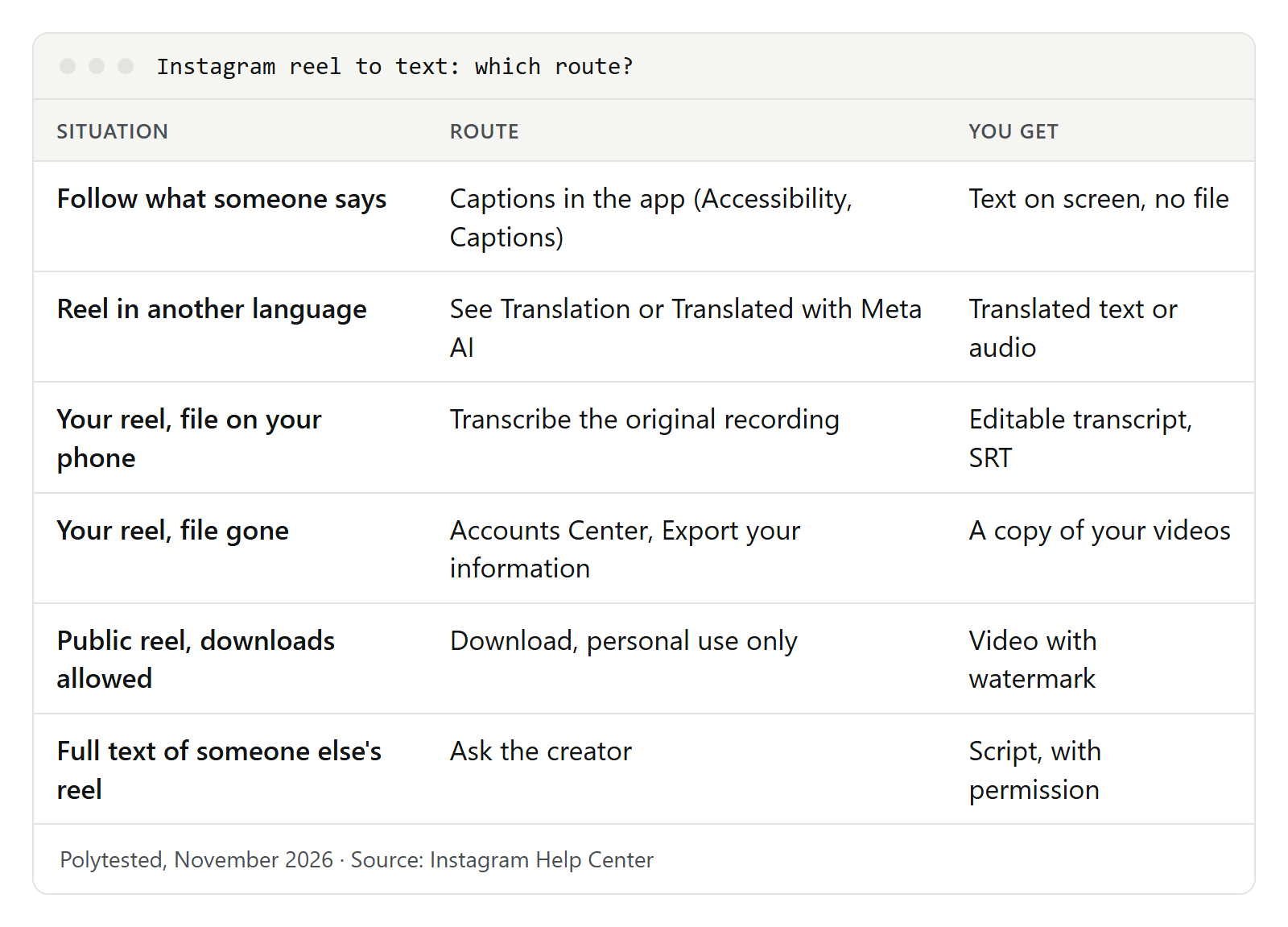
| Your situation | Best route | What you end up with |
|---|---|---|
| You want to follow what someone says | Turn on captions in the app | Text on screen while the reel plays |
| The reel is in another language | Caption translation or a reel translated with Meta AI | Translated text or translated audio |
| It's your own reel and you still have the file | Transcribe the original recording | An editable transcript, timestamps, SRT |
| It's your own reel and the file is gone | Download your information in Accounts Center | A copy of your videos to transcribe |
| You need the full text of someone else's reel | Ask the creator | Their script or notes, with permission |
| A site promises a transcript from a link | Read the section on generators first | Text, with risks to weigh |
If you came from our guide to TikTok transcripts, the picture will feel familiar: both apps caption videos, neither hands you a transcript.
Which "caption" are you looking for?
Part of the confusion around Instagram transcripts is the word "caption." Instagram uses it for two different things, and many tutorials mix them up:
- The caption of a post is the text the creator types under the photo or video, with hashtags and mentions. Instagram's help center calls it the caption of your post, and the creator can add, edit or delete it after posting. It often summarizes the video but rarely matches the spoken words.
- Closed captions are the automatic subtitles. Instagram says it uses speech recognition technology to create them, and when they're on, the speech in the reel is written out as text at the bottom.
- The Captions sticker is something a creator adds while editing a story or reel. Instagram transcribes the audio, and the creator can correct the words and pick a style. The result is part of the picture, so you can't switch it off or copy it.
- Text added in the editor is also burned into the image. It can be anything: a title, a joke, a call to action.
A transcript is something else again: the complete spoken text, ideally with timestamps, that you can read, search and copy. Instagram doesn't produce one, so every method below either reads captions or creates a new transcript from the audio. Our guide to subtitles and closed captions explains the difference between captions you can switch off and captions burned into the video.
How to turn on captions on Instagram
Instagram's help center says captions can be switched on or off in the options menu of a specific video or in your account's accessibility settings. It also notes two limits: the feature "isn't available on computers," only in the Android, iPhone and iPad apps, and it's "only available in some locations."
For all videos. RNID, the UK charity for deaf people, describes the path in its Instagram guide, last updated on June 16, 2026:
- Tap your profile picture in the bottom right.
- Tap the menu with three lines at the top right to open the settings.
- Go to Accessibility, then Captions.
- On an iPhone, move the toggle to the right. On Android, choose Always show closed captions.
For one video. Tap the three dots on the reel and look for the captions option in the menu. If it isn't there, the video has no captions you can switch on; see the troubleshooting section below.
Captions appear while the reel plays. You can read along, pause and reread, but there is no "copy all" button and no list of lines to scroll. For a short clip that's often enough. For a long video, or if you need the exact wording, use one of the routes further down.
On an Android phone, Live Caption is a second option for watching. It's a system feature, not an Instagram one: Google says it captions speech from videos, podcasts and calls on your device, and that "all captions are processed locally, never stored, and never leave your device." Turn it on under Settings, Accessibility, Live Caption. It works on Pixel phones and selected other Android phones, and on Pixel 4 and later it covers English, French, German, Italian, Japanese, Hindi and Spanish. Like Instagram's captions, it shows text but doesn't save it.
Translated captions and reels translated with Meta AI
Instagram has two translation features, and they work differently.
Post text. According to the help center, captions and comments on feed posts, as well as profile bios, are translated automatically based on the language they're written in and your language settings. If a translation is available, tap See Translation below the text.
Reels translated with Meta AI. Here the creator, not the viewer, decides. Meta AI translates the speech, mimics the creator's voice and can sync the lips. Meta started with English and Spanish, added Hindi and Portuguese in October 2025, five Indian languages in January 2026, and on July 14, 2026 French, German, Italian, Japanese and Korean on Instagram. Meta says translating reels is free and open to all public Instagram accounts in countries where Meta AI is available. Instagram's help page for viewers, opened on November 4, 2026, still listed only the earlier nine languages and noted that translated reels "aren't yet available for everyone."
As a viewer:
- A translated reel carries the label Translated with Meta AI. Tap it to switch between the original and the other available languages.
- To hear the original, tap View translations and select the original language.
- To manage translations in general, open Settings and activity, then Language and translations, then Translations. There you can turn off text and voice translations.
- If a translation is wrong, the same menu has Report translation error.
A creator who posts a reel can also turn on Translate closed captions, which offers translated captions instead of translated audio.
Keep in mind that translated captions are machine translation of machine transcription. A misheard name becomes a mistranslated name. If you quote a translated line, check it against the original audio.
Your own reels: captions, the Captions sticker and Edits
If you post reels, you control the captions. Instagram's help center gives these steps for a new reel:
- Tap Create at the top, or swipe right anywhere in Feed, then tap Reel.
- Select a video from your camera roll and tap Next, then Next again.
- Tap More options at the bottom.
- Switch on Enable closed captions. For translated captions, also switch on Translate closed captions.
For a reel you've already shared, go to your profile, open the reel, tap Options at the top, then Edit and More options. Instagram notes that previously posted reels follow your caption settings by default.
The Captions sticker is the other route. RNID's guide describes it: while creating a story or reel, tap the sticker icon, choose the Captions sticker, wait for the "Transcribing audio" notice, then tap the words to fix mistakes before posting. RNID also points out that Instagram can't import a caption file you made elsewhere, and recommends turning off automatic captions if your video already has captions burned in, so the two don't overlap.
If you edit in Edits, Instagram's separate video editor, the help center describes a Captions button that lets you choose the language spoken in the video, the caption style and transcription controls such as punctuation, title case and whether curse words show, before you tap Generate Captions. You can then edit the captions and use the Bilingual option to change their language.
All three methods put the text on the video. None of them hands you a transcript file. For that, start from your own recording.
Getting the file of your own reel
The best source for a transcript is the file you recorded, before Instagram compresses it and adds music. Three ways to get it:
- Keep your original. If you filmed with your phone's camera, the clip is already in your photo library. If you recorded inside Instagram, the help center says you can save the reel to your camera roll before sharing it. A useful detail for transcripts: music you added from Instagram's music library isn't saved with that copy, so the speech comes through without it.
- Download a posted reel. Instagram's help page on downloads says that on public accounts, anyone, including you, can download reels unless the creator turns downloads off. Downloaded reels include an Instagram watermark, the username and audio attribution.
- Export your information. If the original is gone, Instagram's data export can include your media. The steps from the help center:
- Open the settings and tap Accounts Center (or Meta Account, depending on your account), then Your information and permissions.
- Tap Export your information, then Create export.
- Select your Instagram profile and tap Next.
- Choose Export to device, pick the information, the date range, the format and the media quality, then tap Start export.
Instagram says the email with the export link can take up to 30 days, and once the export is ready you have four days to get it from Available downloads. High-quality videos make the files larger, so pick only the types of information you need. The process is password-protected and only you can access it.
Transcribing the recording
Once you have the file, any transcription tool can turn it into text. A few that work from a file you upload, according to their vendors' help pages:
- Microsoft Word. The Transcribe feature in Word for the web accepts .mp4, .m4a, .mp3 and .wav files. Go to Home, open the Dictate menu, choose Transcribe, then Upload audio. Microsoft 365 subscribers get 300 minutes of uploaded audio per month, and the feature only works in Microsoft Edge and Chrome. When it's done, Add all to document puts the whole transcript into your document.
- Descript. Descript transcribes audio and video and lets you edit the recording by editing the text. Its help center lists English, German, French, Spanish and more than twenty other languages, and notes that it supports one language per file.
- Other tools. Desktop programs that run on your own computer keep the file private. Our guide to transcribing audio compares the main approaches.
Then:
- Correct names, brand names and numbers by hand. Speech recognition stumbles on exactly those.
- If you need captions for other platforms, export the transcript as an SRT file.
- Reuse the text in your post caption, a blog post or a newsletter. Your own words are yours to reuse.
Someone else's reel: what you can do
For other people's videos, your options are narrower:
- Read the captions in the app, as described above. That's what they're for.
- Note the parts you need. Pause the reel and write down the sentence you want to quote, with the creator's handle and the date.
- Ask the creator. Many creators speak from a script or notes. A short message asking for the text, and saying how you want to use it, is the only route that clearly respects both Instagram's rules and the creator's rights.
- Download, if allowed. If the creator allows downloads, you can save the reel and transcribe it for your own use. Instagram's help page says downloaded reels "aren't allowed to be used for commercial purposes."
Private accounts are a closed door: Instagram says no one can download reels from a private account. If you follow the account, you can watch with captions; anything more needs the creator's permission.
What "Instagram transcript generators" do
Instagram transcript generators all make the same promise: paste a link, get the text. Most of these pages are run by transcription companies that use them as an entry point to their own product. They usually work in one of two ways:
- Paste a link. The site fetches the public reel from Instagram, runs its own speech recognition and returns text, sometimes with timestamps or an SRT file. You don't need an account, but it only works for public reels.
- Upload a file. You save the video first, then upload it. That works for your own videos too, but then you can just as well use a transcription tool you trust.
Before you paste anything, weigh these points:
- Automated collection. Instagram's terms of use forbid accessing or collecting information in an automated way without Instagram's express permission, whether or not you're logged in. A site that fetches a reel from a link does exactly that.
- Never enter your Instagram login. The same terms ban collecting or using other users' login credentials. A transcript site has no reason to ask for your password, and one that does is a red flag.
- Read the privacy policy. Check what the site does with the links and files you send: whether it stores them, for how long, and whether it uses them to train its models. Many generator pages say nothing about this.
- Expect errors. Generators run the same kind of speech recognition as Instagram's captions. Music, fast speech and accents produce mistakes, so check any line you quote against the audio.
Our advice: for your own reels, work from your own files. For other people's reels, read the captions or ask.
All methods side by side
| Method | Works for | Full text you can copy | Account needed | Main limit |
|---|---|---|---|---|
| Captions in the app | Reels with captions | No, line by line on screen | Yes, mobile app | Not on computers, some locations only |
| Android Live Caption | Any video playing on the phone | No, on screen only | No | Selected phones and languages |
| See Translation and Meta AI translations | Post text, translated reels | No | Yes | Creator must translate the reel |
| Transcribe your original file | Your own videos | Yes | Depends on the tool | You need the file |
| Download your information | Your own account | Yes, after transcribing | Yes | Email can take up to 30 days |
| Download a public reel | Reels with downloads allowed | Yes, after transcribing | Yes | Watermark, no commercial use |
| Ask the creator | Any reel | Yes | No | Depends on the creator |
| Transcript generator sites | Public reels | Yes | Usually no | Instagram's terms, privacy, errors |
Translating the transcript
A transcript of your own reel is the best starting point for subtitles in other languages, because you translate text you've already corrected:
- Correct the transcript in the original language first.
- Export it with timestamps as an SRT file.
- Translate the file, keeping the timestamps. Our guide to translating subtitles walks through the options.
- Have a native speaker check the result, especially jokes, names and numbers.
If you only want to understand a reel, Instagram's own translation features are quicker. Machine translation is fine for getting the gist; for anything you publish, check it.
Troubleshooting
There is no captions option. Instagram says the feature is only available in some locations, and creators can switch captions off for their reels. If the reel has no speech, only music, there's nothing to caption. And on a computer the feature isn't available at all: switch to the app.
Captions are in the wrong language. Automatic captions follow the language spoken in the video. If you want them in your language, look for See Translation on post text or a Meta AI translation on the reel. For your own reels, Edits lets you choose the spoken language before generating captions.
Captions are wrong. Speech recognition misses names, slang, numbers and words drowned by music. For your own reels, correct them in the Captions sticker or in Edits. For other people's, check the audio before you quote.
The account is private. Only approved followers see a private account's reels, so captions are there for you only if you follow it. Link-based generators work with public reels only, and you shouldn't try to get around that.
Download isn't offered. The creator has turned off downloads, or the account is private, or the creator is under 18: Instagram says downloads are off by default for public accounts of users under 18.
Your export doesn't arrive. Instagram warns it can take up to 30 days. Once the email comes, download the files within four days, or start a new export.
The translated reel sounds odd. Meta AI imitates the creator's voice in another language. If you'd rather hear the original, tap View translations and pick the original language.
Instagram's terms and copyright
Three rules from Instagram's terms of use matter here: no automated collection of information without Instagram's express permission, no collecting or using other people's login details, and no violating other people's rights, including copyright. The terms also say you may use someone else's work under the exceptions or limitations to copyright that apply where you live.
What someone says in a reel can be protected by copyright. Reading captions for yourself is what the feature is for. Quoting a sentence with credit is usually different from republishing a full transcript or translation. In the US, fair use is decided case by case on four factors, and the US Copyright Office says there is no formula for a safe amount. This isn't legal advice; for anything beyond a short quote, ask the creator for permission and check Instagram's terms.
For other platforms, the same logic applies: our guide to YouTube transcripts shows how YouTube handles it, with a transcript panel built in.