The best ChatGPT image prompts don't sound clever. They say what the image is for, what's in it, how it's framed, the style, the light, the colors, the shape, and any words in quotes. OpenAI's own guide says one to three clear sentences are usually enough. Below are 25 prompts you can copy, each with placeholders in [square brackets], grouped by job: logos, shop photos, social posts, posters, infographics, stickers, illustrations, room makeovers, mockups, coloring pages and wallpapers. After them: how to edit step by step, pick the right shape and fix common problems.
The formula behind a good image prompt
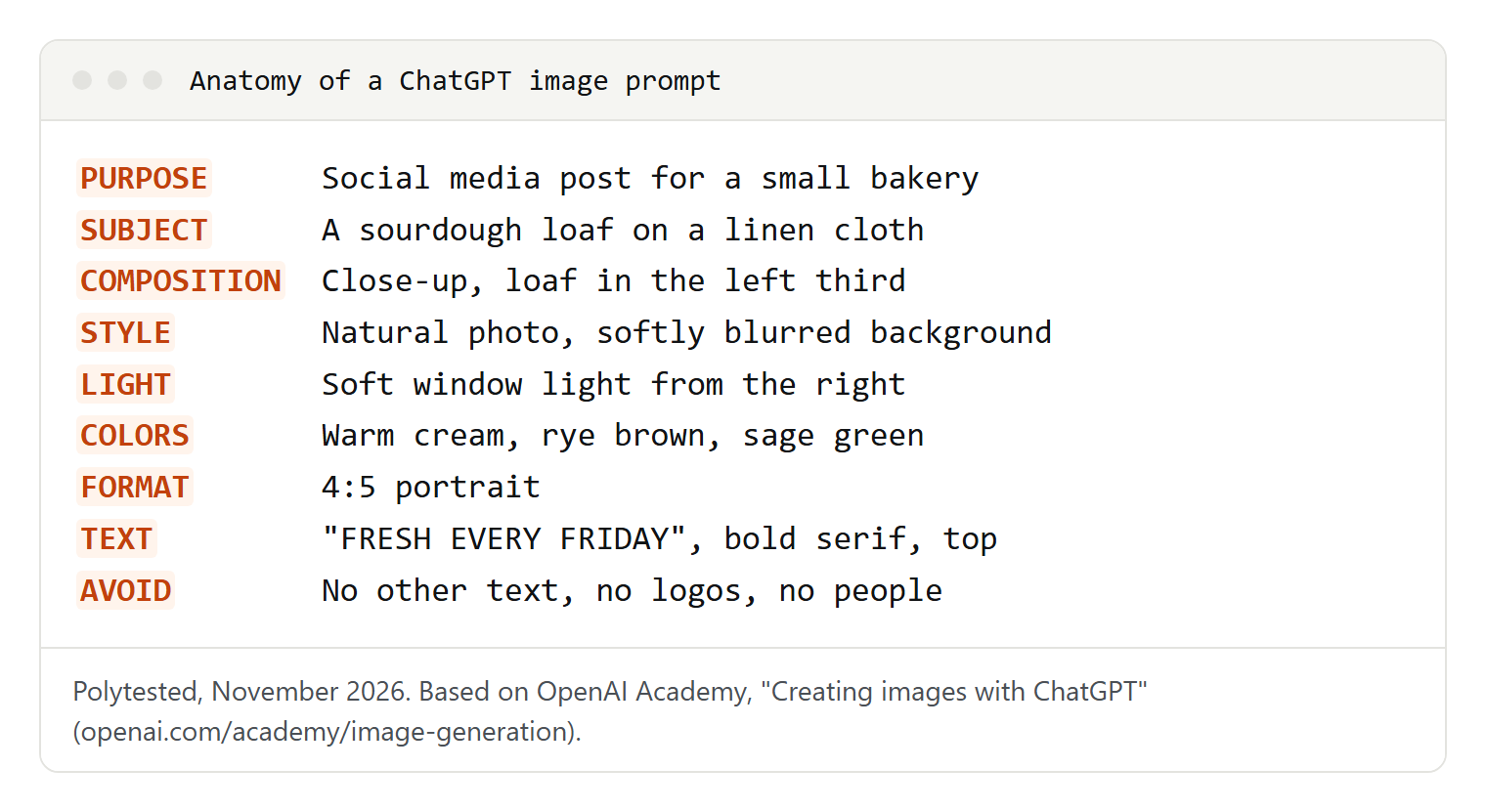
A strong image prompt answers the questions a designer would ask before starting. Use the parts that matter for your image, roughly in this order:
- Purpose: where the image will be used (a shop listing, a poster, a slide).
- Subject: the main thing in the picture, with materials and details.
- Composition: framing, angle, where the subject sits.
- Style: photo, flat vector, watercolor, line art. Describe the look instead of naming an artist or a brand.
- Light: specific beats vague. OpenAI's guide prefers "soft natural light from a window on the left" to "beautiful lighting."
- Colors: two to four named colors.
- Format: the aspect ratio, such as 1:1, 4:5 or 16:9.
- Text: the exact words in quotes, with font, color and position, then "No other text."
- Keep or avoid: what must stay unchanged, and what must not appear.
Create a [type of image] for [where it will be used].
Subject: [main subject, with materials and details].
Composition: [framing and angle], [where the subject sits].
Style: [photo / flat vector / watercolor / line art], [mood].
Light: [light source and direction].
Colors: [two to four colors].
Format: [aspect ratio, for example 1:1].
Text: "[exact words]" in [font style], [color], [position]. No other text.
Avoid: [things that must not appear].
You don't have to fill every line: purpose, subject and style are enough for a first idea. OpenAI's developer guide suggests labeled lines like these for longer requests, and they're easy to change in a follow-up.
This guide covers images that aren't of you. For selfies and portrait styles, see our self-portrait prompts; for holiday cards, the Christmas photo prompts; for the cartoon-yourself trend, the caricature prompt.
Logo and brand mark prompts
For logos, OpenAI's developer guide recommends simple, flat shapes, a strong silhouette and generous padding.
Design a wordmark logo for "[Business Name]", a [type of business]. Spell the name exactly: [B-U-S-I-N-E-S-S]. Use a [geometric sans-serif / rounded / classic serif] typeface in [color] on a plain white background, centered, with generous empty space. Flat design, no gradients, no shadows, no tagline, no other words.Spelling the name letter by letter is OpenAI's tip for brand names; "No tagline" stops an invented slogan.
Using the logo in this image, create a brand sheet on white with four versions in a 2 x 2 grid: full color, one color in [color], white on [dark color], and black only. Keep the shapes and lettering identical in all four. Under each, a small gray label: "Full color", "One color", "Reversed", "Black". No other text.Upload your chosen logo first and compare the versions letter by letter. The saved file is a pixel image: for sharp edges at every size, have the final logo redrawn as a vector, and check it isn't too close to an existing mark in your field.
Product photos for a small shop
Start from your own photo of the real product. OpenAI says Images 2.5 is better at preserving the subject of a reference photo, but compare color, shape and label with the real item: a photo that shows something different from what you ship misleads buyers.
Use the product in this photo: [product]. Place it on a pure white background as a clean studio product photo, centered, seen from [slightly above / straight on], with a soft shadow underneath. Keep its shape, color, label and every detail exactly as in my photo. Even studio light. Square 1:1. No props, no text, no watermark.Need a cutout for your own layout? Ask for a transparent background instead of white.
Put the product from this photo on [setting, for example a sunny kitchen counter]. Add two props that suit [your customer]: [prop 1], [prop 2]. The product stays in sharp focus in the [left / right] third, background softly blurred, warm window light from the [left / right]. Keep the product identical to my photo. 4:5 portrait. No people, no text.Two props are enough to show who the product is for.
Arrange the products from these photos as a flat lay seen from directly above, on a [linen / light wood / pale stone] surface. Image 1 is [product 1], image 2 is [product 2], image 3 is [product 3]. Even spacing, an empty strip at the top for a headline, soft daylight. Keep each product unchanged. Square 1:1. No text.OpenAI's Academy recommends naming several uploads by number like this. For your Google Business Profile, use real photos of your shop; our local SEO guide covers what else to add.
Social media post prompts
Keep social graphics to one headline and one short line.
Create a square 1:1 social media graphic sharing a tip about [topic]. Large headline at the top: "[six words or fewer]". Below it, smaller: "[one short sentence]". A simple flat illustration of [object] in the lower half. [Background color] background, [text color] text, [accent color] accents. Clean sans-serif font. No other text, no logos.The fewer words you ask for, the fewer chances of a typo.
Make a 4:5 portrait post announcing [news, for example our new autumn menu]. A photo-style image of [scene that shows the news], natural light, [mood]. The top quarter is a calm area of [color] with "[ANNOUNCEMENT IN CAPITALS]" in bold white sans-serif, centered. Small text at the bottom: "[date or call to action]". No other text.The calm area keeps the text readable over the photo.
Poster and flyer prompts with readable text
Design a portrait poster, 2:3, for [event]. Headline: "[EVENT NAME]" in large bold [font style] at the top. Under it: "[date and time]". At the bottom: "[address or website]". Main image: [idea] in a [style] style with [colors]. Readable from a distance, wide margins for printing. Exactly these three text blocks, nothing else.Saying "exactly these" stops invented small print.
Create a printable portrait flyer for [your service and area]. Top: the headline "[HEADLINE]". Middle: a friendly flat illustration of [scene]. Below: three short lines, each with a small icon: "[benefit 1]", "[benefit 2]", "[benefit 3]". Bottom: "[phone number or website]" in bold. White background, [two brand colors]. Spell every word exactly as written. No other text.Check the phone number or web address digit by digit.
Getting every word spelled right
From OpenAI's Academy and developer guide:
- Quote the exact words, or write them in capitals.
- Keep text short: a headline and a line or two.
- Describe the type: font style, size, color, position, and how many times it appears.
- Spell hard words letter by letter, for example "B-R-I-O-C-H-E".
- End with "No other text."
- Check every letter before you post or print.
For dense text such as a timetable, OpenAI suggests asking for "sharp text rendering" and finishing in a design tool. Often it's simpler to ask for the design with an empty panel and type the text yourself.
Infographic and diagram prompts
Give ChatGPT the exact labels and numbers, then proofread every label and arrow; OpenAI's developer guide says to check a diagram's facts, not only its looks.
Create a clean 4:5 infographic explaining [process] in four steps for [audience]. Title: "[Title]". Steps top to bottom, each in a rounded box with a number, a flat icon and this exact text: 1. "[step 1]" 2. "[step 2]" 3. "[step 3]" 4. "[step 4]". Arrows between boxes. [Two colors], white background, large sans-serif text, sharp text rendering. No other text.Four steps fit comfortably in one image; split longer processes into two.
Icon and sticker prompts
Create six icons for [use, for example a cleaning business website]: [icon 1], [icon 2], [icon 3], [icon 4], [icon 5], [icon 6]. Same style for all: [outline / filled / two-tone], rounded corners, medium line weight, [color], transparent background. Arrange them in an evenly spaced grid. No text, no shadows.If one icon looks off, select it in the editor and ask for it again "in the same style as the others."
Design a sticker sheet with six stickers on the theme "[theme]": [idea 1], [idea 2], [idea 3], [idea 4], [idea 5], [idea 6]. Each has a thick white outline, bold simple shapes and [colors], in a playful cartoon style, evenly spaced on a light-gray background. Text on one sticker only: "[short word]". No other text.The light-gray background keeps the white outlines visible.
Turn my [dog / cat] in this photo into a die-cut sticker. Keep its markings, ear shape and colors so it's clearly my pet, in a [cute cartoon / clean vector] style with a thick white border that follows its outline. Transparent background, no shadow, no text.Open the saved file on a dark background: a checkerboard painted into the picture is not transparency, as OpenAI's developer guide points out.
Book and blog illustration prompts
Create a wide 16:9 header illustration for a blog post titled "[post title]". Show [the idea as one concrete scene, for example a seedling growing out of a keyboard]. Editorial style, simple shapes, subtle texture, palette of [colors]. Main subject in the right half, left third calm and plain. No text, no logos.A concrete scene beats an abstract idea; the plain third leaves room for a title.
Create a character sheet for a children's picture book. [Name] is [a small animal or a child character] with three distinctive features: [feature 1], [feature 2], [feature 3]. Show front, side and back views, plus three expressions: happy, surprised, sleepy. Soft watercolor with pencil lines, warm pastel palette, white background. Only text: "[Name]" at the top.Make this sheet first; it fixes the look for every later scene.
Using the character sheet in this conversation, draw [Name] [doing what] in [place]. Keep [Name] exactly as on the sheet: [repeat the three features]. Same watercolor style and pastel palette, [time of day] light. Landscape 3:2, bottom quarter left plain for the page text. No text.Repeating the character's description in every scene is how OpenAI's prompting guide keeps a character consistent.
Room makeover prompts from a photo
Photograph the room straight on, in daylight.
Redesign the room in this photo as a [warm Scandinavian / bright coastal / cozy rustic] [room type]. Keep the walls, windows, doors, layout, ceiling and camera angle exactly as they are. Change the furniture, textiles, wall color and lighting to match, using [colors]. Realistic interior photo, daylight from the existing windows. No people.The long "keep" list is what stops walls and windows from moving.
Change only the [sofa / wall color / flooring] in this photo to [new option, for example sage green matte walls]. Keep everything else exactly the same: furniture, layout, light, shadows, camera angle and every other object. Make it look like a real photo of this room.Change one thing per message to compare options; OpenAI's prompting guide uses the same pattern for interiors. The result is a picture, not a plan, so measure before you buy.
Mockup, coloring page and wallpaper prompts
Mockups
Place the design from this image on a [white t-shirt / ceramic mug / tote bag], as a realistic product mockup on [a wooden table / a plain wall]. Keep the design's colors, proportions and lettering exactly as in my file, following the [fabric folds / curve of the mug]. Soft studio light, 4:5 portrait, no other logos or text.Use your own design file. If your online shop still has to be built, our comparison of website builders, coding and AI builders helps you choose a route.
Coloring pages
Create a printable coloring page, portrait 3:4, of [subject, for example a fox reading under a tree] for [young children / adults who like detail]. Black outlines on pure white, [thick lines and large areas / fine lines and detailed patterns]. No shading, no gray, no color, no text, nothing cut off at the edges."No shading, no gray" is what makes the page print cleanly.
Wallpapers
Create a [phone wallpaper, tall 9:16 / desktop wallpaper, wide 16:9] of [scene, for example a misty pine forest at dawn]. [Soft painterly / minimal vector / realistic photo] style, palette of [colors]. Keep the [top third / center] calm so [the clock / the icons] stay readable. No text, no people.The calm area keeps your clock or icons readable.
How to edit an image step by step
OpenAI's help page describes two ways to edit: select an area with the selection tool, or just describe the change in the conversation. Select an image to open the editor, with Select, Aspect ratio, Undo, Redo, Cancel and Save; the phone app adds Resize and Remove. Highlights aren't always precise, OpenAI notes, so name the area in your prompt too.
Make one change per message; each prompt below can follow the previous one.
Remove [the object, for example the cable on the left of the table] from this image. Fill the space to match the surrounding [surface]. Change only that area. Keep everything else exactly the same.Replace the background with [new background, for example a plain warm beige wall]. Keep the [subject] exactly as it is: position, size, colors, edges and shadows. Match the light on the new background to the [subject].Change only the text in this image. Replace "[current text]" with "[new text]". Keep the same font style, size, color and position, and everything else exactly the same. No other text.The third prompt also makes a poster in another language: put the translation in the second pair of quotes. OpenAI says Images 2.5 follows edits more reliably over several turns, but its developer guide warns that repeated edits can still change details, so repeat the key "keep" items each time. If a part must not change at all, such as a product label, paste the edited area onto your original in a photo editor.
Aspect ratios and sizes
ChatGPT can make images in any aspect ratio: choose one in the aspect ratio picker or write it in your prompt as width to height (16:9 is wide, 9:16 is tall). For an image you've already made, open the editor and select Aspect ratio to regenerate it in another shape.
| Where the image goes | Shape to ask for | Why |
|---|---|---|
| Instagram feed post | 1:1, 4:5 or 3:4 | Instagram keeps photos between 1.91:1 and 3:4 and crops other shapes |
| YouTube video thumbnail | 16:9 | YouTube's thumbnail guidance for videos |
| YouTube Shorts thumbnail | 9:16 | YouTube's thumbnail guidance for Shorts |
| Pinterest Pin | 2:3 | Pinterest recommends 2:3; taller Pins may be cut off in the feed |
| Blog header | 16:9 or wider | Match your site theme |
| Phone wallpaper | 9:16 or taller | Close to a phone screen's shape |
| Logo, icon, sticker | 1:1 | Even padding on every side |
| Printed poster or flyer | Portrait, same shape as your paper | Ask your print shop for the size and leave wide margins |
For large prints, check the pixel size of the saved file first: OpenAI's help page covers shapes, not pixel sizes.
What the free plan allows, and who owns the images
Free plan: you can create and edit images. OpenAI's help page lists ChatGPT Images on all plans, on the web, iOS and Android (checked November 2, 2026). The Free Tier FAQ, updated November 1, 2026, says image creation has its own usage limit, separate from chat, and ChatGPT tells you when you reach it; no fixed number is published. Then you wait, or upgrade to Plus, Pro or Business, which resets the limit. "Images with thinking" is listed for Plus, Pro and Business, not the free plan.
Where images go: everything you create is saved under Images; to delete an image, delete its conversation.
Ownership and credit: OpenAI's Terms of Use say that, between you and OpenAI and as far as the law allows, you own what you create, though other users may get similar results; this is not legal advice, so read the terms yourself before you register a logo or sell a design. OpenAI's Academy says you don't have to credit OpenAI. OpenAI also adds C2PA metadata and an invisible watermark to help identify images made with its tools.
The rules: OpenAI's usage policies apply to every image. Upload only your own photos or photos you have permission to use, and take care with photos of children. Don't copy another company's logo, packaging or brand look, and don't make fake documents, receipts, reviews or photos of events that never happened. For a certain look, describe colors, shapes, materials and era instead of naming an artist or a brand.
Fixing common problems
| Problem | What to try |
|---|---|
| A word is misspelled | Change only the word "[wrong]" to "[right]". Keep everything else exactly the same. Spell hard words letter by letter |
| Extra text you didn't ask for | List every text block in quotes and end with "No other text" |
| The edit changed other parts | Name the area in words as well as selecting it, repeat what must stay, one change per message |
| The product or logo changed shape | Upload the original again and say "keep the shape, color and label exactly as in my photo" |
| Wrong shape or a cropped subject | Pick the ratio in the aspect ratio picker, or use Aspect ratio in the editor |
| Checkerboard instead of transparency | Ask for a transparent background in words, then check the file on a dark background |
| A series drifts in style | Repeat the same style, color and font line in every prompt |
| Odd hands or tiny faces | Ask for fewer people and simpler poses, or select that area and ask again |
| Looks too polished or fake | Ask for natural light and real textures: fabric, wood grain, paper |
| The request is refused | Check the usage policies; remove real names, brands and logos and describe the look instead |
If a long chat keeps drifting, start a new one: upload your best version and give the full prompt again. Images can take a few minutes, OpenAI says, and you can keep chatting meanwhile. For text prompts, from emails to plans, see our ChatGPT prompts guide.