To translate a website to English, use your browser. Chrome and Edge offer a translation as soon as they detect a page in another language, Safari has a Translate button in the address field, and Firefox translates on your own device. If your browser has none, Google Translate's website can translate a page from its address. This guide gives the steps for each browser and phone, explains where the page's text goes, and shows what translation gets wrong: we ran our own German page through Google Translate and had to fix two things. The last section is for site owners.
The quick answer
- Chrome on a computer: click Translate on the right of the address bar, or right-click the page and choose Translate to English.
- Chrome on Android: tap English in the bar at the top of the page, or open More (the three dots) and tap Translate.
- Chrome on iPhone or iPad: tap English at the top of the page, or More, then Translate.
- Safari on a Mac: click the Translate button in the address field and choose a language.
- Safari on iPhone: tap the Page Menu button, then Translate to English.
- Firefox: use the translation panel that opens on foreign pages, or the translation icon in the toolbar.
- Edge: choose English under Translate to in the prompt and select Translate, or click the translate icon in the address bar.
- Any browser: open translate.google.com, choose Websites, paste the address and click Go.
Chrome
On a computer, Chrome shows a Translate icon on the right of the address bar when a page isn't in your language. You can also right-click anywhere on the page and pick Translate to your language. If nothing happens, reload the page. To turn the offers on or off, open Settings, Languages, and switch Use Google Translate under Google Translate.
On Android, tap your language in the bar at the top of the page, or More, then Translate. The setting is called Offer to send pages in other languages to Google Translate, which also tells you where the page goes. On iPhone and iPad, tap your language at the top of the page, or More, then Translate.
Safari
On a Mac, the Translate button appears in the address field when a page can be translated. Click it and choose a language. Languages you want to translate into must be added to your preferred languages in Language & Region.
On iPhone, tap the Page Menu button, then Translate to your language. Apple notes that translation isn't available in every language or region. After you translate a page, Safari may translate the next pages you open on the same site in that tab automatically.
Firefox
Firefox translates on your own device: on computers since Firefox 118, released in September 2023, and on Android since Firefox 127, released in June 2024. Mozilla says the translated text doesn't leave your device. The first time, Firefox downloads the language files it needs.
A translation panel opens by itself when you visit a page in another language. If it doesn't, click the translation icon in the toolbar, or choose Translate page from the menu.
Microsoft Edge
When Edge opens a page in a language you don't read, it asks whether to translate it: pick a language under Translate to and select Translate. You can also translate manually with the translate icon in the address bar, and go back with Show original. The setting is Offer to translate pages that aren't in a language I read, under Settings, Languages.
Edge needs version 136 or later: Microsoft says translation stopped working in older versions after 30 July 2026.
No Translate button?
- The browser didn't recognize the language, or doesn't support it. In Chrome on a computer, right-clicking the page often still works. Otherwise use Google Translate's Websites tab, which Google says isn't available in every region.
- The site opted out of translation, for the whole page or for parts of it.
- Edge is older than version 136.
- Firefox has translations blocked. Since Firefox 148, Settings has an AI Controls section, and Firefox stops offering translations if they are blocked there.
- The text is in an image. Page translation only changes the page's text. Use Google Lens on the image instead.
Where your page's text goes
- Firefox: stays on your device.
- Safari: Apple detects the language on your device, then sends the page's text to its servers and discards it after translating. Unless you use Private Browsing, Safari also sends the page's address. Apple keeps the address for up to five years, not linked to your Apple Account.
- Chrome: the page goes to Google Translate, as Chrome's own Android setting says.
- Edge: sends the page's text to Microsoft Translator. Microsoft says it removes identifiers such as email addresses and phone numbers, then stores the text to improve the service.
For a page with confidential content, such as a client's document behind a login, use Firefox or don't translate it.
What we saw on our own page
We ran our German "So testen wir" page through Google Translate's website on 13 October 2026:
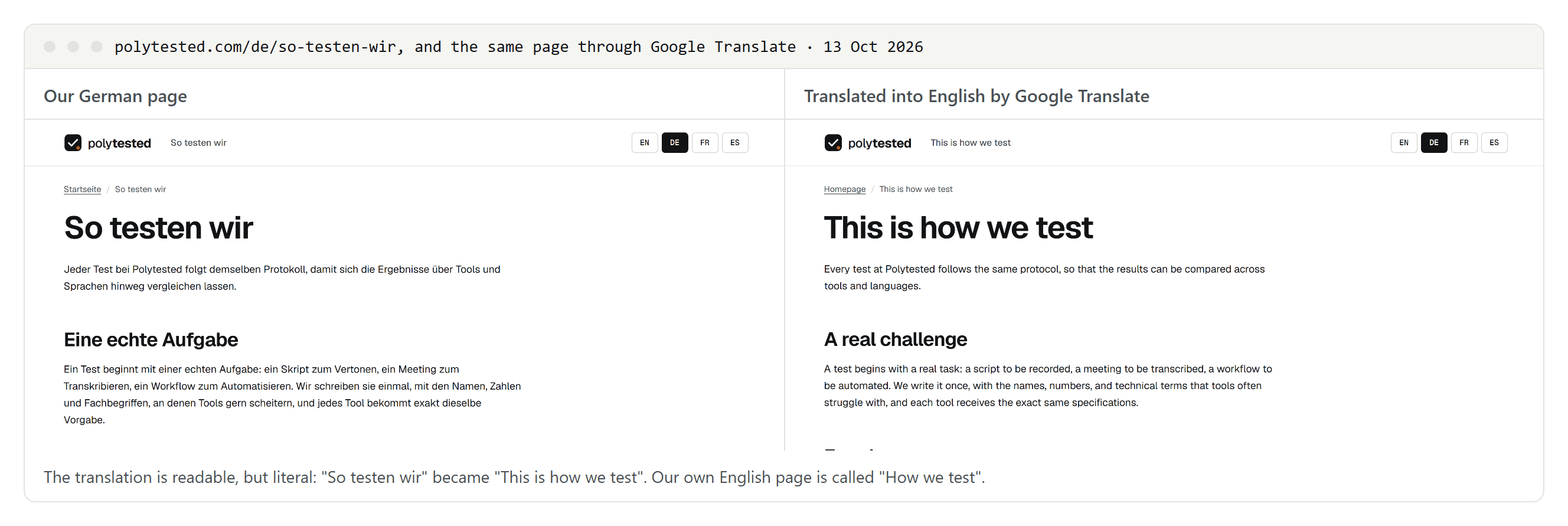
The text was readable but literal. The heading came out as "This is how we test", where our own English page says "How we test". The section "Eine echte Aufgabe", which our English page calls "One real task", became "A real challenge", and the breadcrumb's "Startseite" became "Homepage". The translated copy opened at polytested-com.translate.goog, a Google address, while the page's canonical tag still pointed to our German original.
Two things broke, though, and both are typical:
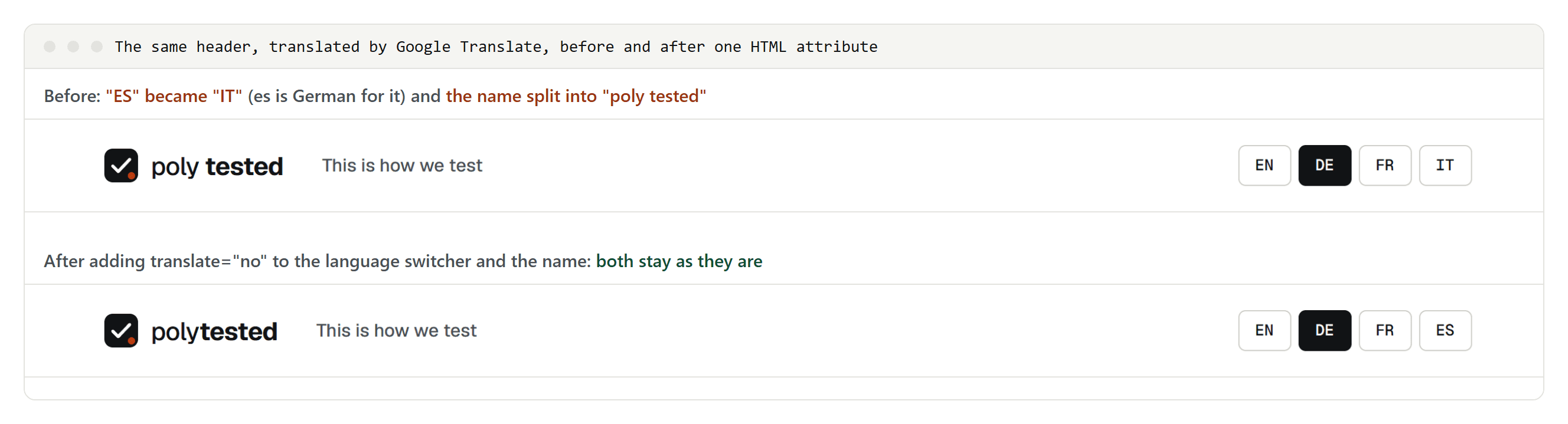
- The language code "ES" turned into "IT". In German, "es" is a word meaning "it", so the translator translated our link to the Spanish version.
- Our name split into "poly tested". The translator treated our two-part logo as two words.
The fix took one HTML attribute. MDN describes translate="no" as the way to mark text that must not be translated and notes that Google Translate respects it. We added it to the language switcher and the name, and the next translation left both alone.
What translation misses
- Text inside images stays in the original language. Google Lens can translate it.
- Forms: translation can change form fields and even the values a form sends. A Firefox user reported translated radio-button values breaking a form, and an open WebKit bug describes Safari translating input fields marked
translate="no". Switch back to the original before you submit anything. - Pages you're signed in to: Google Translate's Websites tab loads the page through a Google address, so use your browser's own translation for those. Never type a password on a translate.goog address: phishing campaigns have used such links to hide where a page really comes from.
- Text the site opted out: anything marked
translate="no"stays as it is, by design.
For site owners: a translated tab isn't a language version
- Google judges a page's language from its visible text. A browser translation doesn't create a new language version of your page in Google's eyes.
- Give each language its own URL and link the versions with hreflang. We explain how in hreflang and canonical tags.
- Don't redirect visitors by their browser language. Google advises against it. Let visitors choose, and let browsers translate the rest.
- Protect names and codes. Mark brand names, product names, language codes and code samples with
translate="no", as we had to. - Test your web app with browser translation. Translation rewrites the page's text in place, so check that menus, forms and other interactive parts still work on a translated page.
- Don't mass-publish machine translations. Google's spam policies list scraping content to generate many pages, including through automated translation, where little value is added, as scaled content abuse. Write each language version for its market, as we describe in international keyword research.
- Google Search can show a translated result. When a searcher clicks it, Google machine-translates your page and serves it through translate.goog; Google says it doesn't host translated pages. To opt out, use the
notranslaterule in a robots meta tag or an X-Robots-Tag header.