A time-coded transcript is a written record of a recording in which timestamps show when each passage was said. You read a quote, see [00:12:41] next to it and jump straight to that moment in the audio or video. The timestamps can sit at a fixed rhythm, at every change of speaker, or next to a single word that needs checking.
What a time-coded transcript looks like
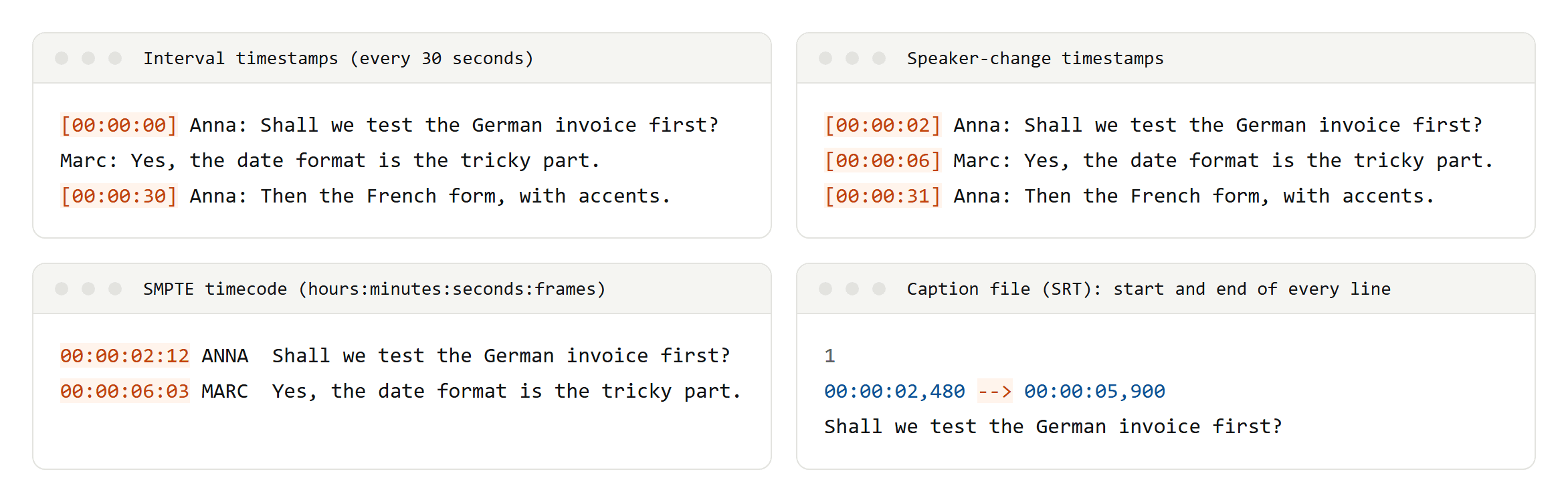
Most transcripts use one of four styles:
- Interval timestamps. A stamp at a fixed rhythm, whoever is speaking. It is the quickest way to find your place in a long interview or lecture.
- Speaker-change timestamps. A stamp whenever someone new starts talking. This is the usual choice for meetings, interviews and podcasts, because every turn can be cited.
- Inline flags. A stamp next to a word that could not be heard clearly, such as
[inaudible 00:12:41], so a second listener can check exactly that spot. - Word-level timestamps. A start and end time for every word, written by speech recognition software. Editing and caption tools use them; people rarely read them.
The notation differs from tool to tool, and research software is strict about it. MAXQDA's import guide lists [hh:mm:ss] for transcripts from Rev and HappyScribe, [hh:mm:ss.xx] for InqScribe and #hh:mm:ss-x# for f4 and f5, among others. If your transcript is going into an analysis tool, check which notation it reads before you start.
Timestamp, timecode and caption file are not the same thing
The three terms get mixed up, and each stores time differently:
- Timestamp: the time elapsed since the start of the recording, usually written
hh:mm:ss.[01:24:32]means one hour, 24 minutes and 32 seconds in. - SMPTE timecode: a label for every video frame, written
hh:mm:ss:ff, where the last pair counts frames. A video file doesn't always start at00:00:00:00, so lining a transcript up with it takes the start timecode and the frame rate. At 29.97 frames per second, drop-frame timecode is written with a semicolon, as in00:01:00;02: it skips frame numbers, not frames, so the timecode keeps pace with the clock. - Caption cue: one subtitle with a start and an end time. SRT writes milliseconds after a comma (
00:00:02,480), WebVTT after a full stop (00:00:02.480), and WebVTT can name the speaker of each line.
A caption file is made to be shown on screen line by line; a transcript is made to be read and quoted. W3C's accessibility guidance puts it simply: include timestamps in a transcript only when they are useful, and they don't need end times. We take a caption file apart, in four languages, in What is an SRT file?, and turn one back into readable text, with or without timestamps, in how to convert SRT to TXT.
Who needs one
- Podcasters. Apple Podcasts accepts transcripts as WebVTT or SRT files, and a WebVTT file can name the speaker on every line. English, German, French and Spanish are among the supported languages.
- Teams that record meetings. Microsoft Teams shows each speaker's name and a timestamp in its transcript and lets you download it as .docx or .vtt. Zoom saves the transcript of a cloud recording as a VTT file on its paid plans. A transcript isn't the record of what was decided, though; for that, see how to write meeting minutes.
- Video editors. Premiere Pro exports its transcripts as TXT, CSV or SRT, which makes a long interview searchable for the soundbite you need.
- Researchers. MAXQDA and NVivo import timestamped transcripts and link each passage back to the media file, so you can play the exact passage you are coding. For the whole method, see how to transcribe an interview.
- Anyone publishing audio-only content. WCAG requires a transcript for prerecorded audio at Level A. Timestamps are optional, but they help readers find their way.
How to make a time-coded transcript
Five routes, from fully manual to fully automatic. Only Word and the paid note-takers need a subscription.
By hand, in the browser: oTranscribe
oTranscribe is a free, open-source web app run by the MuckRock Foundation. You load an audio or video file and type in the same window, and according to the project the file and transcript never leave your computer.
- Open otranscribe.com on a desktop computer and choose your file.
- Press Esc to play or pause, F1 and F2 to skip back and forward, F3 and F4 to change the speed.
- Press Ctrl+J (Cmd+J on a Mac) wherever you want a timestamp. Each one is clickable and moves the player to that moment.
- Export as Markdown, plain text or oTranscribe's own .otr file.
Because you type every word yourself, it works in any language, and the interface is available in German, French and Spanish. It is the slowest route and the most private one.
From a YouTube video: the transcript panel
For any YouTube video with captions:
- Open the video and expand the description.
- Click Show transcript. A panel opens with timestamped lines; click one to jump to it.
YouTube writes automatic captions in English, German, French, Spanish and many other languages, and it warns that their quality may vary. Many videos also carry captions uploaded by the channel. When we opened n8n's tutorial "How to build a Telegram agent in n8n", its caption list held two English tracks: one auto-generated, one uploaded by n8n. For quotes, use the uploaded track.
For your own videos, YouTube Studio downloads the captions as a file (Subtitles, then Options, then Download), and its auto-sync feature takes a plain transcript in the video's language and adds the timing for you.
In Microsoft Word: Transcribe
Word with a Microsoft 365 subscription has a transcription feature under Home, Dictate, Transcribe. You can record live or upload a .wav, .mp4, .m4a or .mp3 file. Word labels the speakers, and every section of the transcript carries a timestamp you can click to replay that part.
It handles German, French and Spanish among many other languages. Uploads have a monthly limit, recordings are stored in your OneDrive, and availability depends on your plan, so check that Transcribe appears under Dictate before you rely on it.
Automatically, on your own computer: Whisper
Whisper is OpenAI's open-source speech recognition model. It runs on your own machine, understands many languages (German, French and Spanish included) and writes transcripts and subtitles with timestamps as plain text, SRT, VTT, TSV or JSON. One command turns a German interview into an SRT file:
whisper interview.mp3 --model turbo --language German --output_format srt
You need Python and ffmpeg, and Whisper does not label speakers. If you'd rather avoid the terminal, Buzz is a free desktop app that runs Whisper offline and exports TXT, SRT and VTT. WhisperX adds word-level timestamps and speaker labels.
With an AI note-taker or editor
Paid tools do the same with less effort:
- Fireflies transcribes meetings and uploaded files. When you download a transcript you can switch timestamps and speaker labels on, and choose PDF, DOCX, SRT, CSV, JSON or Markdown. Downloads need a Pro plan or higher.
- Descript lets you set the timecode interval, an offset and timecodes at paragraph breaks before you export a transcript as DOCX, TXT, Markdown, HTML or RTF. SRT and VTT files come from its separate subtitle export.
What won't work: Google Docs voice typing
Google Docs types what you say into a microphone, in German, French and Spanish too, but it cannot transcribe a file and adds no timestamps. It is a dictation tool, not a transcription tool.
How to choose
- Privacy first: oTranscribe, Whisper or Buzz. Your recording stays on your computer.
- A video that is already on YouTube: the transcript panel, or YouTube Studio for your own uploads.
- Recorded meetings: the transcript built into Teams or Zoom, before you pay for another tool.
- Research interviews: whichever route produces the notation your analysis software reads.
- Podcasts: an SRT or VTT export, so one file serves Apple Podcasts and YouTube.
Formatting tips
- Pick one notation and keep it. Square brackets, leading zeros and hours on every stamp (
[00:04:05], not[4:05]) sort and search cleanly. - Choose the rhythm by use: speaker changes for interviews, a fixed interval for lectures, inline flags for anything uncertain.
- If you join recordings or trim the start, note the offset; otherwise every later timestamp is wrong.
- Some editors drop timestamps when you rework the text. Keep the original export and edit a copy.
- In a recording with more than one language, mark the switch, as in
[00:07:12] (in German), and let a native speaker check names and terms.