The best Speechify alternative depends on what you want read. For web pages and PDFs on a computer, Microsoft Edge's Read aloud is free and built in. iPhones, iPads and Macs have Read & Speak, and Android has Select to Speak. If you want one library with natural voices on your phone and computer, ElevenReader's free plan includes 10 hours a month. For schoolwork, Immersive Reader in the free Word for the web adds line focus and a picture dictionary. Below: every option by need, with free limits from the vendors' own pages.
What Speechify's free plan includes
Speechify reads documents, web pages and books, with apps for iPhone and iPad, Android, Mac and Windows, a web app and extensions for Chrome and Edge. On November 2, 2026, its pricing page lists the free plan with speeds up to 1.5x, ten voices that Speechify itself describes as robotic sounding, and text to speech features only. Its comparison page adds a five-file limit for the free library. Natural voices, more than 60 languages, scanning with text recognition (OCR), unlimited storage, voice typing and AI summaries are listed for Premium, its paid plan.
So if you want natural voices without a subscription, more than five files, a scanner, or simply something that's already on your phone, there's an answer for each below.
The short answer: which alternative fits your situation
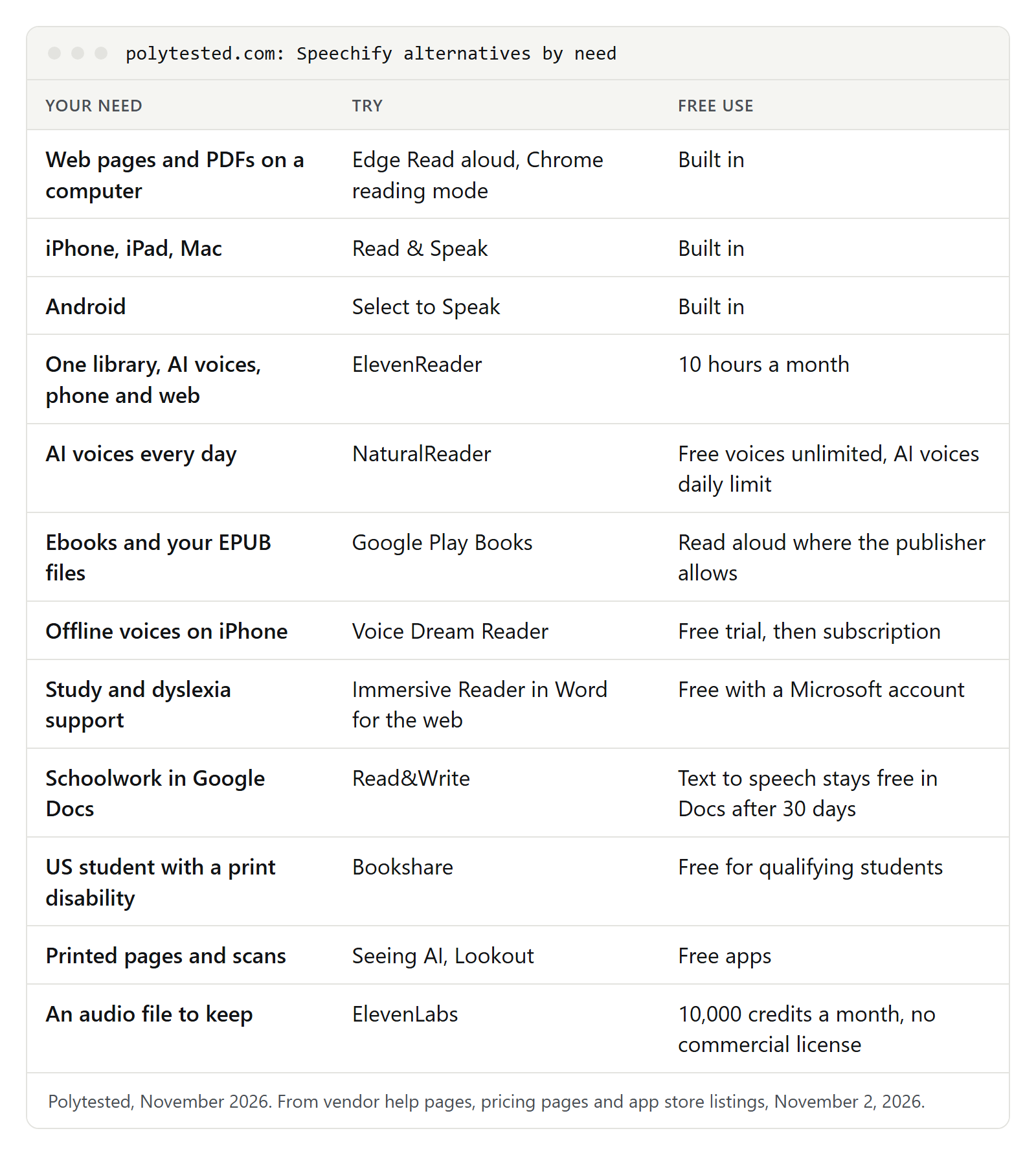
| Your situation | Try | Why |
|---|---|---|
| A web page or PDF on a computer, right now | Microsoft Edge Read aloud | Built into Edge on Windows and Mac; Ctrl + Shift + U starts it |
| You use Chrome on a computer | Chrome reading mode | Right-click, Open in reading mode, then Play |
| iPhone, iPad or Mac | Read & Speak | Speak Screen, Speak Selection and Accessibility Reader are built in |
| Android phone or tablet | Select to Speak | Built in; reads anything on screen, even text in a camera picture |
| One library with AI voices on phone and computer | ElevenReader or NaturalReader | Free plans with a monthly or daily allowance |
| Ebooks and long books | Google Play Books or Voice Dream Reader | Play Books has Read aloud; Voice Dream keeps every voice offline |
| Schoolwork, or reading takes a lot of effort | Immersive Reader in Word for the web, Read&Write | Line focus, picture dictionary, highlighting |
| A US student with a print disability | Bookshare | Free books with audio and word highlighting |
| Printed pages and scans | Seeing AI or Lookout | Free camera apps from Microsoft and Google |
| You need an audio file, not a reader | ElevenLabs | Free plan with a monthly credit allowance |
How we chose these alternatives
Many lists of Speechify alternatives mix in voiceover and video tools that don't read your own files back to you. We kept to readers and checked each one on its vendor's help pages, pricing page or app store listing on November 2, 2026:
- Reads more than web pages: PDFs, documents, ebooks or printed text.
- Usable without paying: built in, a free plan, or free for a group such as teachers or students. The one exception is Voice Dream Reader, a subscription app built around offline voices.
- Beyond one browser: apps for phones, computers or both.
- Languages: voices beyond English, named or counted by the vendor, with German, French and Spanish in mind.
The order follows situations, not a ranking. We name plans but not prices, because prices change and differ by country.
Free readers already on your phone or computer
Before you install anything, check what your browser or operating system already does:
| Where | Feature | How to start it | What it reads |
|---|---|---|---|
| Edge on Windows and Mac | Read aloud | Ctrl + Shift + U (Mac: Command + Shift + U), or right-click the page | Web pages and PDFs |
| Chrome on a computer | Reading mode | Right-click, Open in reading mode, then Play; Alt + Shift + R | Web pages |
| Chrome on Android | Listen to this page | More, then Listen to this page | Web pages, 25 languages |
| iPhone and iPad | Speak Screen, Speak Selection, Accessibility Reader | Turn them on under Settings, Accessibility, Read & Speak; then swipe down with two fingers from the top | Text in any app |
| Mac | Speak selection | Turn it on under System Settings, Accessibility, Read & Speak; then press Option-Esc | Selected text in any app |
| Android | Select to Speak | Turn on its shortcut under Settings, Accessibility, Select to Speak; then swipe up with two fingers | Anything on screen, text in camera pictures |
A few details matter when you compare them with an app:
- Edge also reads PDFs, from the PDF toolbar. Its Reading mode (F9) adds Translate with more than 70 languages and page themes, including Irlen-inspired ones. Microsoft's admin documentation lists Read Aloud for Edge on Android and iOS too.
- Apple's Accessibility Reader opens text in a full-screen view where you choose fonts, layouts and background colors; with Autoplay on, it starts reading by itself.
- Select to Speak keeps reading while you switch apps once you turn on Read in background in its settings.
What you don't get is one shared library: each device uses its own voices, and you open the text where it is. Our guide to reading text aloud for free has the full steps for each feature, plus Word, Adobe Acrobat Reader and Windows Magnifier.
Reader apps that keep one library across devices
This is the closest match to how Speechify works: you add a PDF, a document or a link once, then listen on your phone or computer.
ElevenReader
ElevenReader comes from ElevenLabs and runs on iOS, Android and the web.
- What it reads: PDFs, DOCX, EPUB, Markdown and TXT files, pasted text and article links. The mobile apps can also scan pages with the camera.
- Free plan: 10 hours of text to audio every month. Unused hours don't carry over; the allowance resets monthly.
- Voices and languages: more than 1,000 voices and narrators in more than 90 languages, with speeds up to 4.0x, a sleep timer and bookmarks.
- Offline: downloads for offline listening are listed for Ultra, its paid plan.
- Account: you sign up to start; ElevenReader says no card is needed.
It suits long articles, reports and books you start on one device and finish on another.
NaturalReader
NaturalReader offers a web app, iOS and Android apps and a Chrome extension.
- What it reads: PDFs, Word documents, ePub files and web pages. Its site lists an OCR camera scanner for printed pages, but its help center says OCR isn't included in the free plan.
- Free plan: the help center (July 13, 2026) lists daily limits by voice type: Free voices without a limit, Lite voices for 20,000 characters, and Plus and cloned voices for 4,000 characters in total. Converting to MP3 isn't part of the free plan.
- Voices and languages: regional voices, for example German for Germany, Austria and Switzerland, French for France, Belgium, Canada and Switzerland, and Spanish for Spain, Mexico and the US.
- Offline: NaturalReader's site mentions an offline mode in the mobile apps.
- Account: its help center says you may need to register, with an email address, a Google account or an Apple ID.
It suits listeners who want some AI voice time every day and unlimited basic voices for the rest.
Voice Dream Reader
Voice Dream Reader is an iPhone and iPad app from Voice Dream LLC; it also runs on Apple Vision Pro and Apple Watch, and Voice Dream's site says you can continue on a Mac. There is no Android version.
- What it reads: PDFs, Word and PowerPoint files, RTF, plain text, Google Docs, web articles, DRM-free EPUB books, DAISY books, Bookshare books and audiobooks. Its built-in scanner works on the device and supports languages written in the Latin alphabet; it can also recognize text in scanned PDFs.
- Voices and languages: 36 built-in iOS voices in 27 languages, plus more than 200 premium voices in 30 languages.
- Offline: the App Store listing says all voices work offline and keep playing with the screen locked.
- Cost model: a subscription is required to use the app; new users get a free trial. Your library syncs through iCloud Drive.
It suits iPhone readers who listen to whole books, often without a connection.
Ebooks and long books
Google Play Books
The Play Books mobile app can read books aloud. On Android, open a book, tap the page, tap Menu at the top right, then Read aloud. The book must be shown as flowing text, and publishers decide whether Read aloud is available for their titles.
Automatically read aloud starts reading whenever you open a book. More natural reading voice sounds more natural but needs an internet connection; turn it off to listen offline. On Android, the voice and speed come from your phone's text-to-speech settings.
You can also upload your own PDF and EPUB files to your Play Books library, as described in route 2 below.
Bookshare
Bookshare is an online library for people who find printed text hard to use: Bookshare names difficulty processing or comprehending printed words, seeing text, or physically handling books. It's free for US students from Pre-K to 12th grade and in post-secondary, graduate, vocational and continuing education, funded by the US Department of Education's Office of Special Education Programs.
The free Bookshare Reader app runs in a web browser, on iOS and Android and on Alexa-enabled speakers. Bookshare lists more than 1.3 million titles, a Books in Spanish collection, and reading with audio, word-level highlighting, large text or braille.
Study and dyslexia support
When reading takes real effort, for example with dyslexia, a voice is only part of the help. These tools add highlighting, focus and word support.
Immersive Reader in Word for the web
Microsoft offers Word, Excel and PowerPoint for the web free with a Microsoft account, with 5 GB of OneDrive storage; your files are saved in OneDrive. Word's Immersive Reader reads the document aloud and, in Word for the web, adds:
- Voice Options: the voice and the reading speed.
- Text Options: how the text looks on screen.
- Parts of Speech: marks the word types in the text.
- Reading Preferences: Line Focus (one, three or five lines visible), Picture Dictionary to look up a word, Translate, and Reading Coach, where a student reads aloud and then practices the words they mispronounced.
In desktop Word for Windows, Immersive Reader is on the View tab with Line Focus and Syllables; on a Mac, it's under View, then Learning Tools. Route 1 below walks through Word for the web.
Read&Write
Read&Write is made by Everway; its older help pages still carry the Texthelp name. It runs on Windows, Mac, Chromebook, iPad and iPhone and Android, and in Chrome and Edge. Besides text to speech with two-color highlighting, it has Screenshot Reader, which reads text in images and scanned PDFs, speech to text, picture and text dictionaries, a tool that simplifies web pages, screen masking and translation.
Everway says K-12 teachers get free access. The Chrome version gives all features for 30 days; after that, Text-to-Speech and Translator stay free in Google Docs and on the web. Its Chrome features are compared in our guide to read aloud Chrome extensions.
Printed pages and scanned PDFs
A scan is a picture of a page, so a reader has nothing to read until text recognition (OCR) turns the picture into text. Speechify lists this as Scan & Listen in Premium. Free alternatives:
- Seeing AI is a free Microsoft app for iOS and Android. Its Read mode handles short text, documents and handwriting, with audio cues that help you fit a printed page in the picture. It can scan several pages into one document and recognize PDFs. The App Store lists 19 languages, including English, German, French and Spanish.
- Lookout is Google's free Android app (Android 6 and later), built with the blind and low-vision community. Text mode reads what the camera sees, and Documents mode captures a whole page of text or handwriting in more than 30 languages.
- Select to Speak with the camera: open the Google Camera app, point it at the text, start Select to Speak and drag your finger over the words. Google lists 18 languages for this, including English, German, French and Spanish.
- iPhone: the Magnifier app can detect text and read it aloud; our free read aloud guide has the steps.
Among the reader apps, ElevenReader and Voice Dream Reader scan with the camera, and Read&Write has Screenshot Reader.
Chrome extensions
If you mostly listen in Chrome on a computer, an extension may be enough. We compared Read Aloud, Speechify, NaturalReader, ElevenReader and Read&Write in our guide to read aloud Chrome extensions: what each reads, the free limits, Google Docs support, shortcuts and privacy. Read Aloud's site lists versions for Chrome, Firefox and Edge.
When you need an audio file, not a reader
The readers above only play text to you. To keep the result as a file, for a video, a podcast or listening without an app, you need a tool that saves audio:
- ElevenLabs is an AI voice generator from the company behind ElevenReader. Its pricing page lists a free plan with 10,000 credits a month, about 10 minutes of text to speech, and lists the commercial license from Starter, the first paid plan. Our guides to free AI voice generators and ElevenLabs alternatives compare more options.
- NaturalReader converts text to MP3 in its paid plans (Lite, Plus and Pro), not in the free plan. Its help center says those MP3 files are for personal use.
- A local voice on your computer: our guide to text to speech without AI shows how to make an audio file with eSpeak NG, a free voice that runs offline.
Whether you may publish the audio depends on each vendor's terms, so read them before you post anything; this isn't legal advice.
Side by side
| Option | Platforms | Reads | Free use | Languages | Offline | Account |
|---|---|---|---|---|---|---|
| Built-in readers | Edge, Chrome, iPhone, iPad, Mac, Android | Web pages; PDFs in Edge; any app on phones and Macs | Free | Depends on your device's voices | Depends on the voice | No |
| ElevenReader | iOS, Android, web | PDF, DOCX, EPUB, Markdown, TXT, links, camera scans | 10 hours a month | 90+ | Downloads with Ultra | Yes |
| NaturalReader | Web, iOS, Android, Chrome | PDF, Word, ePub, web pages | Free voices unlimited; Lite 20,000 and Plus 4,000 characters a day | Regional German, French, Spanish | Offline mode in mobile apps | May be required |
| Voice Dream Reader | iPhone, iPad, Vision Pro, Watch; Mac per vendor | PDF, Word, EPUB, DAISY, Google Docs, web, scans | Free trial, then subscription | 27 built in, 30 with premium voices | All voices | Not stated; syncs with iCloud Drive |
| Google Play Books | Mobile app; steps for Android | Ebooks; your EPUB and PDF uploads | Read aloud where the publisher allows | Your device's voices | Without the natural voice | Google account |
| Immersive Reader | Word for the web, Windows, Mac, iPad | Word documents | Free on the web | Translate built in | Not stated | Microsoft account |
| Read&Write | Windows, Mac, Chromebook, iPhone, iPad, Android | Docs, web pages, images, scanned PDFs | Free for teachers; Chrome: text to speech after 30 days | Translation built in | Not stated | Not stated |
| Bookshare | Web, iOS, Android, Alexa | 1.3 million+ titles | Free for qualifying US students | English, Spanish collection | Not stated | Membership |
| Seeing AI | iOS, Android | Printed text, documents, handwriting, PDFs | Free | 19 | Not stated | Not stated |
| Lookout | Android 6 and later | Printed text, whole pages, handwriting | Free | 30+ | Not stated | Google account at setup |
"Not stated" means the vendor's page we used doesn't say. Free allowances change; check the vendor's page before you rely on one.
Step by step: two free routes
Route 1: a document with study tools in Word for the web
This route is free with a Microsoft account and runs in the browser. It follows Microsoft's help pages.
- Go to Microsoft365.com, sign in and open Word. Create a new document and paste your text, or upload a Word file to OneDrive and open it.
- On the View tab, under Document Views, select Immersive Reader.
- Select Play at the bottom of the screen. Select Pause to stop.
- Select the gear icon at the bottom to open Voice Settings. Move the Voice Speed slider and choose Female or Male. Some languages offer only one voice.
- Open Reading Preferences and turn on Line Focus. It starts with one line; select the icon for three or five lines to show more.
- In the same options, Picture Dictionary looks up a word and Translate changes the language; Parts of Speech marks word types.
- Select the arrow at the top left to leave Immersive Reader.
Microsoft notes that Immersive Reader isn't available for protected documents in Word for the web. If the button is missing, check whether the file is protected.
Route 2: your own EPUB in Google Play Books on Android
This route is free and needs the Play Books app and your Google account. The steps follow Google's help pages:
- For PDFs only: in Play Books, tap your profile picture, then Play Books settings, and check Enable PDF uploading. EPUB files don't need this.
- In your Files or Downloads app, find the file, tap More, then Open with, and choose Play Books or Upload to Play Books.
- In Play Books, open Library, then Uploads, and open the book.
- Tap the page, tap Menu at the top right, then Read aloud.
- To change the voice, go to your phone's Settings, Accessibility, Text-to-speech output, tap the settings icon next to Preferred engine and install voice data for your language. Speech rate sets the pace.
- To listen without a connection, turn off More natural reading voice in Play Books settings.
Google's Read aloud page doesn't say anything specific about uploaded files. If Read aloud is missing from the menu, switch the book to flowing text, or use Select to Speak with Read in background on the open page.
Reading in German, French or Spanish
A voice reads best in the language it was made for; an English voice reads a German sentence with English sounds. Our explainer what is TTS shows the typical mistakes.
- iPhone, iPad and Mac: under Read & Speak, choose Voices and a Default Language, or turn on Detect Languages so the voice changes with the text.
- Chrome on Android: Standard playback of Listen to this page covers 25 languages, including German, French and Spanish.
- Select to Speak: text in camera pictures works in 18 languages, including all three.
- NaturalReader: pick a regional voice. Its help center notes that voices from the multilingual list detect the language automatically, but you can't control their accent.
- Apps: ElevenReader lists more than 90 languages, Voice Dream Reader 27 with built-in voices, Seeing AI 19 and Lookout more than 30.
- Google Play Books: voices depend on your location, and Google notes that some regions have only one high-quality offline voice.
If it doesn't work
A PDF stays silent
A silent PDF is often a scan. Use Seeing AI, Lookout or Read&Write's Screenshot Reader, or an app with OCR in your plan. If the PDF has real text, Edge on Windows or Mac reads it from the PDF toolbar.
Reading mode or Read aloud shows nothing
Chrome's reading mode skips forms, login screens, payment pages, image galleries and maps. Edge's Read aloud starts from the right-click menu on the page itself.
Select to Speak is missing on Android
Google says to download the latest Android Accessibility Suite from Google Play. Some steps need Android 11 or later.
The voice reads in the wrong language
Choose a voice for the text's language, or turn on Detect Languages on Apple devices. In Play Books, install voice data for that language under Text-to-speech output.
No sound without internet
Some natural voices work only online: turn off Play Books' natural reading voice to use the offline one. ElevenReader's offline downloads are part of Ultra. Voice Dream Reader's voices all work offline.
You ran out of free listening time
ElevenReader's free hours reset each month and NaturalReader's AI voice limits reset each day. NaturalReader's Free voices have no limit, and the built-in readers on your device have no allowance at all.