You don't need an extension to have Chrome read a page aloud: right-click the page, select Open in reading mode, then select Play. The shortcut is Alt + Shift + R, or ⌘ + Option + R on a Mac. An extension is worth it when you want one click on any page, PDFs or Google Docs. The free Read Aloud extension needs no account for its standard voices. Speechify, NaturalReader and ElevenReader add AI voices with free limits and an account. Read&Write is built for schoolwork in Google Docs.
Which option fits your situation
All five extensions below can be used without paying, but "free" means something different for each. This table is based on the vendors' own pages as of November 2, 2026.
| Your situation | Use | Why |
|---|---|---|
| You want this page read now, without installing anything | Chrome reading mode | Built into Chrome on Windows, Mac, Linux and ChromeOS |
| You use a Chromebook and want selected text read | Select-to-speak | Built into ChromeOS: select text, press Search + S |
| You want one click on most pages, free, with no account | Read Aloud | Standard voices are free and need no sign-in |
| You want AI voices and the same library on your phone | Speechify or ElevenReader | Both sync with their mobile apps; free use is limited |
| You read Gmail, Kindle or PDFs and want some AI voice time free | NaturalReader | Free voices without a limit, plus a daily allowance of AI voices |
| You study or teach in Google Docs | Read&Write | Text to speech stays free in Docs and on the web after the trial |
If you only listen now and then, start with reading mode. It costs nothing and needs no permissions.
What Chrome reads aloud without an extension
Reading mode on Windows, Mac and Linux
Google's help page describes these steps:
- Right-click a page with text and select Open in reading mode. You can also select Reading mode in the address bar, go to More › More tools › Reading mode, or use the shortcut.
- At the top right, select Play. Previous and Next jump to the start of a sentence, and Playback speed changes the pace.
- Under Settings › Voice selection, select Preview next to a voice to hear it, then pick one. Languages... adds voices for other languages.
- Under Settings › Voice highlight, choose Adaptive highlighting, Word, Sentence or Off.
Reading mode opens full screen; Settings › View moves it to the side panel, and Pin reading mode adds a toolbar button. Google says it downloads Google's natural voices for your current language automatically, and uses your system voice if that download fails.
It doesn't work on every site. Google names video and forum sites, image galleries, interactive maps, forms, quizzes, payment pages and login screens. If the text you want is missing, highlight it on the original page first.
Chromebooks: Select-to-speak and ChromeOS voices
ChromeOS has two more readers in Settings › Accessibility, under "Text-to-Speech". Select the time at the bottom right or press Alt + Shift + S to get there.
- Select-to-speak reads the text you choose. Press and hold the Search key and drag over text, or highlight text and press Search + S. Each word is highlighted as it's spoken, and Ctrl or Search stops it. Navigation controls let you pause, change speed and skip lines.
- ChromeVox is the built-in screen reader and reads full pages. Ctrl + Alt + Z turns it on or off. If it started by accident, our guide on how to turn off text to speech has the steps.
Reading mode works on a Chromebook too, and Google's Chromebook page adds that K starts reading. Under Text-to-Speech voice settings, Google lists two engines, Chrome OS TTS with more human-sounding voices and eSpeak with more languages, and Add natural voices installs natural-sounding voices for a language.
Chrome on a phone
Extensions are for Chrome on a computer. If you find one in the Chrome Web Store on your phone, Google's help page says you get Add to Desktop, which installs it on your computer the next time you open Chrome there.
Chrome for Android has its own reader: More › Listen to this page. Standard playback reads every word and is available in 25 languages, including English, French, German and Spanish; it needs the setting Make searches and browsing better. AI playback turns the page into a podcast-style conversation, needs Chrome set to English, and is the default where available.
How we chose the extensions
We picked five extensions by these criteria, checked on each store listing and the vendor's help pages:
- Maintained: the listing was updated in 2026, between July and October.
- Reads more than web pages: the listing names PDFs or Google Docs.
- Usable without paying: a free plan, a free allowance or free features after a trial.
- Languages: voices beyond English, named or counted by the vendor.
- Disclosure: a privacy section in the store and a linked privacy policy.
The order follows the situations above; it isn't a ranking. We name plans but not prices, because prices change and differ by country.
Read Aloud: free, open source, no account for standard voices
Read Aloud: A Text to Speech Voice Reader comes from LSD Software, and its code is public on GitHub under the MIT license. The listing shows version 2.28.1, updated October 28, 2026.
What it reads: the main article of the current page, with one click. If you select text first, it reads only that text. The listing names PDFs, Google Docs, Google Play Books, Amazon Kindle and, with the separate EPUBReader extension, EPUB books.
Voices and languages: the voices your browser provides, plus cloud voices from Google Wavenet, Amazon Polly, IBM Watson, Microsoft Azure and OpenAI, which may need an in-app purchase or your own API key. Read Aloud lists more than 40 languages.
Free use and account: its privacy policy says that with the standard voices you don't sign in and no personal information is collected; it mentions only anonymized usage counts. Premium voices need a sign-in, with a new account or with Google, Facebook or Apple, and a purchase once your usage goes beyond a monthly free tier.
Where your text goes: per the policy, standard voices are synthesized on your computer and the text isn't sent to the internet. With premium voices, the text goes to Read Aloud's cloud server, which may keep text and audio briefly. Which browser voices are truly local is a separate question; our guide to reading text aloud for free explains how to tell.
Who it suits: anyone who wants a free article reader without an account. It works from a small popup with playback buttons and an options page for voice, speed, pitch and highlighting.
Speechify: AI voices and a library that syncs
Speechify — Text to Speech (version 14.13.0, October 29, 2026) combines reading aloud with voice typing and an AI assistant that answers questions about the page.
What it reads: Google Docs, PDFs, web pages and books, per the listing, with a floating widget, an inline player, text highlighting and a mode that reads a screenshot of text.
Voices and languages: the listing advertises more than 1,000 voices in more than 60 languages and speeds up to 4.5x. Speechify's comparison page puts the natural voices and the 60+ languages in its paid plan, Premium.
Free use and account: Speechify's pricing page lists the free plan with speeds up to 1.5x, ten voices Speechify itself calls robotic-sounding, and text to speech features only. Its comparison page adds a five-file limit for the free library. You sign up for the free plan on Speechify's site, and your library syncs between Chrome and the iOS and Android apps.
Who it suits: people who already use Speechify on a phone or plan to pay for Premium.
NaturalReader: free voices plus a daily AI allowance
NaturalReader - AI Text to Speech (version 8.0.3, September 21, 2026) is made by NaturalSoft in Canada.
What it reads: web pages, Gmail, Outlook, Google Docs, PDFs and Kindle books, per the listing. It can open in Chrome's side panel, has an immersive reading view and is designed to skip headers, footers, citations, image captions and web addresses. It can save audio as MP3, though not with the Free voices.
Voices and languages: more than 150 voices in more than 20 languages. Its help center lists German voices for Germany, Austria and Switzerland, French for France, Belgium, Canada and Switzerland, and Spanish for Spain, Mexico and the United States, listed under its Lite, Plus and Pro voice tiers.
Free use and account: NaturalReader's help center (July 13, 2026) lists daily limits: Free voices without a limit, Lite voices for 20,000 characters, and Plus and cloned voices for 4,000 characters in total. Text recognition for scans (OCR) isn't included. The store listing still gives these limits in minutes under older tier names; the help article is newer. Another help article says you may need to register, with an email address, a Google account or an Apple ID.
Who it suits: listeners who want some free AI voice time every day, in Gmail, Outlook or Kindle too.
ElevenReader: ElevenLabs voices, saved to a library
ElevenReader — Text Reader by ElevenLabs (version 1.3.3, July 8, 2026) is a companion to the ElevenReader app.
What it reads: Google Docs, PDFs, web pages and books, per the listing. When you select its icon, the page is added to your ElevenReader account; select Listen now or keep it for later on your iPhone, iPad or Android device. It can import the next chapter of a web novel, and offers a pronunciation dictionary, speeds from 0.25x to 3x and a sleep timer.
Voices and languages: the listing mentions 130 voices in more than 30 languages. ElevenReader's announcement of its v4 voices (updated October 2, 2026) says the app now supports more than 90 languages, up from 32, including German, French and Spanish for Latin America.
Free use and account: ElevenReader's extension page says the free plan includes 10 hours of uploaded content a month; some premium features need its Ultra subscription. You need an account, because everything you save goes into it.
Who it suits: long reads, newsletters and web fiction you want to finish on your phone.
Read&Write for Google Chrome: for school and Google Docs
Read&Write for Google Chrome (version 2.1.1080, October 22, 2026) comes from Texthelp; the store lists the developer as Everway. It's a literacy toolbar, not just a reader.
What it reads: Google Docs, web pages and, in Google Drive, PDF and ePub files. Text to speech highlights in two colors as it reads. The toolbar adds dictionaries, speech-to-text, word prediction, voice notes in Docs and a tool that simplifies web pages.
Free use: all features are free for 30 days. Texthelp's help center (last modified February 10, 2026) says that after the trial, Text-to-Speech and Translator stay available in Google Docs and on the web. PDF and ePub support runs through OrbitNote, which needs a premium subscription. Teachers can get premium for free.
Voices: choose the voice in the toolbar's three-dot menu under Settings › Speech; Texthelp's help page shows switching to French as an example. School administrators can allow the extension in the Google Admin console.
Who it suits: students and teachers working in Google Docs.
Side by side
| Option | Reads | Free use | Voices and languages | Account | Data listed in the store |
|---|---|---|---|---|---|
| Chrome reading mode | Web pages in reading mode | Free, built in | Google natural voices for your language, more under Languages... | No | Part of Chrome |
| Select-to-speak | Text you select on a Chromebook | Free, built in | Chrome OS TTS and eSpeak, natural voices to add | No | Part of ChromeOS |
| Read Aloud | Web pages, PDFs, Google Docs, Play Books, Kindle, EPUB | Standard voices free; premium voices free up to a monthly tier | Browser voices plus cloud voices; 40+ languages | Only for premium voices | Personal info, authentication info, website content |
| Speechify | Web pages, PDFs, Google Docs, books | Up to 1.5x, ten basic voices, five-file library | 1,000+ voices, 60+ languages with Premium | Yes | Personal info, website content |
| NaturalReader | Web pages, Gmail, Outlook, Google Docs, PDFs, Kindle | Free voices unlimited; Lite 20,000 and Plus 4,000 characters a day | 150+ voices, 20+ languages | May be required | Personal info |
| ElevenReader | Web pages, PDFs, Google Docs, books | 10 hours of uploaded content a month | 90+ languages in the app (listing: 30+) | Yes | Website content |
| Read&Write | Google Docs, web pages; PDF and ePub through OrbitNote | All features for 30 days, then text to speech and translator in Docs and on the web | Voice per language under Settings › Speech | Not stated in the listing | Personal info, user activity, website content |
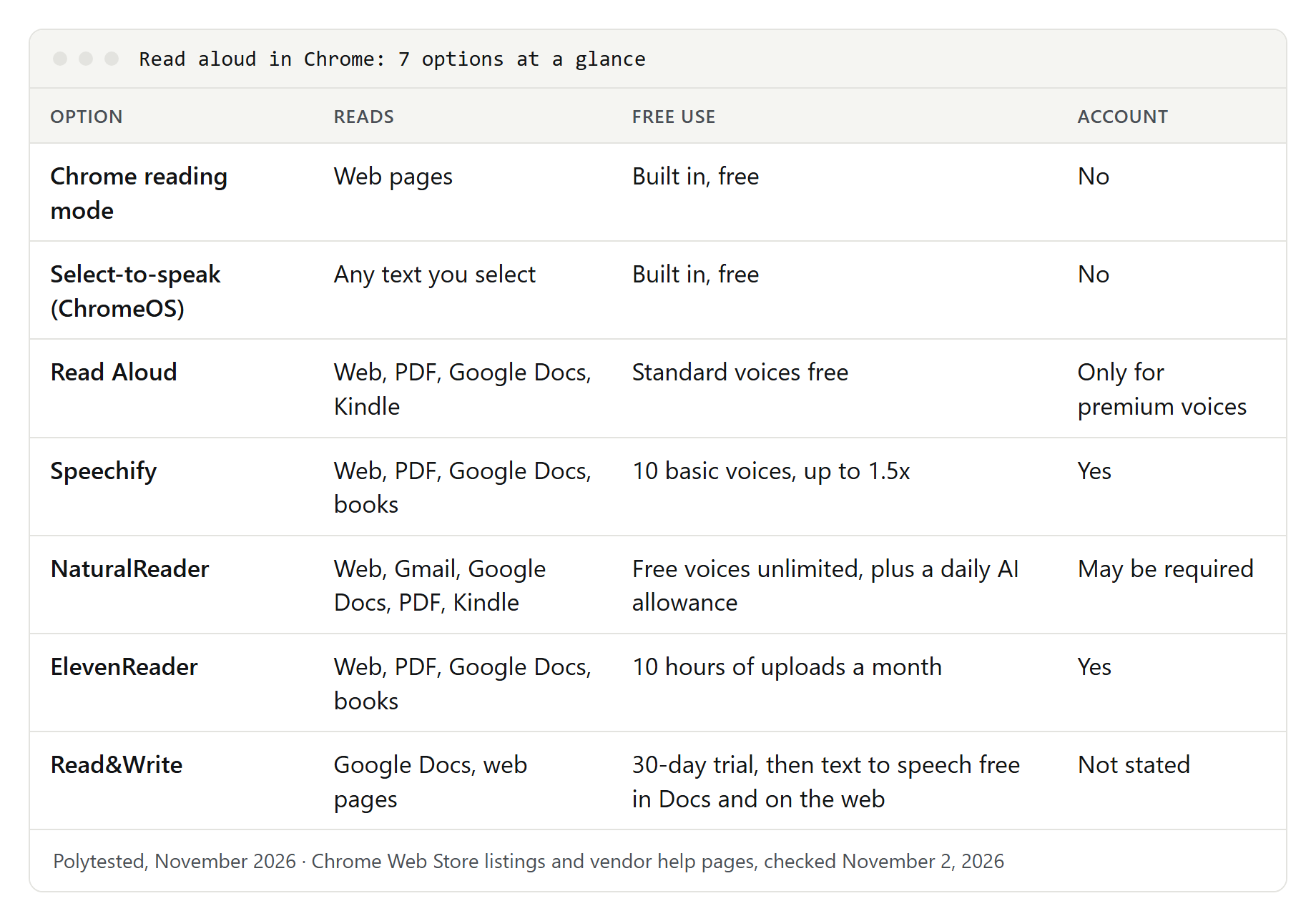
The last column is the developer's own disclosure in the Privacy section of each Chrome Web Store listing. It names kinds of data, not amounts.
How to set up Read Aloud
Read Aloud is the simplest start, because its standard voices need no account. These steps follow Google's help for extensions and Read Aloud's listing.
- Open Read Aloud in the Chrome Web Store and select Add to Chrome, then Add extension. You can't add extensions in Incognito or as a guest, and a work or school computer may block some.
- Select Extensions (the puzzle icon) next to the address bar, find Read Aloud and select Pin.
- Open an article and select the Read Aloud icon, or press Alt + P. To hear only part of a page, select that text first, or right-click the selection and start Read Aloud from the menu.
- To change the voice, stop playback, select the gear button in the popup and choose voice, speed, pitch and highlighting on the options page.
- For PDF files on your computer, go to More › Extensions › Manage extensions, select Details under Read Aloud and turn on Allow access to File URLs. Chrome keeps extensions away from local files until you do.
- For premium voices later, sign in when Read Aloud asks, or choose Enable Custom Voices in the voice list and enter an API key from your own Google Cloud or AWS account.
To remove it, right-click its icon and select Remove from Chrome.
Keyboard shortcuts
| Action | Shortcut |
|---|---|
| Open reading mode (Windows, Linux, ChromeOS) | Alt + Shift + R |
| Open reading mode (Mac) | ⌘ + Option + R |
| Start reading in reading mode on a Chromebook | K |
| Select-to-speak: read highlighted text | Search + S |
| Select-to-speak: read an area | Hold Search and drag over the text |
| Select-to-speak: stop | Ctrl or Search |
| ChromeVox on or off | Ctrl + Alt + Z |
| Read Aloud: play and pause | Alt + P |
| Read Aloud: play and stop | Alt + O |
| Read Aloud: forward and rewind | Alt + Period and Alt + Comma |
| NaturalReader: activate the extension | Ctrl + Shift + Y (⌘ + Shift + Y on a Mac) |
| NaturalReader: pause and resume | Alt + P (Option + P on a Mac) |
You can see and change extension shortcuts at chrome://extensions/shortcuts. Chrome's developer documentation says each extension shortcut must include Ctrl or Alt, and if another extension already uses a shortcut, the second one won't work as expected. Read Aloud and NaturalReader both suggest Alt + P, so if you install both, give one a new shortcut there.
Reading pages in Spanish, French or German
A voice reads best in the language it was built for; an English voice reads German words with English rules. Our explainer what is TTS shows the typical mistakes in German, French and Spanish. In each tool:
- Chrome reading mode downloads voices for your current language. For another language, add it under Settings › Voice selection › Languages... and pick one of its voices.
- Select-to-speak: Google notes you must change the Chromebook's system language for it to read another language.
- Listen to this page on Android reads French, German and Spanish pages with Standard playback.
- Extensions: NaturalReader has regional German, French and Spanish voices, ElevenReader names all three, and Read Aloud uses your browser's voices plus its cloud voices.
To hear a foreign page in English, translate it first; our guide on how to translate a web page covers Chrome's built-in translation.
If Chrome doesn't read aloud
No sound
- Check your computer's volume and output device, then try another voice: in reading mode under Settings › Voice selection, in Read Aloud on the options page.
- Google's first fix for reading mode is updating Chrome to the latest version.
- Cloud voices, such as Read Aloud's premium voices or the AI voices of Speechify, NaturalReader and ElevenReader, need an internet connection.
Nothing happens on a page
- Reading mode skips some page types, listed above. Highlight the text on the page and open reading mode again.
- Extensions can't run on Chrome's own pages, the addresses that start with
chrome://. - In Incognito, an extension works only if you turned on Allow in incognito under Details in Manage extensions.
- If you limited the extension's site access, add the current site under Details, or select its icon to start it on this page.
PDFs aren't read
- A PDF on your computer has an address starting with
file:///. Turn on Allow access to File URLs for your reader, as in step 5 above. - A scanned PDF is a picture of text, so there is nothing to read until text recognition (OCR) turns it into text. Speechify lists text extraction with Premium; NaturalReader's free plan doesn't include OCR.
- Read&Write needs OrbitNote and a premium subscription for PDFs.
- Microsoft Edge reads PDFs aloud on its own; our guide to reading text aloud for free shows how.
Google Docs aren't read
In 2021, Google moved Google Docs from normal web page text to canvas-based rendering and warned that some extensions might stop working as intended. Choose a reader whose listing names Google Docs; all five here do.
Docs can still behave differently: NaturalReader's help page says only sentence highlighting works there, and Read Selection is missing from the right-click menu, so set a shortcut for it in the hotkey settings. Read&Write is designed around Google Docs and keeps text to speech free there after the trial.
A shortcut does nothing, or reading mode opens by itself
Open chrome://extensions/shortcuts and look for two extensions with the same keys. Google also notes that reading mode can open by mistake when another app, such as a voice control tool, uses the same shortcut; change the shortcut in that app.
Privacy: what a read-aloud extension can see
To read a page aloud, an extension has to read its text. Think first before using one on a bank, health or confidential work page.
Site access. In Extensions, open the extension's menu and point to "This can read and change site data". Choose When you select the extension, On [current site] or On all sites. With the first, the extension can access only the current site when you select it, so features that run on their own, such as a player on every page, may wait for a click.
Read Aloud's approach. Its manifest on GitHub requests Chrome's activeTab permission instead of access to all sites. Chrome's developer documentation says activeTab gives temporary access to the current tab only after you start the extension, by clicking it, using its menu entry or pressing its shortcut. Access ends when you go to another site, and Chrome shows no warning for it at installation.
Cloud voices and libraries. An AI voice that runs on a server receives the text it reads. Read Aloud's policy says so for its premium voices; ElevenReader saves the pages you add to your account, and Speechify syncs your library across devices. If a text must stay on your device, use a local voice: our guide to text to speech without AI shows how to tell local voices from cloud voices.
Trader status in the EU. Each listing says whether the developer identified itself as a trader under EU rules. NaturalReader, ElevenLabs and Read&Write's developer did; Read Aloud and Speechify did not, and the store warns that EU consumer rights don't apply to contracts with non-traders. Read the developer's terms before you buy a plan.