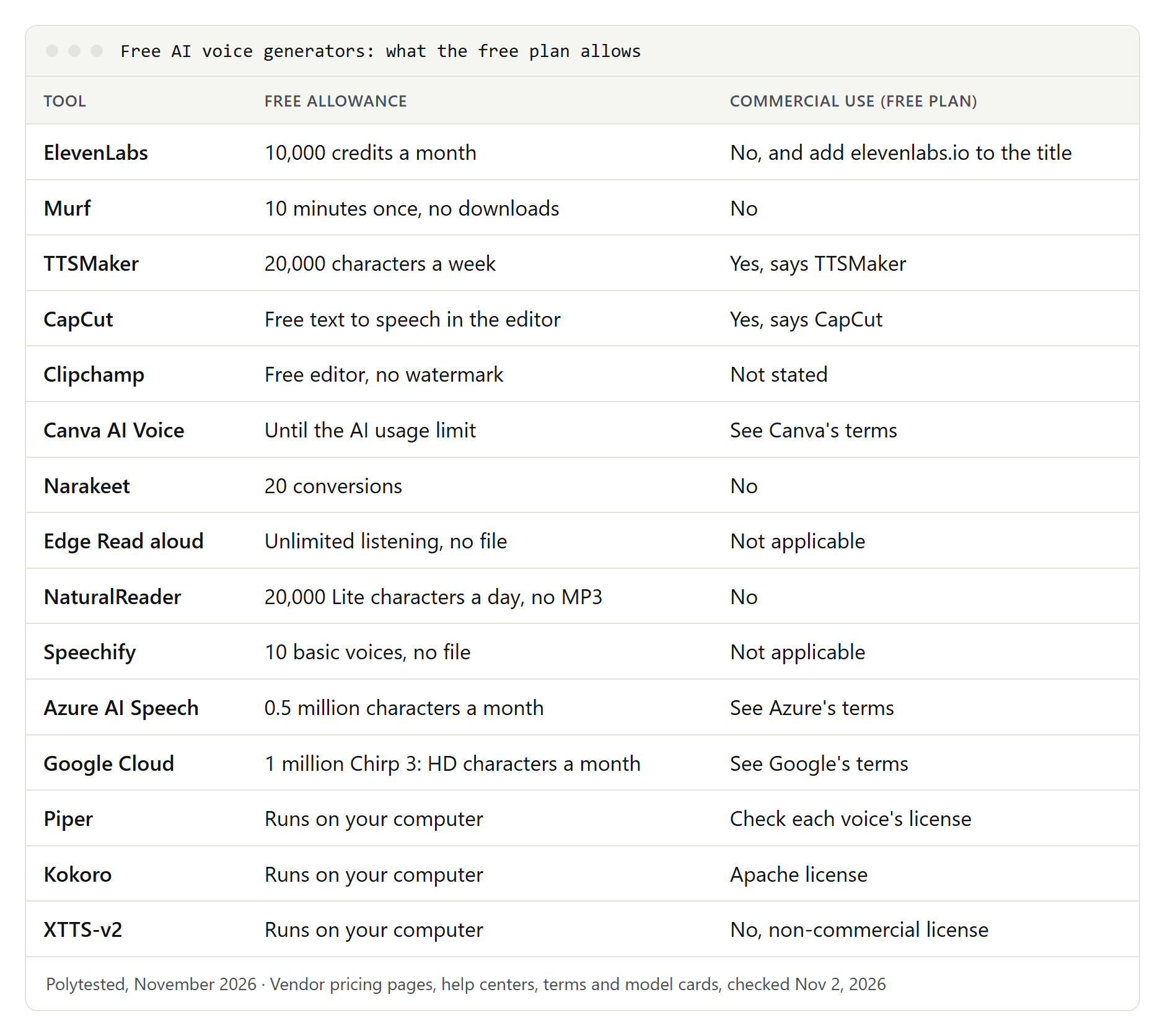
The best free AI voice generator depends on what you'll do with the audio. Making a video? Use the text to speech built into Clipchamp or CapCut. Working on a personal project? ElevenLabs' free plan gives you 10,000 credits a month, but it's non-commercial and needs attribution. Need free audio you can use commercially? TTSMaker allows it within a weekly character limit. Just want to listen? Edge's Read aloud costs nothing. Below: 15 options, what each free plan allows as of November 2, 2026, and how to get natural results.
The short answer by situation
| Your situation | Start with | What the free plan gives you |
|---|---|---|
| A voiceover for a video you're editing | Clipchamp or CapCut | Text to speech inside the editor. Clipchamp adds no watermark; CapCut says the audio can be used commercially |
| Narration for slides or social videos in Canva | Canva AI Voice | The voice track lands in your design, until you reach the free AI usage limit |
| A personal, non-commercial project in many languages | ElevenLabs | 10,000 credits a month; attribution required when you publish |
| Hearing studio voices before you pay | Murf | 10 minutes of voice generation, no downloads |
| A podcast intro or ad you'll publish | TTSMaker | Commercial use allowed for free, within 20,000 characters a week |
| A script turned into narration or a narrated video | Narakeet | 20 conversions on a free account, no commercial use |
| Listening to a web page or document | Edge Read aloud, NaturalReader or Speechify | Listening only; no audio file on the free plans |
| Many languages, inside your own app | Azure AI Speech or Google Cloud Text-to-Speech | A free monthly character allowance; card or billing account required |
| No account and no internet, on your own computer | Piper or Kokoro | Open models you run yourself |
| Cloning your own voice at no cost | XTTS-v2 | An open model with a non-commercial license |
One question decides more than any other: will the audio earn money? A monetized channel, an ad, a paid course and a client project all count as commercial use, and most free plans rule that out.
How we chose
We picked tools you can use today without paying and judged them only by what their makers document:
- A real free allowance: a free plan, free tier or open-ended trial, with limits stated on the vendor's own page.
- What you may do with the audio: commercial use, attribution, and whether you get a file at all.
- What you need to start: an account, a card, an app, or nothing.
- Languages: English first, plus German, French and Spanish.
- Voice cloning: whether it's free and which consent rules apply.
Every limit below comes from a pricing page, help article, terms page or model card opened on November 2, 2026. Free plans change often, so check the vendor's page before a big project. The sections follow situations, not a ranking.
For videos: Clipchamp, CapCut and Canva
If the voice goes into a video anyway, generating it inside your editor saves an export and an import. Replacing the speech in an existing video with another language is a different job: dubbing.
Clipchamp
Clipchamp is Microsoft's video editor. The personal version runs at app.clipchamp.com in Edge or Chrome, or as the Clipchamp app on Windows, with a personal Microsoft account. Its text to speech uses Microsoft's Azure AI Speech voices, with five pitch levels and a pace slider.
The free plan exports at up to 1080p, and Microsoft says Clipchamp adds no visual or audio watermark. The catch: a premium element, such as paid stock media, blocks the export until you upgrade. Each voiceover has a character limit that varies by language, and Microsoft's help page doesn't describe an audio-only download, so the voice leaves Clipchamp as part of your video.
CapCut
In CapCut, text to speech works on a text layer: add text, select the layer, choose Text-to-Speech, pick a voice and select Generate, on the web, desktop or phone. CapCut's text-to-speech page calls the feature free of charge, mentions more than 200 voices and lists audio exports as AAC, FLAC, MP3 and WAV.
CapCut also says the audio can be used commercially, for example in ads and YouTube videos, as long as you follow its terms. The languages named on that page include English, Spanish, Chinese and Japanese; German and French aren't named, so check the voice list in the app. Generation runs in the cloud and needs a stable connection.
Canva AI Voice
If your slides or social videos already live in Canva, open Elements in a design, scroll to Audio and select Generate AI Voice, or go to Apps and select AI Voice. Type your text, choose a language and voice style under Select Voice, and the track appears in your design's audio timeline. Canva's standalone text-to-speech pages work without a design but ask you to sign in first.
Free Canva plans have an AI usage limit, and Canva says free users may need to upgrade once they reach it. Third-party voice apps sit in Canva's marketplace too; Murf's app, for example, needs a Murf account and takes up to 1,000 characters per text block.
Voice platforms for personal projects: ElevenLabs and Murf
ElevenLabs
The ElevenLabs free plan gives you 10,000 credits a month, shared across text to speech, speech to text, sound effects, Voice Design and its other products, plus up to three projects in its Studio. Its pricing table puts the free plan at about 10 minutes of text to speech in the web app, 74 languages, three custom voice slots and audio at 128 kbps. No credit card is needed, and audio downloads as MP3 by default.
The rules matter more than the allowance:
- No commercial use. ElevenLabs' terms limit free users to non-commercial purposes, with a personal e-mail address.
- Attribution when you publish. Free-plan content must carry "elevenlabs.io" or "11.ai" in its title, according to the ElevenLabs help center.
- Upgrading later doesn't fix old audio. The same page says content created outside a paid subscription, before or after one, can't be used commercially.
Instant voice cloning starts with the Starter plan. On the free plan you can still use Voice Design, which creates a new voice from a text description instead of someone's recording. For long narration, ElevenLabs calls its Multilingual v2 model (29 languages) the most stable. If the limits don't fit, see our list of ElevenLabs alternatives.
Murf
Murf's free trial lets you hear its studio voices on your own script. Its help center lists 10 minutes of voice generation and 10 minutes of transcription, all 300+ voices across 33 languages, and no credit card. Every new sign-up gets the trial, and it has no end date: it ends when the minutes are used.
The limit to know first: the free trial doesn't support downloads. You can build a project, listen and share a preview link, but an audio file needs a paid plan. Murf's language list includes American, British and Australian English, German, French and Spanish.
Simple web generators: TTSMaker and Narakeet
TTSMaker
TTSMaker puts its converter on the home page, and visitors who aren't signed in see the allowance: 20,000 characters a week, with some voices marked unlimited. Each voice also has its own limit per conversion, from a few hundred characters up to 20,000. The form has a captcha, an Insert Pause button and More Settings for speaking rate and volume; then you listen online or download the file.
What sets TTSMaker apart is its license: it says you may use the audio for any lawful purpose, including commercial use, with no fees and no extra permission. Its language list runs to dozens of languages, including English, German, French and Spanish, which makes it the simplest free choice for a podcast intro or a short ad.
Narakeet
Narakeet turns scripts into audio and video scripts into narrated videos. Its languages page lists 946 voices in 112 languages and regional accents, including Swiss and Austrian German, Canadian and Belgian French, and Castilian and Mexican Spanish.
A free account gets 20 conversions, with audio scripts limited to 1 KB of text and video scripts to 10 KB. Narakeet's comparison table says free accounts can't use the output commercially, and free previews are for paying accounts only. Treat it as a trial with wide regional voice coverage.
Listening, not downloading: Edge Read aloud, NaturalReader and Speechify
Sometimes you don't need a file; you want a page or document read to you.
Microsoft Edge Read aloud
Read aloud is built into Microsoft Edge. Right-click a page and choose Read aloud, go through Settings and more, or press Ctrl+Shift+U (Command+Shift+U on a Mac). Voice options in the Read aloud bar changes voice and speed. Microsoft describes dozens of voices, from Afrikaans to Welsh and Zulu, with accents such as Canadian, Belgian and Swiss French.
Voices with "Online" in their name are converted by Microsoft's Azure service: the text goes to Microsoft and is deleted once the audio comes back. Local voices send nothing, and fewer voices are available offline. Microsoft doesn't describe a way to save Read aloud as a file. For other devices, see our guide to having text read aloud for free.
NaturalReader
NaturalReader's free personal version mixes voice types. A help article dated July 13, 2026 lists unlimited Free Voices, which are non-AI system voices, 20,000 characters a day with Lite voices, and 4,000 characters a day shared between Plus and cloned voices. The free plan can't convert text to MP3, and MP3 files from paid personal plans are for personal use only.
Speechify
Speechify's free plan is a reader, not a voice generator: its pricing page lists 10 voices that Speechify itself calls robotic sounding, speeds up to 1.5x and a five-file limit. Premium adds natural voices and more than 60 languages. For other browser readers, see our picks of read aloud Chrome extensions and the Speechify alternatives.
For developers and many languages: Azure AI Speech and Google Cloud
These cloud services are built for apps, but both offer browser tools and free monthly allowances.
Azure AI Speech
Microsoft's speech service has a free tier, F0, with 0.5 million characters a month for neural voices, in more than 100 languages and locales. No code is needed: the Audio Content Creation tool in Speech Studio converts text in the browser, and the Voice Gallery lets you listen first.
An Azure free account asks for a phone number, a credit or debit card (not prepaid) and a Microsoft or GitHub account. Microsoft says the card is for identity verification and you aren't charged at sign-up. Azure supports SSML, a markup for pauses, pronunciation, speed and pitch.
Google Cloud Text-to-Speech
Google lists more than 380 voices across 75+ languages and variants. Each voice type has its own free monthly allowance; for the newest Chirp 3: HD voices, the first 1 million characters a month are free. You must enable billing, and Google charges automatically past the free characters. Spaces, line breaks and most SSML tags count as characters.
On your own computer: Piper, Kokoro and XTTS-v2
Open models run on your machine: no account, no vendor allowance, and your text stays on your computer. The trade-off is setup, usually Python and a terminal. We describe them from their repositories and model pages; our guide to text to speech without AI explains how local voices differ from cloud ones.
Piper
Piper, now hosted by the Open Home Foundation, calls itself "a fast and local neural text-to-speech engine." It's licensed under GPL-3.0, installs with pip install piper-tts, and powers projects such as Home Assistant and the NVDA screen reader. Its voices cover 39 languages, including US and UK English, German, French, and Spanish for Spain, Mexico and Argentina. The project says Piper is intended for personal use and research and that some voices have restrictive licenses, so read each voice's model card before you publish.
Kokoro
Kokoro-82M is a small open-weight model, 82 million parameters, with Apache-licensed weights. Version 1.0, published January 27, 2025, has 54 voices in American and British English, Spanish, French, Italian, Brazilian Portuguese, Hindi, Japanese and Mandarin Chinese; German isn't included. The model page warns that websites with "kokoro" in their domain aren't run by its author.
XTTS-v2
XTTS-v2, published by Coqui, supports 17 languages, including English, Spanish, French and German, and can clone a voice from a 6-second clip. Its Coqui Public Model License allows only non-commercial use of the model and its output: fine for experimenting with your own voice, not for ads.
Side by side: what each free plan allows
| Tool | Free allowance | What you need | Audio file | Commercial use, free plan | Languages |
|---|---|---|---|---|---|
| ElevenLabs | 10,000 credits a month | Free account | MP3 | No; attribution in title | 74 |
| Murf | 10 minutes, once | Free sign-up | No | No downloads | 33 |
| Clipchamp | Free editor | Microsoft account | In the video | Not stated | Drop-down list |
| CapCut | Free | CapCut editor | MP3, WAV, AAC, FLAC | Yes, says CapCut | English, Spanish and more |
| Canva AI Voice | Until AI usage limit | Canva account | In the design | See Canva's terms | Drop-down list |
| TTSMaker | 20,000 characters a week | Nothing | Yes | Yes, says TTSMaker | Dozens |
| Narakeet | 20 conversions | Free account | Yes | No | 112 with accents |
| Edge Read aloud | Unlimited listening | Edge browser | No | Not applicable | Dozens of voices |
| NaturalReader | 20,000 Lite characters a day | Sometimes registration | No | No | By voice type |
| Speechify | 10 basic voices | Speechify reader | No | Not applicable | 60+ on Premium |
| Azure AI Speech | 0.5 million characters a month | Azure account, card | Yes | See Azure's terms | 100+ with locales |
| Google Cloud | 1 million Chirp 3: HD characters a month | Billing account | Yes | See Google's terms | 75+ with variants |
| Piper | No vendor limit | Your computer | Yes | Per voice license | 39 |
| Kokoro | No vendor limit | Your computer | Yes | Apache license | 8, no German |
| XTTS-v2 | No vendor limit | Your computer | Yes | No | 17 |
How to make a free voiceover in Clipchamp, step by step
Clipchamp takes you from script to finished video without paying or a watermark, and Microsoft documents each step. For the personal version:
- Open app.clipchamp.com in Edge or Chrome, or the Clipchamp app on Windows, and sign in with your personal Microsoft account.
- Create a video and add your clips, images or slides to the timeline.
- Open the Record & create tab on the toolbar and choose Text to speech.
- Pick a language from the language drop-down, then a voice from the voice drop-down. Use the hear-this-voice button to listen first.
- Open Advanced settings to change pitch or pace. Drag the slider left to slow the voice down, right to speed it up.
- Paste your script. If it's too long for one item, split it at a paragraph break and repeat for the next part.
- Select preview to listen, then save. The audio appears on the timeline above your clip and in your media tab. To fix a line later, select the track, edit the text and save again.
- Select Export and choose 480p, 720p or 1080p. GIF exports drop the audio.
If voices stay grey and keep "loading" on a work or school account, Microsoft says the network has to allow Clipchamp's speech endpoints, which is a request for your IT team.
Write a script that sounds natural
Most of what makes AI narration sound off is in the script, not the voice. This checklist works in every tool above:
- Let punctuation do the pacing. Microsoft's Clipchamp guide says a period adds a moderate pause and a comma a short one, while exclamation marks or all caps are unlikely to change the delivery.
- Keep sentences short. One idea per sentence gives the voice natural breathing points.
- Write numbers and dates as they should be spoken. ElevenLabs notes that models can read the same figure differently. "10/14" can be a date or a fraction; "October fourteenth" can't.
- Expand abbreviations. ElevenLabs recommends their full spoken form: "for example" instead of "e.g.", "Doctor" instead of "Dr."
- Spell tricky names the way they sound. If a name still comes out wrong, use pronunciation features: alias tags and pronunciation dictionaries in ElevenLabs, SSML in Azure.
- Add pauses sparingly. TTSMaker has an Insert Pause button. ElevenLabs supports a break tag of up to 3 seconds on older models (not v3 or v4) and warns that too many make a generation unstable.
- Split long texts at paragraph ends. ElevenLabs lists 5,000 characters per request for Eleven v3, and Clipchamp's limit per item varies by language.
- Listen, then regenerate. ElevenLabs suggests generating more than once when you need a consistent result.
Here's one announcement written for reading, then rewritten for listening:
Join our Q3 webinar on 10/14 at 3pm ET!!! Dr. Siobhan Byrne (CEO) will demo the new API & answer Qs.Join our third-quarter webinar on October fourteenth, at three p.m. Eastern Time.
Doctor Shiv-awn Byrne, our chief executive, will show you the new A-P-I.
After that, she'll answer your questions.Troubleshooting
The voice sounds robotic
Check the voice type first. Speechify calls its free voices robotic, and NaturalReader's Free Voices are non-AI system voices. In Edge, try a voice with "Online" in its name; Microsoft says its natural-sounding voices need an internet connection. Then check the script: long sentences and missing commas flatten the rhythm. In ElevenLabs, extreme speed settings can lower quality.
A word or name comes out wrong
Make sure the voice's language matches the text. CapCut says generation can fail when a language or voice isn't supported, and Azure counts characters even when a language mismatch means no speech comes out. Then respell the word phonetically or use the pronunciation tools above.
Credits or characters run out
ElevenLabs' allowance is monthly, TTSMaker's is weekly (some voices are unlimited), and Murf's 10 minutes are used once. Canva's free AI features stop at the usage limit, and Google Cloud bills usage past the free characters automatically. To stretch an allowance, finish the script before you generate and regenerate only the lines that need it.
The download is missing or nothing generates
A missing download is usually the free plan: Murf's trial has no downloads, NaturalReader's free plan can't make MP3 files, and Edge only plays in the browser. In Clipchamp, a premium element blocks the export. If nothing generates in CapCut, its help page points to a missing text layer, an unstable connection, an outdated app, or audio that was muted or placed outside the timeline.
Voice cloning: rights and consent
Clone only your own voice, or a voice whose owner has given you clear permission for that specific use.
- ElevenLabs: its usage policy bans cloning a living person's voice without their explicit and informed consent or other valid authorization. It also bans recordings of anyone under 18, impersonating political candidates or officials, getting around its Voice CAPTCHA, and removing watermarks or other signals that mark audio as AI-made. Instant voice cloning, which can work with less than two minutes of audio, starts on the Starter plan; Professional voice cloning starts on Creator and uses a voice captcha to confirm that you're the person in the recording.
- Azure AI Speech: personal voice needs a recorded consent statement from the speaker plus a sample of 5 to 90 seconds, and the API is open only to approved use cases.
- Open models such as XTTS-v2: nobody checks consent on your own computer, so the responsibility is entirely yours, and the license still limits you to non-commercial use.
Tell listeners when a voice is synthetic and it matters to them; ElevenLabs' policy requires disclosure where the law asks for it or where silence would mislead. Rules on voice and likeness differ by country and state. This isn't legal advice: read the vendor's terms and get permission in writing.