The Semrush warning "Issues with blocked internal resources in robots.txt" means that a Disallow rule in your robots.txt covers files your own pages load to display: CSS, JavaScript, images or fonts. Google renders pages much like a browser, and it skips any file robots.txt blocks, so it may see a broken or half-empty version of your page. Fix it with a longer Allow rule. Ignore it when the blocked file doesn't change what the page shows. We tested 79 resource files from five of our own pages against three robots.txt files to show both cases.
What the warning means
Semrush's Site Audit lists "Issues with blocked internal resources in robots.txt" as a Warning, the middle level between Errors and Notices. Its issue list describes blocked resources as CSS, JavaScript and image files that a "Disallow" directive in your robots.txt keeps search engines from crawling. Without them, search engines may not render and index your pages properly, which, Semrush says, may lead to lower rankings. The fix it suggests is one sentence: update your robots.txt file.
Three words in the warning carry the meaning:
- Internal: the file sits on the same host as the page, for example
example.com/assets/site.csson a page atexample.com. Files on other websites get a separate issue, "Issues with blocked external resources in robots.txt," which Semrush files under Notices. For those, it suggests asking the other site's owner to change their robots.txt if the files matter, and ignoring them if they don't. - Resources: files a page needs while it loads, not pages people visit. Stylesheets, scripts, images, fonts and data files called by scripts all count.
- robots.txt: the block comes from a rule in that file, not from a password, a firewall or an error code.
What the warning doesn't tell you is whether the blocked file matters for what the page shows, or whether Googlebot is blocked at all. A robots.txt file can treat Googlebot differently from Semrush's crawler, as you'll see below. Other tools report the same problem under other names: Screaming Frog calls it "Internal Blocked Resource." Google Search Console has no report with this name; you check single pages with its URL Inspection tool instead.
How Google renders a page, and why blocked files matter
Google describes three steps for pages that use JavaScript: crawling, rendering and indexing. Before Googlebot fetches any URL, it reads your robots.txt. If a rule disallows the URL, Googlebot doesn't request it. Pages that load are then rendered by a headless Chromium browser that runs the JavaScript, and Google indexes the rendered result. Google's JavaScript guide states it plainly: Google Search won't render JavaScript from blocked files or on blocked pages.
What that means in practice:
- Blocked CSS: Google sees your text without layout. Navigation, columns and hidden menus may look different from what visitors see.
- Blocked JavaScript that builds the page: on sites that create their content in the browser, the rendered page can be close to empty. Our Lovable SEO guide shows what such an app shell looks like.
- Blocked images: Google can't crawl them, so they can't appear in Google Images, and the page loses part of its content.
- Blocked fonts: the text is still there; only the look changes. This is the least serious case.
The rule is old. On October 27, 2014, Google changed its technical guidelines once its indexing system started rendering pages like a modern browser. It asked site owners to let Googlebot fetch the JavaScript, CSS and image files their pages use, and said that disallowing them "directly harms how well our algorithms render and index your content." Google's current introduction to robots.txt is more nuanced: you may block unimportant image, script or style files if pages loaded without them aren't significantly affected. If their absence makes a page harder for Google to understand, don't block them.
When the warning matters, and when you can ignore it
The warning lists every blocked file the same way, but they don't all carry the same weight. Sort them into two piles.
Fix these:
- CSS files that lay out your pages.
- JavaScript that renders main content, navigation or internal links.
- Images in your content, such as product photos, charts and screenshots.
- Scripts or data addresses that load visible content after the page opens, such as reviews, prices or "load more" lists.
- Any file listed under a folder you blocked by habit, such as a whole theme or build folder.
Usually safe to ignore:
- Checkout, cart, account and login scripts. Those pages are blocked on purpose, and their helper files don't change your content.
- Analytics, tracking pixels, chat widgets and A/B testing scripts.
- Embeds that add nothing Google needs. Screaming Frog's documentation names a Google Maps embed as an example of a non-critical resource you can ignore.
- Areas you blocked on purpose, such as an admin panel, as long as your public pages don't load visible content from them.
That last point needs a second look. Our own robots.txt blocks /api/, and so does the file Squarespace uses for all its sites. That is harmless when the server renders the page, as ours does. But if your page fetches its main content from /api/ in the visitor's browser, the same rule hides that content from Google.
How Semrush, Screaming Frog and Google report it
Each tool finds blocked resources its own way, and the differences explain many confusing results.
| Tool | Name of the issue | Where you find it | What to know |
|---|---|---|---|
| Semrush Site Audit | Issues with blocked internal resources in robots.txt | Issues, Warnings | Crawls as SiteAuditBot (Mobile by default, or Desktop) or OpenAI-Search; Googlebot can no longer be selected. JS rendering needs a Guru or Business subscription. |
| Screaming Frog SEO Spider | Internal Blocked Resource | Response Codes tab, Internal and Blocked Resource filters; JavaScript tab, Pages with Blocked Resources | The filter fills only with JavaScript rendering on (Config > Spider > Rendering). In text-only mode the files appear under Blocked by Robots.txt. |
| Google Search Console | no report with this name | URL Inspection, Test live URL, View tested page | Shows the screenshot and the resources Google loaded for one page. |
Two details matter when the tools disagree. First, Semrush's documentation doesn't say which robots.txt group its check uses. If your file has a separate group for Googlebot, Semrush may flag files that Googlebot is allowed to fetch. Second, Screaming Frog says it follows rules for its own user agent first, then Googlebot's group, then the group for all crawlers. Two tools can therefore read the same file differently.
Semrush's issue list still points to Google's robots.txt Tester. Google's current help on testing names two other options: the robots.txt report in Search Console, and Google's open-source robots.txt library for developers.
Our test: 79 resource files against three robots.txt files
On October 28, 2026, we saved five pages of polytested.com: the English home page, the blog list, an English guide, How we test and a German guide. We collected every CSS, JavaScript, font, image and icon address in their HTML. Then we tested each address as Googlebot with a small matcher we wrote to follow RFC 9309, the robots.txt standard: the longest matching rule wins, and Allow wins a tie. Before using it, we checked the matcher against 29 examples from Google's documentation and the RFC; it passed all of them.
The five pages referenced 79 different resource addresses: 12 JavaScript files, 1 stylesheet, 2 font files, 3 icons, 55 image addresses and 6 files on our image host. The 55 image addresses cover 6 images, each offered in up to 15 widths through the Next.js image optimizer, which serves them under /_next/image.
This is our real robots.txt:
User-Agent: *
Allow: /
Disallow: /admin$
Disallow: /admin/
Disallow: /api/
Disallow: /go/

Sitemap: https://polytested.com/sitemap.xml
It blocks none of the 79 files. Next we wrote a deliberately bad version, the kind of file people write to hide "build files" and URLs with parameters:
User-agent: *
Disallow: /_next/
Disallow: /*?
Disallow: /api/
Disallow: /admin
Disallow: /go/
It blocked 73 of the 79 files. Disallow: /_next/ caught all 70 scripts, stylesheets, fonts and image addresses under that folder. Disallow: /*? caught the 3 icons, because their addresses carry a version parameter such as /favicon.ico?favicon.3u65bnwr43b0t.ico. The rule is meant to keep filter and sort URLs out of the crawl, but it also hits assets.
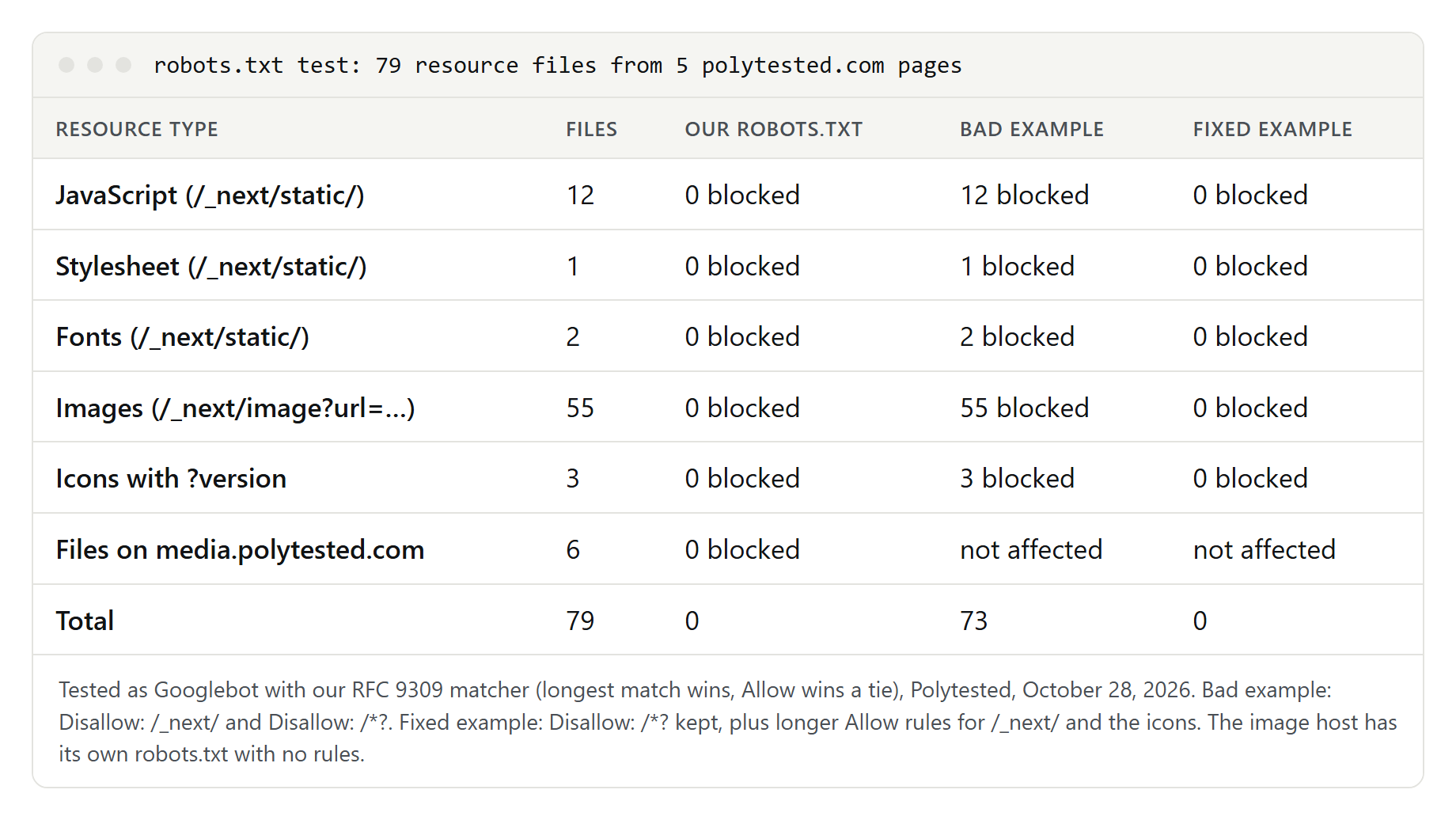
The fixed version keeps the parameter rule but adds longer Allow rules:
User-agent: *
Disallow: /*?
Allow: /_next/
Allow: /*.ico?
Allow: /*.svg?
Allow: /*.png?
Disallow: /api/
Disallow: /admin$
Disallow: /admin/
Disallow: /go/
It blocks none of the 79 files, and still blocks what it should:
| Address | Our file | Bad example | Fixed example |
|---|---|---|---|
/blog?page=2 | allowed | blocked | blocked by /*? |
/api/revalidate | blocked | blocked | blocked by /api/ |
/admin/collections/articles | blocked | blocked | blocked by /admin/ |
/administration-guide (made up) | allowed | blocked | allowed |
The last row shows a second trap: Disallow: /admin without a slash or $ matches every path that starts with those letters, including a public page. That is why our own file uses /admin$ and /admin/.
The 6 files on media.polytested.com were never affected. Google applies robots.txt rules only to the host, protocol and port where the file sits. Our image host serves its own robots.txt, which contains only comment lines and no rules, so nothing is blocked there.
How robots.txt decides: longest match, and Allow wins a tie
Google and RFC 9309 decide every address in three steps:
- Pick the group. A crawler follows only the group with the most specific user agent that matches its name, such as
Googlebot. If none matches, it follows the group for*. Google doesn't combine a specific group with the*group. - Match the rules. Every Allow and Disallow rule in that group is compared with the path of the address, including its query string, from the first character. Matching is case-sensitive.
*stands for any characters and$marks the end of the address. - The longest match wins. The rule with the most characters decides. If an Allow rule and a Disallow rule are equally long, Google uses the least restrictive one, which is Allow. The order of the lines doesn't matter.
Google's documentation gives examples like these:
| URL path | Rules | Which rule applies | Why |
|---|---|---|---|
/page | allow: /p and disallow: / | allow | longer rule |
/folder/page | allow: /folder and disallow: /folder | allow | same length, least restrictive wins |
/page.htm | allow: /page and disallow: /*.htm | disallow | longer rule |
/ | allow: /$ and disallow: / | allow | longer rule |
/page.htm | allow: /$ and disallow: / | disallow | /$ matches only the root |
Two more rules from RFC 9309: an empty Disallow: line blocks nothing, and /robots.txt itself is always allowed.
How to fix the warning, step by step
- Export the list. In Semrush, open the issue and export the affected URLs. Note the blocked files, not just the pages.
- Group the files by folder. Most warnings come from one or two rules, such as a theme folder or a parameter rule.
- Find the deciding rule for each group: the longest rule in the matching group that matches the file's path.
- Decide whether the file matters (see the two piles above). If it doesn't, write down why and move on.
- Remove rules that have no purpose. Blocking a theme or build folder rarely protects anything; the files are public anyway.
- Otherwise add an Allow rule that is longer than the Disallow rule. This is where most fixes fail; see the example below.
- Test before you publish. Use the robots.txt report in Search Console for the live file, or a parser that follows RFC 9309, against the exact URLs from your export, including their query strings.
- Publish and wait. Google generally caches robots.txt for up to 24 hours. After a critical fix, you can ask for a recrawl in the robots.txt report.
- Run the audit again. If the warning stays, check the next section.
Step 6 deserves an example. We tested three ways to unblock a stylesheet, /assets/site.css?v=3, in a folder blocked with Disallow: /assets/:
User-agent: *
Disallow: /assets/
Allow: /*.css           # 6 characters: shorter, still blocked
Allow: /*.css$          # 7 characters: shorter, and $ fails on ?v=3
Allow: /assets/*.css    # 13 characters: longer, allowed
Only the third rule works, because it is longer than the 8 characters of /assets/. It also leaves other files in the folder, such as /assets/private.pdf, blocked. WordPress uses the same pattern in the file it generates: Allow: /wp-admin/admin-ajax.php is longer than Disallow: /wp-admin/, so that one script stays reachable while the rest of the admin area doesn't.
A shortcut that looks tempting is to allow all stylesheets and scripts everywhere with Allow: /*.css and Allow: /*.js. As the example shows, these short rules lose against almost any folder rule, so they rarely fix anything.
The Googlebot group trap
A group for one crawler replaces the general group for that crawler. It doesn't add to it. Look at this file:
User-agent: *
Disallow: /admin/
Disallow: /includes/

User-agent: Googlebot
Allow: /includes/
The goal was to let Google fetch the files in /includes/, as in the example in Google's own documentation. Our matcher shows the side effects:
- Googlebot may fetch
/includes/site.js, as planned. But it may now also crawl/admin/login, because it ignores the*group completely. - Any crawler without its own group, which can include an audit tool, still gets
/includes/site.jsblocked. The warning stays in that tool, even though Google renders the page correctly.
If you need a Googlebot group, copy every rule from the * group into it. Then decide for each audit tool whether its report reflects Googlebot's rules or its own.
Shopify: preloads.js and the default rules
Shopify stores get a default robots.txt that Shopify maintains. On October 28, 2026, we tested Shopify's Dawn theme demo store with the same matcher. Its home page referenced 245 resource addresses on the store's own host: 201 images, 28 stylesheets, 14 scripts, 1 font and 1 icon. As Googlebot, exactly one was blocked: /checkouts/internal/preloads.js, blocked by Disallow: /checkouts/.
That is the file store owners have reported in the Shopify Community since October 2023, after Semrush flagged it. All theme files under /cdn/shop/ were allowed. The default file also blocks other script and data addresses, such as /cdn/wpm/*.js, /cart.js and /.well-known/shopify/monorail. An audit may list them too.
What Shopify's help says:
- The default robots.txt works for most stores.
- To change it, you add a
robots.txt.liquidtemplate to your theme. Shopify Support can't help with edits to that file, and Shopify warns that incorrect use can cost you all of your traffic. - "Indexed, though blocked by robots.txt" messages in Search Console are normal for pages such as the cart and checkout.
Our advice: leave the checkout rules alone and ignore warnings for checkout, cart and tracking scripts. If an audit flags theme CSS or JavaScript under /cdn/shop/, look for a custom robots.txt.liquid first. Shopify's developer documentation shows how to remove a single default rule with Liquid instead of replacing the whole file.
WordPress: theme, plugin and cache folders
WordPress generates a virtual robots.txt when no file exists. Its developer reference shows what the do_robots() function writes:
User-agent: *
Disallow: /wp-admin/
Allow: /wp-admin/admin-ajax.php
That file blocks no theme or plugin assets. When a WordPress site shows this warning, the cause is almost always a line someone added: Disallow: /wp-includes/, /wp-content/plugins/, /wp-content/themes/ or /wp-content/cache/. These folders hold the scripts, stylesheets and minified cache files that pages load. Screaming Frog uses Disallow: /wp-includes/ as its example for this issue. In a Moz Q&A thread, a site owner who had rebuilt robots.txt after moving a site from staging to live saw Semrush flag cached and minified CSS and JavaScript after adding exactly those lines.
The fix is to delete them. Blocking /wp-content/ folders doesn't keep files out of search; it only stops Google from using them. If you edit robots.txt through an SEO plugin, check for these lines there. Developers can change the generated file with WordPress's robots_txt filter.
Website builders, CDNs and files on other hosts
Some platforms don't let you fix the file at all:
- Squarespace: all Squarespace sites use the same robots.txt, and users can't access or edit it. Squarespace's help says the robots.txt messages you see in Search Console are normal and can be ignored. It gives
/config/(the admin login) and/api/(an analytics cookie) as examples of blocked paths. - Wix: you can edit the file in the Robots.txt Editor in the SEO & GEO dashboard. Wix calls this an advanced feature that its Customer Care can't help with, and it offers Reset to Default if something goes wrong.
Files on another host follow that host's robots.txt. This includes a CDN or an image subdomain, even if you own it. Rules apply only to the host, protocol and port where the robots.txt file sits. Semrush counts such files as external resources, and its notice suggests contacting the owner or ignoring them. If the host is yours, open its robots.txt, as we did for media.polytested.com, and check that it doesn't block what your pages load.
Our guide to choosing between a website builder, an AI builder and code compares how much control each platform gives you over files like this.
Check what Google actually sees in Search Console
An audit tool tells you that a file is blocked. Search Console shows whether that changes what Google renders:
- Open URL Inspection and enter the page's URL.
- Click Test live URL.
- Click View tested page. The Screenshot tab shows the page as Google's inspection tool rendered it; screenshots exist only for live tests. Google's help says differences can come from resources blocked to the inspection tool.
- Open More info to see the page resources Google loaded and the ones it couldn't load.
Then open the robots.txt report under Settings. It is available for Domain properties and for URL-prefix properties without a path. It shows the robots.txt files Google found for the top 20 hosts of your property, when it last fetched each one, and any parsing problems. After a fix, you can request a recrawl there. Also watch the file's status code: if your robots.txt answers with a server error, Google stops crawling your site for the first 12 hours. If you are new to the tool, start with our Google Search Console guide.
Blocked files are not the only robots.txt problem a site audit raises. A sitemap missing from robots.txt is another; see our XML sitemap guide. After a relaunch, a leftover Disallow: / can be the bigger risk; our website migration checklist covers that.
Checklist
- Export the blocked files from your audit tool, not just the pages.
- Sort them: files that build the page (CSS, page JavaScript, content images) versus helpers (checkout, analytics, widgets).
- For each group, find the deciding rule: right group, longest match, Allow wins a tie.
- Delete rules that block theme, plugin or build folders.
- Where a block must stay, add an Allow rule that is longer than the Disallow rule, and test it against real URLs, including query strings.
- If you have a Googlebot group, copy the general rules into it.
- Check files on other hosts against those hosts' robots.txt files.
- On Shopify and Squarespace, accept the platform's checkout and internal blocks.
- Run a live test in URL Inspection and compare the screenshot with what visitors see.
- Publish, allow up to 24 hours for Google's cache, request a recrawl if it's urgent, and rerun the audit.