To turn off text to speech, first press the shortcut for whatever is talking: Windows + Ctrl + Enter for Narrator on Windows, Command + F5 for VoiceOver on a Mac, a triple-click of the side button for VoiceOver on an iPhone, both volume keys held for a few seconds for TalkBack on Android, and Ctrl + Alt + Z for ChromeVox on a Chromebook. Then switch the feature off in settings and turn off its shortcut so it can't start again. Every step below comes from the vendors' own help pages, checked on 28 October 2026.
Stop the voice right now
When a voice reads every item on your screen, a screen reader is on, and every major platform has a shortcut that turns its screen reader off. We collected these shortcuts from 16 official help pages by Microsoft, Apple, Google, Amazon, Roku, LG, Samsung and PlayStation, and checked each one word for word against the vendor's page on 28 October 2026.
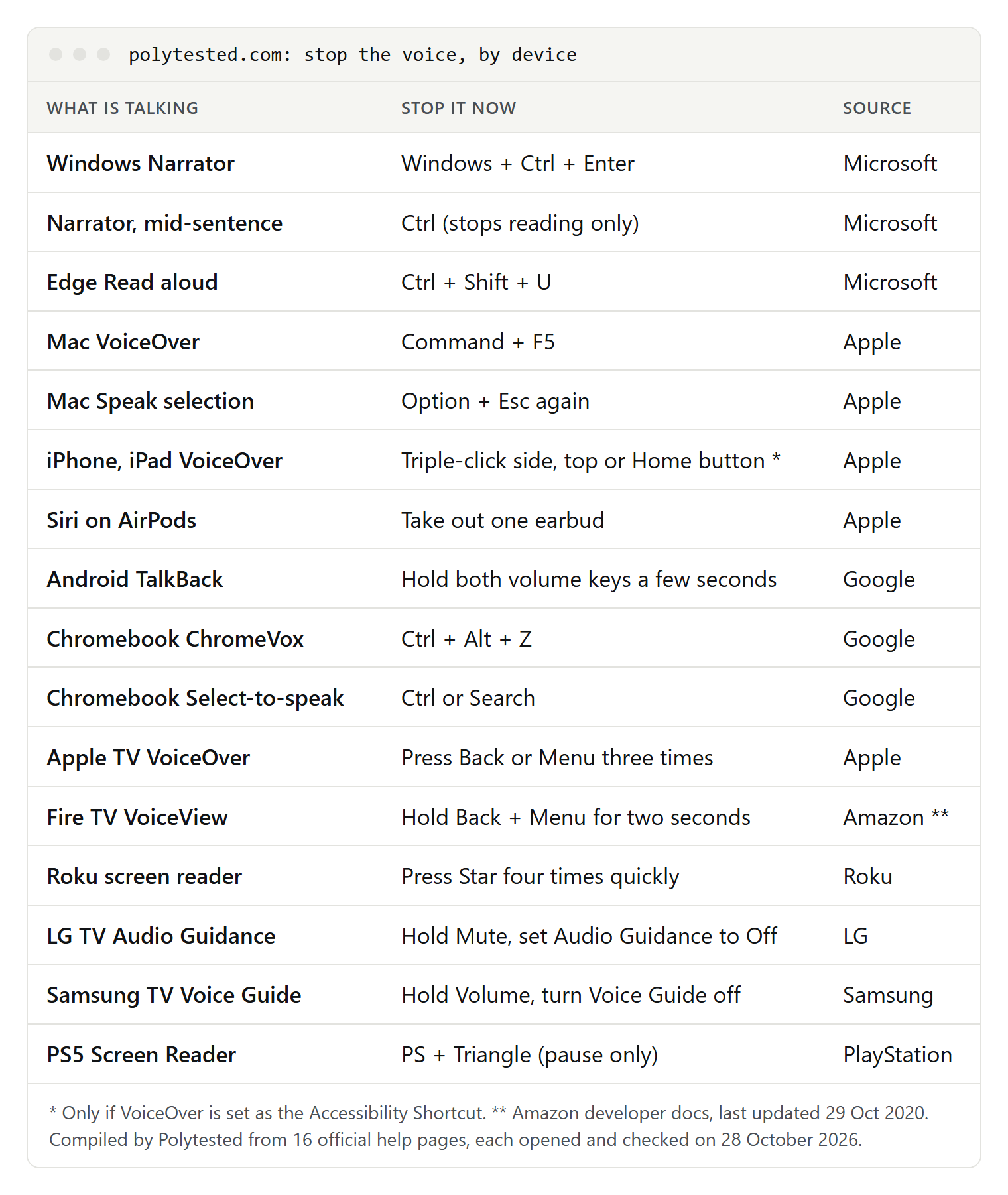
Three things to know before you press anything:
- Most shortcuts are toggles. The same keys turn the feature on and off, so press them once and wait for the voice to confirm. Pressing again turns it back on.
- Some keys only pause. Ctrl stops Narrator's current reading without turning Narrator off, and on a PS5 the PS button + Triangle pauses the screen reader. Use them to get a moment of silence, then turn the feature off.
- Screen readers change your controls. With VoiceOver or TalkBack on, one tap selects an item and a double tap opens it. That is why a phone can feel broken: it isn't, it is waiting for screen reader gestures.
Which feature is talking?
"Text to speech" is the voice; the feature using it can be one of several. Find out which one it is before you dig through settings. A screen reader is an app that uses a text-to-speech voice, as we explain in what TTS is.
| What you notice | Usually | Where to turn it off |
|---|---|---|
| Every button, menu and key press is announced; taps or clicks work differently | A screen reader: Narrator, VoiceOver, TalkBack, ChromeVox, VoiceView, a TV's screen reader | Accessibility settings of the device |
| Only a page, a selection or the item under the pointer is read | A read-aloud feature: Read aloud in Edge, reading mode in Chrome, Speak Screen, Speak selection, Select to Speak | The app itself, or Read & Speak (Apple) and Select to Speak (Android) |
| Your texts are read in your earbuds or in the car | Siri's Announce Notifications | Settings › Notifications › Announce Notifications |
| A narrator describes what happens in a show | Audio description | The app's audio track, or the device's Audio Descriptions setting |
| Chat messages are read out in a game or chat app | Chat text to speech | The console's or app's own settings |
Windows: turn off Narrator
Narrator is the screen reader built into Windows 10 and 11. Microsoft's steps:
- Press the Windows logo key + Ctrl + Enter. Narrator stops. Pressing the same keys again starts it. On older versions of Windows the command was the Windows logo key + Enter.
- If the keys don't work, press Windows logo key + Ctrl + N to open Narrator settings and switch off the toggle next to Use Narrator.
- On the sign-in screen, select the Accessibility icon at the bottom right. Its menu has a toggle that turns Narrator on or off.
Two more keys help while Narrator is talking. Ctrl stops the current reading, and Narrator + Esc exits Narrator. The Narrator key is Caps Lock or Insert by default.
Keep Narrator from starting again
If Narrator greets you every time you sign in, its startup options are on. Press Windows logo key + Ctrl + N to open Narrator settings.
- Windows 11: expand Show all settings next to the Narrator toggle and clear Start Narrator after sign-in and Start Narrator before sign-in. Then turn off Keyboard shortcut for Narrator, so Windows logo key + Ctrl + Enter, or the Windows button + Volume up on a touch device, can't start it by accident.
- Windows 10: clear Start Narrator after sign-in for me and Start Narrator before sign-in for everyone, and turn off Allow the shortcut key to start Narrator.
Magnifier and Word read aloud too
Two other Windows features read text without being Narrator:
- Magnifier reading starts with Ctrl + Alt + Enter. Microsoft says any key stops it, and Windows logo key + Esc turns Magnifier off.
- Read Aloud in Word (Office 2019, Office 2021 and Microsoft 365) shows its own controls. Select Stop (x) to exit, or press Ctrl + Space to pause.
Mac: VoiceOver and Read & Speak
VoiceOver
Apple lists several ways to turn VoiceOver on or off:
- Press Command-F5.
- On a Mac or Magic Keyboard with Touch ID, hold the Command key and quickly press Touch ID three times.
- Ask Siri, or choose Apple menu › System Settings › Accessibility › VoiceOver and switch VoiceOver off.
- Press Option-Command-F5 to open the Accessibility Shortcuts panel, press Tab until you hear VoiceOver, then press the Space bar.
If VoiceOver has just started and shows its welcome dialog, press Escape: Apple says this turns VoiceOver off and closes the dialog. While VoiceOver is talking, the Control key pauses its speech; press Control again to resume.
Speak selection, pointer, announcements and typing
A Mac can also speak without VoiceOver. All of these switches sit in Apple menu › System Settings › Accessibility › Read & Speak:
- Speak selection reads selected text when you press Option-Esc. Press Option-Esc again to stop.
- Speak item under the pointer names whatever the pointer touches.
- Speak announcements reads dialogs and other announcements aloud.
- Speak typing feedback speaks characters, words or modifier keys as you type, including Caps Lock.
- Accessibility Reader with Autoplay reads text aloud by itself.
Turn off the ones you didn't choose. Apple adds a useful hint: if your Mac speaks although you set none of these options, you probably turned on VoiceOver by accident, and Command-F5 turns it off. In macOS 15 the same section was called Spoken Content.
iPhone and iPad: VoiceOver, Speak Screen and the triple-click
Turn off VoiceOver
Apple gives four ways: Settings › Accessibility › VoiceOver, Control Center if you added VoiceOver there, the Accessibility Shortcut, or Siri. The Accessibility Shortcut is a triple-click of the side button on an iPhone with Face ID, of the Home button on an iPhone SE, and of the top button or Home button on an iPad. It only works if VoiceOver is assigned to it.
To reach the switch with VoiceOver still on, use its gestures. Tap an item once to select it and double tap to open it. Swipe with three fingers to scroll a page. A two-finger tap pauses or continues speaking.
Speak Screen, Speak Selection and Accessibility Reader
If your iPhone reads a page after a swipe, or when you select text, VoiceOver is off and one of the reading features is on. Go to Settings › Accessibility › Read & Speak and turn off:
- Speak Screen, which reads everything on screen after a two-finger swipe down from the top. Its controller can also pause the speech.
- Speak Selection, which adds Speak to the menu for selected text.
- Autoplay in Accessibility Reader, which starts reading by itself.
Many older guides send you to Spoken Content. That was the name in iOS 18 and earlier; Apple renamed it Read & Speak in iOS 26.
Stop the triple-click from turning it on again
Open Settings › Accessibility › Accessibility Shortcut and deselect VoiceOver. Apple notes that if only one feature is selected, a triple-click turns it on or off immediately, with no menu in between.
When Siri reads your messages aloud
If your texts are read to you in AirPods or Beats, the feature is Announce Notifications. Apple's steps:
- Open the Settings app and tap Notifications, then Announce Notifications.
- Turn Announce Notifications off.
- Or keep it, tap Messages and choose Priority Notifications or Time Sensitive and Direct Messages instead of All Notifications.
Siri only announces when you wear compatible headphones and your iPhone or iPad is locked. Notifications that an app marks as time sensitive or as a direct message are announced automatically after a tone. To silence a burst of announcements right away, take out one earbud. If you added Announce Notifications to Control Center, you can switch it there too.
In the car, Apple says you can enable or disable announced messages directly in CarPlay by tapping Announce when Siri reads an incoming text.
Android: TalkBack, Select to Speak and the TTS engine
Turn off TalkBack
Google lists three options, and says you might need to try more than one:
- Shortcut: press and hold both volume keys for a few seconds and listen for the confirmation. If you see a floating accessibility button, touch it once, then double tap.
- Google Assistant: say "Hey Google, turn off TalkBack."
- Settings: unlock the phone, then open Settings with TalkBack gestures. Swipe down from the top with two fingers, twice, to expand the notifications bar, tap Settings once and double tap. Scroll with two fingers to Accessibility, tap once and double tap, do the same for TalkBack and the Use TalkBack switch, then confirm Turn off.
With an external keyboard, Google lists Action + Alt + T, where Action is the Windows key or the Command key; this needs the latest version of Android 16.
Google adds a final step: open Settings › Accessibility › TalkBack and turn off TalkBack shortcut, so a squeeze of both volume keys can't start it again. Menus vary by manufacturer and Android version; if nothing works, Google suggests the phone maker's accessibility help.
Select to Speak and Read aloud
Select to Speak reads what you tap after a two-finger swipe up (three fingers with TalkBack on) or the Accessibility button. To remove it, go to Settings › Accessibility › Select to Speak and turn off Select to Speak shortcut. Its Read in background setting keeps it reading while you switch apps. Separately, More › Read aloud in the menu for selected text works without Select to Speak.
Text-to-speech output is not an off switch
Several guides tell you to disable the engine under Settings › Accessibility › Text-to-speech output. Google's page for that menu describes only choices of engine, language, speech rate and pitch. The engine is the voice; TalkBack, Select to Speak and apps decide when it speaks. Turn off the feature that is talking instead.
Chromebook: ChromeVox and Select-to-speak
- ChromeVox, the Chromebook screen reader, turns on or off from any page with Ctrl + Alt + Z. On a tablet, press and hold Volume down + Volume up for five seconds.
- Select-to-speak reads text you select. Press Ctrl or the Search key while it reads, or select Stop.
- To switch either off for good, select the time at the bottom right (or press Alt + Shift + S), select Settings › Accessibility, and under "Text-to-Speech" turn off ChromeVox or Select-to-speak.
Chrome, Edge and Safari: stop read aloud
In browsers, reading aloud starts from a menu or a shortcut, and the same controls stop it.
- Microsoft Edge: Ctrl + Shift + U starts or stops Read aloud. The same command is in the right-click menu and under Settings and more.
- Chrome on a computer: reads aloud only in reading mode; select Pause at the top right. Google notes that reading mode can open by mistake when another app, such as a voice control tool, uses the same shortcut (Alt + Shift + R on Windows and ChromeOS, ⌘ + Option + R on a Mac); change that app's shortcut.
- Chrome on Android: Listen to this page keeps playing while the screen is locked. Tap Close to exit.
- Safari on iPhone: Listen to Page is paused from the same Page menu where you started it.
Turning these off can matter for privacy, not just quiet. In our voice check of 14, 15 and 17 October 2026, on a Windows 11 PC with Edge 155 and Chrome 155, all 46 English voices Edge offered were online voices, and Chrome's three English voices were remote. In a network check on 14 October, Chrome reading a German test sentence with its Google Deutsch voice sent the whole sentence to Google in the address of a request; Edge with an online voice opened a connection to Microsoft, and a local Windows voice sent no request at all. Our guide to reading text aloud has the full results, and text to speech without AI covers voices that stay on your device.
Smart TVs and streaming devices
A TV that announces every menu, the volume and the channel has its screen reader on. The remote shortcut is usually the fastest fix.
Samsung TV: Voice Guide
Samsung's US support page gives this path: Home › Settings (All Settings) › General (General & Privacy) › Accessibility › Voice Guide Settings › Voice Guide › Off. Samsung adds that holding the volume button on the remote also opens the accessibility menu, and that this is typically how Voice Guide gets turned on by accident. If the menus differ on your model, check its user manual.
LG TV: Audio Guidance
LG's quickest way: press and hold the Mute button until the Accessibility menu appears, then set Audio Guidance to Off. In settings, it is Settings › All Settings › General › Accessibility › Audio Guidance on TVs with webOS 6.0 and later, and All Settings › Accessibility › Audio Guidance on models older than webOS 5.0. LG says Audio Guidance is enabled out of the box and can be switched off during setup or later. To check, shake the Magic Remote: if the pointer appears, Audio Guidance is off.
Roku: screen reader
Press the Star button four times quickly to turn the screen reader on or off. It sits below and to the right of the directional pad. Roku says the feature was previously called Audio Guide and is supported only in the United States. Under Settings › Accessibility › Screen reader, turn off Shortcut if four presses of Star keep starting it.
Fire TV and Fire tablets: VoiceView
On Fire TV, press the Back and Menu buttons at the same time for two seconds to enable or disable VoiceView. On Fire tablets, VoiceView is under Settings › Accessibility › VoiceView. Both come from Amazon's developer documentation, last updated on 29 October 2020; Amazon's customer help pages did not open for us.
Apple TV and Google TV
- Apple TV 4K and Apple TV HD: press the Menu or Back button three times, hold the Siri button and say "Turn VoiceOver off," or go to Settings › Accessibility › VoiceOver.
- Google TV: TalkBack is under Settings › Accessibility, in the "Services" section. If Enable accessibility shortcut is on, holding the back arrow and down buttons for three seconds turns on TalkBack by default, so turn that shortcut off too.
When the voice describes the show: audio description
If a voice describes actions, facial expressions, costumes and scene changes, that isn't a screen reader. It is audio description, a separate audio track, and LG points out that it comes from the app or the connected device, not from the TV. On Netflix:
- Start a show. Tap or click the screen, press the up or down arrow on a TV remote, or swipe up on an Apple TV remote.
- Select Audio & Subtitles.
- Choose an audio track without "Audio Description" in its name.
If it keeps coming back, Netflix points to a device setting. On Apple TV, go to Settings › General › Accessibility › Audio Descriptions and set it to Off; on iPhone or iPad, Settings › Accessibility › Audio Descriptions. Then pick the track again and play for at least five minutes so Netflix saves it to your profile. Captions are a different feature; see subtitles vs closed captions. If YouTube plays a voice in another language, that is a dub, and we explain how to turn off YouTube auto-dubbing.
Game consoles: PS5, Nintendo Switch 2 and Xbox
- PS5: the screen reader is under Settings › Accessibility › Screen Reader. While it reads, the PS button + Triangle pauses or resumes it, and the PS button + R1 starts again from the beginning. Its language follows the console language. Chat Transcription, in the same menu, reads text you type to other players.
- Nintendo Switch 2: System Settings › Accessibility › Text to Speech turns system reading on or off. For voice chat, Change Speech ⇔ Text During GameChat has Convert Text to Speech, which turns GameChat text messages into speech for all users.
- Xbox: the console's screen reader is also called Narrator, and Microsoft's Xbox help page "Turn on and adjust Narrator" covers it; its steps for the console did not display for us, so we don't repeat them here.
Discord and TikTok
On Discord, a message that starts with /tts asks the app to read it aloud, so the voice may be another user's message. Discord's help center has an article called "How can I disable Text-To-Speech?", but Discord's site did not load for us on 28 October 2026, so check the current setting names there.
On TikTok, text to speech turns text you type into a voice on your own video. TikTok's help page for accessibility features on videos did not show its steps when we checked, so look in the app's help center for the current editor menus.
If the voice keeps coming back
Work through this list in order:
- Turn off the shortcut, not only the feature: TalkBack shortcut on Android, Accessibility Shortcut on iPhone, Keyboard shortcut for Narrator on Windows, Shortcut in Roku's screen reader settings, and Enable accessibility shortcut on Google TV.
- Check the startup options: Narrator can start before and after sign-in, and LG's help page says its TVs ship with Audio Guidance on.
- Check the second feature: on a Mac or iPhone, Read & Speak keeps working when VoiceOver is off; on Android, Select to Speak keeps working when TalkBack is off.
- Check the source: a TV menu voice is the TV; a voice that describes the show is the app's audio track; a voice in your earbuds is Siri's announcements.
- Ask the maker: when the documented steps don't work, Google points you to your phone's manufacturer, and Samsung and Netflix to their own support teams.