An SRT file is a plain-text subtitle file. It holds numbered blocks, each with a start time, an end time and the line to show on screen, and players and platforms such as YouTube, Vimeo and LinkedIn read it to display subtitles. The name comes from SubRip, the Windows program that made the format popular. Below: what is inside one, what happens to German, French and Spanish characters when the file is saved in the wrong encoding (we tried it), and how to create, translate and upload one without breaking it.
What's inside an SRT file
This is the file we used for this article, with one line in each of our four languages:
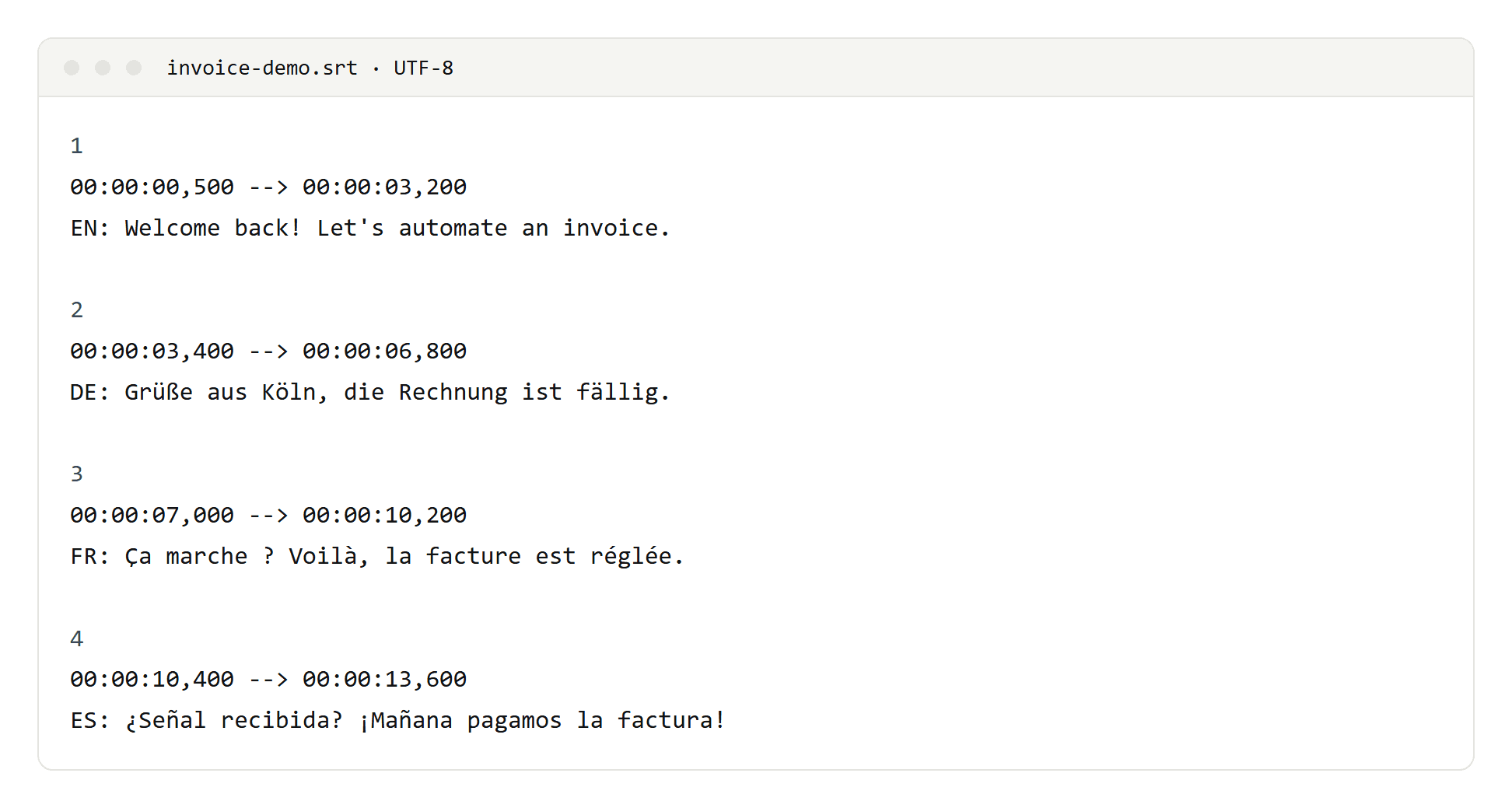
Every block has four parts:
- A counter: 1, 2, 3 and so on, in order.
- The timecode line: start and end time, written
hh:mm:ss,mmm --> hh:mm:ss,mmm. Note the comma before the milliseconds and the arrow made of two hyphens and a greater-than sign. - The text: usually one or two lines.
- A blank line that closes the block.
There is no official specification for SubRip; the Library of Congress documents the rules that players follow in practice. Platforms are stricter than the format itself. Vimeo, for example, expects two digits for hours, minutes and seconds and three for milliseconds.
Some players understand formatting tags such as <i>, <b> and <font color>, but support differs from player to player, and YouTube ignores all markup in SRT files.
The format is the same for subtitles and captions; only the content differs. Captions add sound effects and speaker names, as we show in subtitles vs closed captions.
Encoding: what happens to ä, ç and ñ
SRT has no encoding standard, and the original SubRip program saved its files in Windows-1252. Today the safe choice is UTF-8: YouTube says an SRT file must be plain UTF-8, and Vimeo requires UTF-8 as well. To see what goes wrong otherwise, we saved our test file twice, as UTF-8 and as Windows-1252, and decoded each one the way a program that guesses the encoding wrongly would:
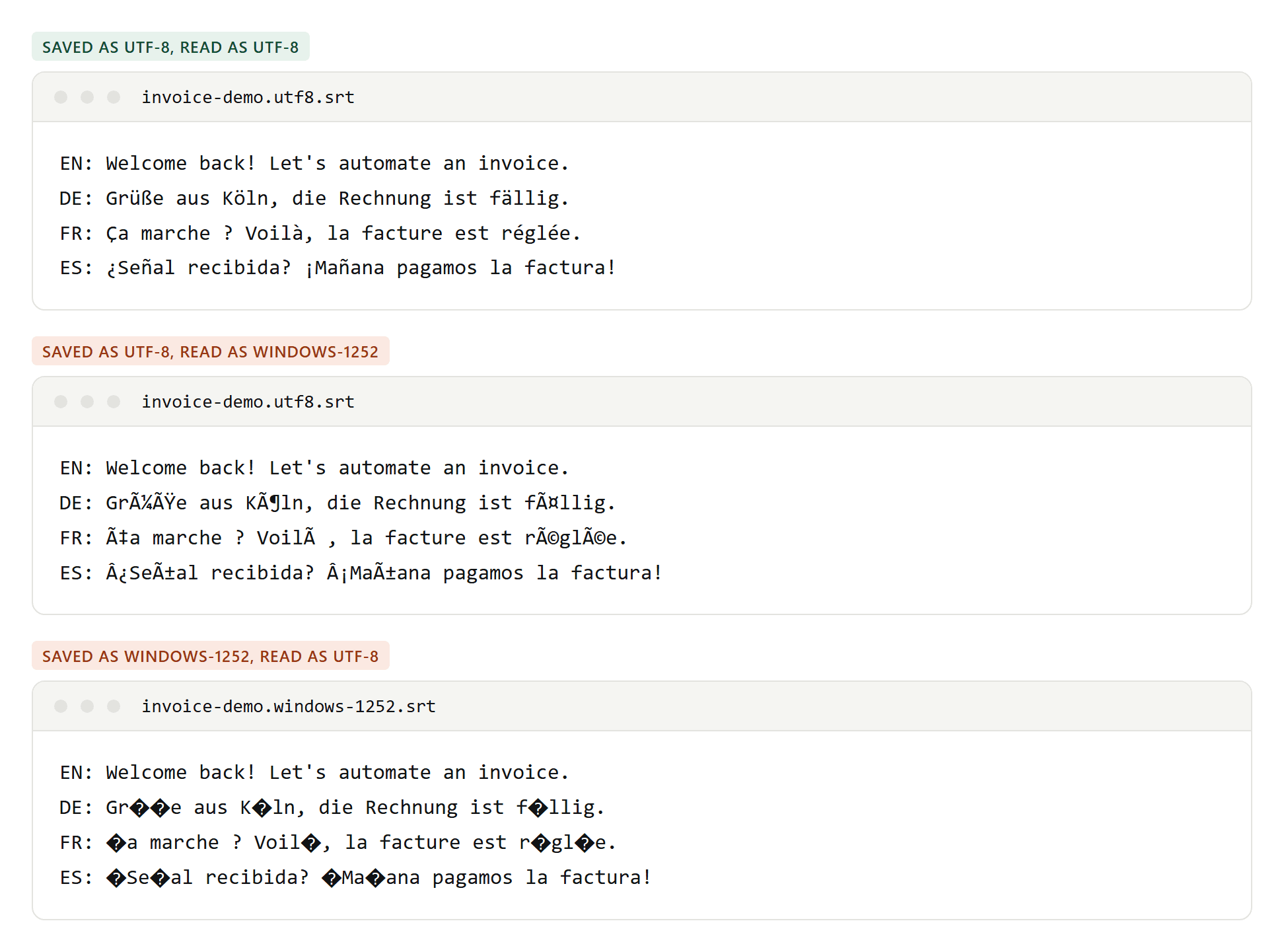
- UTF-8 read as Windows-1252: every accented letter turns into two or three characters. "Grüße aus Köln" becomes "Grüße aus Köln", and "¿Señal" becomes "¿Señal".
- Windows-1252 read as UTF-8: every accented letter becomes a replacement character, as in "Gr��e" and "K�ln".
- The English line survives both. That is why encoding problems often go unnoticed until the first German, French or Spanish file.
Three more details matter:
- The byte order mark (BOM). A UTF-8 file can start with an invisible marker. It is optional, and some software doesn't expect it: it can show up as "" in front of the first counter. Subtitle Edit recommends UTF-8 without a BOM, and Windows Notepad has saved new files that way by default since Windows 10 build 18298.
- Characters Windows-1252 can't store at all, such as the capital ẞ and the narrow no-break space French typography uses before ? and !. Saving them in Windows-1252 loses them.
- VLC forgives a lot. Its source code detects UTF-8, falls back to Windows-1252, skips a BOM and accepts a full stop instead of the comma. A file that plays in VLC can still be rejected by YouTube or Vimeo.
How to create or edit an SRT file for free
- A plain text editor. Notepad on Windows saves UTF-8 by default. On a Mac, switch TextEdit to Format, Make Plain Text before you type. Save with the .srt extension. Don't use Word or any rich-text editor.
- Subtitle Edit. Free and open source, for Windows, macOS and Linux. It shows the audio waveform for timing, can transcribe with Whisper, checks your subtitles against Netflix's rules and saves UTF-8 without a BOM.
- Aegisub. Free and open source, strong on timing. It can reopen a garbled file with a different character set, which is often the quickest repair. Its own format is ASS, so export to SRT when you are done.
- From a transcript tool. If you already transcribe with Fireflies, its transcript download offers SRT. Descript exports subtitles as SRT or VTT. For timestamps and transcripts in general, see what a time-coded transcript is.
- From YouTube. For your own videos, YouTube Studio lets you download the caption file; for other videos there is only the transcript. We explain both in how to download YouTube subtitles as an SRT file.
Don't copy SRT examples from web pages. Some sites turn the two hyphens of the arrow into a dash, and a file with –> instead of --> breaks. Type the arrow yourself.
Need only the words? How to convert SRT to TXT removes the counters and timecodes in four find-and-replace steps. Lyrics in LRC format can become an SRT file too: see how to convert LRC to SRT.
How to translate an SRT file without breaking it
Make one file per language and change only the text lines. The counters and timecodes stay exactly as they are.
Translation is also editing. Netflix's style guides allow at most two lines of 42 characters per subtitle in English, German, French and Spanish, but set a lower adult reading speed for German, French and Spanish (17 characters per second) than for English (20). The timing doesn't change, so translated lines often need shortening, not just translating. The same guides add language rules: German writes a capitalized ß as SS, and French puts a space before ? and !.
Ways to translate:
- Subtitle Edit's auto-translate works with Google Translate for free, with DeepL, ChatGPT or Claude through your own API key, and with a local model through Ollama.
- YouTube and Vimeo offer translated subtitles on the platform itself. YouTube can also dub the audio automatically, which viewers and creators can turn off.
- A chatbot can translate the text if you paste the whole file and ask it to keep every counter and timecode.
Whichever you use, check the result: the same number of blocks, identical timecodes, intact arrows, no merged lines and line lengths within the limit. We pasted one SRT file into three free web translators to see what breaks; the results are in how to translate subtitles.
SRT vs WebVTT
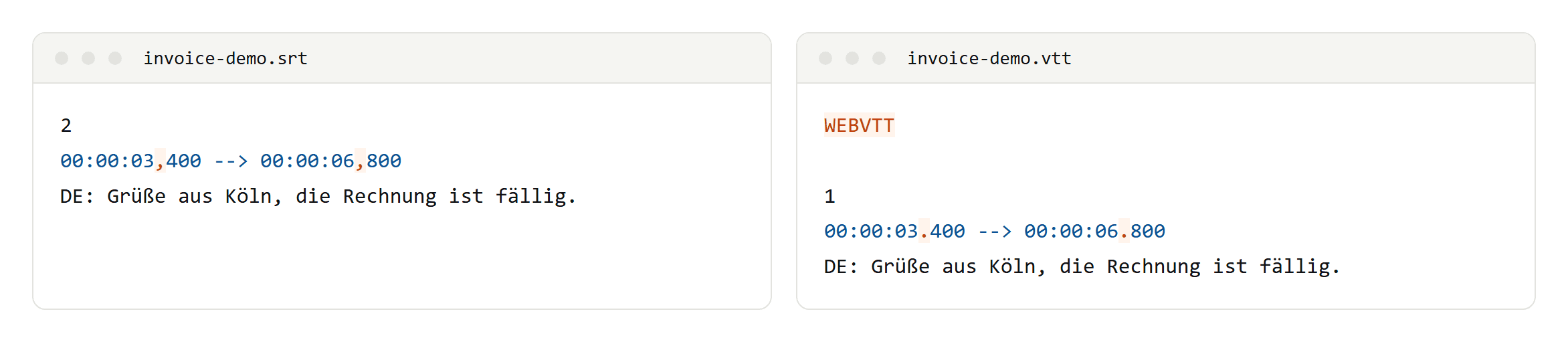
WebVTT began in 2010 as WebSRT and looks similar, but it is not simply a renamed SRT:
- The file starts with the line WEBVTT and must be UTF-8.
- Timecodes use a full stop before the milliseconds, and the hours are optional.
- Cue numbers are optional.
- It adds cue settings for position and alignment, STYLE blocks, NOTE comments and regions.
- Browsers'
<track>element only takes WebVTT.
On YouTube, VTT positioning works and styling is limited to bold, italic and underline. Vimeo recommends WebVTT. Use SRT where a platform demands it, such as LinkedIn, and VTT for your own web player or when you need positioning.
Uploading, platform by platform
- YouTube: in YouTube Studio, open Subtitles, choose the video, add the language, then choose Upload file and With timing. Plain UTF-8 only; markup is ignored.
- Vimeo: UTF-8, strict timecode digits, WebVTT recommended.
- LinkedIn: SRT only, and only from a desktop browser.
- Facebook and Instagram ads: name the file with language and country, as in
filename.de_DE.srt, or the upload fails. On Facebook, upload one .srt file per language. - X: .srt files from the web version only.
Checklist before you upload
- UTF-8, without a BOM.
- Counters in order, a blank line after every block.
- Timecodes as
hh:mm:ss,mmm --> hh:mm:ss,mmm, with two hyphens and a greater-than sign. - One language per file, named so the platform knows which.
- Line length and reading speed checked for each language.
- A preview on the platform you publish to, not only in VLC.