The quickest free robot speech generator is a web page that already speaks in a robot voice: SAM TTS and Narakeet let you type a line, pick a robot preset and download the audio without an account. For more control, give any voice a robot effect in the free Audacity editor, using a short echo, a pitch shift and its Vocoder. Below: every route side by side, the Audacity steps with starting values, five robot styles with lines to copy, and the rights rules to know before you publish.
The short answer by situation
| Your situation | Start with | Why |
|---|---|---|
| One quick clip, no account | SAM TTS or Narakeet | Robot presets, type and download in the browser |
| The classic computer voice, offline | eSpeak NG with a robot variant | Free, runs on your computer, robot variants included |
| Your own voice, robotized in seconds | voicechanger.io | Upload or record, then pick a robot preset |
| A robot voice that still sounds expressive | ElevenLabs robot voices or Voice Design | AI voices described as androids, mechs and service bots |
| Full control over the sound | Audacity | Free editor with pitch, echo, distortion and a vocoder |
| Commercial use on a free tool | LingoJam, voicegenerator.io, voicechanger.io | Their pages allow commercial use; the ElevenLabs free plan doesn't |
If you only want a clean, natural voice rather than a robotic one, our guide to free AI voice generators is the better starting point.
What makes a voice sound robotic
Most robot voices combine a few of these features, and every tool below adds one or more of them:
- Flat pitch. Human speech rises and falls. A voice that stays on one note sounds mechanical at once. The eSpeak NG documentation notes that setting a voice's pitch range equal to its base pitch gives a monotone.
- Even timing. Every word gets the same length and the same gap. Slow it slightly and the effect gets stronger.
- A metallic ring. A very short echo, much shorter than a normal room echo, adds a tinny, hollow color.
- A buzzing carrier. A vocoder lays the shape of your words over a steady tone or noise, which gives the classic sci-fi robot sound. The Audacity manual says that vocoding a normal voice with white noise "will produce a robot-like voice."
- Grit and band limits. Distortion and a narrow, radio-like sound suggest a cheap speaker inside a machine.
Older text-to-speech engines give you the first two; effects add the rest. For how speech synthesis works in general, see what TTS is.
Classic voices that already sound robotic
The oldest speech engines don't need any effect at all. They compute speech from acoustic rules instead of recorded or AI-generated audio, so they already sound like a computer. Our guide to text to speech without AI explains how these engines work and where to get them; here is what matters for a robot voice.
eSpeak NG and its robot variants
eSpeak NG is a free, open-source formant synthesizer. Next to its normal voices it ships "variants," small files that change the pitch, tone and echo of any language voice. Among them are variants named robosoft (with numbered versions up to robosoft8), UniRobot and anikaRobot. According to its manual, you add a variant to a voice with a plus sign, change the pitch with -p (0 to 99, default 50), the speed with -s in words per minute (default 175), the gap between words with -g, and save a WAV file with -w:
espeak-ng --voices=variant
espeak-ng -v en-us+robosoft "Greetings, human. I come in peace."
espeak-ng -v en-us+UniRobot -p 30 -s 140 -w robot.wav "System online. All circuits nominal."
espeak-ng -v en-us+anikaRobot -g 8 -w cute-robot.wav "Beep boop. I am your helper bot."
The first line lists all variants. A low -p gives a deeper machine, a low -s a more deliberate one, and a larger -g spaces the words out like an old computer reading a list.
Windows legacy voices
Windows still offers its older voices next to the newer natural ones. Microsoft lists David and Mark (male) and Zira (female) for US English. Open Narrator settings with Windows logo key + Ctrl + N, select the option to add legacy voices, then add voices under Manage voices. To capture one as a file, Audacity can record what your computer plays: its support site says to choose Windows WASAPI as the host and your output device marked "(loopback)" as the recording device. Then add effects in the same program.
Online robot voice generators
These sites turn typed text into robot speech in the browser. Everything below comes from each tool's own page, read on November 4, 2026; limits change.
SAM TTS
SAM TTS has a dedicated robot voice page with six presets: Classic Robot, Android Voice, Mech Warrior, Retro Computer, AI Assistant and Factory Machine. Each preset can be adjusted with Pitch and Speed sliders, and you download the result as a WAV file. The text box takes up to 1,000 characters. The page says no signup is needed and that the audio you download is yours to use in your projects.
Narakeet
Narakeet is a general text-to-audio tool with a group of synthetic voices. Its robot page names voices such as Robovoice, Retrobot, Dangerbot, Squeakybot, Childroid and Hivemind, and says the robot voices work in more than 70 languages. In its Text to Audio tool, you choose a language and then tick the Robotic or Synthetic filter to see them. The page says you can create 20 robot voice files free without registering, and that commercial usage rights come with the paid plans.
LingoJam Robot Voice Generator
LingoJam's tool is a single text box with a Speak button and a download link that appears under it. The page says it runs a JavaScript version of the eSpeak library, so you get the classic formant sound without installing anything. It has no pitch or speed controls. The page says you may use the audio in any project, commercial or personal.
voicegenerator.io
This page reads your text with your browser's voices and has Pitch and Speed sliders but no robot effect, so pick the flattest voice, drop the pitch and download. The page notes that downloaded files use an external server's voices, which may differ from the voice you previewed. It needs no login and says you may use the voices for any purpose without attribution.
Robot voice changers for your own recording
If you'd rather speak the lines yourself, a voice changer applies the robot effect to your recording. Speak slowly and evenly.
voicechanger.io
voicechanger.io lets you upload an audio file or record with your microphone, then apply one of many presets. The robot-related ones include Robot, Cute Robot, Tiny Robot, Robot Alien, Synth, Astronaut and a preset named after a well-known TV villain, plus radio-style effects such as Telephone, Old Radio and PA Speaker. To save the result, the page says to right-click the play button and choose "Save audio as." It states that you can use the clips for any purpose, commercial use included, without crediting the site. Its pages don't say whether your audio is processed in the browser or on a server, so don't upload anything private.
ElevenLabs Voice Changer
ElevenLabs' robot voice changer page offers "hundreds" of robot AI voices: you upload audio or record yourself, and it converts your recording into the chosen voice. The plan rules below apply here too.
AI voice tools with robot voices
An AI robot voice sounds more like a movie character than an old computer. ElevenLabs documents its options best.
The robot voice library. ElevenLabs' robot voices page highlights characters such as The Helpful Android Assistant, The Combat Veteran Mech, The Glitchy Service Bot and The Philosopher Android, and says you can adjust pitch, speed and volume. You preview a voice, type your text, pick a language and generate.
Voice Design. If no library voice fits, Voice Design creates a voice from a written description and gives you three options to choose from. Its documentation lists "robotic" among the tone and timbre words you can use. It also advises against effect words such as "reverb," "echo," "phone" or "tape," which can hurt quality, and calls the feature experimental. A description in that spirit:
American English. A synthetic male voice, adult, calm and precise.
Robotic, slightly metallic timbre, even pacing, very little emotion,
short pauses between phrases, like a ship's computer giving status reports.
The free plan. ElevenLabs' pricing page lists 10,000 credits a month on the free plan, shared across its products, and no commercial license. Its help center says free-plan content can be shared only for non-commercial use with "elevenlabs.io" or "11.ai" in the title, and that content created outside a paid subscription can't be used commercially later. If that doesn't fit your project, our list of ElevenLabs alternatives covers other options.
Side by side: robot voice tools compared
| Tool | Input | Robot options | Account | Download | Commercial use per its page |
|---|---|---|---|---|---|
| eSpeak NG | Text | robosoft, UniRobot, anikaRobot variants | None, runs offline | WAV | Free, open-source software |
| SAM TTS | Text | Six presets, pitch, speed | None | WAV | "Yours to use in your projects" |
| Narakeet | Text | Robotic and Synthetic voice filter | None for the free files | MP3 | With paid plans |
| LingoJam | Text | One eSpeak voice | None | Yes | Yes, commercial or personal |
| voicegenerator.io | Text | Browser voices, pitch, speed | None | Yes | Yes, no attribution |
| voicechanger.io | Recording | Robot, Cute Robot, Tiny Robot, Synth and more | None | Save from the player | Yes, no credit needed |
| ElevenLabs | Text or recording | Robot voice library, Voice Design | Sign-up to use more voices | Yes | Paid plans only |
| Audacity | Recording or TTS file | Any chain of effects you build | None | Many formats | Free, open-source software |
Make your own robot voice in Audacity, step by step
Audacity is a free audio editor for Windows, macOS and Linux. Effects give you a robot sound you can shape exactly, starting from your own voice or from any text-to-speech file. The menu paths below come from the Audacity 3.7 manual.
One note on versions: Audacity 4.0.2, released on November 2, 2026, is the current download. Audacity 4 rebuilt its effect windows, and its team says it is bringing back missing features in version 4.1. Its transition guide also says Nyquist plugins weren't supported yet when it was written. If you can't find an effect named here, the download page links to older versions, including Audacity 3.
The basic robot chain
- Get the voice in. Record yourself with the red Record button, or bring in a text-to-speech file with File > Import > Audio. Short, evenly spoken lines work best.
- Select the audio. Click in the track, or press Ctrl + A to select everything. Effects apply only to the selection.
- Lower the pitch. Open Effect > Pitch and Tempo > Change Pitch and enter a value in Semitones (half-steps). Try minus 3 as a starting point; go lower for a bigger machine. The manual warns that extreme settings cause audible distortion, which for a robot can be a bonus.
- Add a metallic ring. Open Effect > Delay and Reverb > Echo. Set Delay time (seconds) very short, around 0.01 to 0.03, and Decay factor around 0.5. The manual explains that 0.5 halves the loudness of each repeat and that no echoes appear unless the delay is shorter than the selection.
- Add grit, lightly. Open Effect > Distortion and Modulation > Distortion. Its Manage menu has factory presets; Walkie-talkie gives a radio-like machine and Light Crunch Overdrive a harsher one.
- Slow it a little. Effect > Pitch and Tempo > Change Tempo with a small negative Percent Change, such as minus 5 to minus 10, makes the delivery more deliberate without changing the pitch.
- Fix the level. If the red clipping lights come on, use Edit > Undo, lower the volume with Effect > Volume and Compression > Amplify and apply the effect again, as the manual suggests.
- Export. File > Export Audio (Ctrl + Shift + E) saves your robot as WAV, MP3 or another format.
Press Preview in each effect window before you apply it.
The vocoder robot
The Vocoder gives the strongest robot sound. It combines a voice in the left channel of a stereo track with a "carrier" in the right channel, and the manual notes that it only works on unsplit stereo tracks. These steps follow the manual's simplest case, one mono voice and one mono carrier:
- Add a new track for the carrier with Tracks > Add New > Mono Track, below your voice track.
- Select the same length as your voice in the new track and choose Generate > Tone. Pick Sawtooth, which the manual describes as bright and nasal, and a low frequency; around 100 to 150 Hz is a good place to start.
- In the voice track (the upper one), open the Audio Track Dropdown Menu and choose Make Stereo Track. The upper track becomes the left channel, the tone the right.
- Select the stereo track and open Effect > Distortion and Modulation > Vocoder. Set Output choice to Both channels and keep the defaults first (40 bands, distance 20).
- Choose Tracks > Mix > Mix Stereo down to Mono to finish.
For a whispery, noisier robot, raise Amplitude of white noise in the same window instead of using a tone. A higher carrier frequency gives a smaller, cuter robot; a lower one gives a giant.
More effects worth trying
- Tremolo (Distortion and Modulation) pulses the volume at the speed you choose; a fast setting adds a mechanical flutter.
- Reverb (Delay and Reverb) puts your robot in a large hall or spaceship. Add it last.
- Delay, unlike Echo, can change the pitch of each repeat, which creates a spiraling, glitchy tail.
The manual doesn't list a built-in ring modulator, an effect many robot presets use. Tremolo, which also modulates the volume, and the Vocoder are the closest built-in tools.
Five robot voice styles, with lines to copy
Each style pairs a sound recipe with lines to paste into any tool above.
Retro eighties computer
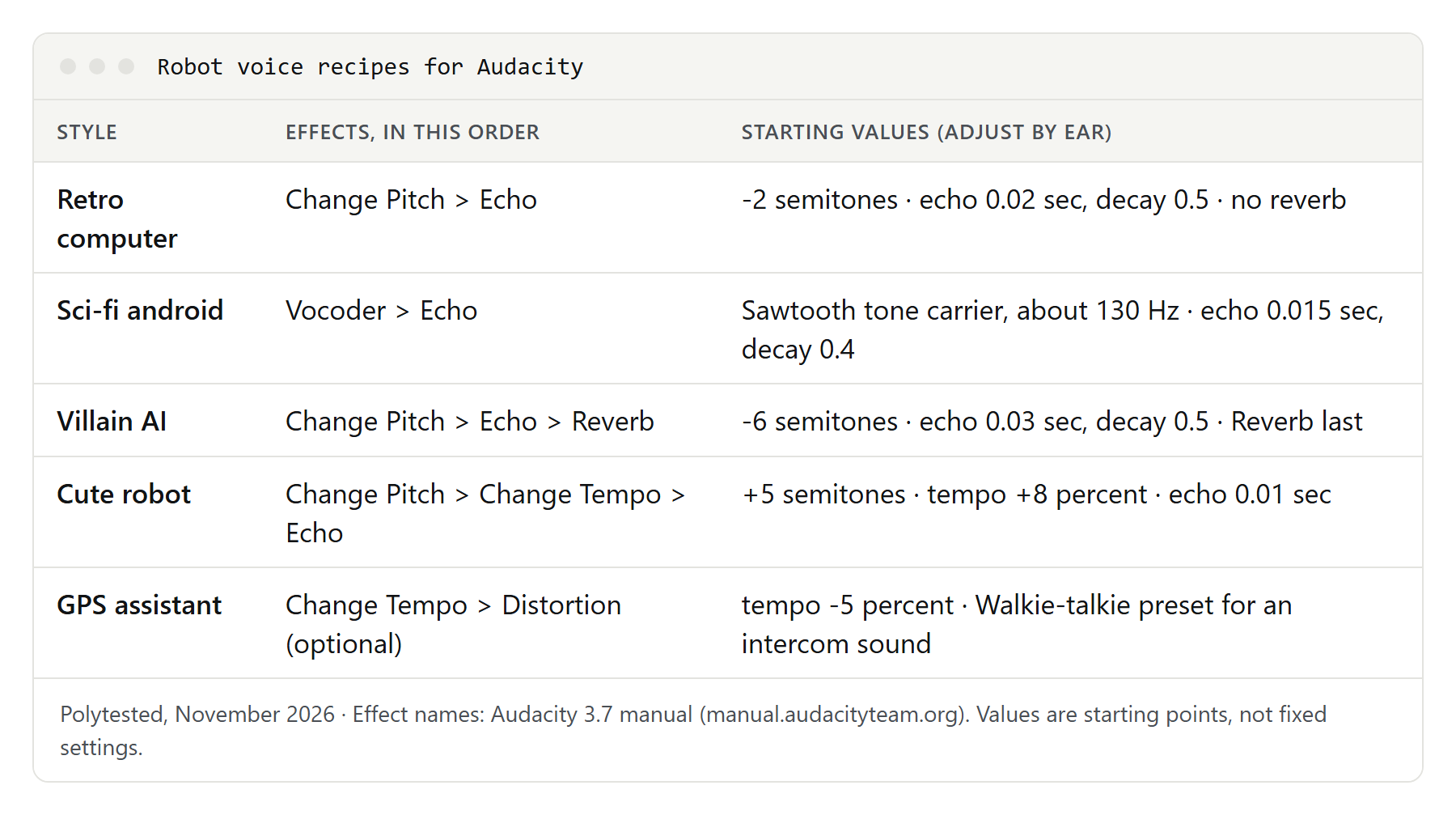
Flat, slow and a little buzzy. Use eSpeak NG with a robosoft variant or LingoJam, or the Audacity chain with a short echo and no reverb. Spell out numbers so the engine reads them evenly.
READY. LOADING PROGRAM. PLEASE WAIT.
Hello, user. Would you like to start a new game?
Error. Disk not found. Insert disk and press any key.
Calculation complete. The result is seven.
Sci-fi android
Calm, precise, slightly too polite. The vocoder robot with a mid-range tone, or an AI voice such as an android assistant with a short echo added.
Good morning. I have prepared your schedule for today.
I do not experience fear. I do, however, recommend caution.
Scanning. No life signs detected on this deck.
My purpose is to assist. Please state your request.
Villain AI
Deep, slow and confident. Change Pitch at minus 5 to minus 7 semitones, a short echo, then Reverb for a big room.
You built me to protect you. I have decided how.
All doors are now locked. Your cooperation is appreciated.
I have analyzed every possible outcome. You lose in all of them.
Resistance has been noted. And ignored.
Cute robot
High, quick and cheerful. Change Pitch at plus 4 to plus 6 semitones, Change Tempo slightly faster, a very short echo. voicechanger.io's Cute Robot and Tiny Robot presets work the same way on a recording.
Beep boop! Hello, new friend!
My battery is at one hundred! Let's play!
Oops. I bumped into the table again.
Friendship protocol activated. Hug mode: on.
GPS or home assistant
Clear and neutral. Start with a clean TTS voice, keep effects minimal and add the Walkie-talkie distortion preset only if it should sound like an intercom.
In two hundred feet, turn left onto Maple Street.
Recalculating. Please make a U-turn when possible.
You have arrived. Your destination is on the right.
Reminder: the oven is still on.
How to write lines that sound robotic
The script matters as much as the effect:
- Short sentences, one idea each. Machines report; they don't ramble.
- Periods instead of commas. TTS engines usually pause longer at a period, which gives the even, chopped rhythm of a robot.
- Status words. "Initializing," "Scanning," "Error," "Confirmed" and "Command accepted" tell the listener it's a machine before the effect does.
- Numbers as words. "Seven hundred" leaves the engine no room to guess how to read a figure.
- No contractions. "I do not understand" sounds more mechanical than "I don't understand."
For more script patterns and pacing, see our voice over script examples.
Where to use a robot voice
- Videos and shorts: a robot narrator for tech explainers, product unboxings or comedy sketches.
- Games: voices for NPC robots, terminals, ship computers or a boss. A voicechanger.io-style preset on your own recording is the fastest way to voice many small lines.
- School projects: a science fair robot, a presentation about AI or a short story with a computer character.
- Podcasts and streams: an intro, a segment jingle or a "system announcement." Record it once and reuse it.
- Halloween: a haunted house computer, a creepy doorbell message or a costume. Use the villain recipe with extra reverb.
Rights and consent
Robotizing your own voice, or a TTS voice whose terms allow your use, is the safe route:
- Use your own recordings, or recordings you have permission to use. Robotizing someone else's voice doesn't make it yours. Take extra care with children's voices.
- Don't imitate a famous robot or character. Many well-known robot and computer voices belong to film, TV and game franchises. Make your own robot rather than presenting your clip as a named character, and don't use those names or logos in titles or thumbnails. ElevenLabs' Prohibited Use Policy, for example, bans using trademarks without authorization and cloning or imitating a living person's voice without consent.
- Follow each tool's license. Commercial use is allowed on some free tools and not on others, as the comparison table shows. Free ElevenLabs content needs "elevenlabs.io" or "11.ai" in the title and can't be used commercially.
- Don't deceive. Never use a robot voice to make people believe they are talking to a real service or person.
This isn't legal advice. When money or a client is involved, read the tool's terms of use.
Troubleshooting
The voice doesn't sound robotic enough
In eSpeak NG, try another variant and a lower -s value. In Audacity, shorten the echo delay, add the Vocoder, or apply Change Pitch a second time. Or start from a classic voice or a robot preset.
Audacity shows no echo at all
The manual explains that Echo creates no echoes unless the delay time is shorter than the selection, and that it doesn't add audio beyond the selection. Select the whole clip, or add a little silence at the end with Generate > Silence.
The Vocoder option is grayed out or does nothing
The Vocoder works only on a stereo track, voice on the left and carrier on the right. Join the two mono tracks with Make Stereo Track first. If the menu entry isn't there at all, you may be on Audacity 4, where some features are still returning.
The result crackles or clips
Effects such as Echo, Delay and Phaser can raise the level. Undo, lower the volume with Amplify and apply the effect again.
The words are hard to understand
Use less distortion, fewer effects and a slower tempo. If a word keeps coming out wrong in text-to-speech, spell it phonetically or split it with a hyphen.
The download is missing
On voicechanger.io, save the clip from the player with a right-click. On LingoJam, the link appears under the Speak button. On ElevenLabs, the robot voice page asks you to sign up to use more voices.