An LRC file tells a player when each line of lyrics starts. An SRT subtitle also needs to know when it ends, so converting LRC to SRT means giving every line an end time, usually the moment the next line starts. Subtitle Edit, which is free, and the command-line tool FFmpeg both read LRC and write SRT, and online converters do it in the browser. Before you convert, check where the file is going: YouTube accepts .lrc caption files as they are. We converted a lyric file of our own to show what changes, and where converters have to guess.
The short answer
- For YouTube: you can upload the .lrc file as it is. YouTube lists LRC among its supported caption formats.
- For a video editor such as Premiere Pro, DaVinci Resolve or CapCut: convert to SRT. Their help pages list SRT, not LRC.
- Free tools: open the LRC in Subtitle Edit and save it as SubRip (.srt), or run
ffmpeg -i song.lrc song.srt. - After converting, check two things: when each line disappears, and how long the last line stays.
LRC and SRT, side by side
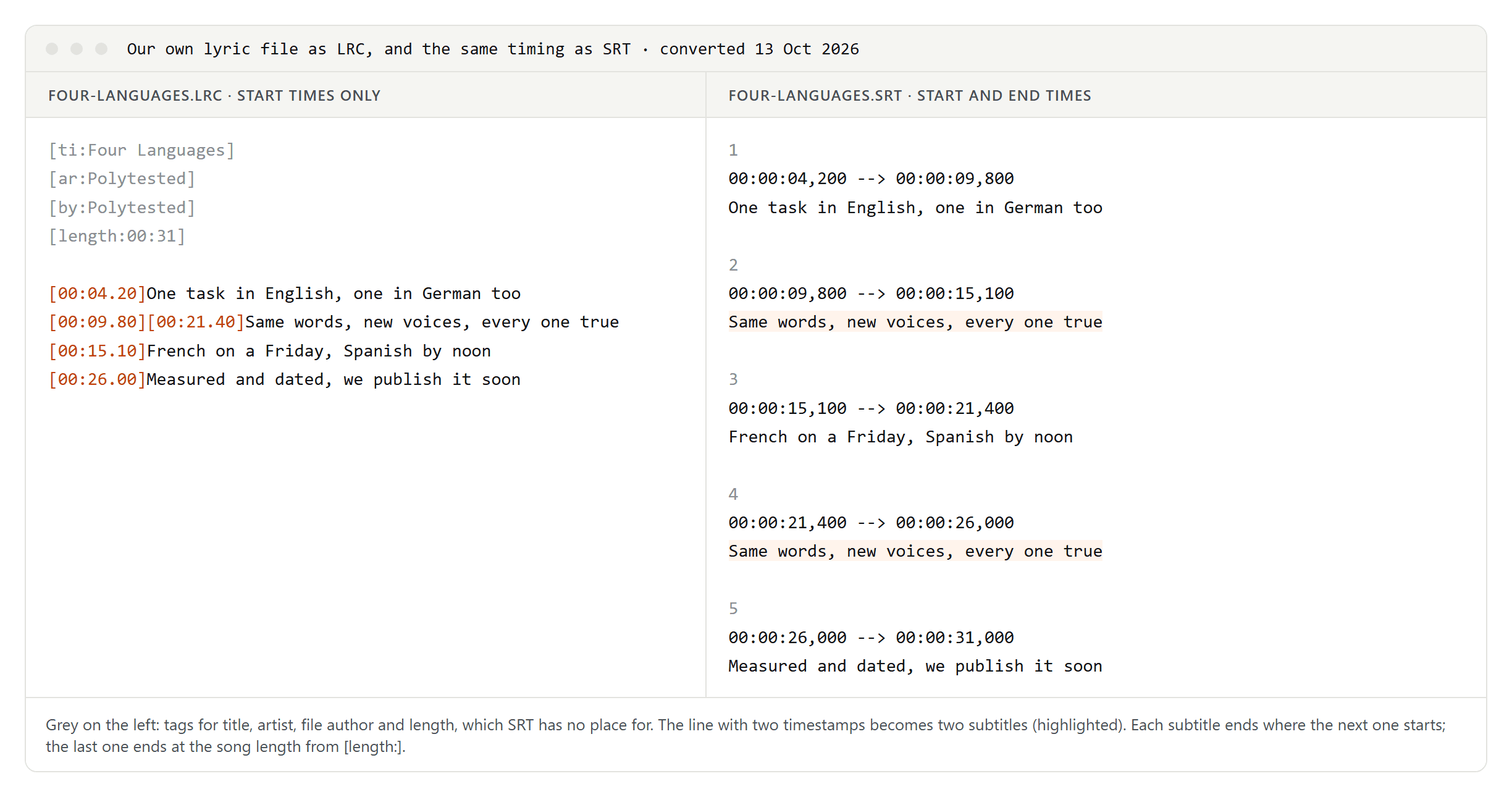
LRC is a plain text format from the early Winamp days. Each line of lyrics starts with a time in minutes, seconds and hundredths, such as [00:04.20]. Tags at the top describe the song: [ti:] for the title, [ar:] for the artist, [al:] for the album, [by:] for whoever made the file, [length:] and [offset:]. A line can carry several timestamps, so a chorus is written once and shown several times.
SRT numbers each subtitle and gives it a start and an end time to the millisecond, such as 00:00:04,200 --> 00:00:09,800, then the text and a blank line.
In our conversion:
- The tags at the top disappeared. SRT has no place for a title or an artist.
- The chorus line with two timestamps became two subtitles, sorted by time.
- Each subtitle ends where the next one starts, and the last one ends at the song length from
[length:].
What every converter has to decide
When a line ends
Most converters end each line when the next one starts. That works while someone is singing, but a line before an instrumental break stays on screen through the whole solo. Subtitle Edit ends a line just before the next one and cuts lines that would stay on screen too long, according to its source code.
You can fix this in the LRC file itself: add a timestamp with no text where the line should disappear, such as [00:14.00] on a line of its own. Subtitle Edit treats an empty timestamp as the end of the line before it.
How long the last line stays
The last line has no next line, so every tool guesses. AllSubConverter gives it three seconds. Subtitle Edit uses the length of the text plus a second and a half. Tool Slick lets you set the time yourself. An old FFmpeg bug report shows a last subtitle that lasted over a thousand hours. The clean fix is the same as above: end the file with an empty timestamp.
Repeated lines
A line with several timestamps should become one subtitle per timestamp, sorted by time. FFmpeg and Subtitle Edit both do this. Check it if your chorus appears only once in the result.
Which way [offset:] goes
[offset:] shifts every line by a number of milliseconds, and tools disagree on the direction. Wikipedia's description of the format says a positive value makes the lyrics appear sooner, and FFmpeg subtracts the value, both in its first LRC code from 2014 and in its current code. Subtitle Edit adds it, so a positive value makes the lyrics appear later. The safe route: shift the timestamps yourself, delete the tag, and check the result against the song.
Milliseconds and word timing
- Three-digit milliseconds such as
[01:02.345]appear in some files. FFmpeg misread them before version 8.0, according to its bug tracker. Subtitle Edit has a separate format for them. - Word-by-word timing (the "enhanced" LRC format) adds tags such as
<00:04.90>before each word. SRT has one start and one end per subtitle, so it can't hold word timing. Either make one subtitle per word, or use the ASS format, whose karaoke tags highlight each word in time; Aegisub edits them.
Convert with Subtitle Edit
Subtitle Edit is free and open source, and since version 5 it runs on Windows, macOS and Linux. It reads LRC in three variants, including the one with three-digit milliseconds:
- Open the .lrc file.
- Check the list: every timestamp should be its own line, and the end times should look sensible, especially before breaks and at the end.
- Save the file in SubRip (.srt) format.
For a folder of files, Subtitle Edit's command-line tool, seconv, converts in bulk.
Convert with FFmpeg
FFmpeg has read and written LRC since version 2.3. One command converts the file, choosing the format from the extension:
ffmpeg -i song.lrc song.srt
We haven't run FFmpeg for this guide; this comes from its documentation and bug tracker. Use a current version, and check the last subtitle and any line that starts with a square bracket: a 2018 report shows FFmpeg 4.0 dropping a leading "[" from the lyric text.
FFmpeg can also burn an .lrc file straight into a video with its subtitles filter, without converting first.
Online converters
We haven't tested these sites. Here is what their pages said on 13 October 2026:
- AllSubConverter says it works in your browser and takes files up to 50 MB. It ends each line at the next one and gives the last line three seconds, with no limit for long lines.
- SubtitleKit says it works in your browser, ends each line at the next one and adds a short buffer after the last line.
- Tool Slick lets you set how long the last line stays. Its counter starts at 0 by default; SRT files number subtitles from 1, so change it.
- GoTranscript converts for free without an account, but doesn't say where your file is processed.
Using the SRT file
- YouTube: in YouTube Studio, open Subtitles, add a language, then choose Add, Upload file and With timing. This works with the SRT and with the original LRC.
- DaVinci Resolve: Blackmagic lists SRT among the subtitle formats Resolve imports.
- CapCut: the desktop app imports SRT and TXT and the web version SRT, according to CapCut's help page from January 2026. The phone app can't import a subtitle file.
- Kdenlive: imports ASS, SRT, VTT and SBV, under Sequence, Subtitles, Import Subtitle File.
- Premiere Pro: Adobe's list of supported caption formats includes SRT. Import the file and drag it onto the sequence to get a caption track.
Accented letters break if the file isn't UTF-8. Our guide to SRT files shows how to check and fix the encoding, and subtitles vs closed captions explains which kind you are making.
A note on lyrics and copyright
Lyrics are part of a song's copyright. The U.S. Copyright Office describes a musical work as the composition together with its lyrics, and using someone else's work needs the rights holder's permission or a licence. A lyric video of another artist's song is no exception. Our sample uses lines we wrote ourselves.