If a YouTube video plays in a voice that isn't the creator's own, you are hearing an auto dub: an AI translation YouTube makes when the creator allows it. You can switch one video back to its original audio in three clicks, and stop most dubs and translated titles for good with YouTube's Preferred languages setting. Creators can turn dubbing off for their whole channel. Below are the steps for each, checked against YouTube's help pages in October 2026, and what we saw on a dubbed video ourselves.
Switch one video back to the original audio
- In the video player, open Settings (the gear icon).
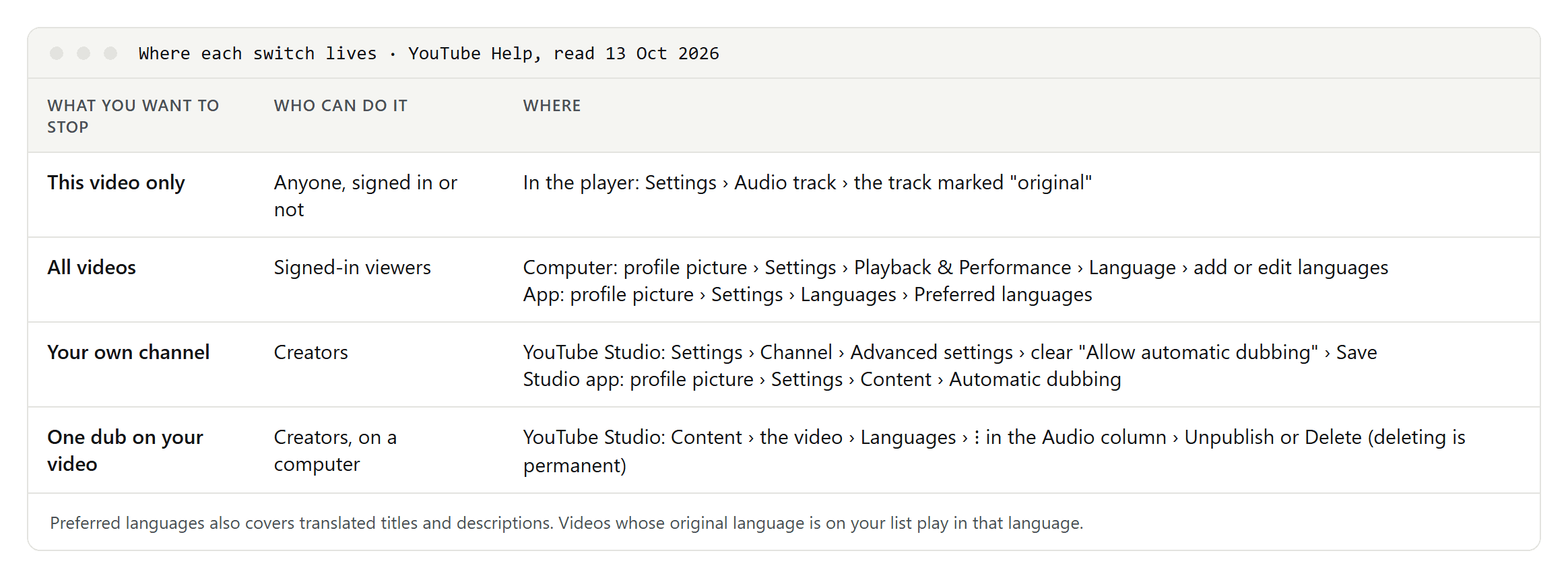
- Select Audio track.
- Choose the language marked original.
The steps are the same on a computer and in the YouTube app on Android, iPhone and iPad. This works whether or not you are signed in, but it only changes the video you are watching.
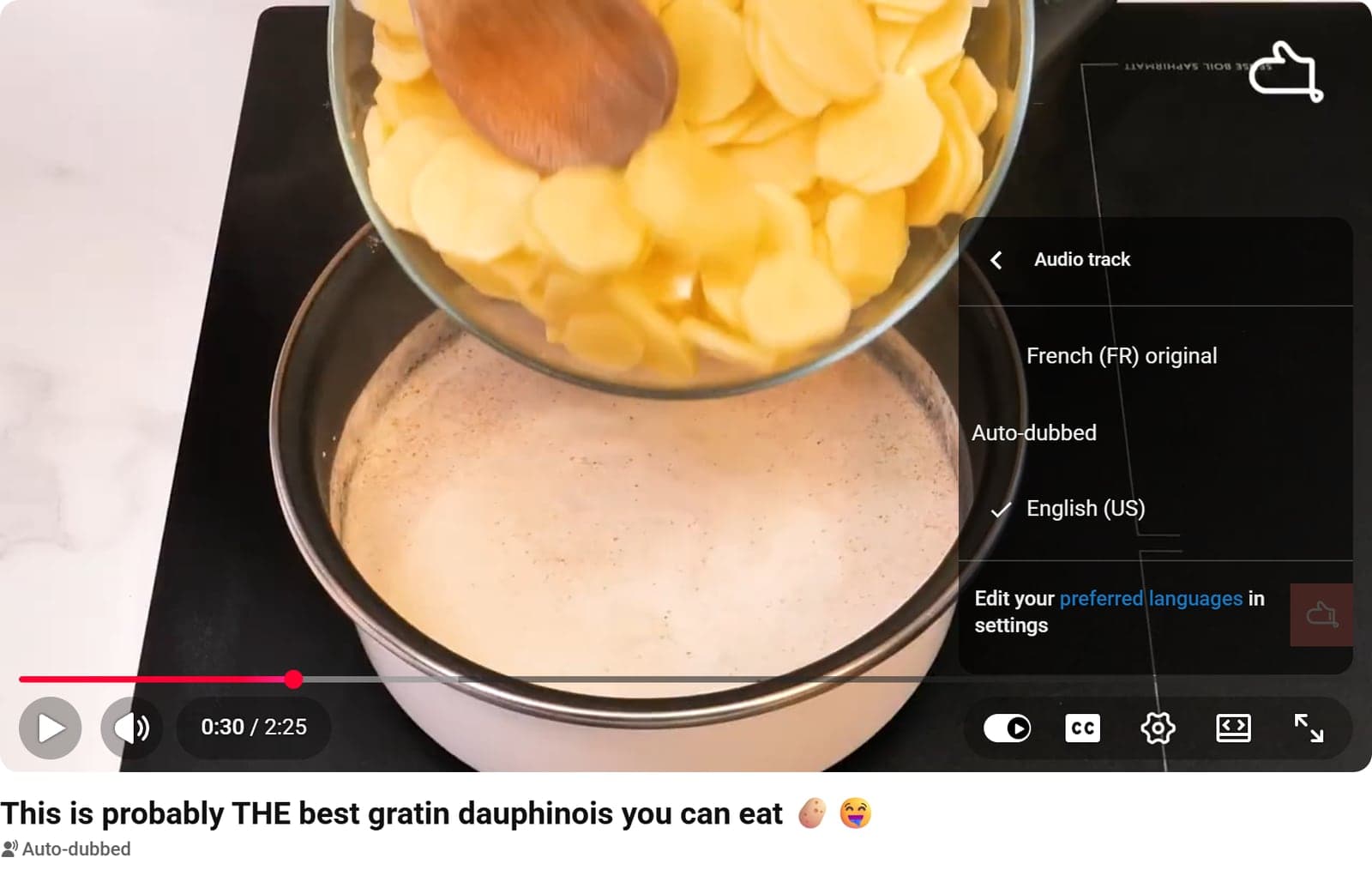
What we saw: we opened a French recipe video by Marmiton, one of the examples YouTube linked when it launched auto dubbing in December 2024. Signed out, with the interface set to English, the video started in English. Its title was translated, an "Auto-dubbed" label sat under it, and the player's settings showed "Audio track: English (US)". The audio track menu listed "French (FR) original" first, then English under an "Auto-dubbed" heading, with a link to edit your preferred languages. The captions stayed on "French (auto-generated)", so dubbing doesn't switch subtitles.
Stop dubs on future videos with Preferred languages
If you are signed in, tell YouTube which languages you understand:
- On a computer: click your profile picture, then Settings, then Playback & Performance. Under Language, click add or edit languages, select the languages and confirm.
- In the app (Android, iPhone and iPad): tap your profile picture, then Settings, Languages and Preferred languages. Select the languages and confirm.
From then on, a video whose original audio is in one of your preferred languages is not translated and plays in the original. The setting covers translated titles and descriptions too. YouTube says it doesn't affect your search results or recommendations, and that it is separate from your app language and location.
Add every language you understand. A video in a language that isn't on your list can still start with a dub in one that is: that is the point of the feature.
Why YouTube played a dub
- The creator allowed it. Automatic dubbing is on by default for eligible creators, and YouTube generates the dubs itself.
- YouTube picked your language. Dubbed tracks default to the viewer's preferred language. Until February 2026 YouTube judged that from your watch history; since then you can set it yourself, as shown above.
- You weren't signed in. Without an account there is no language list to check. In our test, signed out with the interface in English, YouTube started the English dub.
You can recognize an auto-dubbed video by the "Auto-dubbed" label under its title, and the original track is marked "original" in the audio track menu.
Auto-translated titles and descriptions
Titles and descriptions follow the same Preferred languages setting as the audio. YouTube's display language (profile picture, then Display Language on a computer) can also change titles and channel names where a translation exists. YouTube offers no separate switch for titles alone, so a title can be translated even when you have switched the audio back.
Subtitles are separate again: choose them under Settings, then Subtitles/CC.
When the settings aren't enough
- Signed out: you can only switch the audio track video by video.
- A language you didn't add: add it to your preferred languages, or switch that video by hand.
- Browser extensions exist that restore original titles and audio automatically. They need permission to read and change every YouTube page you open, and they can break whenever YouTube changes its site. We haven't tested them.
For creators: turn automatic dubbing off
- YouTube Studio on a computer: go to Settings, then Channel, then Advanced settings. Clear Allow automatic dubbing and click Save.
- YouTube Studio app: tap your profile picture, then Settings. Under Content, tap Automatic dubbing and turn it off.
If you want to keep dubbing but check each dub first, tick Manually review dubs before publishing on a computer, or choose Publish manually in the app.
To remove a dub from one video, sign in to YouTube Studio on a computer, open Content and select the video. Under Languages, hover over the language and open the menu in the Audio column, then choose Unpublish or Delete. An unpublished dub can be published again; a deleted one can't. If you want to upload your own dubbed audio in a language that already has an automatic dub, YouTube asks you to delete the automatic one first.
YouTube doesn't dub every video. It skips videos longer than two hours, videos with little or no speech, speech in a language it doesn't support or can't detect, speech that is too fast, and copyrighted content.
What changed and when
- 10 December 2024: YouTube launches auto dubbing for hundreds of thousands of Partner Program channels focused on knowledge and information. English videos are dubbed into French, German, Hindi, Indonesian, Italian, Japanese, Portuguese and Spanish, and videos in those languages into English.
- 4 February 2026: auto dubbing becomes available to everyone, in 27 languages. Viewers get the Preferred language setting, Expressive Speech keeps more of the speaker's tone in eight languages, and a lip sync pilot starts.
For subtitles rather than dubbed audio, see how to translate a YouTube video, which also lists the language pairs YouTube can dub, and what an SRT file is. How studio dubs, voice-over and AI dubs differ is explained in what is dubbing.